# AffiliateRail documentation, every page
Source: https://docs.affiliaterail.com. 129 pages. The index is https://docs.affiliaterail.com/llms.txt.
---
# AffiliateRail documentation
Run an affiliate program for your SaaS: the dashboard, the tracking script, the partner portal, the REST API and the MCP server.
AffiliateRail is affiliate program software for SaaS founders. Here's how it works:
- Partners share links to your site.
- The customers they send pay you through Stripe or Paddle.
- We work out who earned what.
- Your own PayPal or Wise account pays your partners.
We never hold the money and take no cut of it.
Sign up, add the tag, and watch a test sale get credited to a partner.
Settings, commission rules, attribution, payouts, the partner portal, messaging, imports and safeguards.
A REST API over every object in your program. The reference is interactive.
Run your program from your AI agent. Connect, sign in, and say "set up my affiliate program".
Find affiliates, write your offer once, and hand the yeses to your program with the terms they agreed.
## Where people usually start
- [Let your AI agent set up your program](/getting-started/ai-assistant)
- [Install the tracking script and prove it works](/getting-started/install-verification)
- [Set up commission rules](/guides/rules)
- [Connect PayPal or Wise for payouts](/guides/payouts)
- [Give partners a branded portal on your own domain](/guides/partner-portal)
- [Make your first API call](/api)
## If a page here doesn't answer it
Open the chat bubble in the bottom corner of your dashboard. It goes straight to Jimi, who built
AffiliateRail. It already knows your plan, your program and the screen you were on. So start with
what happened.
## For machines
The API publishes its whole contract as text at [api.affiliaterail.com/llms.txt](https://api.affiliaterail.com/llms.txt). This suite lists its pages at [docs.affiliaterail.com/llms.txt](https://docs.affiliaterail.com/llms.txt). Point a model at either and it can answer questions without scraping HTML.
To set up or run a merchant's program, an agent connects the MCP server at `https://mcp.affiliaterail.com/mcp`. The merchant signs in, so there's no key. The agent calls `setup_guide` first. [MCP overview](/mcp) has the rest.
Source: https://docs.affiliaterail.com
---
# Typed clients and LLM access
Generate a typed client from the OpenAPI document, and point models at the contract as plain text.
An **OpenAPI document** is a file that describes an API in a format tools can read. Ours is the contract: everything the API accepts and returns. It's built from the running code and published at [api.affiliaterail.com/v1/openapi.json](https://api.affiliaterail.com/v1/openapi.json). Anything that reads OpenAPI 3.1 can use it, so you rarely need to write request types by hand.
## A typed TypeScript client
We use two tools ourselves. [openapi-typescript](https://openapi-ts.dev) makes the types, and [openapi-fetch](https://openapi-ts.dev/openapi-fetch/) makes the calls. openapi-fetch is a thin fetch wrapper with full types. The only generated file is one `.d.ts`.
```bash
npm install openapi-fetch
npm install -D openapi-typescript
npx openapi-typescript https://api.affiliaterail.com/v1/openapi.json -o rail-api.d.ts
```
```ts
import createClient from "openapi-fetch";
import type { paths } from "./rail-api";
const rail = createClient({
baseUrl: "https://api.affiliaterail.com",
headers: { Authorization: `Bearer ${process.env.RAIL_API_KEY}` },
});
const { data, error } = await rail.GET("/v1/partners", {
params: { query: { program_id: "prg_...", limit: 5 } },
});
// data is typed: { data: Partner[]; has_more: boolean; total_count: number }
```
Every path, parameter and response body gets its type from the same document the [interactive reference](/reference) renders. So your compiler and the docs can never disagree. Run the generate command again when you want new endpoints. Changes that only add things never break the calls you already make.
The same document works with code generators for other languages, through any OpenAPI 3.1 tool. Each time we build, we check that the published copy is valid against the spec's schema.
## LLM access
If a model is reading, give it plain text and skip the HTML:
- [api.affiliaterail.com/llms.txt](https://api.affiliaterail.com/llms.txt): the index, one screen, with links to everything else.
- [api.affiliaterail.com/llms-full.txt](https://api.affiliaterail.com/llms-full.txt): every route, parameter and schema as plain text.
- [app.affiliaterail.com/webhooks/llms.txt](https://app.affiliaterail.com/webhooks/llms.txt): the webhook event catalogue. It has payload examples and signature verification.
- [docs.affiliaterail.com/llms.txt](https://docs.affiliaterail.com/llms.txt): these docs as a list of pages.
Paste one into a prompt, or point a coding assistant at it. Then it works from the exact contract.
If the assistant should read your **data**, use [the MCP server](/mcp). It's a live link to your own program, limited to the scopes you allow, and you can cut it off.
Source: https://docs.affiliaterail.com/api/clients
---
# API overview
A REST API over every object in your program, with an interactive reference generated from the API itself.
The AffiliateRail API is a REST API at `https://api.affiliaterail.com`. You send JSON and get JSON back, and the resource URLs are predictable. It covers every object in your program, from partners and links to commissions, payouts and webhook endpoints.
Anything the dashboard shows you, the API can read. It can also do the daily work of running a program: adding partners, recording sales and approving commissions.
An **OpenAPI document** is a file that describes an API in a format tools can read. The API publishes its own, and the [interactive reference](/reference) is generated from it. So the reference can't drift from the running product. Machines can read the same document at [/v1/openapi.json](https://api.affiliaterail.com/v1/openapi.json). Models can read it as plain text at [/llms.txt](https://api.affiliaterail.com/llms.txt) and [/llms-full.txt](https://api.affiliaterail.com/llms-full.txt).
## The contract in one screen
| Concern | Rule |
| --- | --- |
| Auth | `Authorization: Bearer rail_live_…`. Keys are minted under **Settings**, **API keys** and carry [scopes](/getting-started/authentication). `rail_test_…` keys stamp `X-Rail-Livemode: false` but read and write the same data as a live key; see [authentication](/getting-started/authentication). |
| Lists | `{ "data": [...], "has_more": true, "total_count": 42 }`, flat, every time. `limit` 1 to 100 (default 25); `starting_after` and `ending_before` take an object id. `program_id` is required on every list except `/v1/programs`. |
| Expand | `expand[]=partner&expand[]=sale` (or `expand=partner,sale`) inlines related objects. The same relation name means the same object everywhere; an unknown value is a 400 naming the allowed ones. `include[]=stats` adds counters where they exist. |
| Money | Integer minor units in `*_minor` fields, always with a `currency` in hand. Rates and deltas are basis points. Never a float, never a string; [a test walks every endpoint to keep it that way](/api/money). |
| Time | ISO 8601, UTC. |
| Ids | Prefixed: `prg_`, `part_`, `cus_`, `sale_`, `com_`, `pyt_`, `flw_`, `whe_`. Sample rows are `sample_…`. |
| Idempotency | An `Idempotency-Key` header on any POST replays the first response for 24 hours; the same key with a different request is a 422, and the same key while the first request is still running is a 409. See [rate limits and errors](/api/rate-limits). |
| Rate limit | 25 requests per second per key, with `X-RateLimit-*` headers on every response. |
| Errors | `{ "error": { "type", "code", "message", "param" } }`. See [the error catalogue](/api/rate-limits#errors). |
| Versioning | Every response carries `X-Rail-Version`. Additive changes never bump it. |
| Tenancy | An id from another organization is a 404, never a 403, so ids can't be probed. |
Clicks and referrals are readable on purpose. A partner who can rebuild the path from visit to lead to sale can audit their own tracking. Tax forms show their status only. The form itself is the partner's tax identity, so it never travels over an API key.
## A first call
List your partners, with each one's group inlined by `expand`:
```bash
curl "https://api.affiliaterail.com/v1/partners?program_id=prg_...&limit=5&expand[]=group" \
-H "Authorization: Bearer rail_live_..."
```
```js
const res = await fetch(
"https://api.affiliaterail.com/v1/partners?program_id=prg_...&limit=5&expand[]=group",
{ headers: { Authorization: `Bearer ${process.env.RAIL_API_KEY}` } },
);
const { data, has_more, total_count } = await res.json();
```
```python
import os, requests
res = requests.get(
"https://api.affiliaterail.com/v1/partners",
params={"program_id": "prg_...", "limit": 5, "expand[]": "group"},
headers={"Authorization": f"Bearer {os.environ['RAIL_API_KEY']}"},
)
body = res.json() # {"data": [...], "has_more": bool, "total_count": int}
```
## Creating a partner
To write, send a JSON body. Add an `Idempotency-Key` header so a retry can't create the partner twice. You get the created object back:
```bash
curl https://api.affiliaterail.com/v1/partners \
-H "Authorization: Bearer rail_live_..." \
-H "Content-Type: application/json" \
-H "Idempotency-Key: signup-8412" \
-d '{"program_id": "prg_...", "email": "alice@example.com", "status": "active"}'
```
```js
const res = await fetch("https://api.affiliaterail.com/v1/partners", {
method: "POST",
headers: {
Authorization: `Bearer ${process.env.RAIL_API_KEY}`,
"Content-Type": "application/json",
"Idempotency-Key": "signup-8412",
},
body: JSON.stringify({ program_id: "prg_...", email: "alice@example.com", status: "active" }),
});
const partner = await res.json(); // { id: "part_...", ... }
```
```python
res = requests.post(
"https://api.affiliaterail.com/v1/partners",
headers={
"Authorization": f"Bearer {os.environ['RAIL_API_KEY']}",
"Idempotency-Key": "signup-8412",
},
json={"program_id": "prg_...", "email": "alice@example.com", "status": "active"},
)
partner = res.json() # {"id": "part_...", ...}
```
## Going deeper
- [The interactive reference](/reference): every endpoint, parameter and schema, with a try-it console.
- [Money, reports and write ergonomics](/api/money): the rules every amount follows, and the answers writes give you.
- [Rate limits, errors and versioning](/api/rate-limits)
- [Webhooks](/api/webhooks): signed delivery for every event in your program.
- [Server-side attribution](/api/attribution): three lines that attribute a sale without Stripe Checkout.
- [Typed clients and LLM access](/api/clients)
Source: https://docs.affiliaterail.com/api
---
# Money in the API
Integer minor units with a currency in hand, everywhere, enforced by a test that walks every endpoint.
Every amount the API returns is a whole number in minor units, in a field ending `_minor`, with a
`currency` beside it or on the object that carries it. A **minor unit** is the smallest unit a
currency has, like the cent. So 4999 is 49.99. Japanese yen has no smaller unit, so 1000 yen is
1000.
Rates and percentage changes are basis points, also whole numbers. A **basis point** is a
hundredth of a percent, so 2000 is 20%. No response has a float or a decimal string anywhere.
AffiliateRail uses the same number of decimal places when it shows those amounts, so 1000 minor
units appears as ¥1,000 for JPY and KWD 1.000 for KWD.
A test in our build enforces this. It walks every documented endpoint, every schema and real
seeded responses, and fails the build if any amount comes out as a float, a string, or without a
currency you can reach. So a parser built on these rules won't break quietly in a future release.
What that means for your code:
- Parse amounts as integers. Divide only at the display edge, using the currency's own count of
minor units. JPY has none, BHD has three, and nearly everything else has two.
- Never guess a currency. It's always in the response, so read it from there.
## Comparison periods, in the same response
`GET /v1/reports` returns the previous window beside the current one. So a chart with a "versus
last period" line needs one request. The previous window is the one right before, with the same
length, and its dates are stated in the response. The movement between the two comes as `delta`:
```json
{
"totals": { "revenue_minor": 1450000, "...": "..." },
"previous_period": {
"from": "2026-07-01T00:00:00.000Z",
"to": "2026-07-31T23:59:59.999Z",
"rows": ["..."],
"totals": { "revenue_minor": 1200000, "...": "..." }
},
"delta": {
"revenue": { "absolute_minor": 250000, "change_bps": 2083 },
"customers": { "absolute": 12, "change_bps": 1500 }
}
}
```
`change_bps` is the percentage change in basis points: 2083 means +20.83%. It's a whole number like
every other number here. It's null when the previous period was zero, because you can't divide by
zero. Pass `compare=none` to skip the second window when you don't want it.
## Drill-down metadata
Report responses carry `drill_down_config`. It names three things: which row property to read,
which query parameter it becomes, and which property holds the value.
```json
{ "field": "key", "filter_type": "partner_id", "value_prop": "key" }
```
With it, a click on a chart segment becomes a filter, with no lookup table in your code:
1. Take the row's `key`.
2. Pass it as the named parameter, to the same report or to the matching list endpoint.
3. The numbers drill down to that slice.
Reports and lists share the same filter names on purpose.
## When am I paid: the maturity query
A commission's `mature_at` is the date it can be paid, once it's approved.
`GET /v1/commissions/maturing?program_id=...&from=...&to=...` returns the commissions whose
`mature_at` falls inside the range. They come oldest first, with cursor pagination.
- `approved` commissions become payable at their `mature_at`.
- `pending` ones still need approval first. Pass `status=approved` when you only want the certain
money.
Every commission is written with its `mature_at` when it's created. So this answer never shifts
underneath you.
## Writes tell you what happened
Know these three behaviours before you connect a billing system:
- **`POST /v1/sales` answers `activity_outcome`.** It's `commission_created` when money followed.
It's `sale_recorded` when we accepted the sale and paid nobody. A sale that paid nobody carries
`warnings` with machine-readable codes (`no_partner_attributed`, `no_commission_from_rules`,
`fixed_rate_currency_mismatch`). That last one means a fixed-amount rule met a sale in another
currency. A fixed amount is in your program's currency, so we don't guess a conversion. Use a
percentage rate for those sales.
The call still succeeds, so revenue is never dropped when attribution was incomplete.
- **A duplicate create answers 409 with the existing record.** Let's say you create a partner
whose email or handle is taken. You get the conflict AND the partner you collided with, under
`existing`. So you can link your records without a second request.
- **`Idempotency-Key` follows the IETF draft.** The IETF is the body that writes internet
standards. The same key replays the first response for 24 hours. The same key with a different
body is a 422. The same key while the first request is still running is a 409 with
`Retry-After`. So a nervous retry can't run the work twice.
## Signed requests to us, if you want them
We sign our webhooks to you with a timestamped HMAC. An **HMAC** is a code built from the message
and a shared secret, so the receiver can tell the message wasn't changed. You can sign your
requests to us the same way. Send this header, where the secret is your full API key:
```text
Rail-Signature: t=,v1=
```
We verify a signature whenever you send one. To make it required for a key, call
`POST /v1/inbound_signing` with `{"required": true}` using that key. From then on, an unsigned
request with that key is refused. A captured request is then only replayable inside the
five-minute tolerance, instead of for the key's whole life. It's opt-in per key, and switching it
on breaks nothing else.
Source: https://docs.affiliaterail.com/api/money
---
# Rate limits, errors and versioning
The operational contract: limits and their headers, idempotent retries, the error catalogue, and how the API versions.
## Rate limits
Every key may make **25 requests per second**. The limit is a token bucket that refills all the time. Picture a bucket of 25 tokens: each request takes one, and tokens trickle back in steadily. So short bursts above the rate are fine, as long as the average holds.
Every `/v1` response tells you where you stand:
| Header | Meaning |
| --- | --- |
| `X-RateLimit-Limit` | The bucket size (25) |
| `X-RateLimit-Remaining` | Requests left right now |
| `X-RateLimit-Reset` | Unix seconds until the bucket is full again |
Past the limit you get a 429 with `Retry-After` in seconds. Honour it and back off. Under any normal load, the bucket refills within a second. Limits are per key, so a busy integration can have a key of its own.
There's also a limit per network address, checked before your key is: 120 requests at once, refilling at 60 a second. One integration never gets near it. It's there to stop a script that's guessing keys. It sends the same 429 with `Retry-After`, without the `X-RateLimit-*` headers.
## Idempotent retries
An **idempotent** request is safe to send twice: the work still happens once. To make a POST idempotent, send an `Idempotency-Key` header. It can be any string up to 255 characters.
- Any retry with the same key gets the first response again, for 24 hours. It's marked `Idempotent-Replayed: true`.
- Reusing a key with a **different** request is a 422. Nothing is silently overwritten.
- Retrying while the first request is still running is a 409 with `Retry-After: 1`. So even a racing retry can't run the work twice. Wait a moment and the retry returns the stored result.
- A failed request releases its key, so you can fix the body and try again.
- Keys are scoped to your API key, so two systems using plain counters never collide.
Use it on anything that must not happen twice. For example, creating sales, partners or payout batches on a network you don't trust to deliver your response.
## Errors
Every error has the same shape:
```json
{
"error": {
"type": "invalid_request_error",
"code": "parameter_invalid",
"message": "limit must be an integer between 1 and 100",
"param": "limit"
}
}
```
`param` names the parameter at fault, when there is one. There are nine types:
| Type | Status | When |
| --- | --- | --- |
| `authentication_error` | 401 | Missing, malformed, unknown or revoked key |
| `permission_error` | 403 | The key lacks the scope; the message names the one it needed |
| `invalid_request_error` | 400, 422 | A parameter or body that doesn't parse or validate; a reused idempotency key |
| `not_found_error` | 404 | No such object in your organization (`resource_missing`) |
| `conflict_error` | 409 | The write contradicts current state |
| `rate_limit_error` | 429 | Over 25 requests per second |
| `plan_error` | 402 | The account's plan has lapsed; the key is paused, nothing is deleted |
| `not_implemented_error` | 501 | A documented capability not switched on for this deployment |
| `api_error` | 500 | Our fault; safe to retry with the same idempotency key |
An id that exists in another organization returns the same 404 as one that never existed.
Every response, error or not, carries a `Rail-Request-Id` header. Send us a `Rail-Request-Id` or
`X-Request-Id` header of your own and we echo it back, as long as it's `req_` plus 24 hex
characters or a uuid; anything else, and we mint a new one instead. Quote this id to support and
we can find the exact request.
## Versioning
Every response carries `X-Rail-Version` with a date (currently `2026-08-21`). Additive changes don't bump it: new fields, new endpoints and new enum values. So build parsers that ignore what they don't recognise. A breaking change becomes a new version, announced ahead of time. Existing keys keep the old behaviour.
## Live and test mode
Every response carries `X-Rail-Livemode` (`true` or `false`), taken from the key that made the request.
The header only says which kind of key made the call. A `rail_test_` key reads and writes the same rows as a live one. So a test key in staging still writes to your real program. If you want a production key in staging to fail loudly, assert on the header. See [authentication](/getting-started/authentication) for what a test key does and doesn't give you.
Source: https://docs.affiliaterail.com/api/rate-limits
---
# Webhooks
Signed HTTP delivery for every event in your program, with verification, retries and partner postbacks.
AffiliateRail sends a signed HTTP `POST` to your endpoint when something happens in your program: a
partner is approved, a referral converts, a commission is earned, a payout settles or fails. Partners
get the same mechanism for their own events from the portal (**postbacks**). Everything below applies
to both.
The machine-readable version of this page, with the same examples, is published at
`/webhooks/llms.txt` on the app.
## Setting up an endpoint
**Merchant webhooks**: **Settings**, **Webhooks**, **Add endpoint**. Tick the event types you want (nothing
ticked means everything), and copy the signing secret when it's shown. It's shown exactly once; if
you lose it, rotate it.
**Partner postbacks**: in the partner portal, **Settings**, **Postbacks**. Partners can subscribe to the
referral, commission and payout families for their own activity only. The request, the signature
and the retry schedule are identical to merchant webhooks.
Endpoint URLs must be public `https://` (or `http://`) addresses. URLs that point at private,
loopback, link-local or internal hostnames are refused when saved and again at send time, and
redirects are never followed.
Signing secrets are shown once, and are encrypted at rest within moments of being created or rotated.
## The request
```
POST /your/endpoint HTTP/1.1
Content-Type: application/json
User-Agent: AffiliateRail-Webhooks/1.0
Rail-Signature: t=1756728000,v1=5f1c6c...e2a9
Rail-Event: commission.created
Rail-Event-Id: evt_4Kp2Qw9eRt7YuIoP1aSdFg
Rail-Delivery-Id: whd_7HgFdSaQwErTyUiOpLkJh
Rail-Attempt: 1
Rail-Request-Id: req_0123456789abcdef01234567
webhook-id: evt_4Kp2Qw9eRt7YuIoP1aSdFg
webhook-timestamp: 1756728000
webhook-signature: v1,g0hM9SsE...JEE=
{"id":"evt_4Kp2Qw9eRt7YuIoP1aSdFg","type":"commission.created","created_at":"2026-09-01T12:00:00.000Z","data":{...},"request":{"id":"req_0123456789abcdef01234567"}}
```
| Header | Meaning |
| --- | --- |
| `Rail-Signature` | `t=,v1=`. See [Verifying the signature](#verifying-the-signature). |
| `Rail-Event` | The event type, same as `type` in the body. Handy for routing before you parse. |
| `Rail-Event-Id` | The event id, same as `id` in the body. The same event keeps the same id across retries and replays. |
| `Rail-Delivery-Id` | This particular delivery. A replay gets a new delivery id with the old event id. |
| `Rail-Attempt` | 1 for the first try, up to 8. |
| `Rail-Request-Id` | The id of the API call, dashboard action or scheduled job run that caused the event: `req_...`, a uuid, or `run_...`. Quote it when you contact support. Missing when none of those caused it. |
| `webhook-id`, `webhook-timestamp`, `webhook-signature` | The same delivery in [Standard Webhooks](https://github.com/standard-webhooks/standard-webhooks) form, so any off-the-shelf library can verify it. See below. |
The body has these keys:
| Key | Type | Meaning |
| --- | --- | --- |
| `id` | string | Event id, `evt_...`. Test events from the dashboard start with `evt_test_`. |
| `type` | string | One of the types in the [catalogue](#event-catalogue). |
| `created_at` | string | ISO 8601, UTC, when the event happened. |
| `data` | object | The event's fields. Shapes are per type, below. |
| `request` | object | `{ "id": "..." }`, the same id as the `Rail-Request-Id` header: `req_...` or a uuid for an API call or dashboard action, `run_...` for a scheduled job run. `id` is `null` when none of those caused the event. Missing on events from before 15 September 2026 and on test events. |
Conventions inside `data`: ids are prefixed strings (`part_`, `sale_`, `com_`, `pyt_`...); money is an
integer in minor units in a `*_minor` field (4999 is 49.99) with a `currency` field beside it; times
are ISO 8601 UTC; `partner_id` is on every event that belongs to a partner.
## Verifying the signature
Every delivery is signed with the endpoint's secret. Verify before you trust anything in the body.
1. Read the `Rail-Signature` header and split it on commas. Take the `t` value (a unix timestamp in
seconds) and every `v1` value (there is normally one).
2. Build the signed string: the timestamp, a literal `.`, and the **raw request body** exactly as
received. Do not re-serialise the JSON; parsers reorder keys.
3. Compute `HMAC-SHA256(secret, signed_string)` and hex-encode it. The key is the whole secret as
shown in the dashboard, `whsec_` prefix included.
4. Compare it to each `v1` value with a constant-time comparison. Any match is valid.
5. Reject if `t` is more than five minutes from your clock. That closes replay of a captured request.
### Node.js
```js
import { createHmac, timingSafeEqual } from "node:crypto";
export function verifyRailSignature(secret, header, rawBody, toleranceSeconds = 300) {
const parts = header.split(",").map((p) => p.trim());
const t = parts.find((p) => p.startsWith("t="))?.slice(2);
const sigs = parts.filter((p) => p.startsWith("v1=")).map((p) => p.slice(3));
if (!t || !/^\d+$/.test(t) || sigs.length === 0) return false;
if (Math.abs(Date.now() / 1000 - Number(t)) > toleranceSeconds) return false;
const expected = createHmac("sha256", secret).update(`${t}.${rawBody}`).digest("hex");
return sigs.some((s) => s.length === expected.length && timingSafeEqual(Buffer.from(s, "hex"), Buffer.from(expected, "hex")));
}
// Express: keep the raw body. express.json() would re-serialise it.
app.post("/webhooks/affiliaterail", express.raw({ type: "application/json" }), (req, res) => {
if (!verifyRailSignature(process.env.RAIL_WEBHOOK_SECRET, req.get("Rail-Signature") ?? "", req.body.toString("utf8"))) {
return res.status(400).send("bad signature");
}
const event = JSON.parse(req.body.toString("utf8"));
// handle event.type / event.data, then answer quickly
res.sendStatus(200);
});
```
### Python
```python
import hmac, hashlib, time
def verify_rail_signature(secret: str, header: str, raw_body: bytes, tolerance: int = 300) -> bool:
parts = [p.strip() for p in header.split(",")]
t = next((p[2:] for p in parts if p.startswith("t=")), None)
sigs = [p[3:] for p in parts if p.startswith("v1=")]
if t is None or not t.isdigit() or not sigs:
return False
if abs(time.time() - int(t)) > tolerance:
return False
expected = hmac.new(secret.encode(), f"{t}.".encode() + raw_body, hashlib.sha256).hexdigest()
return any(hmac.compare_digest(expected, s) for s in sigs)
# Flask
@app.post("/webhooks/affiliaterail")
def rail_webhook():
if not verify_rail_signature(os.environ["RAIL_WEBHOOK_SECRET"], request.headers.get("Rail-Signature", ""), request.get_data()):
abort(400)
event = request.get_json()
return "", 200
```
### PHP
```php
function verifyRailSignature(string $secret, string $header, string $rawBody, int $tolerance = 300): bool
{
$t = null;
$sigs = [];
foreach (explode(',', $header) as $part) {
$part = trim($part);
if (str_starts_with($part, 't=')) { $t = substr($part, 2); }
if (str_starts_with($part, 'v1=')) { $sigs[] = substr($part, 3); }
}
if ($t === null || !ctype_digit($t) || $sigs === []) { return false; }
if (abs(time() - (int) $t) > $tolerance) { return false; }
$expected = hash_hmac('sha256', $t . '.' . $rawBody, $secret);
foreach ($sigs as $sig) {
if (hash_equals($expected, $sig)) { return true; }
}
return false;
}
$raw = file_get_contents('php://input');
if (!verifyRailSignature(getenv('RAIL_WEBHOOK_SECRET'), $_SERVER['HTTP_RAIL_SIGNATURE'] ?? '', $raw)) {
http_response_code(400);
exit;
}
$event = json_decode($raw, true);
http_response_code(200);
```
### Verifying with a Standard Webhooks library
Every delivery also carries the three Standard Webhooks headers, permanently, signed with the
same secret. If your stack already has a Standard Webhooks library, point it at the request and
you're done. There's nothing to install on our side because the spec is a header format.
- `webhook-id` is the event id. It stays the same across retries and replays of one event, which
is exactly what the library's de-duplication expects.
- `webhook-timestamp` is the same unix seconds as `t=` in `Rail-Signature`.
- `webhook-signature` is `v1,` where the base64 is
`HMAC-SHA256(key, "{id}.{timestamp}.{raw body}")`. During a rotation's grace day there are two
entries, space separated, new secret first.
The key differs from the hand-rolled path above on purpose: Standard Webhooks libraries strip the
`whsec_` prefix and base64-decode the rest before signing, so we sign that way for these three
headers. `Rail-Signature` keeps using the whole secret string, unchanged, forever. One secret,
two recipes, and both are replay-bounded by the timestamp.
One footnote for old endpoints: a secret created before 1 September 2026 can contain `-` or `_`
characters that a strict base64 decoder rejects. If your library refuses the secret, rotate it
once and the new secret decodes everywhere.
### Rotating a secret
Rotating gives you a new secret and keeps the old one signing alongside it for 24 hours. During
that day every delivery's `Rail-Signature` carries two `v1` entries, the new secret's first; the
verifier above accepts any one of them, so a handler still holding the old secret keeps working
while you swap. After the day, deliveries carry one signature and the old secret verifies
nothing. Rotating again inside the day replaces the old secret: at most two are ever live.
## Responding, retries and failures
- Answer with any **2xx** within **10 seconds** to acknowledge. Do the work after you respond if it
is slow; a timeout counts as a failure.
- Anything else (a 3xx, 4xx or 5xx, a timeout, a refused connection, a name that stops resolving) is
a failed attempt. Redirects aren't followed.
- Failed attempts retry on this schedule, measured from the previous attempt:
| Attempt | Waits |
| --- | --- |
| 2 | 1 minute |
| 3 | 5 minutes |
| 4 | 30 minutes |
| 5 | 2 hours |
| 6 | 12 hours |
| 7 | 24 hours |
| 8 | 24 hours |
These waits are minimums. The delivery sweep runs twice an hour, at one and thirty-one minutes
past, so a wait shorter than that lands on the next sweep: the first retry arrives within half an
hour of the failure, and the rest land within half an hour of the time in the table.
After the eighth failure the delivery is marked **failed** and stays in the log. That's about 63
hours of retries, which covers a weekend.
- The delivery log (**Settings**, **Webhooks**, **Delivery log**) shows every attempt's status code and
response body, and the exact request body. Test events appear there too.
### When we turn an endpoint off
If the last 20 events we sent to an endpoint all failed every retry, within 30 days, and those failures span at least five days, we turn the endpoint off and email the account owner. Turning it back on, or rotating the endpoint's secret, starts the count again. Failed deliveries stay in the log, so you can replay them once the endpoint works.
## Replay
From the log you can replay one delivery, replay everything that failed since a point in time, or
replay everything in a time window of up to 30 days. A replay creates a new delivery with the
original payload and the original event id (so `webhook-id` is unchanged and your de-duplication
drops the copy if you already handled it); the old entry stays in the log unchanged.
The same three affordances exist over the API: `GET /v1/webhook_endpoints/{id}/deliveries` reads
the log, `POST /v1/webhook_endpoints/{id}/ping` sends a test event now, and
`POST /v1/webhook_deliveries/{id}/replay` queues a replay.
## Delivery guarantees
- **At least once.** A delivery is retried until you acknowledge it or the schedule runs out, and a
replay can send it again on purpose. If a worker dies between your 200 and our bookkeeping, you may
see the same event twice. De-duplicate on `id`.
- **In order, per endpoint, as far as the network allows.** Events are emitted in a strict sequence
(a `sale.created` always precedes the `commission.created` it produced) and each endpoint is
delivered one request at a time in that sequence. Retries move a failed event later, so don't
assume your endpoint saw everything before a given event; use `created_at` and the ids inside
`data` to reconcile.
- **Plan for arrival order, not emission order.** Every payload carries `created_at` and the ids
of the objects it describes, so a consumer can always drop state that is older than what it
already holds. That, plus de-duplicating on `id`, is the whole recipe for a correct handler.
- **Events are written in the same database transaction as the change they describe.** There is no
event without the change and no change without the event.
## Test events
**Settings**, **Webhooks**, **Send a test** sends one catalogue example, signed with the endpoint's secret,
and shows you the status code your endpoint returned. The event id starts with `evt_test_` so your
handler can tell it apart. Test deliveries aren't retried.
## Partner postbacks
Partners can register their own URLs in the portal. They receive only events whose `partner_id` is
theirs, only from the `referral.*`, `commission.*` and `payout.*` families, and never a customer's
email address or other identity. Everything else, including the signature and the header names, is
identical to merchant webhooks, so the same verifier works for both.
## Event catalogue
Every event type, with the `data` shape it carries. Event names follow the vocabulary most widely
used in affiliate software, so handlers you already have for another tool keep working when you point
them here.
### Partners
#### `affiliate.created`
A partner record exists: signed up through the portal, invited, created in the dashboard or imported.
```json
{
"id": "evt_4Kp2Qw9eRt7YuIoP1aSdFg",
"type": "affiliate.created",
"created_at": "2026-09-01T12:00:00.000Z",
"data": {
"partner_id": "part_4Jk2mN8pQrS7tUvWxYz01A",
"email": "alice@example.com",
"handle": "alice",
"status": "pending",
"group_id": null
}
}
```
#### `affiliate.updated`
A partner's profile, group or status changed. `status` carries the new value and `reason` the note if one was given.
```json
{
"id": "evt_4Kp2Qw9eRt7YuIoP1aSdFg",
"type": "affiliate.updated",
"created_at": "2026-09-01T12:00:00.000Z",
"data": {
"partner_id": "part_4Jk2mN8pQrS7tUvWxYz01A",
"status": "declined",
"reason": "Outside our market"
}
}
```
#### `affiliate.confirmed`
A partner was approved and is active. For programs with an application step this follows `application.approved`.
```json
{
"id": "evt_4Kp2Qw9eRt7YuIoP1aSdFg",
"type": "affiliate.confirmed",
"created_at": "2026-09-01T12:00:00.000Z",
"data": {
"partner_id": "part_4Jk2mN8pQrS7tUvWxYz01A",
"email": "alice@example.com",
"handle": "alice",
"group_id": "grp_2PqRsTuVwXyZ0123456789"
}
}
```
#### `affiliate.deleted`
A partner was deleted. Their links stop attributing and their open commissions are voided separately.
```json
{
"id": "evt_4Kp2Qw9eRt7YuIoP1aSdFg",
"type": "affiliate.deleted",
"created_at": "2026-09-01T12:00:00.000Z",
"data": {
"partner_id": "part_4Jk2mN8pQrS7tUvWxYz01A"
}
}
```
### Applications
#### `application.submitted`
A prospective partner answered your application questions. Review it in the dashboard or approve over the API.
```json
{
"id": "evt_4Kp2Qw9eRt7YuIoP1aSdFg",
"type": "application.submitted",
"created_at": "2026-09-01T12:00:00.000Z",
"data": {
"application_id": "app_4RfVbGtYhNmJuKiLoPqWe",
"partner_id": "part_4Jk2mN8pQrS7tUvWxYz01A",
"email": "alice@example.com",
"handle": "alice",
"answers": {
"website": "https://alice.example",
"audience": "Indie SaaS founders"
}
}
}
```
#### `application.approved`
An application was approved. `affiliate.confirmed` follows in the same moment.
```json
{
"id": "evt_4Kp2Qw9eRt7YuIoP1aSdFg",
"type": "application.approved",
"created_at": "2026-09-01T12:00:00.000Z",
"data": {
"partner_id": "part_4Jk2mN8pQrS7tUvWxYz01A",
"application_id": "app_4RfVbGtYhNmJuKiLoPqWe",
"email": "alice@example.com",
"handle": "alice",
"reviewed_by": "usr_8UjMkIoLpNbVcXzAsDfGh",
"reason": null
}
}
```
#### `application.rejected`
An application was rejected, with the reason the reviewer gave.
```json
{
"id": "evt_4Kp2Qw9eRt7YuIoP1aSdFg",
"type": "application.rejected",
"created_at": "2026-09-01T12:00:00.000Z",
"data": {
"partner_id": "part_4Jk2mN8pQrS7tUvWxYz01A",
"application_id": "app_4RfVbGtYhNmJuKiLoPqWe",
"email": "alice@example.com",
"handle": "alice",
"reviewed_by": "usr_8UjMkIoLpNbVcXzAsDfGh",
"reason": "No relevant audience"
}
}
```
### Links
#### `affiliate_link.created`
A referral link was created for a partner, by them or by you.
```json
{
"id": "evt_4Kp2Qw9eRt7YuIoP1aSdFg",
"type": "affiliate_link.created",
"created_at": "2026-09-01T12:00:00.000Z",
"data": {
"link_id": "lnk_7HgFdSaQwErTyUiOpLkJh",
"partner_id": "part_4Jk2mN8pQrS7tUvWxYz01A",
"url": "https://acme.com/?ref=alice",
"param": "ref",
"value": "alice",
"destination_url": "https://acme.com/"
}
}
```
#### `affiliate_link.updated`
A link's destination, label or short slug changed. Old links keep working; this is the new shape.
```json
{
"id": "evt_4Kp2Qw9eRt7YuIoP1aSdFg",
"type": "affiliate_link.updated",
"created_at": "2026-09-01T12:00:00.000Z",
"data": {
"link_id": "lnk_7HgFdSaQwErTyUiOpLkJh",
"partner_id": "part_4Jk2mN8pQrS7tUvWxYz01A",
"url": "https://acme.com/pricing?ref=alice",
"destination_url": "https://acme.com/pricing"
}
}
```
#### `affiliate_link.deleted`
A link was deleted. Clicks on it no longer attribute.
```json
{
"id": "evt_4Kp2Qw9eRt7YuIoP1aSdFg",
"type": "affiliate_link.deleted",
"created_at": "2026-09-01T12:00:00.000Z",
"data": {
"link_id": "lnk_7HgFdSaQwErTyUiOpLkJh",
"partner_id": "part_4Jk2mN8pQrS7tUvWxYz01A"
}
}
```
### Coupons
#### `affiliate_coupon.created`
A coupon code was attached to a partner. The code itself is created in your payment processor and read by us.
```json
{
"id": "evt_4Kp2Qw9eRt7YuIoP1aSdFg",
"type": "affiliate_coupon.created",
"created_at": "2026-09-01T12:00:00.000Z",
"data": {
"coupon_id": "cpn_3KlMnOpQrStUvWxYz01234",
"partner_id": "part_4Jk2mN8pQrS7tUvWxYz01A",
"code": "ALICE20",
"active": true
}
}
```
#### `affiliate_coupon.updated`
A coupon's partner or code mapping changed.
```json
{
"id": "evt_4Kp2Qw9eRt7YuIoP1aSdFg",
"type": "affiliate_coupon.updated",
"created_at": "2026-09-01T12:00:00.000Z",
"data": {
"coupon_id": "cpn_3KlMnOpQrStUvWxYz01234",
"partner_id": "part_4Jk2mN8pQrS7tUvWxYz01A",
"code": "ALICE25",
"active": true
}
}
```
#### `affiliate_coupon.activated`
A coupon was switched on: purchases using it attribute to the partner again.
```json
{
"id": "evt_4Kp2Qw9eRt7YuIoP1aSdFg",
"type": "affiliate_coupon.activated",
"created_at": "2026-09-01T12:00:00.000Z",
"data": {
"coupon_id": "cpn_3KlMnOpQrStUvWxYz01234",
"partner_id": "part_4Jk2mN8pQrS7tUvWxYz01A",
"code": "ALICE20",
"active": true
}
}
```
#### `affiliate_coupon.deactivated`
A coupon was switched off: purchases using it no longer attribute.
```json
{
"id": "evt_4Kp2Qw9eRt7YuIoP1aSdFg",
"type": "affiliate_coupon.deactivated",
"created_at": "2026-09-01T12:00:00.000Z",
"data": {
"coupon_id": "cpn_3KlMnOpQrStUvWxYz01234",
"partner_id": "part_4Jk2mN8pQrS7tUvWxYz01A",
"code": "ALICE20",
"active": false
}
}
```
#### `affiliate_coupon.deleted`
A coupon mapping was removed.
```json
{
"id": "evt_4Kp2Qw9eRt7YuIoP1aSdFg",
"type": "affiliate_coupon.deleted",
"created_at": "2026-09-01T12:00:00.000Z",
"data": {
"coupon_id": "cpn_3KlMnOpQrStUvWxYz01234",
"partner_id": "part_4Jk2mN8pQrS7tUvWxYz01A"
}
}
```
### Referrals
#### `referral.created`
A new visitor arrived through a partner's link. A referral is a visit identity, not a person; repeat visits by the same browser attach to the existing referral and do not fire again. Available to partner postbacks.
```json
{
"id": "evt_4Kp2Qw9eRt7YuIoP1aSdFg",
"type": "referral.created",
"created_at": "2026-09-01T12:00:00.000Z",
"data": {
"referral_id": "ref_8QwErTyUiOpAsDfGhJkLz",
"partner_id": "part_4Jk2mN8pQrS7tUvWxYz01A",
"link_id": "lnk_7HgFdSaQwErTyUiOpLkJh",
"landing_url": "https://acme.com/?ref=alice",
"tracked_by": "link",
"expires_at": "2026-10-20T10:00:00.000Z"
}
}
```
#### `referral.lead`
The visitor signed up. A customer record now exists against the referral. Partner postbacks receive this event without the email field. Available to partner postbacks.
```json
{
"id": "evt_4Kp2Qw9eRt7YuIoP1aSdFg",
"type": "referral.lead",
"created_at": "2026-09-01T12:00:00.000Z",
"data": {
"referral_id": "ref_8QwErTyUiOpAsDfGhJkLz",
"customer_id": "cus_9aBcDeFgHiJkLmNoPqRsT",
"partner_id": "part_4Jk2mN8pQrS7tUvWxYz01A",
"email": "buyer@example.com",
"tracked_by": "link"
}
}
```
#### `referral.converted`
The referred customer made their first payment. Fires once per referral, alongside the first `sale.created`. Available to partner postbacks.
```json
{
"id": "evt_4Kp2Qw9eRt7YuIoP1aSdFg",
"type": "referral.converted",
"created_at": "2026-09-01T12:00:00.000Z",
"data": {
"referral_id": "ref_8QwErTyUiOpAsDfGhJkLz",
"customer_id": "cus_9aBcDeFgHiJkLmNoPqRsT",
"partner_id": "part_4Jk2mN8pQrS7tUvWxYz01A",
"sale_id": "sale_5ZxCvBnMaSdFgHjKlQwEr"
}
}
```
#### `referral.deleted`
A referral was deleted, usually because it was flagged as self-referral or fraud. Available to partner postbacks.
```json
{
"id": "evt_4Kp2Qw9eRt7YuIoP1aSdFg",
"type": "referral.deleted",
"created_at": "2026-09-01T12:00:00.000Z",
"data": {
"referral_id": "ref_8QwErTyUiOpAsDfGhJkLz",
"partner_id": "part_4Jk2mN8pQrS7tUvWxYz01A",
"reason": "self_referral"
}
}
```
### Sales
#### `sale.created`
A charge attributed to a partner was recorded. `amount_minor` is the charge in integer minor units (4999 = 49.99); `is_first_sale` distinguishes a new customer from a renewal.
```json
{
"id": "evt_4Kp2Qw9eRt7YuIoP1aSdFg",
"type": "sale.created",
"created_at": "2026-09-01T12:00:00.000Z",
"data": {
"sale_id": "sale_5ZxCvBnMaSdFgHjKlQwEr",
"customer_id": "cus_9aBcDeFgHiJkLmNoPqRsT",
"partner_id": "part_4Jk2mN8pQrS7tUvWxYz01A",
"amount_minor": 4999,
"currency": "USD",
"is_first_sale": true,
"external_charge_id": "ch_3PqRsTuVwXyZ",
"occurred_at": "2026-09-01T00:00:00.000Z"
}
}
```
#### `sale.updated`
A sale's amount or attribution was corrected after the fact. Commissions are recalculated and emit their own events.
```json
{
"id": "evt_4Kp2Qw9eRt7YuIoP1aSdFg",
"type": "sale.updated",
"created_at": "2026-09-01T12:00:00.000Z",
"data": {
"sale_id": "sale_5ZxCvBnMaSdFgHjKlQwEr",
"partner_id": "part_4Jk2mN8pQrS7tUvWxYz01A",
"amount_minor": 3999,
"currency": "USD",
"previous_amount_minor": 4999
}
}
```
#### `sale.refunded`
The charge was refunded. Unpaid commissions on it are voided (`commission.voided`); an already-paid one gets a negative clawback `commission.created` instead.
```json
{
"id": "evt_4Kp2Qw9eRt7YuIoP1aSdFg",
"type": "sale.refunded",
"created_at": "2026-09-01T12:00:00.000Z",
"data": {
"sale_id": "sale_5ZxCvBnMaSdFgHjKlQwEr",
"customer_id": "cus_9aBcDeFgHiJkLmNoPqRsT",
"partner_id": "part_4Jk2mN8pQrS7tUvWxYz01A",
"amount_minor": 4999,
"currency": "USD",
"refunded_at": "2026-09-03T00:00:00.000Z"
}
}
```
#### `sale.deleted`
A sale was deleted outright, for instance when an import is rolled back.
```json
{
"id": "evt_4Kp2Qw9eRt7YuIoP1aSdFg",
"type": "sale.deleted",
"created_at": "2026-09-01T12:00:00.000Z",
"data": {
"sale_id": "sale_5ZxCvBnMaSdFgHjKlQwEr",
"partner_id": "part_4Jk2mN8pQrS7tUvWxYz01A"
}
}
```
### Commissions
#### `commission.created`
A commission was earned. `status` starts at `pending` (inside the holding period) or `due`; `mature_at` is when it becomes payable. A clawback after a refund of a paid commission arrives here with `kind: "clawback"` and a negative amount. Available to partner postbacks.
```json
{
"id": "evt_4Kp2Qw9eRt7YuIoP1aSdFg",
"type": "commission.created",
"created_at": "2026-09-01T12:00:00.000Z",
"data": {
"commission_id": "com_6AsDfGhJkLzXcVbNmQwEr",
"sale_id": "sale_5ZxCvBnMaSdFgHjKlQwEr",
"partner_id": "part_4Jk2mN8pQrS7tUvWxYz01A",
"amount_minor": 1000,
"currency": "USD",
"status": "pending",
"rule_id": "flw_1QaZxSwEdCvFrTgBnHyUj",
"mature_at": "2026-09-15T00:00:00.000Z"
}
}
```
#### `commission.updated`
A commission changed status or amount: it matured to `due`, was approved or rejected manually, or was edited. Available to partner postbacks.
```json
{
"id": "evt_4Kp2Qw9eRt7YuIoP1aSdFg",
"type": "commission.updated",
"created_at": "2026-09-01T12:00:00.000Z",
"data": {
"commission_id": "com_6AsDfGhJkLzXcVbNmQwEr",
"partner_id": "part_4Jk2mN8pQrS7tUvWxYz01A",
"amount_minor": 1000,
"currency": "USD",
"status": "due",
"previous_status": "approved"
}
}
```
#### `commission.paid`
The commission left in a payout that settled. `payout_id` links it to the batch. Available to partner postbacks.
```json
{
"id": "evt_4Kp2Qw9eRt7YuIoP1aSdFg",
"type": "commission.paid",
"created_at": "2026-09-01T12:00:00.000Z",
"data": {
"commission_id": "com_6AsDfGhJkLzXcVbNmQwEr",
"partner_id": "part_4Jk2mN8pQrS7tUvWxYz01A",
"payout_id": "pyt_2WsXcDeRfVtGbYhNuJmIk",
"amount_minor": 1000,
"currency": "USD",
"paid_at": "2026-10-15T09:00:00.000Z"
}
}
```
#### `commission.voided`
An unpaid commission was cancelled, almost always because its sale was refunded. `reason` says why. Available to partner postbacks.
```json
{
"id": "evt_4Kp2Qw9eRt7YuIoP1aSdFg",
"type": "commission.voided",
"created_at": "2026-09-01T12:00:00.000Z",
"data": {
"commission_id": "com_6AsDfGhJkLzXcVbNmQwEr",
"sale_id": "sale_5ZxCvBnMaSdFgHjKlQwEr",
"partner_id": "part_4Jk2mN8pQrS7tUvWxYz01A",
"amount_minor": 1000,
"currency": "USD",
"reason": "sale_refunded"
}
}
```
#### `commission.deleted`
A commission was deleted, for instance when an import is rolled back. Available to partner postbacks.
```json
{
"id": "evt_4Kp2Qw9eRt7YuIoP1aSdFg",
"type": "commission.deleted",
"created_at": "2026-09-01T12:00:00.000Z",
"data": {
"commission_id": "com_6AsDfGhJkLzXcVbNmQwEr",
"partner_id": "part_4Jk2mN8pQrS7tUvWxYz01A"
}
}
```
### Payouts
#### `payout.created`
A payout for a partner was generated in a batch. Nothing has been sent yet. Available to partner postbacks.
```json
{
"id": "evt_4Kp2Qw9eRt7YuIoP1aSdFg",
"type": "payout.created",
"created_at": "2026-09-01T12:00:00.000Z",
"data": {
"payout_id": "pyt_2WsXcDeRfVtGbYhNuJmIk",
"batch_id": "batch_9OkMijNuhBygVtfCrdXes",
"partner_id": "part_4Jk2mN8pQrS7tUvWxYz01A",
"amount_minor": 12500,
"currency": "USD",
"status": "pending",
"due_at": "2026-10-15T00:00:00.000Z"
}
}
```
#### `payout.updated`
A payout changed status outside the paid and failed cases, for instance when it was picked up for processing. Available to partner postbacks.
```json
{
"id": "evt_4Kp2Qw9eRt7YuIoP1aSdFg",
"type": "payout.updated",
"created_at": "2026-09-01T12:00:00.000Z",
"data": {
"payout_id": "pyt_2WsXcDeRfVtGbYhNuJmIk",
"partner_id": "part_4Jk2mN8pQrS7tUvWxYz01A",
"status": "processing",
"previous_status": "pending"
}
}
```
#### `payout.due`
Money is owed right now. This is the event to notify on if you pay by hand: the batch is ready and above the minimum. Available to partner postbacks.
```json
{
"id": "evt_4Kp2Qw9eRt7YuIoP1aSdFg",
"type": "payout.due",
"created_at": "2026-09-01T12:00:00.000Z",
"data": {
"payout_id": "pyt_2WsXcDeRfVtGbYhNuJmIk",
"partner_id": "part_4Jk2mN8pQrS7tUvWxYz01A",
"amount_minor": 12500,
"currency": "USD",
"due_at": "2026-10-15T00:00:00.000Z"
}
}
```
#### `payout.paid`
The rail confirmed settlement, or you marked the payout paid by hand. Only a terminal status from the rail counts; a 200 on submit never does. Available to partner postbacks.
```json
{
"id": "evt_4Kp2Qw9eRt7YuIoP1aSdFg",
"type": "payout.paid",
"created_at": "2026-09-01T12:00:00.000Z",
"data": {
"payout_id": "pyt_2WsXcDeRfVtGbYhNuJmIk",
"partner_id": "part_4Jk2mN8pQrS7tUvWxYz01A",
"amount_minor": 12500,
"currency": "USD",
"method": "paypal",
"external_id": "PAYOUT-ITEM-ID",
"paid_at": "2026-10-15T09:00:00.000Z"
}
}
```
#### `payout.failed`
The rail rejected or returned the payout. Rails fail asynchronously and often; treat this as first-class and act on `error_code`. Available to partner postbacks.
```json
{
"id": "evt_4Kp2Qw9eRt7YuIoP1aSdFg",
"type": "payout.failed",
"created_at": "2026-09-01T12:00:00.000Z",
"data": {
"payout_id": "pyt_2WsXcDeRfVtGbYhNuJmIk",
"partner_id": "part_4Jk2mN8pQrS7tUvWxYz01A",
"amount_minor": 12500,
"currency": "USD",
"method": "paypal",
"error_code": "RECEIVER_UNREGISTERED",
"error_message": "Receiver is unregistered"
}
}
```
#### `payout.not_eligible`
A partner had money due but could not be paid: no payout method, a missing tax form, or a balance under the minimum. `reason` is machine-readable; nothing is silently dropped. Available to partner postbacks.
```json
{
"id": "evt_4Kp2Qw9eRt7YuIoP1aSdFg",
"type": "payout.not_eligible",
"created_at": "2026-09-01T12:00:00.000Z",
"data": {
"payout_id": "pyt_2WsXcDeRfVtGbYhNuJmIk",
"partner_id": "part_4Jk2mN8pQrS7tUvWxYz01A",
"amount_minor": 12500,
"currency": "USD",
"reason": "no_payout_method",
"reason_text": "No payout method on file"
}
}
```
#### `payout.deleted`
A pending payout was deleted; its commissions returned to `due` for the next batch. Available to partner postbacks.
```json
{
"id": "evt_4Kp2Qw9eRt7YuIoP1aSdFg",
"type": "payout.deleted",
"created_at": "2026-09-01T12:00:00.000Z",
"data": {
"payout_id": "pyt_2WsXcDeRfVtGbYhNuJmIk",
"partner_id": "part_4Jk2mN8pQrS7tUvWxYz01A"
}
}
```
### Risk
#### `risk_flag.created`
A monitoring rule raised a flag on a partner or customer. `evidence` is the rule's working; a human resolves the flag in the dashboard.
```json
{
"id": "evt_4Kp2Qw9eRt7YuIoP1aSdFg",
"type": "risk_flag.created",
"created_at": "2026-09-01T12:00:00.000Z",
"data": {
"risk_flag_id": "rsk_5TgBnHyUjMkIoLpQaZwSx",
"partner_id": "part_4Jk2mN8pQrS7tUvWxYz01A",
"customer_id": "cus_9aBcDeFgHiJkLmNoPqRsT",
"kind": "same_ip_cluster",
"severity": "high",
"evidence": {
"ip_hash": "a1b2c3",
"signups_last_24h": 14
}
}
}
```
#### `risk_flag.resolved`
A person closed a risk flag. `status` says which way it went, and `note` is their own words about what they found, which is required before a flag can be closed.
```json
{
"id": "evt_4Kp2Qw9eRt7YuIoP1aSdFg",
"type": "risk_flag.resolved",
"created_at": "2026-09-01T12:00:00.000Z",
"data": {
"risk_flag_id": "rsk_5TgBnHyUjMkIoLpQaZwSx",
"partner_id": "part_4Jk2mN8pQrS7tUvWxYz01A",
"customer_id": "cus_9aBcDeFgHiJkLmNoPqRsT",
"kind": "same_ip_cluster",
"severity": "high",
"status": "resolved",
"note": "Same office, confirmed with the partner",
"resolved_by": "usr_6HjKlMnOpQrStUvWxYz012"
}
}
```
### Customers
#### `customer.enrolled_as_partner`
A paying customer became a partner on their first sale, because the program's customer auto-enrol switch is on. `partner_id` is the new partner; `customer_id` the buyer it was made from. An `affiliate.created` for the same partner precedes it.
```json
{
"id": "evt_4Kp2Qw9eRt7YuIoP1aSdFg",
"type": "customer.enrolled_as_partner",
"created_at": "2026-09-01T12:00:00.000Z",
"data": {
"customer_id": "cus_9aBcDeFgHiJkLmNoPqRsT",
"partner_id": "part_4Jk2mN8pQrS7tUvWxYz01A",
"handle": "alice",
"email": "alice@example.com",
"group_id": "grp_2PqRsTuVwXyZ0123456789",
"source": "customer"
}
}
```
### Commission rules
#### `rule.updated`
A commission rule was edited. `before` and `after` hold only the four fields that decide what a partner is paid, so the change a subscriber cares about is the change they can see. A rate edit applies to every payment from now on, renewals for partners recruited under the old rate included, so this is the event to listen on if you tell partners about rate changes.
```json
{
"id": "evt_4Kp2Qw9eRt7YuIoP1aSdFg",
"type": "rule.updated",
"created_at": "2026-09-01T12:00:00.000Z",
"data": {
"rule_id": "flw_7WxYz0123456789AbCdEf",
"name": "Standard 20%",
"before": {
"rate_type": "percent",
"rate_value": 2000,
"priority": 100,
"status": "active"
},
"after": {
"rate_type": "percent",
"rate_value": 1500,
"priority": 100,
"status": "active"
}
}
}
```
#### `rule.deleted`
A commission rule was removed. Worth acting on: if it was the last rule that applied to a partner, their next renewal produces no commission at all, and nothing else would tell you.
```json
{
"id": "evt_4Kp2Qw9eRt7YuIoP1aSdFg",
"type": "rule.deleted",
"created_at": "2026-09-01T12:00:00.000Z",
"data": {
"rule_id": "flw_7WxYz0123456789AbCdEf",
"name": "Standard 20%"
}
}
```
#### `rule.status_changed`
A commission rule was switched on or off. `status` is the new value. Deactivating the last applicable rule has the same effect as deleting it: the next renewal earns nothing.
```json
{
"id": "evt_4Kp2Qw9eRt7YuIoP1aSdFg",
"type": "rule.status_changed",
"created_at": "2026-09-01T12:00:00.000Z",
"data": {
"rule_id": "flw_7WxYz0123456789AbCdEf",
"name": "Standard 20%",
"status": "inactive"
}
}
```
Source: https://docs.affiliaterail.com/api/webhooks
---
# Activity and For You
One page that says what your team did, and a tab with only what involves you.
**Activity** is behind the bell at the top right of every page: press the bell, then **Activity**. It lists what happened in your account, newest first, grouped by day. Each line is one sentence, like "Sam moved Lena to Negotiating" or "Weekly search found 23 affiliates", with the person's picture before it. A small label after it names the kind: Email, Pipeline, Team or New affiliates. Most lines open the card, thread or campaign they're about.
## Two tabs
- **Everyone** shows every line for the brand you're on. Everyone on the team sees the same list.
- **For You** shows only what involves you:
- anything on a card you own, like a reply, a note or a move
- a card someone gave you
- a note that mentions you
- the campaigns you launched
Your own actions don't show in For You, because you already know about them. The page opens on the tab you used last.
## What makes a line
- **Email:** an email sent, a reply in, a reply you sent from the Mailroom, an email address found, a campaign launched or finished. Finding emails for a whole list is one line, with the count and the list's name.
- **Pipeline:** a card moved by a person or by RecruitAffiliates.ai, terms agreed, a new partner, an invite marked, an invite that signed up. A first email moves a card to Emailed, and a reply moves it on.
- **Team:** a card given to someone or taken off them, a note, a mention, a list change, a saved segment.
- **New affiliates:** a search that found someone new. One line per search, with the count, never one line per affiliate.
A line with the RecruitAffiliates.ai mark means the product did it, not a person. If a teammate leaves, their lines stay and read "A former teammate".
## Filters
Pick a person (or RecruitAffiliates.ai), a kind of line, and a time: today, the last 7 days or the last 30. The page shows 50 lines at a time. Press **Show older** for the next 50.
New lines appear at the top while the page is open. It checks every 30 seconds.
## Export to a spreadsheet
Press **Export CSV** next to the filters to download what you're looking at as a CSV file, the kind Excel or Google Sheets opens. It keeps your tab and filters. Each row has the time (in UTC), who did it, the sentence from the page, the kind of line, the affiliate and the brand. The file names people, so it says "Sam" where the page says "You".
Exporting is on paid plans. A file holds up to 10,000 lines, newest first. For more, narrow the filters, for example to the last 30 days.
## The weekly line
For You and Today both start with one line, for example: "This week: 14 replies, 2 new partners." The week starts on Monday.
- **Replies** counts only real answers from a person: interested, a question, or "not now". An out-of-office, an auto-reply, an email that didn't arrive, an unsubscribe, a complaint, a "no" and a "wrong person" never count.
- **New partners** counts deals that became active this week.
On a team, **By person** shows the same two numbers for each card owner, in name order. It's there to read, not to rank anyone. There are no streaks, points or leaderboards.
## Who gets a reply notice
A reply notice in the bell goes to the person who owns the card. If nobody owns it, everyone on the team gets it. A complaint always goes to everyone, because it pauses sending for the whole account.
## If you use AffiliateRail too
If your account is connected to an AffiliateRail program, two more things show up:
- When someone you invited joins your program, you get a line ("Lena signed up to your program"). The card's owner gets a notice. We check every hour.
- When a partner you added makes their first referred sale, For You shows it once, with a small celebration. Test sales never count. You can turn the movement off in [Celebrations](/finder/celebrations).
If you use RecruitAffiliates.ai on its own, you'll never see either of these, and we never send you AffiliateRail email.
## The affiliate's timeline
Open any affiliate and choose the **Timeline** tab. It shows the same lines for just that one person.
Source: https://docs.affiliaterail.com/finder/activity
---
# RecruitAffiliates.ai Partners
How our own affiliate program for RecruitAffiliates.ai tracks a referred founder and pays its partner 40% of every payment.
RecruitAffiliates.ai Partners is our own affiliate program for RecruitAffiliates.ai. A **partner** is somebody who sends founders our way. When a founder they sent pays for RecruitAffiliates.ai, the partner earns 40% of that payment, every month, for as long as the founder stays.
It runs on AffiliateRail, like any program our customers run. Its portal is at `recruitaffiliates.affiliaterail.io`, and the terms are at [recruitaffiliates.ai/affiliates/terms](https://recruitaffiliates.ai/affiliates/terms).
## How a referral is tracked
1. A founder clicks a partner's link to recruitaffiliates.ai.
2. If they accept cookies, the site keeps a note of the click for 60 days.
3. When they sign up at app.recruitaffiliates.ai within those 60 days, their account is tied to that partner.
4. Each time they pay a RecruitAffiliates.ai invoice, the partner earns 40% of it.
The first partner wins. A later click from a different partner doesn't move a founder who is already tied.
If the founder declines cookies, no note is kept and the signup isn't tied to anybody.
## What counts as a payment
- **A paid RecruitAffiliates.ai invoice** earns a commission, including every renewal.
- **A $0 invoice** earns nothing.
- **An AffiliateRail invoice** never earns in this program. AffiliateRail has its own program, AffiliateRail Partners, and a founder can be referred to each product by a different partner. Each partner is paid only on the product they referred.
- **A refund** takes the commission back. If it hasn't been paid out yet, it's cancelled. If it has, it comes off the partner's next payout.
- **Signing yourself up** through your own link earns nothing. We flag it for review.
## Payouts
Partners are paid by PayPal or Wise, on the program's usual schedule. A new commission waits out the program's holding period first, so a refund in the first days can still cancel it.
Source: https://docs.affiliaterail.com/finder/affiliate-program
---
# The RecruitAffiliates.ai API
Use RecruitAffiliates.ai from your own code: keys, test mode, errors, retries, paging, rate limits and every endpoint.
The API lets your own code do what you do in the app. You can pull your best matches into a sheet, save them and find their emails. You can also start searches, write deals and move people through your pipeline.
It's on the Grow and Enterprise plans. On Launch, every call answers `402` with the code `finder_api_required`.
**Base URL:** `https://api.affiliaterail.com/v1/finder`
## Get a key
An **API key** is a long secret string that proves a request comes from your account. Anyone holding it can act as you, so keep it out of code you share.
1. Open **Settings** in RecruitAffiliates.ai and go to the API tab.
2. Create a key. Give it a name you'll recognise later, like "Zapier".
3. Pick test or live.
4. Copy the key straight away. We show it once and never again.
There are two kinds of key:
- **Test keys** start with `rail_test_`. They only see sample data. They never spend an email lookup, never start a real search and never send an email. Use one while you build.
- **Live keys** start with `rail_live_`. They act on your real account and spend real email lookups.
### What a test key can change
Every new brand comes with 12 **sample prospects**: made-up matches whose ids start with `sample_`. A test key can read those and change a few things on them. It never touches anything real.
- **Sample prospects:** restore them, change their tags and set a follow-up date. Deals work too, on a sample prospect you saved in the app.
- **Email finds and searches:** you get a fake address or a fake search back. No email lookup is spent and nothing runs.
- **Changes that record an event:** an **event** is a line in your account's history, and saving someone writes one. So does hiding them, moving their stage or lane, giving them an owner or adding a note. A test key can make all of these on a sample prospect. Its events are marked **test** (`livemode` is `false`). They reach your test webhook endpoints only: never your live webhooks, your team's notifications, your email, your reports or the Activity page. That is how a Zapier, Make or n8n test run works without touching real work. Hiding someone for a reason that changes your brand (`sells_own_product`, `too_small`, `too_big`, `not_my_topic`) and saving onto a list are still refused with `403` [`sandbox_real_row`](#sandbox_real_row).
- **Your brand, your lists and your exclusions:** these are always real, so a test key can't change them. That covers any change to your brand or your lists, and any new exclusion. Marking someone **Do not contact** writes an exclusion, so it's covered too. You get the same `403`.
- **Campaigns:** a test key can't start or steer one. You get `501` [`sandbox_no_send`](#sandbox_no_send).
- **Webhooks:** a test key can add test endpoints and send them test events. It can't see or change a live one. See [test mode](/finder/webhooks#test-mode).
- **Threads:** a test key sees none, because every thread is real mail.
Reading your brand, lists and exclusions works fine with a test key.
Each key has a scope. A **scope** is the set of things a key is allowed to do. `finder:read` can look but not change anything. `finder:write` can also save, find and edit. When you make a key, pick **Read only** for `finder:read` alone, or **Read and change** for both. Give a key the smallest scope it needs. A sheet or a dashboard that only pulls numbers wants Read only.
You can revoke a key from the same tab. It stops working at once.
## Send the key
Put the key in the `Authorization` header of every request:
```bash
curl https://api.affiliaterail.com/v1/finder/brands \
-H "Authorization: Bearer rail_test_..."
```
A missing or wrong key gets a `401`. A key without the right scope gets a `403`.
Most calls work on one brand. Send `brand_id` to pick it. Leave it off and we use your oldest brand. `GET /brands` lists the ids.
## Versions
The version is in the path: `/v1/`. Here's what we promise about it.
- We add things to v1 without warning. That means new endpoints, new optional fields and new error codes. Write your code so an extra field doesn't break it.
- We never rename or remove anything in v1.
- A breaking change gets a new version, like `/v2/`. You get at least 90 days' notice before v1 changes in a way that breaks you.
## Errors
Every error has the same shape:
```json
{
"error": {
"type": "invalid_request_error",
"code": "cursor_invalid",
"message": "That cursor doesn't belong to this list. Send the same filters, view and sort as the request that returned it, or start again without a cursor.",
"param": "cursor",
"docs_url": "https://docs.affiliaterail.com/finder/api#cursor_invalid"
}
}
```
- `type` is the kind of failure. Branch on this in your code.
- `code` is the exact reason. Each one has its own row in the table below.
- `message` is a sentence you can show a person.
- `param` names the field that's wrong, when one is.
- `docs_url` links straight to that code's row below.
| Status | What it means |
| --- | --- |
| `400`, `422` | Something in the request is wrong. Read `message` and fix it. |
| `401` | Your key is missing or wrong. |
| `402` | Your plan doesn't include this, or you're out of email lookups. |
| `403` | The key's scope doesn't allow this, or a test key tried to change real data. |
| `404` | That thing doesn't exist, or it isn't yours. |
| `409` | It clashes with something already happening. Wait a second and retry. |
| `429` | Too many requests. See rate limits below. |
| `500` | Something broke on our side. Retry with the same idempotency key. |
| `501` | A test key can't do this. |
### Error codes
Nothing is charged when any of these comes back. If a call spent an email lookup and then failed, it gives the email lookup back before it answers.
| Code | Status | What happened, and what to do |
| --- | --- | --- |
| `parameter_invalid` | 400 | A field has the wrong value. `param` says which. |
| `parameter_missing` | 400 | A field you need is missing, or you sent nothing to change. |
| `cursor_invalid` | 400 | The cursor came from a different list. Send the same filters and sort, or start again. |
| `terms_invalid` | 400 | The deal terms don't add up, like a rate over 100%. `param` names the field. |
| `too_many_competitors`, `too_many_keywords`, `too_many_hashtags`, `nothing_to_search`, `bad_country`, `bad_language`, `no_target_countries`, `summary_required` | 400 | The brand update breaks one of the brand's rules. `message` says which. |
| `missing_key` | 401 | No key in the `Authorization` header. |
| `invalid_key` | 401 | That key is wrong or was revoked. |
| `finder_api_required` | 402 | Your plan doesn't include the API. Upgrade in Settings, under Billing. |
| `plan_read_only` | 402 | Your trial has ended. You can read everything, but new searches and finds are off. |
| `insufficient_credits` | 402 | You're out of email or searches this month. |
| `campaign_cap_reached` | 402 | Your plan runs this many campaigns at once. Stop one first. |
| `webhooks_not_on_plan` | 402 | Your plan doesn't include webhooks. |
| `lanes_not_on_plan` | 402 | Your plan doesn't include lanes. |
| `insufficient_scope` | 403 | The key needs `finder:write` for this. |
| `sandbox_real_row` | 403 | Test keys only change sample prospects. This would change your real brand, a list or your exclusions, or hide someone for a reason that changes your brand. Use a live key. |
| `resource_missing` | 404 | No such thing on your account. Another account's ids get this too. |
| `idempotency_key_in_flight` | 409 | The first request with this idempotency key is still running. Retry in a second. |
| `reveal_in_progress` | 409 | This email is already being looked up. Ask again in a minute. |
| `deal_frozen` | 409 | These terms are agreed, so they can't change. |
| `replay_too_old` | 422 | You can replay deliveries from the last 30 days. This one is older. |
| `idempotency_key_reused` | 422 | You used this idempotency key for a different request. Use a new one. |
| `not_saved` | 422 | Save the prospect first. Email finds, deals and stages are for saved prospects. |
| `wrong_stage` | 422 | That lane belongs to another stage. Move the card's stage with `lane_id` instead. |
| `do_not_contact` | 422 | This person is marked do not contact, so we don't look up their address. |
| `recently_checked` | 422 | We looked for this email lately and found nothing. `message` says when you can try again. |
| `providers_paused` | 422 | We've paused searches and finds for a short while. Try again later. |
| `invalid_stage`, `stage_reason`, `activate_through_handoff` | 422 | That stage move isn't allowed. `declined` and `on_hold` need a `reason`. Activated is set in the app. |
| `no_offer`, `invalid_verdict` | 422 | Write your default offer in the app first, or pick a verdict from the list. |
| `wrong_state`, `preflight_failed` | 422 | The campaign can't do that now. Only a running one pauses; only a paused one resumes, and only if its checks still pass. |
| `inbox_unavailable`, `invalid_source`, `invalid_name` | 422 | Pick one of your mailboxes and one of your lists, and a name up to 80 characters. |
| `hide_reason`, `list_name`, `do_not_contact_reason` | 422 | Pick a reason or a name from the allowed list. |
| `rate_limited` | 429 | Too many requests. Wait for the seconds in `Retry-After`. |
| `internal` | 500 | Something broke on our side. Retry with the same idempotency key. |
| `sandbox_no_send` | 501 | Test keys can't create or change campaigns, because a campaign sends real email. |
## Retries without doubles
An **idempotency key** is a unique string you send so a retried request never runs twice. Send one with every `POST` in the `Idempotency-Key` header. A UUID works well.
Let's say you find an email and your connection drops before the answer comes back. You don't know if the email lookup was spent. Send the same request again with the same key. If the first one finished, you get its answer back and no second email lookup is spent. The response has `Idempotent-Replayed: true` so you can tell.
- We keep a key for 24 hours.
- The same key with a different request body gets a `422`.
- The same key while the first request is still running gets a `409`. Wait a second and retry.
Use a new key for each new thing you want to do.
## Paging through lists
Lists come back a page at a time. This is **cursor pagination**: each page hands you a marker, called a cursor, that points at the next page.
```json
{
"data": [ ... ],
"has_more": true,
"total_count": 212,
"next_cursor": "eyJvZmZzZXQiOjI1fQ"
}
```
Send `limit` to set the page size, up to 100. When `has_more` is true, ask again with `cursor=`. Keep the same filters and sort while you walk a list, or the cursor is rejected.
## Rate limits
A **rate limit** caps how many requests you can make in a minute, so one busy script can't slow the app for everyone.
On Grow you can make 120 requests a minute, and on Enterprise 300. That limit covers your whole account, and all your keys share it.
Every response tells you where you stand:
- `X-RateLimit-Limit`: your limit for the minute.
- `X-RateLimit-Remaining`: how many you have left.
- `X-RateLimit-Reset`: when the count starts again.
- `X-RateLimit-Scope: organization`.
Go over and you get a `429` with a `Retry-After` header. It's the number of seconds to wait. Wait that long, then retry.
## Request ids and the log
Every response carries a `Rail-Request-Id` header. It's a unique id for that one request. Log it next to anything that goes wrong, and send it to us if you need help.
You can see the last 100 requests for a key in the API tab, or with `GET /requests`. Each row shows the method, path, status, error code and how long it took.
## Worked example: save your top 10, then find their emails
This takes your 10 best-fit matches, saves them, and finds each one's email. Step 1 works with a test key, and so does saving a sample match (it sends a test event). Step 3 needs a live key: an email find spends an email lookup when it finds an address.
```bash
KEY="rail_live_..."
BASE="https://api.affiliaterail.com/v1/finder"
# 1. Your 10 best matches
curl "$BASE/prospects?sort=fit&limit=10" \
-H "Authorization: Bearer $KEY"
# 2. Save them (use the ids from step 1)
curl -X POST "$BASE/prospects/save" \
-H "Authorization: Bearer $KEY" \
-H "Content-Type: application/json" \
-H "Idempotency-Key: $(uuidgen)" \
-d '{"ids": ["fdi_...", "fdi_..."]}'
# 3. Reveal one email. Repeat for each id, with a new key each time.
curl -X POST "$BASE/prospects/fdi_.../reveal_email" \
-H "Authorization: Bearer $KEY" \
-H "Idempotency-Key: $(uuidgen)"
```
```ts
import { RecruitAffiliates } from "@recruitaffiliates/sdk";
const ra = new RecruitAffiliates({ apiKey: process.env.RA_API_KEY! });
// 1. Your 10 best matches
const top = await ra.prospects.list({ sort: "fit", limit: 10 });
const ids = top.data.map((p) => p.id);
// 2. Save them. The SDK adds an Idempotency-Key to every write.
await ra.prospects.save({ ids });
// 3. Reveal each email. One email credit each, only when an address comes back.
for (const id of ids) {
const result = await ra.prospects.revealEmail(id);
console.log(id, result.email ?? "no email found");
}
```
An email find spends one email lookup, only when a usable address comes back. If we find nothing, the email lookup comes straight back. [Email lookups](/finder/credits) has the full rules.
If you'd rather not write code, the recipes for [Zapier](/finder/recipes/zapier), [Make](/finder/recipes/make) and [n8n](/finder/recipes/n8n) do the same with a few clicks.
## Endpoints
All paths start with `https://api.affiliaterail.com/v1/finder`.
| Method and path | What it does | Scope |
| --- | --- | --- |
| `GET /brands` | List your brands | `finder:read` |
| `GET /brands/{id}` | One brand, with its latest search | `finder:read` |
| `POST /brands/{id}` | Update a brand's profile | `finder:write` |
| `GET /prospects` | Your matches. Filter by `view`, `channel`, `fit`, `search`; order by `sort` | `finder:read` |
| `GET /prospects/{id}` | One match, in full | `finder:read` |
| `GET /saved` | Saved, in a deal, or hidden (`view=saved`, `deals` or `hidden`) | `finder:read` |
| `POST /prospects/save` | Save up to 100 matches | `finder:write` |
| `POST /prospects/hide` | Hide matches | `finder:write` |
| `POST /prospects/restore` | Bring hidden matches back | `finder:write` |
| `POST /prospects/{id}/reveal_email` | Find one saved match's email (one email lookup) | `finder:write` |
| `POST /prospects/{id}` | Set the owner, tags or a follow-up date, add a note, or mark do not contact | `finder:write` |
| `GET /prospects/{id}/notes` | The team's notes on one match, newest first | `finder:read` |
| `POST /prospects/{id}/notes` | Add a note | `finder:write` |
| `GET /lists` | Your lists | `finder:read` |
| `POST /lists` | Create a list | `finder:write` |
| `POST /lists/{id}/members` | Add or remove people on a list | `finder:write` |
| `GET /searches` | Your recent searches | `finder:read` |
| `GET /searches/{id}` | One search and how far it's got | `finder:read` |
| `POST /searches` | Start a search (one search) | `finder:write` |
| `POST /searches/clone-profile` | Read creators you already rate into a profile (free) | `finder:write` |
| `POST /searches/clone` | Find creators like them, on that profile (one search) | `finder:write` |
| `GET /deals` | Your deals | `finder:read` |
| `GET /deals/{id}` | One deal, with every version of its terms | `finder:read` |
| `POST /deals` | Offer terms to a saved match | `finder:write` |
| `POST /deals/{id}` | Offer new terms as the next version | `finder:write` |
| `GET /pipeline` | Your pipeline, by stage | `finder:read` |
| `POST /pipeline/{discovery_id}/stage` | Move someone to another stage, and into a lane if you like | `finder:write` |
| `GET /lanes` | Your lanes, in board order | `finder:read` |
| `POST /pipeline/{discovery_id}/lane` | Move someone into a lane of the stage they're in | `finder:write` |
| `GET /threads` | Your Mailroom threads, the ones that need a reply first | `finder:read` |
| `GET /threads/{id}` | One thread and its messages, without the text | `finder:read` |
| `GET /credits` | What you have left this month | `finder:read` |
| `GET /credits/ledger` | Every email lookup spent and refunded | `finder:read` |
| `GET /campaigns` | Your campaigns | `finder:read` |
| `GET /campaigns/{id}` | One campaign, with its numbers | `finder:read` |
| `POST /campaigns` | Create a draft campaign | `finder:write` |
| `POST /campaigns/{id}/pause` | Pause a campaign | `finder:write` |
| `POST /campaigns/{id}/resume` | Resume a paused campaign | `finder:write` |
| `POST /campaigns/{id}/stop` | Stop a campaign for good | `finder:write` |
| `GET /exclusions` | Domains and people you never want to see | `finder:read` |
| `POST /exclusions` | Add exclusions | `finder:write` |
| `GET /settings` | Your plan, seats and connected mailboxes | `finder:read` |
| `GET /team` | Who's on your team, with the ids other calls take | `finder:read` |
| `GET /segments` | Your smart segments, with how many are in each now | `finder:read` |
| `GET /segments/{id}/members` | Who's in a segment now | `finder:read` |
| `GET /activity` | What your team and the product did, newest first | `finder:read` |
| `GET /prospects/{id}/activity` | One match's timeline | `finder:read` |
| `GET /notifications` | Your recent notifications | `finder:read` |
| `GET /requests` | The request log for the key you're calling with | `finder:read` |
### Notes and your team
A **note** is a line your team keeps on a match, with an author and a time. Each match has a thread of them.
- `POST /prospects/{id}/notes` writes as whoever made the key. Send `author_user_id` to write as someone else on the team. If the key's maker has left, it writes as the account owner.
- `GET /team` gives each person's `user_id`. That's what `assignee_user_id` and `author_user_id` take. Webhook events name people by `id` instead.
- `GET /team` shows email addresses only when an owner or an admin made the key.
- A test key can read and add notes on sample matches. The `note.added` event it sends is a test event.
### Segments
A **segment** is a saved filter over your saved matches, like "UK YouTubers with an email". It isn't a fixed list. Who's in it changes as your matches change, so `GET /segments/{id}/members` works it out fresh each time you ask. "Owner is me" means whoever made the key. Want to email one? Send `segment_id` to `POST /campaigns` and you get a draft that a person still starts in the app.
### Activity
`GET /activity` is the same feed as the Activity page: stage moves, notes, new owners, replies, invites and sign-ups. Filter it with:
- `verb`: one kind of line, or several with commas, like `note.added,stage.moved`.
- `actor`: a teammate's `id` from `GET /team`, or `system` for what the product did on its own.
- `prospect_id` and `since`.
`GET /prospects/{id}/activity` is one match's timeline, with the same `verb` and `since` filters.
- Each line's `data` holds only these keys: `from`, `to`, `reply_kind`, `count`, `trigger`, `via`, `source`, `member_id`, `previous_member_id`, `note_id`, `batch`, `campaign_name` and `lane`.
- `source` is `affiliaterail` when a sign-up came from your AffiliateRail program.
- There's no `total_count` on an activity page. Keep following `next_cursor` until it comes back null, and send the same filters each time.
- A test key sees only lines about sample matches.
### Lanes and follow-ups
A **lane** is a column your team adds inside a stage, like "Sent the sample" inside Emailed. A card's `stage` is always one of the nine stages, and its `lane_id` says which lane it sits in, or null for the stage's main column.
- `GET /lanes` lists them. Owners and admins add, rename and remove lanes in the app.
- `POST /pipeline/{discovery_id}/lane` moves a card between lanes of its stage. Send `lane_id: null` for the main column.
- To change stage and lane together, send `lane_id` with the stage move.
A **follow-up date** is the day a teammate wants to come back to someone. Send `follow_up_on` as `YYYY-MM-DD` to `POST /prospects/{id}`, or `null` to clear it. It works on saved prospects only. Prospects and pipeline cards show it as `follow_up_on`.
### Threads
A **thread** is one email conversation with one person, as the Mailroom shows it.
- The list takes the Mailroom's views and filters: `view`, `filter`, `inbox_id`, `owner_user_id`, `stage` and `campaign_id`.
- One thread adds each message's direction, kind and time.
- The API never returns what an email says. Read and answer replies in the Mailroom.
- Threads are read only. There's no way to reply over the API.
- There's no `total_count`. Follow `next_cursor` with the same filters until it comes back null.
**Changed on 7 October 2026:** the `note` field on `POST /prospects/{id}` used to replace a match's one note. Now it adds a note to the thread, and an empty note or `null` changes nothing. A match's `note` field shows its newest note.
Test keys can't create, pause, resume or stop campaigns. Those calls answer `501` with the code [`sandbox_no_send`](#sandbox_no_send), because a campaign sends real email.
## Webhooks
A **webhook** is a message we send to your own web address the moment something happens, like a reply or a finished search. [Webhooks](/finder/webhooks) lists the events and shows how to check the signature. The routes below set up where they go. They follow the same rules as the **Webhooks** tab in Settings, and they need a plan that includes webhooks.
| Method and path | What it does | Scope |
| --- | --- | --- |
| `GET /webhook_endpoints` | Your endpoints. Secrets are never listed | `finder:read` |
| `POST /webhook_endpoints` | Add an endpoint. The answer has the `secret`, this once | `finder:write` |
| `GET /webhook_endpoints/{id}` | One endpoint | `finder:read` |
| `POST /webhook_endpoints/{id}` | Turn it off or on with `enabled` | `finder:write` |
| `DELETE /webhook_endpoints/{id}` | Delete it and its delivery log | `finder:write` |
| `POST /webhook_endpoints/{id}/rotate_secret` | A new secret. The old one works for 24 more hours | `finder:write` |
| `POST /webhook_endpoints/{id}/test` | Send one sample event now, and see what came back | `finder:write` |
| `GET /webhook_endpoints/{id}/deliveries` | The last 50 deliveries, with the full request and response | `finder:read` |
| `POST /webhook_deliveries/{id}/replay` | Send a delivery from the last 30 days again | `finder:write` |
To add an endpoint, send its `url` and the `event_types` you want. Leave `event_types` empty for every event. Set `kind` to `slack` for a Slack incoming webhook address, and `livemode` to `false` for a test endpoint. A test key always makes a test endpoint.
```bash
KEY="rail_live_..."
curl https://api.affiliaterail.com/v1/finder/webhook_endpoints \
-H "Authorization: Bearer $KEY" \
-H "Content-Type: application/json" \
-d '{"url": "https://hooks.example.com/recruit", "event_types": ["reply.received", "deal.agreed"]}'
```
Save the `secret` from the answer straight away. We never show it again. If you lose it, rotate it.
A test key sees only test endpoints and can't change anything here. It gets `403` with the code [`sandbox_real_row`](#sandbox_real_row).
## People who asked to be removed
Anyone can ask us to stop contacting them. When they do, the API forgets them for every customer. They don't appear in prospect lists, saved lists or the pipeline. Asking for one by `id` gives `404`, and an email find gives `404` too, so nothing is looked up or charged.
## What stays in the app
Some things only happen in RecruitAffiliates.ai itself, never over the API:
- Launching or approving a campaign, or sending any email.
- Marking terms agreed.
You see and confirm those yourself, every time.
Source: https://docs.affiliaterail.com/finder/api
---
# Billing
Pay for RecruitAffiliates.ai, update your card, recover a failed payment, pause a monthly plan, cancel, or ask for the 30-day refund.
Open **Settings**, then **Billing**. Your plan, email lookups and invoices are all there, with Launch and Grow side by side so you can see what each one includes.
Only the account owner can pay, pause or cancel. Teammates can see the page but can't change it.
## Your trial
Your RecruitAffiliates.ai trial lasts 7 days and doesn't ask for a card. It includes 20 email lookups and five searches.
A trial that started before 21 October 2026 was a 14-day trial, and it keeps its 14 days.
If you signed up through a founding invite, your trial lasts 60 days instead, and the Billing page says so. A **founding invite** is a personal signup link we send by hand. It works once, and it still doesn't ask for a card.
When the trial ends without a plan, your account turns read-only. **Read-only** means you can see everything you saved, but searches, email finds and sending stop. Nothing is deleted. Every screen starts with a line saying so, with a link to the Billing page, so you can see why a button won't work.
For 14 days after a trial ends, two things stay open without a plan:
- You can answer anyone who replied to your outreach, from the Mailroom. A thread with no reply in it waits for a plan.
- You can export your saved affiliates once, as a CSV, from the Saved page or the Billing page.
## Start a paid plan
You can pay during the trial or after it ends:
1. Open **Settings**, then **Billing**.
2. Pick **Monthly** or **Yearly** above the cards.
3. Press **Start** on the Launch or Grow card. The button shows the plan and exactly what you're charged today, whichever way you pay.
4. Choose whether to add extra contact reveals. It opens on **No extra reveals**, so you can press **Continue to payment** straight away. See [Extra contact reveals](#extra-contact-reveals).
5. Finish the secure Stripe checkout.
The checkout page shows the RecruitAffiliates.ai name and logo. For now, your receipts and invoices come from our company's Stripe account, so they may show the name AffiliateRail. That's us too.
When Stripe sends you back, the Billing page says the payment was received. Your plan updates a few seconds later.
Paying during the trial ends the trial that day and starts your first paid month. There's no second trial.
The **Start** buttons hide while Stripe still holds a subscription for you. That's one that's cancelling, paused or retrying a payment. A second checkout would charge you twice.
### Extra contact reveals [#extra-contact-reveals]
A **contact reveal** looks up one verified email address. It's the same thing the pricing table calls an email lookup. Your plan includes a number each month, and that's usually the first thing a busy account runs out of. So, between choosing a plan and Stripe, you can add a one-off pack:
| Pack | Price, once | Each |
| --- | ---: | ---: |
| 100 reveals | $29 | 29 cents |
| 300 reveals (most popular) | $69 | 23 cents |
| 1,000 reveals | $179 | 18 cents |
How it works:
- **Nothing is ticked for you.** The step opens on "No extra reveals". A line under the choices always shows what you're charged today and what repeats, for example "$148 today, then $79 a month. The 300 reveals are a one-off."
- **It's charged once.** The pack is added to your first invoice and never renews. Your monthly price doesn't change.
- **Extra reveals never expire.** They're used only after your monthly ones run out, so a quiet month doesn't waste them. They stay with the account when a new month starts.
- **They arrive with your plan.** Once Stripe confirms the payment, your plan and the reveals are added together. If the payment doesn't go through, you get neither.
- **The 30-day refund covers it.** Your first payment includes the pack, so a refund returns all of it.
Packs are offered only when you start a paid plan. The step doesn't appear when you move up a plan or change your billing interval.
### Yearly prices on the cards
On yearly, each card leads with the monthly figure. The yearly total sits right under it, so you see the full charge before you reach Stripe. Let's say you pick Launch yearly. The card says $65.83 a month, then "$790 billed yearly. 2 months free, a $158 saving." The button says "Start Launch, $790 a year". No surprises.
## Prices and email lookups [#prices-and-credits]
| Plan | Monthly | Annual | Email lookups each month | Searches each month | Mailboxes |
| --- | ---: | ---: | ---: | ---: | ---: |
| Launch | $79 | $790 ($65.83 a month) | 200 | 20 | 1 |
| Grow | $199 | $1,990 ($165.83 a month) | 600 | 60 | 3 |
| Enterprise | Custom | Custom | Unlimited | Unlimited | To fit |
Paying yearly gets you 2 months free. Annual plans still reset email lookups each month.
Need more mailboxes on Launch or Grow? Each extra mailbox is +$15 a month, or $150 a year on an annual plan. It's added to the plan you already pay for, on the same bill. See [More mailboxes](/finder/outreach#more-inboxes).
The same numbers are published as data at `https://app.recruitaffiliates.ai/api/public/plans`, the file our pricing page is built from. Prices there are in cents. Unused email lookups don't roll over.
Completing the activation checklist adds ten email lookups, once per account. That bonus doesn't expire with the month. Your monthly email lookups get used first, then the bonus, and whatever's left carries over.
## Your card and your Stripe account
Your first checkout creates your billing account in Stripe. Stripe calls it a **customer**: the record that holds your card, your billing email and your invoices.
Use AffiliateRail too? Then both products share that one Stripe customer, so you only enter a card once. The subscriptions stay separate, and so do the invoices. Cancelling one product never touches the other.
To change your card, billing email or address, press **Update card or see invoices**. It opens Stripe's billing portal, a secure page Stripe hosts for us. You can download past invoices there too. Plan changes, pauses and cancelling stay on our Billing page.
## If a payment fails
Stripe tells us when a renewal payment doesn't go through. Here's what happens next:
- Your plan shows **Payment needs attention**, and everyone on the account sees a notice on Today.
- Each account owner gets an email called "Your payment didn't go through", with an **Update your card** button.
- New searches and email finds stop at once. Your saved work stays visible.
- Emails you already approved keep going out, and so do replies, while Stripe tries the card again over the next 7 days.
- From day 8, sending stops too. It also stops straight away if the bank says the card was reported lost or stolen, or Stripe has made its last try.
To fix it, press **Update your card**. It takes you straight to the card form in Stripe's portal. The link in the notice on Today opens the same form. Once a payment goes through, paid access comes back on its own, and so does the sending that stopped (see [What starts again](#what-starts-again)).
## Move up a plan
An owner can move from Launch to Grow, or from monthly to annual, at any time. Open **Settings**, then **Billing**, pick the plan under **Move up to**, and press **See the price**.
Nothing is charged yet. The next screen shows:
- The amount you pay today. That's the new price less what's left of your current plan.
- The card it goes on.
- What you pay after that, and when.
Press the button with the amount on it to upgrade, or **Not now** to go back. Stripe invoices the amount the same day, and the bigger plan's email lookups apply straight away.
## Change or cancel a plan
A downgrade starts at renewal. You keep the plan already paid for until then, on the same billing interval, so Grow annual moves to Launch annual rather than Launch monthly.
Pressing the button to move to Launch at renewal changes nothing yet. First you see:
- What Grow gives you next to what Launch gives you, and how much of each you use today.
- A warning if you already use more than Launch allows. Say you have three brands and Launch has one.
Nothing is deleted. What you have keeps working at renewal, but you can't add a brand, mailbox, teammate or rule until you're back under Launch's limits. The API, webhooks and client links stop that day. Extra mailboxes you bought move to Launch with you, so they still count.
To cancel, press **Cancel plan** on the Billing page. We ask why first. Picking a reason is required, and it goes to Stripe with your cancellation so we can see why people leave and fix it. Some reasons come with a suggestion:
- **It costs too much:** on a monthly plan, we show what the same plan costs paid yearly.
- **I'm not using it enough:** three things to try first, with links.
There is one more tick-box, "I'd stay on a cheaper plan that only finds new people". It tells us whether that plan is worth building. It's a vote, nothing more. Ticking it changes nothing.
Then the screen tells you what happens, and **Keep my plan** is the big button. It lists what the cancel stops, from your real numbers. One line names the people who said "not now" and when they are due to hear from you again. Another says how many people you've emailed. A number of zero gets no line. **Export my list** downloads everyone you saved as a CSV: where each came from, what they said, and the day any "not now" is due. To go ahead, press **Cancel at period end**.
You keep paid access until the end of the period you've paid for, and you aren't billed again. After that, the account turns read-only.
## Changed your mind after cancelling
Until the period ends, the plan is still yours. The Billing page says "Your plan ends on" and the date, and **Keep my plan** is the big button. Press it and the cancellation is gone. Nothing extra is charged. Your plan renews as before. After the date it's too late to take it back: choose a plan to start again.
## Pause a monthly plan
Taking a quiet month? You can pause a monthly plan for 1 or 2 months instead of cancelling:
1. Press **Cancel plan** on the Billing page.
2. Press **Pause 1 month** or **Pause 2 months**.
If you've finished a round of recruiting, pick **I've finished this round of recruiting** as your reason. The pause comes first on the next step. Your list, campaigns and mailbox settings stay as they are.
While you're paused, Stripe doesn't charge you and your account is read-only. The Billing page shows the date your plan starts again. On that date it renews at the same price with no extra step.
Three days before that date, the account owner gets an email saying when the plan starts again and what it costs. To stop instead, cancel on the Billing page before then.
Want to come back early? Press **Resume now** on the Billing page. Annual plans can't be paused, and neither can a plan with a downgrade waiting for renewal.
### What starts again
When the plan runs again, so does the sending that stopped because of it. Campaigns and one-off campaigns that paused with "Sending stopped while your plan couldn't send" start again on their own, inside their sending hours. The same happens after a failed payment is fixed, and after you reconnect a mailbox that dropped.
A stop that lasted over 14 days waits for you. Today says how many stopped and has **Start them again**, so you can read the emails first. A follow-up whose last email went out over 21 days ago is ended instead of sent, because it would read oddly by then. Today counts those too.
## The 30-day refund
This is the promise from section 6 of our [terms](https://recruitaffiliates.ai/terms), word for word:
> If you're not happy, email support@recruitaffiliates.ai within 30 days of your first payment and we refund all of it. No questions, no forms. It covers your first payment on a plan, monthly or yearly. After 30 days, cancelling stops the next payment and you keep access to the end of the period you paid for.
A refund ends the plan that day, and your account turns read-only. Your saved work stays.
## End a trial early
You don't need to end a trial to avoid a charge. We never take a card during the trial, so nothing is charged when it ends. Ending it early only stops everything sooner: searches, email finding and sending stop that day.
If you'd rather not forget, press **Keep my trial, remind me the day before**. Every trial gets an email the day before it ends.
To end it anyway, press **End my trial now** on the Billing page. We ask why first, and what happens next depends on your answer:
- **I ran out of time** offers more trial days. Nothing is charged, and you can still cancel any time. If a campaign you're running would stop part-way because the trial ends, the offer is exactly the days it needs to finish. Otherwise it's 7 days. The offer is made once per account, ever.
- **No replies yet** points you to a free 20-minute review of your first campaign. You can book it at [cal.com/recruitaffiliates/demo](https://cal.com/recruitaffiliates/demo).
- **It's missing something I need** asks what, and gives you a link that emails your answer to support@recruitaffiliates.ai, where the founder reads it.
- **It costs too much**, **It's not the right time** and **Something else** don't come with an offer. A pause needs a paid plan to hold, so it isn't available on a trial.
Whatever you pick, **End my trial now** ends the trial. Your account turns read-only, and your saved affiliates and deals stay. Nothing is ever blocked behind an offer.
## Your mailbox when a plan ends [#your-inbox-when-a-plan-ends]
When a paid plan ends, your mailbox stays connected for 7 more days. When a trial ends, it stays for 14, so you can answer replies. If you pay in that time, nothing changes.
After that, we disconnect the mailbox and pause its campaigns. Your emails and replies stay put. To start again, pay for a plan, then open **Settings**, **Mailboxes** and press **Reconnect**. Sign in to the same mailbox, and its campaigns pick up where they left off.
## Find an invoice
Open **Settings**, then **Billing**. Each invoice links to Stripe's hosted copy. Only RecruitAffiliates.ai invoices are listed there. AffiliateRail's invoices stay in the AffiliateRail app, even when both products share one Stripe customer.
## After your plan ends
If a paid plan ends, nothing is deleted. Your account becomes read-only. About two weeks later we send one short email. It says your list is still here, shows what is saved and links to the plans. About six weeks later we send one more. There's no discount in either. Turn these off with the setup and trial reminders switch on the email preferences page.
Source: https://docs.affiliaterail.com/finder/billing
---
# More than one brand
Run RecruitAffiliates.ai for up to five products on Grow: add a brand, switch between brands, and see what each brand keeps apart and what it shares.
A **brand** is one product you want affiliates for. It has its own domain, its own search and its own list of matches. Grow runs up to five brands on one account.
| Plan | Brands |
| --- | --- |
| Trial | 1 |
| Launch | 1 |
| Grow | 5 |
## Add a brand
1. Open the brand menu at the top left, under the RecruitAffiliates.ai logo.
2. Pick **Add a brand**.
3. Type the brand's domain, like `acme.com`.
4. Add a few competitors or topics. A topic is what a reviewer of products like this writes about, like invoicing software or linen sheets. The search needs at least one.
5. Press **Add brand and start its search**.
The new brand starts with the offer, targeting and tone of the brand you were on. Change any of them under **Business** in Settings.
Only an owner or an admin can add a brand. At your plan's limit, the page tells you which plan runs more.
Each domain can be one brand, in one RecruitAffiliates.ai account. If someone else already runs yours, email support@recruitaffiliates.ai.
## Rename a brand or your account
A brand starts with a name made from its web address, so `recruitaffiliates.ai` becomes "Recruitaffiliates". Your emails use this name when they introduce you, for example "I run the RecruitAffiliates.ai partner program."
- **The brand's name.** Open **Settings**, then **What you sell**. Change **Brand name** at the top and press **Save the name**. New emails use it straight away. Emails already written keep the old name.
- **Your account's name.** Open **Settings**, then **Account**. Type the new name in its box under **Your account** and press **Save**. If the same account also runs AffiliateRail, the new name shows there too.
Only an owner or an admin can rename either one.
## Switch brands
Open the brand menu and pick a brand. You land on **Today** for that brand.
Each person on your team picks their own brand. Your teammate can work on one brand while you work on another. RecruitAffiliates.ai remembers your pick on every device you sign in on.
## What each brand keeps to itself
- Its searches and matches on **Discover**
- Saved lists and searches
- Deals and the **Pipeline** board
- Campaigns
- Everything under **Business** in Settings: the offer, targeting, tone and signature, and its [Competitors](/finder/competitors) list
## What every brand shares
- **Email lookups.** Your email and searches belong to the account. An email find on any brand spends from the same balance.
- **Your team.** Everyone on the team sees every brand.
- **Your mailbox.** One connected mailbox sends for every brand. Its daily limit counts every email it sends, whichever brand it's for.
- **Do not contact.** Mark someone on one brand and no brand contacts them.
- **Your affiliates.** If the same person turns up for two brands, they're one person with a card on each. Someone who's already your AffiliateRail partner stays off every brand's list.
- **The morning email.** You get one a day for the whole account, not one per brand.
Source: https://docs.affiliaterail.com/finder/brands
---
# Bring your current affiliates
Upload the people who already promote you, so RecruitAffiliates.ai never emails them and looks for more like your best ones.
If you already run an affiliate program, some creators and sites already promote you. Emailing one of them to join a program they're already in would be embarrassing for you and for them. So add your list first.
## What to upload
Any of these, mixed together:
- Emails.
- Websites.
- Instagram, TikTok or YouTube links, like `instagram.com/janedoe` or `tiktok.com/@janedoe`.
- A CSV export from your affiliate app.
In your affiliate app, find the affiliates list and export it as a CSV. Every app words its columns differently, so we read the headings by meaning. A column headed **Instagram**, **IG**, **TikTok** or **TT** holds handles on that platform. We ignore columns such as Name, Status and Commission. A profile link works in any column.
**impact.com and Awin exports** are read with no setup. Export your partners from either network and upload the file. We recognise the layout, skip the ID and date columns, and read the rest as usual. When we recognise one, the screen says so.
A bare `@name` in a column that doesn't say its platform can't be placed: the same name can be three different people. We count those, show you how many, and ask for the full link instead. Nothing is guessed.
## Where to add them
- **During setup**, on step 1, under "Already have affiliates? Add your list." It's optional, and it comes before your first search.
- **Any time later**, in Saved, under Existing affiliates, or in Settings, under Who you want.
You can upload the same file twice. The second time adds nothing.
## Or connect your network
If your program runs on impact.com, Awin, Webgains or Partnerize, you can connect it instead of exporting a file (Settings, Integrations, Your affiliate network). When you connect, and again every week, we read the partners already in your program and keep them out the same way. A partner who leaves your program on the network stops being kept out at the next read. If a read fails, nothing changes.
The network card says how many of a network's partners are kept out, and when it was last read. So does Saved, under Already your affiliates. For example: "212 partners from impact.com are kept out of every search and send. Last read 20 Oct."
Awin is the exception. Its API lists your partners by name only, with no site or address. Names alone can't be matched. Upload your Awin export too.
## What happens to them
Everyone on the list is kept out of:
- your searches and Discover, where they show as Existing affiliates,
- a campaign's audience, as "Already your affiliate",
- the weekly batch,
- every send. If someone is added to the list after their campaign started, their next email is stopped.
The count sits where the list lives, for example: "312 current affiliates kept out: 40 by Instagram, 12 by TikTok."
## Examples for your search
After you add a list, you can pick up to five of your best affiliates. They're kept as examples for the lookalike search and never appear in your results. A work address or personal email is never used as an example.
Your first search uses the Instagram and TikTok ones: it looks for accounts like them on that platform. A website example is read for the Instagram and TikTok accounts it links to, and those accounts are searched for lookalikes too. A YouTube example waits for the lookalike search on Discover, which needs you to confirm a profile first.
We keep the emails, sites and profile links as keys, and nothing else from the file.
Source: https://docs.affiliaterail.com/finder/bring-your-affiliates
---
# Campaigns
Send one approved set of emails to many saved affiliates from your own mailbox, and see who's in, who's left out and why, before anything goes.
A campaign sends the same four emails to a group of affiliates you've saved. Each person gets their own copy, and each email opens with a line about their own work. Nothing sends until you approve it.
## Make one
Your first search can leave one ready for you. When it finishes, a draft called **Your first campaign** is waiting on **Campaigns** and on **Today**. It holds your best matches from the list Discover shows, so coupon, cashback and browser-extension sites are already out. It's free to make. Nothing sends until you approve it.
Some of those people have an email already. Their own page or bio showed one while we looked, so we kept it for you at no cost. The rest have none.
### Find the rest from Today
On **Today**, the card counts both groups. **Find emails for these** looks for the rest. The price shows first. It uses up to that many of your email finds, and a find that comes back empty is given back to you straight away. Nothing looks until you press it.
### When no email turns up
Every find came back empty? Then the card stops offering the press. A second look this week would find nothing. It tells you how many people had no email and offers **Find more people** instead. That opens a new search: try a nearby topic, or a competitor's website.
Anyone still without an email sits under "left out". Each has **Find their email**, and the price in email lookups shows first.
Or open **Campaigns** and press **New campaign**. There's no form. The draft appears at once with the best ten matches that have an email, and you land on the campaign's own page. Coming from a list or a segment? It starts with that list instead.
That one page is the whole job. Top to bottom it shows:
- **How far you are.** One line: Drafted, Approved, Sending, First reply. Under it: a first yes is a good trial result. First sales take months.
- **Where it sends from.** One connected mailbox is picked for you. With two or more, pick one on the page. With none, the page asks you to connect one. You can connect one now or when you approve, not before.
- **1. Who it goes to.** Who's in and who's left out, and why. Each address says which page it was found on, so you can open that page and check.
- **2. The emails.** Read and change them, add a line of your own, or test two versions of email 1.
- **3. When it sends.** The days and hours.
- **Review and start.** What's still blocking, then **Approve these emails** and **Start the campaign**.
The draft saves as you go. Leave whenever you like.
### Set it up step by step
**New campaign** and **Your first campaign** open a step-by-step setup, not the campaign's page. One question per screen. Each one is filled in already:
1. **Who it goes to.** Your 10 best matches that have an email, or the list you came from. Switch it to everyone you've saved, a list or a segment.
2. **The offer.** From Settings, What you offer. **Change for this campaign** changes this campaign only, and each row says where its number comes from. **Use my Settings** puts one back.
3. **The emails.** **Write with AI** writes email 1 for each person from their own video or post. **Write your own** uses your words for email 1, with their name and video or post filled in. Either way, emails 2 to 4 are the same for everyone: their job is to get the person to read email 1 again. **Try another wording** swaps our wording for our other one, with the same facts. An email you changed keeps your words.
4. **When it sends.** Weekdays, 09:30 to 15:30 their time.
5. **Send from.** Your mailbox. An IMAP mailbox gets a tip, not a box to tick.
6. **Review and launch.** Every answer sits on one card with **Edit** beside it, then **Send me a sample** and **Launch**, so you check it all at once.
**Send me a sample** sends the first person's email 1 to you, from your own mailbox, marked [Test], so you see what they'll get. Nobody else gets it.
**Launch** keeps today's rules. With one yes per person, it shows how many people's emails are ready, then approves them all and starts the campaign in one press. Otherwise you tick that you've read the emails first. Nothing sends before you press it.
**Next** saves the screen you're on. So does **Back**. Nothing typed is lost. **Save and close** saves too, then takes you to the campaign's page. The step is in the address, so your browser's Back button and a refresh both land on the same screen. After launch, you run it from the campaign's own page.
### Before you start
You need a mailbox. [Outreach and your mailbox](/finder/outreach) shows how.
### How many can send at once
Your plan sets how many campaigns can send at once. The trial runs one, Launch runs 3, and Grow has no limit.
Only a running or paused campaign uses a slot. A draft is free, so you can write and approve the next campaign while this one sends. Finished or stopped ones don't count.
When you press **Start the campaign** and the slot is taken, the page names the campaign that has it. Stop or finish that one first.
## Who's in, and who's left out
RecruitAffiliates.ai takes a snapshot of the list when you save the campaign. Someone you save tomorrow doesn't join a campaign you approved today. Press **Check again** before you approve to take a new snapshot.
Some people are left out, and the page counts each reason:
- You marked them **Do not contact**. See [the pipeline page](/finder/pipeline#do-not-contact).
- They already work with you. That means they're on your existing affiliates list, or a partner in your AffiliateRail program.
- They have no email yet, or an email to their address didn't arrive. If nobody on a campaign has an email, **Who it goes to** says why. It also says what to do: find an email, or press **I know their email** under a person and type one you have. On a draft, they join the campaign at once.
- They're **not contactable**. They asked not to be emailed, by unsubscribing or by asking us to remove them. That's for good, whichever brand wrote to them. We don't say more than that.
- You're already emailing them, from another campaign or from the composer.
- Their card is past **Saved** on your Pipeline. A campaign never writes over a conversation you're already having.
- They match one of your own exclusions for this campaign. See below.
- They're the same person as another lead on the campaign. One creator can show up as a website, a podcast and an Instagram account. They get one email. It goes to the lead with the strongest proof the address works. The lead list says who it was merged into.
### Leave some people out
On the campaign page, **Leave some people out** lets you add rules for one campaign. You can add sites (like acme.com), handles (like @janedoe), and a pasted list of emails and sites. Your current affiliates are always left out, with or without a rule. Each rule shows how many leads it left out. A rule holds at launch and again before each email. A rule you add later still keeps that person out. A follow-up never goes to them. **Clear all exclusions** removes them.
### What does your brand do?
Every first email says what you do, and the writer doesn't guess. No summary and no **Why promote us?** line on your brand? The campaign page asks **What does your brand do?** above the emails. Type one line and save. For example: "Invoicing for freelancers that chases late payments for you." It's saved to your brand, so every campaign uses it. Only an owner or an admin can save it.
### A lead that needs a detail
Some emails can't be written without a detail we don't have, such as your commission rate. The lead list then says **Needs:** and the detail, with a **Fix it** link. That lead is skipped. We never send an email with a blank in it. The review screen counts them.
If nobody is in, the page links you to **Saved** to find their emails.
### Emails nobody has verified
A **verified** email is one a mail server said is real. Others are found but not checked, and more of them don't arrive. An email that couldn't be delivered is one that comes back to you instead of reaching them. Too many can hurt your domain.
A campaign includes them by default, so a few may not arrive. An email nobody has checked is checked before the first message goes, and skipped if it's dead. [If too many emails don't arrive](#if-too-many-emails-bounce) says what watches for that. Want only verified emails? Send to a list you've filtered to verified addresses.
A campaign holds up to 300 people.
## The emails
Four emails. The first goes out on day 0. The rest follow on days 2, 5 and 9, but only if the person hasn't replied. Waits of 2, 3 and 4 days. Each wait grows. The whole run takes 9 days. Your trial lasts 7 days, so a campaign you start on day 0 sends its first three emails inside the trial. The fourth goes out two days after it ends and needs a plan. Four is enough. If they haven't replied by the fourth, they probably won't, so more would only annoy them. That's the default. Each one opens with a line about the creator's own work, then your offer. A reply stops the rest. Any step. **Review new leads before they're emailed** starts on.
### What each email is for
All four go in one thread, and each one gives the person something new, so no follow-up is a plain nudge.
1. **The first** opens on one of their own videos or posts, by its exact title, and a point from it. Then it says you run your brand's partner program, what the product does and who it's for. It gives the offer as a percentage, plus a free account if your offer has one, and asks them to join.
2. **The second** says what their audience gets through their link: your discount. With no discount it says they get their own link and dashboard instead.
3. **The third** names a second video or post of theirs and says how getting paid works: when you pay and how. You can change its opening in **Wording for everyone**. By default it opens: "I'm picking this quarter's partners now, so I wanted to check in before I do."
4. **The fourth** says it's the last email and leaves the whole offer open.
A fact you haven't filled in never leaves a gap. Its sentence is left out, or the email uses a line that doesn't need it. The opt-out line at the bottom of every email is added when it sends.
Every fact has a source. The page marks where each one came from.
### Older campaigns and your choices
Older campaigns are different. A campaign keeps its saved timing. One made before the days moved to 0, 2, 5 and 9 keeps its own days. Those were 0, 2, 6 and 11, or 0, 3, 7 and 12 before them. A campaign made before the four-email campaign shipped keeps the length it had. That is three emails on day 0, 4 and 10, or five if it was made while five was the default. Its last email still says it's the last, and the emails already written for its people stay put.
### Wording for everyone
On a draft campaign's page, **The emails** starts with **Wording for everyone**. Write each email once. Every person on the campaign then gets it with their own name, their own video or post and your offer filled in.
The facts that change from person to person show as blue tags, like **Their name**, **Their piece** or **Your offer**. Move a tag or delete it. You can't type inside one. To add a tag, put your cursor where it should go and pick it from **Insert a fact**. The tags are:
- **Their name**: their first name. With no name, the email says "Hey there,".
- **Their piece** and **What they said**: one of their videos or posts by its exact title, and one thing they said in it.
- **Their other piece** and **Kind of piece**: a second title of theirs, and whether it's a video, post or episode.
- **Brand**, **About your product** and **Your name**: from Settings and your account.
- **Your offer**, **Free account**, **Audience deal**, **Payout** and **Whole offer**: from your offer.
Nothing is sent blank. Say we can't find anything a creator said that we can quote. The sentence holding **What they said** is left out of their email, and everything around it reads as normal.
Check before you save. **How it reads for one person** fills your copy in for any of your first twenty people, so you read exactly what each would get. Anyone with an empty tag is marked **No video or post found**. The note says what's missing. **Save wording** keeps your copy, and **Use our wording** puts one email back to ours. Numbers you type must be your offer's.
The AI writer changes one thing. When it's on, it writes each person's emails, and any email you change here goes to everyone in your wording instead.
### One person's emails
Under that, **One person's emails** shows each email as the person gets it: the real subject and body, for one real lead. We write them from your offer and each creator's own content. Each email is one row: its number, the day it sends and its subject. Press **Edit** on a row to read it in full or change it.
With nobody to write to, this area says **No emails to show**. It links to **Who it goes to**, where you add an email.
- **Showing the emails for** picks another lead, so you can see how the emails read for different people.
- **Save** keeps your words for that lead. What you save sends word for word.
- **Rewrite with AI** writes that email again. With the AI writer off, the same button says **Try another wording**.
- **Reset to the original** puts back what we wrote.
An email you change for one person keeps your words, even when you change **Wording for everyone** later.
You also choose:
- **A line of your own.** Open **Add a line of your own to every first email**. It goes in the first email only. Leave numbers out of it. The offer's numbers come from your deal terms, so each one has a source.
- **The wait before each email.** Under **Edit** on the sending plan, **Follow-up timing**, each email after the first has its own wait, from one to thirty days. Each wait counts from the email before it. The last email has to go within 60 days of the first. The page won't save waits that push it past that.
### With no offer, or with the AI writer
No offer, no drafts. The page sends you to **Settings**, then **What you offer**, and you come back here once the offer is saved.
Most of each email is fixed text with your facts filled in. A small AI model writes the subject, one sentence and, when code has no opening line to use, that line too. See **How the emails are written** in [Outreach and your mailbox](/finder/outreach) for what each of the four says. Got a free account in your offer? Then version B of email 1 can ask them to try it first (see **Test two versions of email 1** below). Change the emails and you approve again. Each email is written once, so what you preview is exactly what sends, never a fresh version each time you look. A big campaign shows its own progress ("Writing 40 of 120 done.") while the rest of the emails are written in the background. If the writing stops, the page says so. **Approve again** starts it over.
## When it sends
Short version: weekdays, in working hours, a few at a time. Pick the days by pressing each one on or off, then the hours.
- Weekdays, 09:30 to 15:30 in each person's own time. You can make the window narrower, never wider.
- Never at lunch: nothing sends 12:00 to 13:30 in their time.
- Two to five minutes between emails.
- At most 30 new people a day from one mailbox. That limit is shared by every campaign and every email you send from the composer, so two campaigns can't send 60.
- No open or click tracking, on any email: no tracking pixel, no rewritten links, no images. The only links in an email are the ones at the bottom that let the person opt out or see how you found them.
Their time zone comes from their country. A country with more than one zone gets the one that keeps those hours inside everyone's working day:
- **US:** Central time. That's 10:30 to 16:30 in New York and 07:30 to 13:30 in Los Angeles.
- **Canada:** Toronto. **Australia:** Sydney. **Brazil:** São Paulo. **Mexico:** Mexico City.
- **No country?** Your brand's time zone. An unknown time zone never holds an email back.
Each lead's emails say which clock they follow, for example "Sends 09:30 to 15:30 their time, not 12:00 to 13:30 (Chicago, guessed from US)."
## Where it sends from, and how fast
The campaign's page names the mailbox it sends from. A new mailbox starts small. It sends to only a few new people a day, then builds up, because mailbox providers trust a quiet new sender less.
The page says so, with one line per sending mailbox. For example: "Warming up, day 3: up to 5 new people today." That number is the limit the server enforces. An established mailbox gets no line.
So if five emails go out on the first day, that's why. Your own limit can only make it lower.
## If too many emails don't arrive [#if-too-many-emails-bounce]
Some emails can't be delivered, because the address is wrong or the mailbox is full. When too many don't arrive, or one person marks an email as spam, the campaign can pause itself before your domain's name suffers. This is switched on per account by us, not by you. When it's on, the campaign says why it paused and what to fix, and **Resume** runs the checks again.
When an address turns out not to exist, we take it off that person's profile, so nobody is sent to it again. **Find email** shows on their row once more, and looking again costs no credit. A mailbox that's only full gets a few more chances before we do the same. If an email arrives and nothing comes back for seven days, the address shows as **Verified**.
## Approve and start
The last section is a short summary, one row each, with **Edit** beside every row:
- **Who:** how many people are in.
- **From:** the mailbox it sends from.
- **When:** the days and hours, in their time.
- **Emails:** how many each person gets.
With no mailbox connected, **Approve these emails** waits and a **Connect a mailbox** button sits beside it. It returns you here after. Your tick on "I've read the emails" stays while you connect. It clears if you change the emails. Once you approve, the "emails wait for your review" note goes away at once.
Anything that would stop it sending sits under the summary. The mailbox check says what to press: **Connect** if you never connected a mailbox, **Reconnect** if the one you chose has dropped. Connected but stopped? It says so. Each has its fix. **Checks it passed** lists every check that already passed. Under **When it sends**, one line gives the days, the hours and the daily limit. **How sending works** opens the rest: lunch, time zones, the gap between emails, and what a reply, an email that didn't arrive, unsubscribe or out-of-office does. Read it once. The server runs those checks again before anything sends:
- Your plan can send.
- Your offer is set.
- Your mailbox is connected.
- At least one person has a usable email.
- Existing affiliates, unsubscribes and people you're already emailing are left out.
- Unsubscribe links work.
- You approved these emails.
Approve, then start:
1. Read the emails above.
2. Tick **I've read the emails, and they look good**.
3. Press **Approve these emails**.
4. **Start the campaign** shows up once you approve.
Press **Start the campaign** and the page shows each day in your send window with an email landing in it, then a green **Live** chip. It plays once, and you can carry on while it does. The emails still go out at times we pick inside your window, not at a set time per day.
A grey button always says why, right beside it, with a link to the fix. IMAP? Never a blocker. You get a tip instead: Gmail and Microsoft 365 mailboxes deliver best and show replies straight away, so connect one if you can.
Approving records who approved and when, and locks each person's emails exactly as you saw them, so a deal you change tomorrow leaves them alone.
Change the wording or the schedule after that and you'll need to approve again. Emails already sent stay as they were.
Before the editor, **Before anything sends** shows the whole decision in one place. It lists the people, sender, emails, schedule and lookup cost, then what approval does next. **Preview the emails** jumps to the exact words. If something blocks sending, the first problem sits directly under this summary with its fix.
### One yes per person
There's no tick and no **Start the campaign** button. You say yes once for each person, and that yes does the rest.
1. Open a person's emails under **The emails**. Change anything you like.
2. Press **Approve** under their emails. The next person opens.
3. Your first yes starts the campaign. Only the people you approve get emails. Everyone else waits for their own yes.
What the first yes does:
- **No mailbox yet?** We keep your yes and take you to connect one. The campaign starts the moment the mailbox is connected, wherever you are in the app, so you don't need to come back to this page.
- **Emails still being written?** The page says "It starts as soon as the last emails are written." You can close the tab.
- **The sending terms.** There's no tick and no separate page. A line beside **Approve** says the emails go out in your name, with a link to the terms, and your yes covers it.
**Approve all ready** says yes to everyone whose emails are written. It names the count first and asks you to confirm. People marked **No video or post found** are never in it.
### A yes on another page
Same yes, any page. A yes on **Review the emails** or on this week's batch starts a campaign that hasn't started, and the page says what happens next.
A line at the top keeps count: how many you've approved, how many are left to read, and when the first email leaves. For example: "Your first 5 emails leave today between 13:30 and 15:30, their time."
A new mailbox emails a few new people a day while it warms up. The rest go over the next working days. The schedule sits folded under one line. Open it to change the days or hours.
## Review every email before it sends
Starting a campaign sends nothing by itself. Every lead's emails wait for your yes first, and that goes for every campaign. Open **Review the emails** on the campaign's page, or from the line on Today that says how many emails are waiting.
- **See it as it sends.** Each lead shows its whole campaign, one email after another. You see the subject, the body and the opt-out line at the bottom, exactly as the person will read it. **Where each fact came from** opens the page or field behind each line the writer wrote.
- **Change anything.** Press **Edit** (the E key does the same), type, and save. What you save sends word for word, and we never write over it. Your edit keeps the same rules as every email. There is always one opt-out line, so if you delete it we put it back and tell you. No tracking links, and no link in the first email unless the campaign includes your website link. **Reset to the original** puts the writer's version back.
- **Approve fast.** **Approve this lead** (the A key does the same) says yes to the lead's whole campaign, follow-ups included. **Approve the ones on screen** does a batch. **Approve all remaining** shows how many leads that is and asks you to confirm. If more leads arrived since you looked, it stops and asks you to look again. The J key moves to the next lead and K to the one before. **Skip this lead** (the S key) leaves that person out.
- **Undo.** Approving or skipping shows a short message with **Undo**. Undo on an approve takes the yes back, and the lead waits in the list again. Undo on a skip brings them back. After each one the next lead opens, and when none are left it says **All reviewed**.
- **Pull back.** Under the list, **Approved, first email still to send** names the leads you approved whose first email hasn't gone. Press **Pull back** to take the yes back. Once their first email has gone it can't be pulled back, and Undo says so.
- **Skip after they've started.** A lead already sending (say a follow-up was rewritten after a reply) asks before it's skipped, because stopping their emails can't be undone.
- **Write one again.** **Write this one again** asks the writer for fresh wording. A lead you already approved comes back to the list, because the new words are words you haven't read.
- **No video or post found.** The first email opens on something real from the person's own content. If we can't check a video or post of theirs, or find only its title, the lead is marked **No video or post found**. One line says why. A plain yes never reaches it, not even **Approve all remaining**. You have three choices. Write the first line yourself with **Edit**. Press **Send anyway** to send it as it is. Or skip the lead. The campaign page's list and the emails picker carry the same label.
- **Follow-ups come back too.** If a reply means a follow-up has to change, the new version waits in the list with a note saying why. The old one doesn't go out.
Nothing sends for a lead you haven't approved. The sender checks this itself at the moment of sending, so it holds even if you never open the list. An approved lead is scheduled from the day you approve it, inside your daily limit. The campaign's page shows how many emails are waiting, how many leads are approved and edited, and how many have sent.
## What stops it
- **A reply** stops that person's emails and moves them to **Replied**. RecruitAffiliates.ai never answers for you.
- **An email that can't be delivered** stops their emails and marks the address bad.
- **An unsubscribe** stops every RecruitAffiliates.ai email to them, for good.
- **An out-of-office** pauses them until the date they give.
## Pause, resume, stop
- **Pause** holds every email that hasn't gone yet. Everything already sent is kept.
- **Resume** runs every check again first. If your mailbox disconnected, reconnect it, then resume.
- **Stop for good**, a red link under the buttons, ends it. It asks first. People who weren't emailed yet never are, and you can't restart it.
If your mailbox disconnects, or your plan stops allowing sending, the campaign pauses itself. The page says why.
## Add someone to a running campaign
No need to wait for the next campaign. Press **Add to campaign** from any of these. Pick a running, paused or finished one:
- A row on **Discover**.
- A bulk selection on **Discover** or on **Saved**.
- A lead's own profile.
- A card on **Pipeline**.
They start fresh. The person you add gets email one on the day they're added, never partway through and never backdated to when the campaign started.
RecruitAffiliates.ai checks the same things it checks when you first build a campaign's list, so nobody gets added twice or against their wishes:
- They haven't unsubscribed, and you haven't marked them **Do not contact**.
- They're not on a suppression list.
- If the campaign only takes verified emails, theirs is one.
- Nobody on your account has emailed them already.
- They're not in another running or paused campaign.
- The campaign has room. A campaign holds up to 300 people.
Then the daily limit applies. Each mailbox sends to at most 30 new people a day, across every campaign and the composer. On a busy day, they wait their turn.
A **stopped** campaign isn't in the list at all. A campaign past its end date says so and adds nobody. So does one with changes you haven't approved yet. Approve them first. A draft shows who's in under **1. Who it goes to**, with **Check again**.
### New leads to review
Someone you add doesn't go straight into the send queue, because every lead's emails wait for your yes (see **Review every email before it sends**). With **Review new leads before they're emailed** on, they also land in **New leads to review** on the campaign's page, with their emails already written. Read them, then press **Approve** to send them as written, or **Skip** to leave them out. Turn that setting off and an added lead waits in **Review the emails** instead.
### A finished campaign can start again
Add someone to a campaign that's already **finished** and it starts running again, the same way a launch does. It takes one of your plan's campaign slots, and refuses if none is free. Nobody else on that campaign gets a new email. Only the person you just added does.
## What you see
The campaign's page counts people. At the top are the two numbers you plan with:
- **Positive replies**: "1 in 34 emailed". For every 34 people you email, one says yes or asks a question.
- **Joins**: "1 in 53 emailed". For every 53 people you email, one joins your program.
Under 100 people emailed, the page adds "Early numbers", because at that size one reply more or less moves either number by a third. Trust them later.
Below that, it shows how many you emailed, and how many of them didn't arrive, replied, replied positively, joined or unsubscribed from your mail. Positive means a yes, a question or a request about pay. Each counts once. Each person's line says which email they're on and when the next one goes, worked out from the emails themselves.
Under the numbers, the page says them as sentences, with a range:
- "4 positive replies from 30 people emailed."
- "Likely somewhere between 2 and 9 for every 30 emailed."
Why a range? Small numbers jump about. Let's say you email 30 people and 4 say yes. The next 30 might give you 2, or 9, by chance alone. The range is worked out with a standard method (the Wilson interval), so you can see how much to trust the number. It gets narrower as you email more people.
You won't see percentages, open counts or a "winner":
- **No percentages.** "13%" from 30 emails looks more certain than it is.
- **No opens.** Apple opens every email itself to load it, so an open doesn't tell you who read it.
- **No best or worst version until about 1,000 people.** Below that, a few replies either way flips which version looks best. Until then the page says it's too early, and past it, it says "too close to call" whenever the numbers overlap. Change one big thing per test, so you know what made the difference.
### Joins that never reply
Plenty of creators read your email, skip the reply and sign up on your [program page](/finder/program-page). Those count as joins too. A join is a creator on this campaign who:
- applied on your program page, and you didn't decline them, or
- has a deal you marked as active.
Someone who does both is still one join.
How do we know an application came from this campaign? We check, in this order:
1. **The join link.** Each campaign has its own link to your program page, ending in `?ref=` and a six-letter code. It's on the campaign's page once your program page is on.
2. **The code.** The same six letters. A creator can type it in the form's **Code** box.
3. **Their link.** The website or channel they gave is someone this campaign emailed.
4. **Their email address.** It's one this campaign emailed.
5. **Their company.** Their address is at the same company domain as one you emailed. Never Gmail, Outlook or another free mail service, because two strangers on gmail.com aren't the same person.
The last three only count someone you actually emailed. Two campaigns emailed them? The most recent one gets the join. And a stranger who comes through your link, perhaps because a creator forwarded your email, still counts in the campaign's total. They just sit outside both versions of a test, since we never emailed them either version.
### Test two versions of email 1
On a draft, open **Test two versions of email 1** under the emails. Version B can change the subject, your own line, or the whole first email, and any box you leave empty keeps what version A says. If your offer has a free account, B can also swap the ask: try it free first, instead of join.
- Half your leads, picked at random, get version B. Each person keeps theirs for good, and so does anyone you add later.
- Only email 1 changes.
- Set the test up before you start. Once the first email goes, B is fixed, because changing it halfway would mix two tests in one count. Want to try something new? Copy the campaign.
Once it sends, the page puts the two versions side by side: emailed, replied, positive and joined, with the "1 in" numbers under each. Under 100 people emailed on a side, it says it's too early to call.
## When someone says yes
Move them to **Agreed** on the pipeline and settle the terms on the deal. Then give them a link that tracks their sales, from whatever affiliate tool you use.
No tool yet? The deal offers AffiliateRail, which tracks their sales and pays them from your own PayPal or Wise. It's optional. Any affiliate tool works, and **No thanks** closes the offer for good.
## Save the shape as a template
Happy with how a campaign is set up? Press **Save as template** on its page. A template keeps the offer, the sending settings, the type, the wording style and the emails themselves. It never keeps who's in it: no audience, no mailbox, no approval.
On the campaigns list, press **New from template** and pick one. RecruitAffiliates.ai opens a fresh draft with that same shape, ready for you to pick who it goes to. It sends from your first connected mailbox, which you can change on the page. Editing the template afterwards never changes a draft already made from it, and editing that draft never changes the template.
## Archive and copy a campaign
On the campaigns list, press **Archive** on a campaign you're done with. It's hidden from the list, not deleted, and an **Undo** link shows for a few seconds. To see archived ones, press **Show archived**, and **Unarchive** puts one back. A campaign that's sending right now can't be archived, so its row shows **Pause to archive** instead, with a link to the campaign. A paused, stopped, finished or draft campaign can be archived.
Press **Duplicate** to start a new draft called "Copy of" and the campaign's name. It keeps the offer, the emails, the schedule and the mailbox. It leaves out the people, so nobody has been added and nothing has been sent.
## Which mailbox it sends from
A campaign's page says **Sent from** and the address. If no mailbox is connected, it says **No mailbox connected** and links to **Mailboxes** in Settings.
## Your setup checklist
Your first email to any affiliate, from a campaign or from the composer, ticks **Send your first campaign** on the checklist. It ticks once and stays ticked.
## When a creator has had other invitations
Good creators get a lot of mail. If two other businesses on RecruitAffiliates.ai have already written a first email to the same creator this week, your first email to them waits. This protects your reply rate, because a creator who has six invitations in a week answers none of them.
- Your person's line says **Waiting: this creator has had other invitations this week.** It goes out by itself when a slot frees, usually within a few days. We never say who else wrote to them.
- The whole campaign counts as one invitation. Once your first email has gone, your follow-ups are never held.
- If they reply to someone, their reply frees the slot for everyone else.
- A wait lasts 14 days at most. After that we stop waiting, say so on the person's line, and you can try them again.
- Writing to the same person from your own second campaign is never held. Only other businesses count.
Source: https://docs.affiliaterail.com/finder/campaigns
---
# Celebrations
The moments RecruitAffiliates.ai marks with a short line and a small movement, and how to keep the words but stop the movement.
RecruitAffiliates.ai marks a few things that matter with a short line and a small movement. Nothing else gets one.
## What we mark
- **An affiliate replies.** The reply chip on the thread gives a small pop, and the line says who replied: "Lena replied."
- **Someone becomes an active partner.** The card settles into place and a tick draws itself on. The line says "Lena is an active partner." Your 1st, 5th, 10th and 25th partner get a sticker too, like "Your 5th partner."
- **Your team reaches its goal.** If you've set a [goal](/finder/goals), the goal card settles and a tick draws on. The line says "Goal reached: 5 new partners this month."
- **Your first strong match.** On the last setup step, the first affiliate marked **Strong fit** gets a burst of confetti and settles into place. Then the line says how many you have and how many are a strong fit. It plays once for each brand.
- **You clear a list of things waiting for you.** Deal with the last reply waiting, or the last card that needs you. The list gives way to "All caught up." and one thing you could do next.
Each one plays once. Refresh the page and it won't play again. A list that was already empty when you opened it doesn't count, because you didn't clear it.
We never mark sending an email, an email being opened, a click, or finishing a setup step. Those are effort. What matters is a real person who might sell for you, and their reply.
## Turn the movement off
1. Open **Settings**, then **Notifications**.
2. Find **Celebrations** at the bottom.
3. Switch off **Show celebrations**.
You still get the words. Nothing moves, pops or sparkles. The switch is yours, and your teammates keep their own. It follows you to every device you sign in on.
## If your device asks for less motion
If you've turned on "Reduce motion" on your computer or phone, RecruitAffiliates.ai already follows it. Nothing moves anywhere in the app, and you still get every line.
Source: https://docs.affiliaterail.com/finder/celebrations
---
# Clients
Share a shortlist, the pipeline or a progress report with a client. They need no account, and the link closes when you say.
If you run affiliate recruitment for a client, **client links** let them see the work without an account. A client can approve or pass on the affiliates you picked, watch the pipeline, or read a progress report.
Client links come with the Grow and Enterprise plans. [Billing](/finder/billing) has the plans.
## Make a link
1. Go to **Settings**, then the **Clients** tab.
2. Pick what the link shows: a **shortlist to approve**, the **pipeline**, or a **progress report**.
3. Name it, for example "Acme's marketing team". Only you see the name.
4. Pick how long it works: 7, 30 or 90 days. The default is 30.
5. Press **Make a link**, then copy it.
We show the link once. We keep only a scrambled copy of it, so we can't show it to you again. If you lose it, close it and make a new one.
## What a client sees
A client opens the link and sees a plain page with the brand's name. They can't sign in, edit or see anything else on your account.
- **Shortlist:** the affiliates you saved, best fit first. Pick one list to share only that list.
- **Pipeline:** the same cards, grouped by stage, using your own stage names.
- **Report:** replies, new partners, active partners and the shortlist size, for 7 and 30 days.
Replies count only when a person wrote back. We never count sends, opens or clicks.
## Approve or pass
On a shortlist link, a client presses **Approve** or **Pass** on each affiliate and can add a note and their name.
- The answer shows on the client's page straight away.
- It writes one line in your [activity](/finder/activity): "Client Sam at Acme approved Lena".
- A client can change their mind. A second answer replaces the first and writes a new line. Editing only the note writes no new line.
- An answer never moves the card. You read it and decide.
The name is whatever the client typed. We don't check it.
## Hide fields from clients
Under **What clients can see**, switch off anything a client should never see. It applies to every link for that brand, straight away.
These are hidden until you switch them on:
- Email addresses
- Your team's notes
- Deal terms
You can also hide the link to the affiliate's site, audience size, fit score, why they fit, the stage and tags. A hidden field isn't sent to the client's browser at all, so it isn't in the page source either.
A pipeline link always shows stages, because the stages are the pipeline.
## Close a link, and the access log
Press **Close link** to stop a link at once. It can't be reopened. Its log and the client's answers stay.
A link also stops by itself on its end date. If you move from Grow to a plan without client links, every link stops working until you're back on Grow.
**See who opened it** lists every open: the time, the kind of device, the country and a short visitor tag. The tag lets you tell one visitor from another. We keep a scrambled code, never the visitor's address. An open that fails (expired or closed) isn't logged.
A link is a secret, like a password. Anyone who has it can see what it shows. Send it only to the person it's for.
## The weekly report
You can email your client a summary every Monday morning. It stays off until you switch it on.
1. In the **Clients** tab, under **Weekly report**, type your client's email. You can add up to five addresses.
2. Switch on **Send the report every Monday**.
The email covers the last 7 days: creators who replied, new partners by name, active partners, the shortlist and your client's own answers. Replies to it come to the owner of the account.
Every report has a link to stop it. Once someone stops it, they never get it again, even if you switch the report off and on. Each address gets one report per week for each brand.
Source: https://docs.affiliaterail.com/finder/clients
---
# Competitors
The three tiers RecruitAffiliates.ai searches around (Direct, Adjacent, Platforms), why affiliate networks aren't on the list, and how to add or remove one.
Your **Competitors** list is who a search searches around. Open it from **Settings**, **What you sell**, then **See every competitor**.
## The three tiers
RecruitAffiliates.ai sorts every competitor into one of three groups, so you can see at a glance what each one is for.
- **Direct.** Companies selling the same thing you do. A buyer puts you and them side by side before they choose.
- **Adjacent.** Other tools the same buyers use, even though they don't do what you do. Someone who buys one often buys the other too, so their affiliates are worth finding.
- **Platforms.** The affiliate software a direct competitor runs on, like Tolt or PartnerStack. Worth watching because the same affiliate often promotes several programs on the same platform.
Adding a competitor is capped by its own tier: up to eight Direct, up to eight Adjacent, up to four Platforms. Twenty in total, on every plan and the trial, because even a trial needs to show real volume.
Those limits apply when you add one. An older list can show more than eight in a tier, and every row on it still counts toward your search.
## Where suggested competitors come from
When you set up a brand, RecruitAffiliates.ai suggests competitors for you. It reads your own site first, then looks at who shows up on Google next to you. Two rules keep the list clean:
- A news site or a research firm is never suggested. It writes about you. It doesn't sell what you sell. The same goes for government and health pages.
- If you run a shop, every suggestion has to be a shop too. We open its homepage and check that it has a basket and a checkout. A site we can't open isn't suggested.
So a small shop can get fewer suggestions than a software company. Add the ones we missed yourself.
## Why networks aren't on the list
An affiliate **network**, like Impact or Everflow, isn't a competitor: it's software your competitors' programs run through, not a product anyone chooses instead of yours. RecruitAffiliates.ai still watches its tracking links, because a page that links through Impact to a competitor is proof the same way a direct link is. You'll see a short line under your list naming the networks watched this way. They never take a spot in your twenty.
## Each competitor's card
Every card in your list shows:
- Its name and domain.
- How many of your affiliates already promote it, worded as "48 affiliates found". A brand new competitor, or one no affiliate has linked to, reads "No affiliates found".
## Add a competitor
1. Open **Settings**, **What you sell**, then **See every competitor**.
2. Type its domain, like `competitor.com`.
3. Pick its tier: Direct, Adjacent or Platform.
4. Press **Add**.
If a tier or your list of twenty is full, RecruitAffiliates.ai tells you so in plain words, and you remove one before adding another.
## Remove a competitor
Press **Remove** on its card. There's no confirmation step: adding it back is just as quick.
## When an edit takes effect
Adding or removing a competitor never starts a search and is never charged. It's saved straight away and read by your next weekly search. The affiliates you already have don't change.
## Competitor watch
Competitor watch tells you when more sites start promoting your competitors. Today and the Monday email show two kinds of line, with your own numbers in them:
- "[number] new sites started promoting your competitors this week"
- "[competitor] gained [number] affiliates this week"
A site counts once we see its first affiliate link to that competitor. For example, say a blog has linked to Tolt with an affiliate link since March, and this week it adds a second one. That blog isn't new for Tolt. A blog whose first Tolt link appeared this week is.
Every number is a real count of links we found, and links a directory puts on every page aren't counted. When nothing is new, the line doesn't show.
These sites are good people to ask next. They already promote a product like yours, so a better offer is often all it takes.
Source: https://docs.affiliaterail.com/finder/competitors
---
# Connect Airtable
Send your affiliates to an Airtable table you pick, one record each, with their stage.
Keep your affiliates in an Airtable base. Connect it with a personal access token, pick a table, and we add a record for each affiliate.
## Make a token in Airtable
1. In Airtable, open Builder Hub, then Personal access tokens, then Create token.
2. Give it these scopes:
- `data.records:write`, to add and update records
- `schema.bases:read`, to list your bases and tables
- `schema.bases:write`, to add our columns to the table
3. Under **Access**, add the base you want your affiliates in.
4. Copy the token.
## Connect
1. Go to **Settings**, then **Integrations**.
2. On the **Airtable** card, press **Connect** and paste the token.
3. Under **Affiliates go to**, pick the table. Made a new one since? Press **Refresh the list**.
We check the token with one read, then store it encrypted. You won't see it again.
## Send
1. Open **People**, then the **Saved** tab, then pick a list or a saved filter.
2. Press **Send to another tool**, then **Airtable**.
3. Press **Check who goes**, then **Send to Airtable**.
## What lands in Airtable
- One record per affiliate with an email, matched on the **Email** column. Someone already there is updated.
- We add any of these columns the table doesn't have yet: **Name**, **Email**, **RecruitAffiliates.ai stage**, **Channel**, **Profile link** and **RecruitAffiliates.ai link**. Your other columns are left alone.
- Nobody who opted out, asked to be removed or was marked Do not contact ever goes. Nor does anyone who's already your partner, or anyone with no email.
## Keep stages matching [#keep-stages-in-sync]
Tick **Keep stages matching** on the card. Once a day, anyone you sent who moved stage here is updated in Airtable. Nothing comes back from Airtable.
## Plans
Airtable's free plan includes 1,000 API calls a month. We send ten affiliates a call, so that's room for a few thousand. Here, it needs a paid plan with exports, Launch or higher.
Source: https://docs.affiliaterail.com/finder/connect-airtable
---
# Connect Attio
Send your affiliates to Attio as people, or to a list, with their stage.
Attio is a CRM a lot of startups use. Connect it with a key and send your affiliates there.
## Make a key in Attio
1. In Attio, open Workspace settings, then Developers.
2. Make a new access token.
3. Give it these scopes:
- Records: read and write
- Object configuration: read and write
- List entries: read and write, if you'll send to a list
- List configuration: read and write, if you'll send to a list
4. Copy the token.
## Connect
1. Go to **Settings**, then **Integrations**.
2. On the **Attio** card, press **Connect** and paste the token.
We check it with one read, then store it encrypted. You won't see it again.
## Pick where they go
Under **Affiliates go to**, pick **People**, or a list built on People.
## Send
1. Open **People**, then the **Saved** tab, then pick a list or a saved filter.
2. Press **Send to another tool**, then **Attio**.
3. Press **Check who goes**, then **Send to Attio**.
## What lands in Attio
- One person per affiliate with an email, matched by email. Someone already there is updated.
- Their stage, in a text field called **RecruitAffiliates.ai stage**. It sits on the person, or on their list entry if you picked a list.
- Affiliates with no email are skipped. So are people who asked to be removed or unsubscribed.
## Keep stages matching [#keep-stages-in-sync]
Tick **Keep stages matching** on the card. Once a day, anyone who moved stage here is updated in Attio. Nothing comes back from Attio.
## Plans
Attio works on Attio's free plan. Here, it needs a paid plan with exports, Launch or higher.
Source: https://docs.affiliaterail.com/finder/connect-attio
---
# Connect Awin
Read the publishers in your Awin program and its Publisher Directory.
If your program runs on Awin, you can let us read its Publisher Directory. That's the searchable list of publishers you could invite.
This is in beta. It's built from Awin's documentation and hasn't run against a live account.
## What you do in Awin
1. Invite a user just for us, with access to the Publisher Directory. Use an address you control. You can remove that user whenever you like, and your own password stays private.
2. If your plan is Accelerate or Advanced, create an API token and note your Advertiser ID.
The dedicated user can't use a two-step prompt or a CAPTCHA. If Awin asks for one, we stop and tell you. We never try to get past one.
## Connect
1. Go to **Settings**, then **Integrations**, then **Your affiliate network**.
2. On the **Awin** card, press **Connect** and paste the details.
## What happens
- The API token lets us read your joined publishers by name. Awin gives no site or address, so we can't match them. Upload your Awin partner export under Already your affiliates in Saved to keep every partner out.
- The directory is read through the dedicated user, from a separate machine, slowly.
- Awin's directory only shows publishers whose profile is 100% complete, so expect fewer than Awin's headline count.
- New publishers go to **Saved**, in a list called **From Awin**, with a type label such as coupon, cashback or content.
## Disconnect
Press **Disconnect** on the card, and remove the dedicated user in Awin. Publishers already in Saved stay.
Source: https://docs.affiliaterail.com/finder/connect-awin
---
# Connect Dub
Paste your Dub key so a deal you agree can add the affiliate to Dub in one press.
Connect Dub and someone who said yes gets an "Add to Dub" button. One press adds the affiliate to your Dub account.
## Connect it
1. In Dub, open **Settings**, then **API keys**. Make a key with **All permissions**. Your workspace needs Dub Partners.
2. In RecruitAffiliates.ai, go to **Settings**, then **Integrations**, then the Dub card. Press **Connect**.
3. Paste the API key. We check it with one read, store it encrypted and never show it again.
4. There's no campaign to pick. Partners go to your workspace's program, in the default group.
Dub has no setting to skip its own welcome email, so a new partner may get one from Dub. Only owners and admins can connect. Everyone else can read the card. [Integrations](/finder/integrations) explains the cards.
## Add to Dub
Open the offer of someone who said yes and press "Add to Dub". It:
- Creates the partner with their name and email.
- Saves their referral link if Dub returns one. A **referral link** is the link that credits a sale to that partner. We save the short link Dub makes as their referral link.
- Moves the card to **Live**.
Pressing twice creates one partner. If the email already exists in Dub, we link the deal to that partner instead.
## Your current partners
When you connect, and once a week after that, we read your Dub partners. Everyone already in Dub is skipped in every search, so you don't pay to find people you already have. Emails and websites are skipped.
The card shows "N current partners skipped in your searches". Press **Read them again** to refresh the count now.
## The referral link
In the invite reply in Mailroom, the referral link from Dub is used ahead of your own signup link.
## When something goes wrong
Errors show on the card in Dub's own words. Fix the cause, then press **Retry**.
Source: https://docs.affiliaterail.com/finder/connect-dub
---
# Connect FirstPromoter
Paste your FirstPromoter key so a deal you agree can add the affiliate to FirstPromoter in one press.
Connect FirstPromoter and someone who said yes gets an "Add to FirstPromoter" button. One press adds the affiliate to your FirstPromoter account.
## Connect it
1. In FirstPromoter, open **Settings**, then **Integrations**, then Manage API keys. Copy the API key. The Account ID is in the same panel.
2. In RecruitAffiliates.ai, go to **Settings**, then **Integrations**, then the FirstPromoter card. Press **Connect**.
3. Paste the API key and the Account ID. We check it with one read, store it encrypted and never show it again.
4. Pick the **campaign** new partners go to.
We turn FirstPromoter's welcome emails off for partners we add. Only owners and admins can connect. Everyone else can read the card. [Integrations](/finder/integrations) explains the cards.
## Add to FirstPromoter
Open the offer of someone who said yes and press "Add to FirstPromoter". It:
- Creates the partner with their name and email in the campaign you picked.
- Saves their referral link if FirstPromoter returns one. A **referral link** is the link that credits a sale to that partner. FirstPromoter gives us a referral link when the partner is made, and we save it.
- Moves the card to **Live**.
Pressing twice creates one partner. If the email already exists in FirstPromoter, we link the deal to that partner instead.
## Your current partners
When you connect, and once a week after that, we read your FirstPromoter partners. Everyone already in FirstPromoter is skipped in every search, so you don't pay to find people you already have. FirstPromoter shows their website too, so both emails and websites are skipped.
The card shows "N current partners skipped in your searches". Press **Read them again** to refresh the count now.
## The referral link
In the invite reply in Mailroom, the referral link from FirstPromoter is used ahead of your own signup link.
## When something goes wrong
Errors show on the card in FirstPromoter's own words. Fix the cause, then press **Retry**.
Source: https://docs.affiliaterail.com/finder/connect-firstpromoter
---
# Connect GoAffPro
Paste your GoAffPro access token so we keep the affiliates you already have out of every email.
Connect GoAffPro and we read your affiliates, so we never email someone who already promotes you. We read them when you connect and again every week.
The GoAffPro card says Beta. We built it from GoAffPro's own API file, but we haven't run it on a live GoAffPro account yet. If connecting fails, the card says what went wrong. Email us and we'll fix it with you.
GoAffPro has no export button for your affiliates, so the connection is the way to bring them in.
## Connect it
1. In GoAffPro, open Settings, then Developer, then Access Tokens. Press New API Key and copy the access token.
2. In RecruitAffiliates.ai, go to **Settings**, then **Integrations**, then the GoAffPro card. Press **Connect**.
3. Paste the token. We check it with one read, store it encrypted and never show it again.
Only owners and admins can connect. Everyone else can read the card. [Integrations](/finder/integrations) explains the cards.
## What we read
For each affiliate: their email, name, website, Instagram handle, status, the date they joined and how many orders they've brought. We use the email, website and handle to keep them out of every search and every email. The card says how many are kept out: "312 kept out."
GoAffPro doesn't hold a TikTok or YouTube address for an affiliate, so those two can't be matched from here. Press **Read them again** on the card to refresh the count now.
## Adding a partner
We don't add partners to GoAffPro for you. GoAffPro's page doesn't say whether adding someone sends them its own email, and a creator should never get two invitations. So someone who said yes goes out with your own signup link, and you approve them in GoAffPro as usual.
## When something goes wrong
- **GoAffPro didn't accept the key.** Check you copied the whole token and that it hasn't been deleted in GoAffPro.
- **GoAffPro had a problem on its side.** Try again in a few minutes.
Source: https://docs.affiliaterail.com/finder/connect-goaffpro
---
# Connect HubSpot
Send your affiliates to HubSpot as contacts, matched by email, with their stage.
If your team runs its pipeline in HubSpot, send your affiliates there. Each one becomes a HubSpot contact.
## Connect
1. Go to **Settings**, then **Integrations**.
2. On the **HubSpot** card, press **Connect HubSpot**.
3. Pick your HubSpot account and allow access.
We ask for three things: to read contacts, to write contacts, and to add one field to contacts.
## Send
1. Open **People**, then the **Saved** tab, then pick a list or a saved filter.
2. Press **Send to another tool**, then **HubSpot**.
3. Press **Check who goes**. You see how many will go and how many won't.
4. Press **Send to HubSpot**.
To send one person, open their profile and press **Send to another tool** there.
## What lands in HubSpot
- One contact per affiliate with an email. Affiliates with no email are skipped.
- We match by email. Someone already in HubSpot is updated, never doubled.
- Their name, the channel name as the company, and their profile link as the website.
- Their stage, in a new dropdown field called **RecruitAffiliates.ai stage**. We add it the first time you send.
People who asked to be removed or unsubscribed are never sent.
## Keep stages matching [#keep-stages-in-sync]
Tick **Keep stages matching** on the card. Once a day, anyone you've sent who moved stage here is updated in HubSpot.
It only goes one way. Changes you make in HubSpot never come back here.
## Plans
HubSpot needs a paid plan with exports, Launch or higher. [Billing](/finder/billing) has the plans.
Source: https://docs.affiliaterail.com/finder/connect-hubspot
---
# Connect impact.com
Read the publishers in your impact.com program and find new ones to recruit.
If your program runs on impact.com, you can let us read its publishers. They have already said they're affiliates, so they're a better start than a cold list.
This is in beta. It's built from impact.com's own documentation and hasn't run against a live account.
## What you do in impact.com
1. Make a read-only token. Go to Settings, then Technical, then API. Create a token that can only read, and copy the Account SID and the token.
2. For recommendations, ask an account administrator to turn on MCP. MCP is impact.com's connector for AI tools. The administrator approves the connection, and impact.com gives you an access token. This step is optional.
## Connect
1. Go to **Settings**, then **Integrations**, then **Your affiliate network**.
2. On the **impact.com** card, press **Connect** and paste the details.
We check them with one read, then store them encrypted. You won't see them again.
## What happens
- With only the read-only token, we read the publishers already in your program and mark them. We never suggest them again. They are kept out of every search and send, and the list is read again every week.
- With the MCP token too, we ask impact.com who it recommends for your program. New publishers go to **Saved**, in a list called **From impact.com**.
- Each publisher gets a type label from how it promotes: coupon, cashback, content or creator. Coupon and cashback sites are kept and labelled, so you choose.
Some publishers hide their profile or their email on impact.com. We only see what impact.com shows us.
## Disconnect
Press **Disconnect** on the card. We delete your details. Publishers already in Saved stay.
Source: https://docs.affiliaterail.com/finder/connect-impact
---
# Connect Notion
Send your affiliates to a Notion database, one row each, with their stage.
Keep your affiliates in a Notion database. You make a connection in Notion, share one database with it, and we add a row for each affiliate.
A **connection** is Notion's name for an app you let into your workspace. It can only see the pages and databases you share with it.
## Make a connection in Notion
You need to be a workspace owner for this part.
1. In Notion, open **Settings**, then **Connections**, then Develop or manage integrations.
2. Press New integration. Pick your workspace and keep the type as **Internal**.
3. Copy the **Internal Integration Secret**.
## Share a database with it
1. Open the database you want your affiliates in. An empty one is fine.
2. Press the ••• menu, then **Connections**, and add the connection you just made.
## Connect
1. Go to **Settings**, then **Integrations**.
2. On the **Notion** card, press **Connect** and paste the secret.
3. Under **Affiliates go to**, pick the database. If it isn't there, share it with the connection in Notion, then press **Refresh the list**.
We check the secret with one read, then store it encrypted. You won't see it again.
## Send
1. Open **People**, then the **Saved** tab, then pick a list or a saved filter.
2. Press **Send to another tool**, then **Notion**.
3. Press **Check who goes**, then **Send to Notion**.
## What lands in Notion
- One row per affiliate with an email, matched on the **Email** column. Someone already there is updated.
- We add any of these columns the database doesn't have yet: **Email**, **RecruitAffiliates.ai stage**, **Channel**, **Profile link** and **RecruitAffiliates.ai link**. Your other columns are left alone.
- The affiliate's name goes in the database's title column, whatever you've called it.
- An update changes only the stage, so your own edits in Notion stay.
- Nobody who opted out, asked to be removed or was marked Do not contact ever goes. Nor does anyone who's already your partner, or anyone with no email.
If you move a row to Notion's bin and send that affiliate again, we make a new row.
## Keep stages matching [#keep-stages-in-sync]
Tick **Keep stages matching** on the card. Once a day, anyone you sent who moved stage here is updated in Notion. Nothing comes back from Notion.
## Plans
Here, it needs a paid plan with exports, Launch or higher. The connection works on Notion Free. Notion lets about three requests a second, so a big list takes a minute or two.
Source: https://docs.affiliaterail.com/finder/connect-notion
---
# Connect Partnerize
Read the partners on your Partnerize network and add them to Saved.
If your program runs on Partnerize, you can let us read the partners on your network.
This is in beta, and one question is open. We haven't confirmed whether Partnerize's network-wide partner list covers other brands' publishers or only your own network. Until a real account tries it, treat it as your own partners.
## What you do in Partnerize
1. Create a user API key for us, for a user that can read partners.
2. Note your Application key and your Network ID.
## Connect
1. Go to **Settings**, then **Integrations**, then **Your affiliate network**.
2. On the **Partnerize** card, press **Connect** and paste the details.
## What happens
- We read the partners Partnerize returns, with the company name, a contact email where Partnerize has one, and how they promote.
- New ones go to **Saved**, in a list called **From Partnerize**, with a type label such as coupon or cashback.
## Disconnect
Press **Disconnect** on the card. We delete your details. Publishers already in Saved stay.
Source: https://docs.affiliaterail.com/finder/connect-partnerize
---
# Connect PartnerStack
Paste your PartnerStack key so a deal you agree can add the affiliate to PartnerStack in one press.
Connect PartnerStack and someone who said yes gets an "Add to PartnerStack" button. One press adds the affiliate to your PartnerStack account.
## Connect it
1. In PartnerStack, open **Settings**, then **Integrations**, then PartnerStack API keys. Copy the Production secret key and the public key.
2. In RecruitAffiliates.ai, go to **Settings**, then **Integrations**, then the PartnerStack card. Press **Connect**.
3. Paste the Production secret key and the public key. We check it with one read, store it encrypted and never show it again.
4. Pick the **group** new partners go to.
PartnerStack calls campaigns groups, so you pick a group. We ask PartnerStack not to email the partner. Only owners and admins can connect. Everyone else can read the card. [Integrations](/finder/integrations) explains the cards.
## Add to PartnerStack
Open the offer of someone who said yes and press "Add to PartnerStack". It:
- Creates the partner with their name and email in the group you picked.
- Saves their referral link if PartnerStack returns one. A **referral link** is the link that credits a sale to that partner. We read the referral link after the partner is made, and save it.
- Moves the card to **Live**.
Pressing twice creates one partner. If the email already exists in PartnerStack, we link the deal to that partner instead.
## Your current partners
When you connect, and once a week after that, we read your PartnerStack partners. Everyone already in PartnerStack is skipped in every search, so you don't pay to find people you already have. Only emails are skipped.
The card shows "N current partners skipped in your searches". Press **Read them again** to refresh the count now.
## The referral link
In the invite reply in Mailroom, the referral link from PartnerStack is used ahead of your own signup link.
## When something goes wrong
Errors show on the card in PartnerStack's own words. Fix the cause, then press **Retry**.
Source: https://docs.affiliaterail.com/finder/connect-partnerstack
---
# Connect Pipedrive
Send your affiliates to Pipedrive as people, matched by email, with their stage.
Pipedrive is a CRM built around a sales pipeline. Connect it with your API token and send your affiliates there as people.
## Find your token in Pipedrive
1. In Pipedrive, click your profile picture, then Personal preferences.
2. Open the token page and copy your personal API token.
If you can't see the token page, an admin in Pipedrive has to allow it for your user.
## Connect
1. Go to **Settings**, then **Integrations**.
2. On the **Pipedrive** card, press **Connect** and paste the token.
We check it with one read, then store it encrypted. You won't see it again.
## Send
1. Open **People**, then the **Saved** tab, then pick a list or a saved filter.
2. Press **Send to another tool**, then **Pipedrive**.
3. Press **Check who goes**, then **Send to Pipedrive**.
You can send one affiliate from their card too: open it, then **Send to another tool** on the Overview tab.
## What lands in Pipedrive
- One person per affiliate with an email, matched by email. Someone already there keeps their name and email as you have them.
- Their stage, in a text field we add called **RecruitAffiliates.ai stage**.
- Nobody who opted out, asked to be removed or was marked Do not contact ever goes. Nor does anyone who's already your partner, or anyone with no email.
If you delete a person in Pipedrive and send that affiliate again, we create a new person.
## Keep stages matching [#keep-stages-in-sync]
Tick **Keep stages matching** on the card. Once a day, anyone you sent who moved stage here is updated in Pipedrive. Nothing comes back from Pipedrive.
## Plans
Every Pipedrive plan has API tokens, and there's a 14-day free trial. Here, it needs a paid plan with exports, Launch or higher.
Source: https://docs.affiliaterail.com/finder/connect-pipedrive
---
# Connect Refersion
Paste your Refersion Client ID and Client Secret so we keep the affiliates you already have out of every email.
Connect Refersion and we read your affiliates, so we never email someone who already promotes you. We read them when you connect and again every week.
The Refersion card says Beta. We built it from Refersion's own API pages, but we haven't run it on a live Refersion account yet. If connecting fails, the card says what went wrong. Email us and we'll fix it with you.
## Before you start
Refersion's API comes with its paid plans, and its pricing page says which. If yours doesn't have it, upload your export instead: see [Bring your current affiliates](/finder/bring-your-affiliates).
## Connect it
1. In Refersion, open Settings, then Integrations, then Refersion API Keys. Under OAuth, press Generate OAuth Client.
2. Copy the **Client Secret** straight away. Refersion shows it once.
3. Copy the **Client ID** too.
4. In RecruitAffiliates.ai, go to **Settings**, then **Integrations**, then the Refersion card. Press **Connect** and paste both.
We swap the two for a short-lived access token each time we read. We store the pair encrypted and never show it again. If you revoke the OAuth client in Refersion, we stop reading and the card says **Needs attention**.
Only owners and admins can connect. Everyone else can read the card. [Integrations](/finder/integrations) explains the cards.
## What we read
For each affiliate: their email, name, status, the date they joined and how many sales they've brought. We use the email to keep them out of every search and every email. The card says how many are kept out: "312 kept out."
Refersion keeps no website or social handle on an affiliate, so only the email can be matched from here. Upload your export as well if you want sites and handles kept out too. Press **Read them again** on the card to refresh the count now.
## Adding a partner
We don't add partners to Refersion for you. Refersion's current API has no call that creates an affiliate. So someone who said yes goes out with your own signup link, and you approve them in Refersion as usual.
## When something goes wrong
- **Refersion didn't accept the Client ID and Client Secret.** Check both, and that you haven't revoked the OAuth client.
- **Refersion asked us to slow down.** Try again in a minute.
Source: https://docs.affiliaterail.com/finder/connect-refersion
---
# Connect Rewardful
Paste your Rewardful key so a deal you agree can add the affiliate to Rewardful in one press.
Connect Rewardful and someone who said yes gets an "Add to Rewardful" button. One press adds the affiliate to your Rewardful account.
## Connect it
1. In Rewardful, open Company settings and copy the **API Secret**.
2. In RecruitAffiliates.ai, go to **Settings**, then **Integrations**, then the Rewardful card. Press **Connect**.
3. Paste the API Secret. We check it with one read, store it encrypted and never show it again.
4. Pick the **campaign** new partners go to.
Rewardful sends no welcome email for partners added this way. The API is on every Rewardful plan. Only owners and admins can connect. Everyone else can read the card. [Integrations](/finder/integrations) explains the cards.
## Add to Rewardful
Open the offer of someone who said yes and press "Add to Rewardful". It:
- Creates the partner with their name and email in the campaign you picked.
- Saves their referral link if Rewardful returns one. A **referral link** is the link that credits a sale to that partner. Rewardful gives us a referral link when the partner is made, and we save it.
- Moves the card to **Live**.
Pressing twice creates one partner. If the email already exists in Rewardful, we link the deal to that partner instead.
## Your current partners
When you connect, and once a week after that, we read your Rewardful partners. Everyone already in Rewardful is skipped in every search, so you don't pay to find people you already have. Rewardful partner records have no website, so only emails are skipped.
The card shows "N current partners skipped in your searches". Press **Read them again** to refresh the count now.
## The referral link
In the invite reply in Mailroom, the referral link from Rewardful is used ahead of your own signup link.
## When something goes wrong
Errors show on the card in Rewardful's own words. Fix the cause, then press **Retry**.
Source: https://docs.affiliaterail.com/finder/connect-rewardful
---
# Connect Salesforce
Send your affiliates to Salesforce as leads or contacts, matched by email.
Send your affiliates to Salesforce as leads or as contacts. You sign in to Salesforce and allow access. There's no key to copy.
## Connect
1. Go to **Settings**, then **Integrations**.
2. On the **Salesforce** card, press **Connect Salesforce**.
3. Sign in to Salesforce and press **Allow**.
4. Back here, under **Affiliates go to**, pick **Leads** or **Contacts**.
The person who connects needs to be able to create and edit leads or contacts in Salesforce.
## Add the stage field (optional)
To see each affiliate's stage in Salesforce, add a field for it once:
1. In Salesforce Setup, open Object Manager, then **Lead** (or **Contact**).
2. Open Fields & Relationships and press **New**.
3. Pick Text, length 50, and call it `RecruitAffiliates.ai Stage`. The field name becomes `RecruitAffiliates_Stage`.
4. Make it visible and editable for the person who connected.
Without it, everything else still goes.
## Send
1. Open **People**, then the **Saved** tab, then pick a list or a saved filter.
2. Press **Send to another tool**, then **Salesforce**.
3. Press **Check who goes**, then **Send to Salesforce**.
## What lands in Salesforce
- One lead or contact per affiliate with an email, matched by email.
- A new lead gets the affiliate's name, email, company (their channel's name) and website. A new contact gets the name and email.
- Someone already there keeps everything you've entered. We change only their stage, if you've added the field.
- Nobody who opted out, asked to be removed or was marked Do not contact ever goes. Nor does anyone who's already your partner, or anyone with no email.
## Keep stages matching [#keep-stages-in-sync]
Tick **Keep stages matching** on the card. Once a day, anyone you sent who moved stage here is updated in Salesforce. Nothing comes back from Salesforce.
## Disconnect
Press **Disconnect** on the card. We end our access at Salesforce too. Your records stay in Salesforce.
## Plans
Salesforce's API comes with the Enterprise and Unlimited editions. The free Developer edition has it too. Professional needs Salesforce's API add-on. Sandboxes can't connect yet. Here, it needs a paid plan with exports, Launch or higher.
Source: https://docs.affiliaterail.com/finder/connect-salesforce
---
# Connect Tolt
Paste your Tolt key so a deal you agree can add the affiliate to Tolt in one press.
Connect Tolt and someone who said yes gets an "Add to Tolt" button. One press adds the affiliate to your Tolt account.
The Tolt card says Beta. We built it from Tolt's API docs and tested it against their examples, but we haven't run it on a live Tolt account yet. If connecting fails, the card says what Tolt answered. Email us and we'll fix it with you.
## Connect it
1. In Tolt, open **Settings**, then **Integrations**. Copy the API key. It starts `tlt_live_`.
2. In RecruitAffiliates.ai, go to **Settings**, then **Integrations**, then the Tolt card. Press **Connect**.
3. Paste the API key. We check it with one read, store it encrypted and never show it again.
4. Pick the **program** new partners go to.
Tolt calls campaigns programs, so you pick a program. We leave Tolt's welcome email off. Only owners and admins can connect. Everyone else can read the card. [Integrations](/finder/integrations) explains the cards.
## Add to Tolt
Open the offer of someone who said yes and press "Add to Tolt". It:
- Creates the partner with their name and email in the program you picked.
- Saves their referral link if Tolt returns one. A **referral link** is the link that credits a sale to that partner. Tolt returns no referral link when a partner is added, so the invite uses your own signup link.
- Moves the card to **Live**.
Pressing twice creates one partner. If the email already exists in Tolt, we link the deal to that partner instead.
## Your current partners
When you connect, and once a week after that, we read your Tolt partners. Everyone already in Tolt is skipped in every search, so you don't pay to find people you already have. Only emails are skipped.
The card shows "N current partners skipped in your searches". Press **Read them again** to refresh the count now.
## The referral link
In the invite reply in Mailroom, the referral link from Tolt is used ahead of your own signup link.
## When something goes wrong
Errors show on the card in Tolt's own words. Fix the cause, then press **Retry**.
Source: https://docs.affiliaterail.com/finder/connect-tolt
---
# Connect UpPromote
Paste your UpPromote API key so we keep the affiliates you already have out of every email.
Connect UpPromote and we read your affiliates, so we never email someone who already promotes you. We read them when you connect and again every week.
The UpPromote card says Beta. We built it from UpPromote's own API pages, but we haven't run it on a live UpPromote account yet. If connecting fails, the card says what went wrong. Email us and we'll fix it with you.
## Before you start
UpPromote's API key comes with its Professional plan and up. On a lower plan there's no key to find. Upload your export instead: see [Bring your current affiliates](/finder/bring-your-affiliates).
## Connect it
1. In UpPromote, open Settings, then Integrations. Scroll to API Key and press Get API Key. Copy it.
2. In RecruitAffiliates.ai, go to **Settings**, then **Integrations**, then the UpPromote card. Press **Connect**.
3. Paste the key. We check it with one read, store it encrypted and never show it again.
4. Pick the **program** you want new partners to go to.
Only owners and admins can connect. Everyone else can read the card. [Integrations](/finder/integrations) explains the cards.
## What we read
For each affiliate: their email, name, status, website, Instagram, TikTok, YouTube channel and the date they joined. We use the email, website and handles to keep them out of every search and every email. The card says how many are kept out: "312 kept out."
We don't read their payment details, addresses or commission. Press **Read them again** on the card to refresh the count now.
## Add to UpPromote
Open the offer of someone who said yes and press "Add to UpPromote". It adds the affiliate to the program you picked. We turn UpPromote's own notification email off, so they get only your invite. If they're already in UpPromote, we link to them instead of making a second one.
UpPromote lets an app add up to 150 affiliates a day.
## When something goes wrong
- **UpPromote didn't accept the key.** Check you copied the whole key, and that your plan still includes the API.
- **UpPromote asked us to slow down.** It allows 120 calls a minute for the whole store. Try again in a minute.
- **No active program.** Make one in UpPromote, then pick it on the card.
Source: https://docs.affiliaterail.com/finder/connect-uppromote
---
# Connect Webgains
Read Webgains Publisher Search and add the publishers to Saved.
If your program runs on Webgains, you can let us read its publisher search. For each publisher it shows a contact email, visits and conversion rate.
This is in beta. It's built from Webgains' documentation and hasn't run against a live account.
## What you do in Webgains
1. Make a user just for us that can open Publisher Search. You can remove it any time.
2. Note your API Client ID and Client secret, if your account has them.
If Webgains asks that user for a two-step code or a CAPTCHA, we stop and tell you. We never try to get past one.
## Connect
1. Go to **Settings**, then **Integrations**, then **Your affiliate network**.
2. On the **Webgains** card, press **Connect** and paste the details.
## What happens
- The API reads the publishers already in your program, so we can mark them. They are kept out of every search and send, and the list is read again every week.
- Publisher search is read through the dedicated user, from a separate machine, slowly.
- New publishers go to **Saved**, in a list called **From Webgains**. Where Webgains shows a contact email, we keep it as unverified.
## Disconnect
Press **Disconnect** on the card, and remove the user in Webgains. Publishers already in Saved stay.
Source: https://docs.affiliaterail.com/finder/connect-webgains
---
# Email lookups and finding emails
What a RecruitAffiliates.ai email lookup is, what uses one, when you get it back, and how email finding, Find new and Add your own work.
A **email lookup** is one paid lookup. RecruitAffiliates.ai has two kinds, and each plan comes with a number of both.
| Lookup | What uses one | Trial | Launch | Grow |
|---|---|---|---|---|
| Email lookup | Finding one affiliate's email address | 20 | 200 a month | 600 a month |
| Search | One search you start yourself in Find new | 5 | 20 a month | 60 a month |
Your first matches are free. Saving an affiliate is free. The weekly search is free.
On a computer, the bar at the top of every page says how many email lookups you have left. On a phone, open the menu: it's under your plan.
## You only pay for a result
An email lookup buys a verified email for one person. It's used only when you get one you can use.
- We find an email address: one email lookup.
- We find two or three addresses for the same affiliate: still one email lookup.
- We find nothing: the email lookup comes straight back.
- The address we found doesn't accept mail: the email lookup comes back.
- The address is on a domain that can't get email at all: the email lookup comes back.
- Our provider fails or takes too long: the email lookup comes back.
- A look gets stuck on our side and never finishes: we give the email lookup back on our own within about 40 minutes.
- A search can't start or fails part way: the search comes back.
- A search finds nothing new, whether nothing at all or only affiliates you already had: the search comes back.
Every refund is said on the screen, in words. You never have to check a balance to find out.
Email lookups reset each month on a paid plan, and they don't roll over. On the trial you get one set for the whole 7 days. When you run out, nothing is charged and nothing runs. The app tells you, and shows the next plan.
## Reachable means you can write to them
An affiliate is **reachable** when you can write to them. That means a published email address, a contact page, or a direct message we can send. Headlines count reachable affiliates. They also say how many more were found with no way in yet. A look on one of those never costs you. If it ends without an address, the lookup comes back.
Every button that uses a lookup shows the cost and your balance first. Like this: "Find email (1 of your 17 email lookups)".
## Finding an email
Press **Find email** on any affiliate. It saves them first. Free. The button says what it costs before you press it, for example "1 email lookup", and you only pay if we find an address you can use.
We look in the free places first:
1. The contact and about pages on their website.
2. For a YouTube channel: the channel description, then their **link-in-bio page** if they use
one (Linktree and pages like it all count), then their own site if they link to one, then
their last ten video descriptions. A sponsor's email in a video is never taken as theirs.
Words like "sponsored by", "use code" or "20% off" next to an email rule it out. Any other
email only counts if it shows up in two or more videos, or sits right after words like
"business enquiries" or "bookings".
3. For a podcast, the show's own feed. If the feed's address belongs to the podcast host, like
Buzzsprout, we skip it and read the show's site, unless the host makes that show itself.
4. For an Instagram or TikTok account: the email on their profile or in their bio, then their
link-in-bio page, then their own site, read like any other website.
5. A paid email finder, only if the free places had nothing. We have two. If the first finds
nothing, doesn't answer within a few seconds, or every address it returns fails the check, we
ask the second. You still pay one email lookup at most.
Tick more people than you have email lookups, and the button stays. It says "You ticked 25 and have 20 email lookups left." Press it for a panel with **Find the first 20** and the plans. Nothing is charged until you choose. With no plan, the button says finding is off and links to the plans.
A look that finds no public email gives the email lookup back. The row then says **No public email**, with **I know their email** beside it, so you don't pay to look again for a week.
Some sites are slow, and a press only waits about 20 seconds. Run out of time? Then the row says **Still looking**, and we keep going in the background with more time and every step. When we find their email, it shows on the row on its own, and you pay one email lookup then. If we still find nothing, you pay nothing. You can leave the page while it looks.
Then each address is checked. An email that can't be delivered is one that comes back to you instead of reaching them, and too many of them hurt your sending reputation.
### Extra steps, rolling out
These are being switched on one at a time.
- **Show notes.** For a podcast, we also read the show notes and the show's page. We want an address that starts with the owner's first name, like josh@ for Joshua.
- **Web search.** If the free places had nothing, we search the web for their name and site. We keep an address only if we read it in a result. It must be on their own site or match their handle or name, such as smiller@ for Scott Miller. We never guess. We save the page we read it on.
- **Pages that load late.** Some sites only show their contact details once the page runs in a browser, so a plain read shows almost nothing. Then we read it once more in a browser-style view.
- **Contact form or booking link.** If we find no email, we save the site's contact form or booking link as the way in. No email, no email lookup.
### Who we keep
Some people never answer an affiliate email. We drop them before they show or use a lookup. These are legal and counsel, HR and recruiting, analytics, finance and billing, and investor relations. We put partnerships first, then editors and founders of one-person sites. For a creator, a person found by looking up a name or a domain is kept only when their role fits the creator's own work. We prefer the channel's own business email, then the link page in their bio, then a message.
### The free domain check
Before anything else, we check the address's domain, for free. That's the part after the @. An **MX record** is the line in a domain's settings that names the server that takes its email.
- No such domain, or a domain that says it takes no email: the address is dropped.
- No MX record and no web address to fall back on: dropped too.
- If that was the only address, we keep looking. If nothing else turns up, the email lookup comes back.
- A check that times out, or a server that doesn't answer, never drops an address. Not knowing isn't proof, so you keep the address and it shows as not checked.
- Gmail, Outlook and the other big free providers skip the check. We know they take email.
A domain with a mail server shows **Their site gets email, but we can't confirm this address.** That's good news, but it isn't a check of the mailbox itself.
### What each result means
Every address shows one of these beside it:
- **Verified.** The mailbox exists and takes mail.
- **Their site gets email, but we can't confirm this address.** The domain has a mail server, but nobody checked this mailbox.
- **Not checked. It may not arrive.** We found the address but couldn't check it at all, so send with care.
- **Accepts all mail. We can't confirm this one, so it may not arrive.** Their domain takes mail for every address, so a check can't tell whether this one is read. We never call it verified.
- **Invalid.** No such mailbox. We never hand you one of these, and if it's all we found, the email lookup comes back.
Their site often lists a partnerships address and a general one, so we keep up to three for each affiliate, each with its own result. Best first. That's a verified one if there is one.
You can pick which one to email. We mark one **Recommended** and say why. If a website lists both a company address and someone's personal Gmail, we recommend the company one. A personal address on a company site is usually the wrong person.
If we find no public email, the row says so and the email lookup is back. You can type an address in by hand. We won't charge you to look at the same affiliate again for seven days, because the answer rarely changes that fast.
### Find emails for selected
Tick several saved affiliates and press the **Find emails** button on the bar that appears. It says the most it can cost. Each row shows its own progress: queued, looking, then the address or the reason there isn't one.
The button counts as it goes, like "Finding emails, 7 of 25". Each row is looked up and charged on its own, and only when an address is found. Close the tab and every row already looked up keeps its email and its charge. The rest weren't touched. Leaving mid-run asks first.
If your email lookups run out part way, the run stops there and says how many weren't looked up. The rows already done keep their results. The rest are left as they were, and you're shown the next plan.
## Find new
Find new runs a fresh search when the weekly search isn't enough. Each search uses one search, said on the button. There are four kinds:
- **Topic.** Who writes or films about a topic, in one country. Type the topic and pick the country.
- **Competitor.** Who already promotes a competitor. Type their website, or their YouTube handle.
- **Lookalike.** YouTube channels like one you already rate. Paste a channel link, a handle or a video link.
- **Clone your best affiliates.** More creators like the ones you already rate, on every platform. Reading your creators is free; the search itself is one search, the same as a topic search. How it works is on [Discover](/finder/discover#clone-your-best-affiliates).
A topic search also turns your topic into the searches buyers type. Think "best email software" and "email software review", plus a few hashtags. So Instagram, TikTok and YouTube get searched too. It's still one search.
A search runs in the background, so you can keep working. **Recent searches** shows each one with how many affiliates it found, and says plainly when it has finished. A search that fails says so and gives the email lookup back.
## Run a search now
Save your topics or competitors on Settings, What you sell, and the page offers **Run a search with these now (1 search, 12 left)**. It opens Find new with what you just added already filled in: a new topic first, otherwise a new competitor.
A search pays for one search on Find new. It looks now, instead of waiting for the weekly search. A search that fails, or finds nothing new, gives the email lookup back, the same as any other search. With no searches left, you see a link to the plans instead.
## When your good matches run low [#matches-running-low]
Every niche holds only so many strong creators. Write to most of them and nobody good is left. Easy to miss, so we watch it.
Today counts your **good matches left to email**. That means people who score 60 or more and have an email or a contact page, where nobody has written to them yet. Contacted people and people in a campaign don't count. Under 15, Today says so and offers **Find more (1 search, 12 left)**.
### Find more [#find-more]
One press runs one search. It picks a nearby topic from your brand research that you haven't searched. If none is left, it picks a similar brand you haven't added as a competitor. The button shows the cost first. It uses one search, like any search in Find new. One that finds nothing new comes back to you. Nothing runs by itself.
No topic or brand left to try? The button becomes **Choose a search** and opens Find new. Out of searches? You see a link to the plans.
## Add your own
Already know who you want? Add them yourself.
- Paste one link, or many, one per line.
- Or upload a CSV, which is a spreadsheet saved as plain text. We read the column called link, website or channel, or the first column if none is named.
- Websites and YouTube channels. Up to 200 at a time. For YouTube, use the channel's link, not a video.
Press **Check these links** first. Nothing is added or charged at that point. You see how many are new, how many you already have, how many are already your affiliates, and any we couldn't read and why.
Then press **Add**. New affiliates land in Saved, and we look for an email for each one. Adding is free. Each email found uses one email lookup, and a lookup that finds nothing uses none. An affiliate you already had is saved, never added twice.
A long paste can run out of time. The screen then says how many rows ran out of time and that nothing was charged for them, and those rows are already in Saved. Press **Try again**.
Affiliates you add by hand aren't scored, so they show "Not scored" where a fit score would be.
## When you run out
Out of email lookups, the row says how many are left in your trial, since trial email lookups don't reset. On a paid plan it gives the date they reset. Either way it links to **See plans**.
Say you've no email lookups left, or your plan doesn't include a feature. A panel names what was blocked, like "You've used all your searches on the trial". Nothing is charged. It links to the plans, and **Not now** closes it.
## After the trial
When a trial ends, the account becomes read-only. Everything you found stays, including every email. New email lookups and new searches are off until you pick a plan. For 14 days after the trial you can still export your saved affiliates once, as a CSV.
Source: https://docs.affiliaterail.com/finder/credits
---
# Your customers as affiliates
Upload your customer list, and RecruitAffiliates.ai ranks it and puts your best customers at the top of Discover, marked as your customer.
Your happiest customers are the easiest affiliates to sign. They already pay you and like the product, so there's nothing to persuade them of. Upload a list of them and RecruitAffiliates.ai puts your best ones first in Discover.
## Upload your list
Open **Discover** and turn on **Your customers**. The panel at the top takes a CSV file or a paste.
- **Email** is the one column you need.
- **Name, company, plan and signup date** show on each customer's row.
- **Spend or usage** decide the order. We use them to rank and never keep them.
- One customer per line works too: a name, then an email.
[Download the sample CSV](https://app.recruitaffiliates.ai/samples/customers-sample.csv) to see the layout. Each upload takes up to 5,000 rows.
## How they're ranked
RecruitAffiliates.ai ranks by the first of these your file has:
1. **Spend**, highest first.
2. **Usage**, highest first.
3. **Signup date**, newest first.
4. Otherwise, the order of your file.
Dates need to be written year first, like 2025-03-14, because 03/04/2025 could be either day or month.
## Top picks
Your **top picks** are the best 5% of the list, and at least one customer. Change the percentage and press **Update top picks** to pick more or fewer.
- Top picks show first in Discover, above every match a search found, marked **Your customer** and **Top pick**.
- They don't use up the 50 matches a trial shows.
- The rest of your list stays under **Your customers**, in rank order.
- Customers aren't scored. Their place in your list, like "3 of 120 by spend", stands in for a fit score.
## Who's left out
- **Your existing affiliates.** We match them on email, and on the company's domain when their email isn't a shared one like gmail.com.
- **Anyone who asked to be removed**, or who unsubscribed from email sent through RecruitAffiliates.ai.
The panel tells you how many it skipped and why.
## Your data stays yours
Your customer list belongs to you, and you're responsible for having a lawful reason to hold it. So RecruitAffiliates.ai:
- Uses only what's in your file. It never looks anyone up, never searches for an email, and never reads their website.
- Keeps the list on the brand you uploaded it to. It's never shared with another brand or another business.
- Never emails them from here. Saving a customer puts them in Saved, like any other row. You choose whether to contact them.
Upload the same file again and the rows update in place. A customer you already saved stays saved.
## The counts
Under the upload you'll see three numbers: how many customers are uploaded, how many are top picks, and how many you've saved.
Source: https://docs.affiliaterail.com/finder/customers
---
# Delete your account
How the owner deletes a RecruitAffiliates.ai account, how the two weeks to undo work, and what stays if you also use AffiliateRail.
Only the owner can delete an account. Admins, members and viewers see a line saying so.
## Delete it
1. Open **Settings**, then **Account**.
2. At the bottom, under **Delete account**, press **Delete this account**.
3. Read the short list of what goes.
4. Type the account's name exactly as it's written. Capitals count.
5. Press **Delete account**.
The button stays off until the name matches.
If you pay for a plan that still renews, we stop you here. Cancel it in **Billing** first, then come back. A trial, a cancelled plan, or a plan already set to end is fine.
## The two weeks to undo
Nothing is deleted straight away. You get two weeks to change your mind.
- Every owner gets an email with the date and an **Undo the deletion** button.
- The account is read-only. Your team can look, but nothing changes and no emails send. Searches, reminders and other emails stop too.
- Every page sends your team to a screen that says when it'll be deleted.
- Settings stays open, so the owner can press **Undo the deletion** there or on that screen.
After an undo, everything works as before. You can delete it again later if you want.
## What goes, and what stays
When the two weeks are over, we delete everything this account keeps in RecruitAffiliates.ai, every brand and every email included. Any connected mailbox is disconnected first. You can't get any of it back.
If the same account also runs AffiliateRail, we only delete the RecruitAffiliates.ai part. Your AffiliateRail program, partners, payouts and team stay exactly as they are.
Source: https://docs.affiliaterail.com/finder/delete-organisation
---
# Discover and Saved
How to read a match, go through your new matches, and work your shortlist, and what costs an email lookup and what doesn't.
> This page's screen is part of [People](/finder/people), one list with a tab for where each person is.
Discover is the list of affiliates your search found, best fit first. Saved is your shortlist. Looking, filtering and saving are all free. The one thing that costs an email lookup is finding an email, and the button says so before you press it. Press **Find email** on any row and we save them first, for free, then look. You only spend the email lookup if we find an address.
## Read the counts
The totals sit in one strip at the top. Read it first. It shows what we found, who already promotes a competitor (with a chip for each), your three counts, and how many you can write to. The three counts stay apart.
- **Qualified prospects** passed the fit checks.
- **Reachable prospects** have a public business email, contact form or business direct-message route.
- **Verified-email prospects** have an address checked by the email verifier.
A public address isn't a verified one. Check both. Each prospect shows the evidence that they fit. One publisher can appear twice, through a website and a podcast. We count them once only when public links prove it.
Some searches are thin. When a market or a source has few qualified people, Discover says so plainly instead of adding weak matches just to fill the list.
Everything else goes in one **Things to know** box under the strip. A trial that has ended goes there. So does a search that stopped at its budget, and that one is worth knowing about before you trust a thin list. The box shows the most important one first and keeps the rest behind a link like **2 more**. One warning keeps its own place: write your offer, because nothing can be sent until you do.
If your search finished and nobody scored 60 or more, Discover says **No matches this time**. Press **Run the search again**, or **Edit your search** to add more competitors or keywords, and we'll look again.
## How many you can write to
One line under the counts says how many affiliates from your search have a published email or a contact page. You can write to them today. Today shows the same line. It's hidden when nobody is reachable, and it never predicts replies.
## When nobody has an email
Many creators don't publish an email. If none of your matches has one, a card under the counts says so and gives you three ways forward:
- Press **Find email** on someone you like. You only use an email lookup if we find an address.
- Type an email you already know. Under a name in the card, press **I know their email**, type the address and save. It's free, because nothing is looked up. The address is marked as added by you, and we haven't checked it, so it may not arrive. The same link sits under **Find email** in a person's profile.
- Find more people. **Edit your search** opens your search, and the next search looks again.
Once a person has an address, from an email find or from you, they count in the **with an email** total. Someone we can only reach through a contact page or a public message is counted apart, as **with a contact page only**. If you type something that isn't an email address, the field says so and keeps what you typed. If we already have an address for that person, we don't replace it.
## What do you sell?
Set up your brand before October 2026? Discover asks once what you sell, above the list. Your next search uses the answer to search for your kind of business. Pick one and press **Save**, or press **Not now** to keep Software. Either way it won't ask again. Only owners and admins see it.
## What changed since last time
After each weekly search, one line at the top of Discover says what changed. For example: "This week's search: 12 new. 3 not seen in the last 2 searches, so they moved down."
- **New** means the search found them for the first time. Those rows carry a **New** tag.
- **Not seen in the last 2 searches** means the weekly search looked for a match twice in a row and didn't find it. We score its recent activity lower, so it moves down the list. The link at the end of the line lists exactly those rows. Nothing is hidden or deleted.
- If nothing was new, the line says so. The weekly search is free either way.
The line stays for two weeks, or until the next weekly search replaces it.
A paid plan gets a new search 7 days after the last one, at no email lookup cost. A trial gets one extra search near day 4, so you have fresh matches to save early on. It takes no email lookups, and its new matches show up on Discover as usual. After that, the next search comes 4 to 10 days later, which can fall after your trial ends. A trial that has ended doesn't search again.
The next search's date shows only when a search will run. Switched off? We say so. No plan that can search? We say that too.
## Show only the newest matches
Turn on **New since the last search** in the **Filter** menu to see only the rows the latest search found. It's a different list from the **See all** link on Today, which shows what's new since you last opened Today. Untick it to see everything again.
## Reading a match
Each row shows why it's there, so you never have to take a score on trust.
- **Their picture.** A YouTube channel shows its channel picture, a podcast its cover art, and a blog or newsletter the icon its own site uses. We only show a picture the creator published. If there isn't one, or it doesn't load, you see their initials instead.
- **The fit score**, out of 100, with its four parts beside it. YouTube rows show YouTube's own numbers instead, with no score from us. See [YouTube rows show YouTube's numbers](#youtube-rows-show-youtubes-numbers) and [YouTube discovery](/finder/youtube#youtube-numbers).
- **Why it's a match.** One line under the name, like: Names Rewardful and Tolt in the comparison "Rewardful vs Tolt for SaaS". The page is a link, so you can check it. If all we have is their home page, the line says so.
- **Where they rank.** A website row says "Ranks 3rd for 'affiliate software'": their best place in Google for one of your own keywords, or for a competitor search if none of your keywords found them.
- **Two numbers with a band.** A band is a label (low, medium or high) that says how big a number is next to other affiliates on the same channel. Hover the label, or tab to it, and it tells you the range. Websites show monthly visits and ranking pages. YouTube shows subscribers and average views.
- **Up to three videos or posts**, each with its type (review, comparison, alternatives, roundup, guide or video) and any competitor it names.
- **What they already promote.** If their own titles say "30% lifetime", you see it. That's what they're used to being paid, which helps when you set their deal.
Monthly visits for a website are estimated from the site's search rankings. Nobody measured them. Read the figure as a rough size.
## "Not known"
When RecruitAffiliates.ai couldn't find something out, the row says **not known** in words. It never shows a number in its place. Let's say Google showed no date for any of a site's pages. The row says "Recent activity not known", not "3 of 20". The same goes for monthly visits when the estimate didn't come back. A section with nothing in it, like top countries, isn't shown at all.
## How the score is worked out
Each part in the profile has a bar, its points, and one line saying what earned them, like "34k monthly visits is Medium. You asked for small sites".
- **How closely they cover your topic, out of 40.** 18 for being found by one of your searches. Then up to 18 for where they rank for your own keyword: 1st to 3rd is 18, 4th to 10th is 12, 11th to 20th is 6. Up to 12 more for where they rank for a competitor search, on the same steps. 4 for naming a competitor, and 6 for a second video or post. A tracking link to a competitor adds 10, and one through a network adds 5.
- **How big their audience is, out of 30.** The band of their audience, against the size your answer to "How will you pay them?" in Who you want favours. Websites have no country until you save them, because a search result only tells us your country, not theirs. Some sites have no audience figure but already carry a tracking link to a competitor. We check the link on their page, and we check their home page. They score like a podcast: relevance and recent activity, up to 20 points. The row says so.
- **Recent activity, out of 20.** How new their newest page or video is, or how often a channel uploads. When nothing is dated, it scores 8 and says not known, so an undated site is neither punished nor rewarded. If two weekly searches in a row don't find them, it drops to 3 and the row says "Not seen in the last 2 searches".
- **Commercial fit, out of 10.** This part is about proof that they already earn commission, and a way to reach them. 6 if their content names a rate or a program, and 4 if it names two or more competitors. A site with checked tracking links to two or more competitors scores the full 10. Once RecruitAffiliates.ai has read their page, proof they earn commission adds 6. Proof means a tracked link, a disclosure or a promo code. It adds 4 if we couldn't confirm the rest. A public way to write to them adds up to 4 more. A personal address is 4 and a form is 2. A shared one like hello@ is 3, or 2 on one person's site. It never goes over 10.
Two buttons sit beside the page title. **Find new** runs a search you choose, and **Add your own** adds people you already know. Both are covered in [Email lookups](/finder/credits).
Scores of 60 and over are your matches. Scores from 40 to 59 are kept apart under **Worth a look**, linked at the foot of the list on a plan. A trial shows one list.
## One list
Discover is one list, and with it three things are different from a plain list of matches.
- **Everyone we kept is in one list, best fit first.** There is no 60-point line and no **Worth a look** page. A person who scored 45 sits lower in the same list as a person who scored 85. They are still someone you could recruit, and some of the best ones are people nobody else is emailing. An old link to Worth a look lands on Discover.
- **Each row says why it's there.** A small chip next to the name, like "Promotes Canva", "Earns commission", "Similar to @name" or "Writes about language apps". It comes from what the search saved about that person, so it never guesses. The row also keeps its fit chip. A score from 40 to 59 reads **Worth a look**. A row under 40 has no fit chip, because its reason chip already says why you're seeing it. The smallest audience band reads **Niche** instead of Low.
- **Already promote a competitor is a chip you switch on.** It stops being the starting point, because those rows are already first. Anyone with proof that they promote a competitor goes to the top. Everyone else is ordered by one ranking number. It starts from the fit score. Proof that they earn commission lifts it a little. So does a likely way to email them: an address on their profile, their own website, or a podcast. Those are the people a reveal finds an email for most often. Someone with none of these still shows, a little lower. A big publisher or a creator who has gone quiet drops it.
One more change comes with it. **Not my topic** still counts against the keyword that found the row, but three misses no longer stop us searching for it. A keyword that sent three wrong people also sent the right ones.
What stays the same: the cuts that keep out people you can't or shouldn't recruit. That means a company that sells a product like yours, an agency, a directory or a channel made for children. It also means anyone who asked to be removed. Your trial still shows its best 50.
## The table and the cards
On a laptop, Discover is a table of 50 rows a page. A line above it gives the price of an email find: 1 email lookup, only if we find an email, so a miss is free. Each row is one line. The columns:
- **Name**: their picture, their name, and their site. Once you find their email, the address and its check show there instead.
- **What they make**: their best page or video, always one line, so a row stays about 64px tall. The full title is in the profile. Under it, why they're on your list: **Already promotes** a competitor first, else a short reason.
- **Audience**, with its band. It says "Not known" when nobody could measure it. Open a profile beside the table and this column steps out to make room, since the profile shows it anyway.
- **Type**: what kind of partner it is. We read each front page and name the type. Examples are Creator, Reviewer, Newsletter, Publication, Podcast, Community, Comparison site and Brand partner. Shopper-side types are listed below.
With partner types switched on, a profile says whether this kind of partner usually brings **new customers**. It also says when it often **collects a sale the shopper was already making**. That second group is coupon, cashback, loyalty, student perks, staff perks, gift card and browser-extension sites. They reach the shopper after the decision is made, so a commission to them rarely buys a sale.
Coupon, cashback, loyalty and both perk types stay out of Discover. Turn on **Show coupon, cashback and perk sites**, or pick that type in the filter. Rows you saved stay in Saved. Rows we read before this change keep their old type until they are read again.
- **Score**: the score with its label, like "91 Strong fit". Click the name to see the four parts. A Strong fit always rests on a page that names a competitor or your topic. If all we have is someone's home page, the score stops one point short of Strong fit. That link is labelled "Website", never "Episode" or "Review".
- **Next step**: **Find email**, or **Send email** once we have their address. The three-dot menu beside it holds **Save**, **Add to list**, **Already ours** and **Not a fit**.
Tick some rows, or the box in the table's header for the whole page. A bar comes up at the foot of the screen. It holds **Select all**, **Find N emails** with its cost on the button, **Save** and the rest.
The picture is their YouTube channel picture, their podcast's artwork or their site's icon, taken when we search. No picture? You see their initials.
A saved affiliate is already in your campaign's audience, so there's no extra "add to campaign" step to remember before the campaign sends. Add them to a list if a campaign sends to a list.
**Find N emails** in that bar looks up every ticked row without an address, with the cost on the button before you press. Up to 25? It counts them as it goes. Tick more and we look them all up in the background. Close the tab if you like.
Found nothing? We wait a week before looking again, unless we've learned somewhere new to look since, and then it's straight away.
On a phone each row stacks: picture and name, then the type, the score and the reason, then **Find email**.
On a plan, pick 10, 20, 50 or 100 rows a page at the foot of the list. With one page there's no paging line.
**See all** on Today opens this list with only the matches that are new since you last looked, best first. **Show all your matches** takes that filter off.
## Ask in plain words
A box above the list takes a sentence. For example: "UK bloggers who write about baby sleep and already work with my rivals". We turn it into the filters Discover already has and show each one as a chip. Press a chip to take it off. **Show these** opens the list with the chips that are left, and the line beside it says how many of your affiliates match.
- **It only sets filters that exist.** Topic, country, language, the kind of site, audience size and how recently they posted. Also: on a network, open to brand work, already promotes a competitor, already mentions you, and has a published email. If part of your sentence doesn't fit any of them, we say which part.
- **It costs nothing.** Asking is free and never starts a search. The question goes to a small, cheap model, one call per question.
- **When few match,** under 10, a link offers a search for more on the topic. The search form opens with the topic filled in. Nothing runs until you press its button, because a search uses one of your searches.
The same question works from code. `POST /v1/finder/ask` (or the `finder_ask` tool) takes a `question` and answers what it understood, anything it couldn't use, how many match, and the first matches. See the [API](/finder/api).
## Finding the right ones
- **Channels:** All, Websites, YouTube, Podcasts, each with a count, in one control beside the search. YouTube shows only when you have YouTube rows.
- **Search** by name or site.
- **Already promotes a competitor** sits beside **Filter** as one toggle, with how many there are. It's the quickest way to people who already earn from a program like yours.
- **Filter** in three groups. Why they match: promotes a competitor, a keyword in their content, already mentions you, only from your own searches. Who they are: audience size, last posted, how much relevant content, country, language, fit score. Where they are with you: owner, list, has an email, hide saved, not contacted yet and new since the last search. Coupon and cashback sites are in there too. So is **Only your customers**, on a plan.
- **Sort** by best match, biggest audience, covers your topic most, newest content or newest to your list.
- **Only your customers**, in the Filter menu on a plan. It shows the matches who already pay you. More on that below.
The YouTube tab shows only when you have YouTube rows.
Audience filters need a channel picked first, because each channel counts different things. Podcasts have no audience number, so there's no audience filter for them. Each range shows how your rows are spread across it.
With a filter or a search on, you may have hidden affiliates that match it. A line then says, for example, "5 affiliates you marked Not a fit match this filter. Show them". **Show them** opens Saved, Hidden with the same filter.
Filters live in the page address. Copy the address and a teammate sees the same list.
## Saving, and saying no
**Save**, in a row's three-dot menu, keeps an affiliate in Saved and starts their deal from your brand's offer. It's free. The row says **Saved** the moment you press. Then a message offers **Undo** for five seconds, and the save is written when they're up, or at once if you leave the page. **Add to list** in the same menu saves straight to a list, or type a new name there and we'll make that list.
**Not a fit** in a row's three-dot menu: press it and RecruitAffiliates.ai asks why, giving you six answers to pick from. Your last answer is picked already, so a run of look-alikes is one press and then Enter. The row leaves the list at once and a message offers **Undo** for five seconds. Then they wait under Saved, Hidden, and you can bring them back on any day you like. Nothing is deleted. **Undo** puts back the affiliate and anything the answer changed. [What Not a fit changes](#what-not-a-fit-changes) has the detail.
Three answers change what happens next.
- **Sells their own product.** Their site or channel goes on your exclusions, so no later search brings them back.
- **Too small** or **Too big.** Your size preference moves one step, and your matches are scored again. You can change it back under Settings, Who you want.
- **Not my topic.** It counts against the keyword that found them. When three matches from one keyword aren't your topic, RecruitAffiliates.ai stops searching for that keyword. It never drops your last one.
**Wrong audience** and **Something else** change nothing.
Tick several rows to save, list or hide them together, or tick the header box to take the whole page at once.
## Why each one is on your list
With reason chips switched on, each row shows up to three short reasons it fits you. Each one links to the page it came from, so you can check it yourself without taking our word for it. No page, no reason.
| Reason | What it means | Where it opens |
| --- | --- | --- |
| **Works with Canva** | They link to one of your rivals with a tracked link. | The page that has the link. |
| **On Awin** | They use a link from an affiliate network (Awin, impact.com, ShareASale, CJ, Rakuten, PartnerStack, Partnerize, Webgains or Refersion). | The page that has the link. |
| **Open to brand work** | They have a work-with-me, partnerships or sponsor page. **Has a media kit** shows when only a media kit is public. | That page. |
| **Already mentions you** | Your name is in what they wrote, and they do not link to you. | The post that mentions you. |
| **Audience in the United Kingdom** | Their country is one you sell in. | Their site. |
| **Posted 3 days ago** | They posted in the last 30 days. | Their newest post. |
### Show only rows with a reason
Press **Only these** beside a reason to see just the rows that have it. The link is a filter in the address bar. **Clear the filters** in the Filter menu brings the whole list back. Share the link and a teammate sees the same rows. The Filter menu has the same ideas. Look for **Already an affiliate of**, **On a network** and **Open to brand work**. **Already mentions you**, **Country** and **Posted** are there too. The choice sits in the address, so a shared link opens the same list.
### Sites we leave off
We also leave a site off your list when its front page says its readers wouldn't buy from you. A news site for gamers is a good example if you sell accounting software. The Hidden view shows why.
We also leave off a site that looks like a magazine but belongs to a company that makes what you sell. Say a skincare advice site's footer reads "© L'Oréal USA". Its guides are that company's marketing, so it isn't an independent promoter. A site owned by a publisher or a person stays on your list.
### In the MCP
Agents see the same reasons. Each row that `finder_discover` returns in the MCP has a `reasons` list. Every item in it carries the reason in words, its kind and the `source_url` of the page that proves it. That lets an agent check a claim before it repeats it to you.
## Filter by type
With partner types switched on, the Filter menu has a **Type of partner** list. It holds every type we name, so you can ask for only publications, or only podcasts. Picking a hidden type, such as staff perks, shows it even with the switch off. The choice sits in the address (`?type=publication`), so a shared link opens the same list.
## Already ours
With partner types switched on, **Already ours** is in a row's menu and on the card on Today. Use it when someone we found already works with you.
The row moves to Saved, Existing affiliates. We leave it out of every search and send, the same as a roster you import. A message offers **Undo**.
A row already in Saved stays there, and the message says so. It's free.
## What Not a fit changes
Some answers to **Not a fit** change your search, and the message names what changed.
- **Sells their own product.** Future searches skip that site or channel.
- **Too small** or **Too big.** Your size preference moves one step and your matches are ranked again.
- **Not my topic.** It counts against the topic (keyword) that found the row. At 3 misses we stop searching that topic. We never stop the last thing you search for.
- **Wrong audience** and **Something else** change nothing.
**Undo** on the message puts back the affiliate and what the answer changed: the size preference, the topic count or the skip. If you've changed the size by hand since, Undo leaves your choice alone and says so.
Under Settings, What you sell, the list **What your Not a fit answers changed** shows each change with **Restore**. Restore puts the setting back and the affiliate stays hidden. Bringing an affiliate back later from Saved, Hidden brings back the affiliate only, not the setting.
Every Brand tab asks before you leave with changes you haven't saved: "You have changes you haven't saved. Leave anyway?"
## YouTube rows show YouTube's numbers
A YouTube row carries no score from us. It shows the numbers YouTube itself publishes for the channel: subscribers, views and videos, labelled "From YouTube". We don't estimate a channel's reach and we don't rank channels by a score of ours.
**Things to know** on Discover says so. Today's count of strong fits leaves YouTube channels out, because they show without a match score.
## Clone your best affiliates
You give us one to ten creators you already rate, and we look for more like them. Any mix works: a website, a YouTube channel, an Instagram or TikTok account, a Substack or a podcast. Three to seven gives the best results. One works too. But one creator is that creator rather than a type, so the form warns you and suggests adding two or three more first.
1. Paste their links on Find new, one per line, or tick them from your own list. Press **Read these creators**. This is free.
If you have connected an affiliate app or uploaded your current affiliates, **Your affiliates** sits above your own list. It shows the people who already work for you, best sellers first, with their sales next to their name. With five or more sellers, the top five start ticked. Untick any you don't want. A person we only have an email for isn't listed, because there is no page to read. It's the same list on the People screen's **Find more**.
2. We read each one and write a short profile of what they share. It lists topics, audience, the brands they promote and a few hashtags.
3. Check the profile. Change anything that looks off, because every topic, brand and hashtag in it becomes a search of its own.
4. Press **Find more like them**. That's one search, the same as a topic search.
The search runs everywhere. Each topic is searched on websites, podcasts, YouTube, Instagram and TikTok, and each brand your creators promote leads to other people who promote it. Instagram and TikTok suggest accounts like yours. Substack writers recommend newsletters their readers would also like, so we follow those recommendations two steps out. Roundups help too. A page that names your creators usually names their peers, so we read the best of those pages and keep the sites they link.
Websites lead somewhere else too. Rolling out: for the websites you give us, we also ask DataForSEO which other sites show up on Google for the same searches. Let's say you pick two email software review blogs. Other review blogs rank beside them, and so do the software companies they review. So every site found this way is checked like any other website before you see it, and a vendor is hidden. The row says which of your creators it ranks beside.
A model reads the best 50 and scores each from 0 to 10 for how much they're like your creators. That score and the match score count half each. Nothing is hidden. Coupon sites, a brand's own account, meme pages and accounts that stopped posting all sink lower in the list, but every one stays.
Each match says why, in four parts. Topic: what they cover that your creators cover. Audience: who follows them. Ready to promote: a storefront, affiliate links, a disclosure or a code. Engagement: whether their numbers look healthy. The reason line starts "Like" and names your creators.
The creators you gave us never come back as matches, because you already know them, and neither do your current affiliates. With three or more creators, we hold one back and don't search from it, and that one is allowed to come back. If the search finds them, good. Recent searches tells you where they came in. If they were already in your list before the search, it says so instead, because finding someone you already had proves nothing.
YouTube matches from this search show YouTube's own numbers, like every YouTube row (see below).
### Clone from code or an agent
The same two steps are in the API and the MCP. `POST /v1/finder/searches/clone-profile` (or `finder_clone_profile`) reads the creators and answers the profile for free. `POST /v1/finder/searches/clone` (or `finder_clone_search`) starts the search on the profile you send, for one search. Send the profile you checked and the creators aren't read a second time. If you leave it out, the API reads them for you first. While clone search is rolling out, the API answers 404 `feature_off` and the MCP leaves the two tools out of its list. See the [API](/finder/api) and the [MCP tools](https://docs.affiliaterail.com/mcp/tools#finder_clone_profile).
## Proof on the row
Two lines on a row are facts, not scores.
- **Already carries tracking links to Tolt.** They already earn from a tool like yours. The line says where RecruitAffiliates.ai saw it: in their search result, or on their own page on a date. For a website, the page check runs when you save them. [How RecruitAffiliates.ai reads tracking links](/finder/discovery#already-carries-tracking-links).
- **They already pay you.** This match is one of your own AffiliateRail customers, with the month they became one. People who already use your product make the most believable affiliates.
A row with neither shows neither. RecruitAffiliates.ai never prints "0 links".
## Who already promotes a competitor
An **affiliate** here is a person or site that earns commission by sending buyers to a product. Some of your matches already do that for a competitor. Discover counts them at the top. It reads like "310 already promote Tolt, Rewardful or PartnerStack." On a paid plan, the line also says how many affiliates the searches found. On a trial, the notice above it says that. The count covers everything found, not only the best 50.
- **The badge.** A mint chip on the row, like "Already promotes Tolt", with a link to the page where we read their affiliate link. Open it and the link is there. We never show or keep the code in it.
- **The filter.** Discover opens with **Already promote a competitor** switched on, because those are the affiliates most likely to say yes. Press it to switch it off and see every match. If none of your matches promote a competitor yet, Discover opens on all of them instead. You can also pick one competitor from the count line or the filter menu. The menu option is **Already an affiliate of**.
- **What counts.** A website counts when its page check passed and a link to a competitor's affiliate program showed on a real page. A YouTube channel counts when its video descriptions or link-in-bio page show one. A link that only says where a visitor came from doesn't count, and neither does a short link like dub.co.
- **What doesn't.** Review directories, like Capterra, are never counted. A directory that lists tools and carries a real affiliate link is counted in "found" but not here. Podcasts aren't counted. A row you hid, or that a search filter hid, isn't counted.
Older matches show no badge until the next search reads their page again.
## Already known
Some rows carry an **Already known** tag. We read that creator's page for an earlier search, yours or another business's. It showed they write for themselves, recommend tools like yours and earn commission. Your search starts with them, so your first results come faster.
- **What we reuse.** Only what's public on their own pages: their name, their site, what their pages are about, what they promote and how to contact them.
- **What we never share.** Nothing about what you or anyone else did with them. Saves, hides, notes, tags, deals, emails, personal addresses and your customer list all stay with the business they belong to.
- **Who we never reuse.** Large magazines and news sites stay out of the shared pool, and so does any site whose page we couldn't read. If your own search finds one, it still shows in your results, ranked as usual.
- **How fresh it is.** A page read is reused for 30 days. After that, a search has to find them again before they're shown.
- **Your own rules still apply.** These rows get your score and your filters, like any other row.
A creator who asks to be removed is taken out everywhere at once.
## Your customers
**Only your customers**, in the Filter menu on a plan, shows the customers you uploaded and every match who is also your customer. To upload a list, see [Your customers as affiliates](/finder/customers).
If you also use AffiliateRail, RecruitAffiliates.ai compares your AffiliateRail customers with your matches once a day. It matches on the domain of their email address and on any YouTube channel in their record. **Check now** runs it straight away.
- Only paying customers count, not test payments.
- A shared email domain like gmail.com never matches anyone.
- RecruitAffiliates.ai only reads your customer list. It never changes it, never shows what anyone paid, and never puts it in an email.
## No email? Write to them by hand
Some affiliates don't publish an email, only a contact form or a profile you can message. On those rows, press **Write to them by hand**. We write a short message from what the row shows:
- It opens on one video or post of theirs that mentions one of your competitors, and says why that made you write.
- With no such video or post, it says what you're writing about instead, never a compliment we can't back up.
- It ends with one question: do they want the link to join?
Change anything you like, press **Copy message**, then paste it into their contact form or a direct message and send it yourself. We never send it for you, and nothing is automated on any site. LinkedIn and TikTok both ban software that messages people for you, so doing it by hand keeps your accounts safe.
If a page we read says how they like to be contacted, the row says so, with their own words. For example, **Prefers the contact form.** They say: "Partnerships: please use the contact form." It can also say **Prefers a DM**, **Prefers Discord**, **Prefers email** or **Says no pitches**. It's there for you to read. Nothing acts on it.
## An affiliate's profile
Click a name. On a laptop their profile opens beside the list, so you can read down the list, one affiliate after another, without ever closing it. On a phone it fills the screen.
Seven tabs:
- **Overview.** Why they scored what they scored, with a bar and one line per part. Where they rank, and their key numbers with bands. What they already promote, and the competitors they name. For websites, a traffic trend once there are two months of estimates, and top countries and keywords once a search has fetched them.
- **Evidence.** Every page or video the search found, as a card: its title, its date, its search position or views, and any competitor it names.
- **Contact.** Their address once you've found it, or what an email lookup buys if you haven't.
- **Conversation.** The emails between you, once you've written to them.
- **Deal.** The terms for this one affiliate. See [the deal and the hand-off](/finder/handoff).
- **Notes.** Your team's notes and tags. Below them, the lists they're on.
- **Timeline.** What happened with them, newest first.
One button sits at the foot of every tab. With no address yet it's **Find email**, with the cost on it. It saves them first if you haven't, for free, and you're only charged if we find an address you can use. Then it's **Write an email**. **Skip**, beside it, opens the next one and changes nothing.
**Not a fit**, **Add to campaign**, **Do not contact** and the owner sit under their name.
**Add to campaign** lists the campaigns you can add to. **New campaign** sits at the top of that list, so it's on screen however short your window is. To start a fresh one, or if you have none, press **New campaign**, which names the person. The new campaign starts with that person in it, and you land on its page.
Every address shows its check beside it. Found more than one? You see each, best first, with its own check, so you can pick the one most likely to arrive before you write to anyone. A domain that **accepts all mail** takes every address, so a check can't tell whether this one is read. It says so. Never verified.
## Keyboard
On Discover and Saved:
- **J** and **K** move down and up the list. With a profile open, the profile moves with you.
- **Enter** opens the profile.
- **S** saves the one you're on, with **Undo**.
- **E** finds their email. The first press tells you it costs 1 email lookup, only if we find one. Press **E** again to do it.
- **X** marks them not a fit, and asks why.
- **Esc** steps back one thing per press. First it closes the profile, then it clears your selection, then it clears the filters and the search.
- **?** lists the keys. So does **Keyboard shortcuts** under Help, at the foot of the menu.
None of them works while you're typing in a box.
In the traffic section, a trend needs two months. A site with one month of estimates says "No trend yet", and each weekly search adds a month. A country needs 5% of the traffic and 200 visits to be listed, and a keyword needs 100 searches a month. Anything under that is counted, not shown.
## Go through your new matches
**Today** shows the matches that arrived since you last looked, one card at a time. **Save to pipeline** keeps one, **Skip** passes for now, and **Not a fit** teaches the search what you don't want. Saving never finds an email and never spends an email lookup.
To go further than the new ones, use the Discover list. Open any row to see the profile, and the arrow keys on the profile move to the next and previous match. The old Quick review page is gone, and its address now opens Today.
## Saved
**Saved** is the second tab on Discover, beside **Matches**, and no longer has its own place in the menu on the left. Four views:
- **Saved.** Your shortlist. Each row adds a status, tags, the deal in one line with **Edit deal**, and an owner.
- **Deals.** The same people, for the ones with terms.
- **Hidden.** Everyone you marked not a fit, each with **Bring back**, plus anyone a search hid, with the reason the search gave.
- **Existing affiliates.** People you already work with, so Discover leaves them out.
**Status** has nine steps: Found, Emailed, Replied, Talking terms, Joining, Live, Went quiet, Said no, Later. A change saves at once. Undo lasts five seconds. You can't pick Live by hand: it's set when you add them to AffiliateRail, because that's the moment the partner exists.
**Find emails** on the bar looks up every row you ticked, and the cost sits on the button before you press it. No email, no charge. Tick more rows than you have email lookups and the button stays, with the reason beside it and the plans one press away. Past 25 rows, we look them all up in the background, so you can leave the page and come back later.
While it runs, the button counts as it goes: "Finding emails, 7 of 25". Each row is looked up and charged on its own, and only when we find an address. Close the tab? Every row already looked up keeps its email and its charge. The rest weren't touched. Leaving mid-run asks first. If your email lookups run out, it stops and says how many weren't looked up.
**Export as CSV** gives you one row each.
- Who they are: name, site or handle, channel, audience.
- The score and its four parts, with their top video or post.
- The email and its check.
- Where they stand: status, deal, owner.
- Your own tags, lists and notes.
Exports are on paid plans. They only ever include people you saved.
### Existing affiliates
Paste emails, sites, and YouTube, Instagram or TikTok links, one per line, or pick a CSV. We match on all four. Anyone who matches moves out of Discover into this view.
RecruitAffiliates.ai resolves a YouTube handle to the channel's stable ID before saving it. An unresolved handle is reported and doesn't pretend to exclude a channel. The rest of your list still goes in. A bare `@name` with no platform is counted and shown, never guessed. See [Bring your current affiliates](/finder/bring-your-affiliates).
Your AffiliateRail partners need no upload. RecruitAffiliates.ai reads them live, so a partner you added five minutes ago is already left out.
## Two tiers on website rows
A green **Already promotes** chip means their own page shows they earn commission today: a tracked link, a disclosure or a promo code. That is proof, so these rows sort first.
A blue **Good fit** chip means we read their front page and it looks like an independent site that publishes for your kind of buyer. We found no proof they earn commission, so give them a closer look before you count on them.
Rows that already show "Already promotes" with a competitor's name keep that line and don't get a second chip. YouTube and podcast rows have neither chip.
## Children's channels
If YouTube marks a channel as made for kids, it never shows on Discover, Saved, Hidden or anywhere else, and you can't email it. YouTube sets that flag, not us. A channel you saved before we saw the flag drops out on the next search.
## On the trial
The top of Discover shows the separate totals: matches, how many have an email, and how many emails are checked. Your trial can show the best 50 results. Hidden rows, such as companies selling their own product, stay out of those totals.
Today prints the same line, and the search banner uses the same match count. One source feeds all three. **New** on Today is the matches that arrived since you last looked.
The trial shows your top fifty matches. The rows after them show greyed out, with no names, and **Upgrade to see all** says how many matches a plan shows. Filters and sorts work inside those fifty, and hiding one doesn't bring in the fifty-first. When the trial ends, everything you saved stays, and you can still save. New searches, finding emails and sending wait for a plan.
Source: https://docs.affiliaterail.com/finder/discover
---
# How RecruitAffiliates.ai finds websites
What a search searches for, what it leaves out and why, how the two numbers on a website row are made, how podcasts are found, and when the next search runs.
A **search** is RecruitAffiliates.ai searching for people who already write about products like yours. This page covers the website half: blogs, review sites and newsletters with a site. YouTube and podcasts have their own searches and show up in the same list. Podcasts are [near the end](#podcasts).
## What a search searches for [#what-a-scan-searches-for]
You gave RecruitAffiliates.ai two lists when you set up your brand: your competitors and your keywords. A search turns them into Google searches, in your brand's country and language:
- Each keyword, as you wrote it.
- Five searches for each competitor, up to 15 competitors. They're "Name review", "Name alternatives", "Name vs", "Name affiliate program" and "Name coupon". Each ends with the word your keywords share most. Let's say your keywords are about affiliate software and one competitor is called Impact. The search is "Impact review affiliate", not "Impact review", so it finds reviews of the platform and not of a power tool.
- Four topic searches built from your keywords, like "best meditation blogs", "meditation newsletter", "meditation podcast" and "meditation creator". They find creators who don't promote anyone yet.
Then RecruitAffiliates.ai asks who already links to each competitor. See [Sites that link to your competitors](#sites-that-link-to-your-competitors).
Your first search makes at most 40 website searches. A weekly search makes up to 100. Keywords go first. Then come a "review" search for every competitor and the four topic searches, and the "vs", "alternatives", "coupon" and "affiliate program" searches go last. Review searches find the most affiliates, so when the searches run out, the last kinds are the ones a search leaves out. Let's say you listed ten keywords and 15 competitors. Your first search makes 10 keyword searches, 15 review searches, 4 topic searches and 11 "vs" searches. It keeps the top 20 results from each, treats every site that ranks as a **candidate**, and keeps the pages that ranked as its evidence.
Your first search starts as soon as you've saved your competitors and keywords, so you can write your offer while it runs. Website, YouTube and podcast searches run at the same time. None of them waits. A finished source can add its results while another source is still working.
A search usually takes 4 to 5 minutes. It stops at five. Whatever each source found by then is kept. Anything slower is dropped, and it can't cost you anything. If one source finishes and another times out, RecruitAffiliates.ai keeps the finished results and shows a warning for the source that stopped. A website source short of time stops 20 seconds early, skips any check it hasn't started, and keeps every row it already found and checked. You still get rows.
While a search runs, Today and Discover show the full note, with what each source has found and which are still searching. Every other screen shows one quiet line with how long it's been running and a link to Today. If your connection drops while you wait, the note says "Lost touch with the search. Trying again." and keeps asking. It only says a search stopped when we know it did. No guessing. When a source couldn't be read, the note names it and says your next scan tries it again.
### The searches Google suggests [#follow-up-searches]
Google shows more than a list of pages. It also shows the questions people ask next and the searches people make next. Our searches already get both, at no extra cost. If your brand isn't a shop, a search can run up to 8 of them after the planned searches. It only takes the ones that ask to buy or compare, like "best newsletter platforms reddit" or "Which is better, Mailchimp or Kit?". A question also has to mention your topic or name a competitor. So "How do I make an email list in Outlook?" is skipped. Shops skip this step, because for a shop these searches mostly find other shops.
### Sites that used to rank [#sites-that-used-to-rank]
Google's results change from month to month. A review that ranked last spring may sit on page three now, but the person who wrote it still reviews products like yours. So a search also looks at a year of old Google results for up to 20 searches. First come your competitor searches in their plain form, like "Mailchimp review" and "Mailchimp alternatives", then your keywords. A site counts when it was in the top 30 in any month and today's searches missed it. A result is kept only when its title or snippet names a competitor or uses a word from your keywords. That way "Buffy review" finds bedding reviews, not the TV show. A search adds at most 30 of these sites, and each one goes through the same checks as any other site.
## One site, one row
A site is identified by its domain. `www.example.com`, `blog.example.com` and `example.com/reviews` are all `example.com`, because one company with one inbox owns them.
There's one exception. Some hosts rent a subdomain to anyone, like Substack or GitHub Pages. There, `jane.substack.com` and `joe.substack.com` are two different people, so each gets its own row.
When next week's search finds the same site again, its row is updated with the new pages. You never get a duplicate. Anything you did to the row stays: saved, hidden, notes, the stage it's in. A page that hasn't ranked for 30 days drops off the row.
## What gets left out
Most sites a search finds aren't people you'd email. So RecruitAffiliates.ai sorts them before you see the list, and it tells you what it did with each one, because a tool that quietly drops results is a tool you can't check.
**Never listed at all:**
- Your own site, and the competitors you named.
- Anyone who's already a partner in your AffiliateRail program, and anyone in a list you uploaded.
- Big platforms that rank for everything: social networks, app stores, software marketplaces, national news sites. One exception: a TikTok or Instagram result whose address names the account, like `tiktok.com/@name/video/...`, goes to the TikTok or Instagram search instead. It's read and checked there like any account that search finds, and its row says **Shows up on Google for your searches**.
**Listed, but hidden.** These are written to your account with the reason. You can see them under **Hidden** and bring any of them back:
| Reason | What it means |
| --- | --- |
| Sells its own product | The site belongs to a company that sells something like yours: a software company, a shop, a course seller or a hiring firm. Their "best alternatives" post is marketing, and the person behind it is on a competitor's payroll |
| Off topic | The site matched one of your words by accident. A competitor called Tolt shares its name with a horse gait |
| Wrong audience | Only for brands that sell affiliate software. "13 affiliate programs to join" is written for affiliates, and you're looking for founders. So is a review that names your competitor but promises the reader money, like "Everflow review: how to make money as an affiliate" |
| Content farm | A channel with thousands of videos that almost nobody watches |
| Directory | A site that lists every tool on the same template, like a software marketplace. There's no person to pitch |
| Agency | A company that sells services, like "we run your affiliate program for you". It isn't a creator with buyers reading |
| Not your buyers | The AI reads the titles and judges who they're for. A "how to create affiliate links on Impact" tutorial, a Shopify store's setup video when you sell SaaS software, or a one-off how-to about a single setting in an app. None of them talk to people who'd buy what you sell. The AI has to say so twice, asked separately, before a row is hidden |
| Platform | A big platform's own site or channel, like a payments company's developer channel. Also a site where anyone can publish, like dev.to or vocal.media: the row is the site, not the person who wrote the post |
| Owner unclear | The AI read the site and couldn't tell who runs it, and nothing on the row shows they earn commission. If the AI's call failed, the row stays |
Sometimes the AI's one-line reason says more than its label. Let's say it labels a site independent but writes "marketing agency publishing brand visibility advice". RecruitAffiliates.ai goes by the words and hides the row as an agency. A hedge, like "agency/creator", keeps it.
YouTube channels don't go through the AI. We don't send YouTube data to an AI model. A channel is hidden only by plain rules: a competitor's own channel, a company's own channel, off topic, or made for kids. [Channels we leave out](/finder/youtube#channels-we-leave-out) lists them.
Under each hidden row you'll see which reason it was and what RecruitAffiliates.ai saw, in a few words. A row you hid yourself says so.
A later search can hide a row too. When RecruitAffiliates.ai's rules get better, the next search checks the rows it finds again and hides any that now fail, with the reason. It never hides a row you saved, a row you hid yourself, or a row you brought back.
Why hide vendors? We ran three test searches on real brands before building this, and 30 of the 40 top-ranked websites sold software in the same category. They rank because they write comparison pages about each other. Hide them, and the reviewers you want move up.
RecruitAffiliates.ai makes the vendor call in two ways. First it reads the evidence: a site that compares *itself* to a competitor ("Acme vs Competitor" on acme.com) is a vendor. Then an AI model reads the domain, the page titles and the short description Google shows under each one, with your competitors' names and domains beside them, and says who owns the site. YouTube channels skip the AI step. A company's own channel is found from the links in its about text alone. The AI only sorts. It never writes a number, a rate or a claim about a person. If a call is wrong, bring the row back from Hidden and it stays back.
RecruitAffiliates.ai also reads the home page of each website it shows, once, for free. This is every website row, not only the ones with a competitor's link. Two signs hide a site as a vendor. One is a home page that sells in your category, with a pricing page and a trial or an app. The other is a web app with a pricing page. A third sign, a product named for your category, hides a site only when every page we found on it is a blog post. That keeps a reviewer who sells an "Affiliate marketing course" on the list. It also keeps a creator whose shop links products by your brand or a competitor, like a skincare creator's picks. A shop stocking them isn't selling a competitor product of its own.
Three rules don't need the AI at all, so they still work on a day it doesn't answer:
- **A competitor's own site.** impact.com is hidden when you named Impact, even if you never gave its domain. A site that only shares a word, like impactplus.com, isn't.
- **The platform your keyword names.** If one of your keywords is "stripe integration", stripe.com is the platform, not a reviewer. It's hidden as a platform.
- **Glossary pages.** A site where only `/glossary/` pages rank is a software company's own marketing.
Two more read what you sell, from the business type on your brand. Neither runs for a software brand.
- **A podcast that only matched a name.** Let's say a competitor is called Buffy. A show about Buffy the Vampire Slayer can match it through one episode. When a show matched just one episode, and nothing on it mentions what you sell, it's hidden as off topic.
- **A hiring firm, for a service business.** If you sell a service, your competitors' review pages are often written by staffing firms selling their own hiring. A site whose name says hire, talent, recruit, outsource or staffing is hidden as a vendor.
- **Sites that are never a promoter.** Government, university and health-body sites, like nih.gov or an .edu address. Public broadcasters like the BBC. News aggregators and podcast directories like player.fm. There's no affiliate program to join at any of them. The first two are hidden as off topic and the rest as Directory. Newspapers that review products stay.
If the AI fails to answer for a batch of sites, RecruitAffiliates.ai asks it once more before it gives up.
Coupon and deals sites are not hidden. They stay in the list with a low score.
## The two numbers on a website row
| Number | Where it comes from | Bands |
| --- | --- | --- |
| Estimated monthly visits | A third-party estimate of visits from Google search. It's an estimate, and it misses visits from email and social | Low: under 20,000. Medium: 20,000 to 99,999. High: 100,000 or more |
| Relevant ranking pages | Pages on the site that ranked for your searches in this search. Counted, not estimated | Low: under 10. Medium: 10 to 24. High: 25 or more |
If the estimate isn't available, the row says **monthly visits not known**. RecruitAffiliates.ai doesn't guess. It never shows a 0 for a number nobody measured, because a 0 reads like a count of zero visits, and you'd be right to call that false. The profile names the source and the date of the estimate.
A website row has no country. Why? The search runs in your country, so all it can tell us is yours. So country filters and the country boost apply to YouTube only. Save a website, though, and its profile shows which countries its search traffic comes from, as [What a save reads](#what-a-save-reads) explains.
Each page on the row has a type: review, comparison, alternatives, listicle, guide or landing page. A **listicle** is a ranked list like "7 best screen recorders". A **landing page** is a company's own product or pricing page.
RecruitAffiliates.ai also spots two finer kinds of page. An **affiliate program page** is someone writing about one competitor's affiliate program, like "Tolt affiliate program review", for readers who might join that program or already have. So it counts like a review. A **brand feature** profiles or interviews one company without judging its product, like "How Tolt grew to $1M". It shows as a guide and earns no review points, because a friendly profile isn't a verdict on the product. Fair enough.
### Quoted by Google's AI answer
Most Google searches now open with an answer written by Google's AI, and that answer lists the pages it quoted. Our search already gets those quotes with every Google result it reads, along with the ordinary list of pages underneath. Reading them is free. When a site on your list is one of them, its row says **Google's AI answer quotes them**. It also moves up the list a little.
Why move it? We checked 1,738 websites by hand. A quoted site was a good fit about 36% of the time against 25% for the rest, and fewer were vendors, agencies or directories. The move is small. It lets a quoted site pass one that's almost level with it, never one the list is sure about.
You'll sometimes see a chip like "30% recurring" or "affiliate link". That's what the page itself says about what its author already promotes. The chip comes from the search result, so the search never loads the page to get it, and it doesn't infer anything.
## Already carries tracking links
Some rows say **Already carries tracking links to Tolt**, or just "already carries an affiliate tracking link". That line means RecruitAffiliates.ai saw a real tracking link in what the person published. It's the strongest thing a row can tell you, because it isn't a guess about whether they'd promote software. They already do, and they already get paid for it. You don't have to explain how any of this works to them.
A tracking link is a normal web link with an id on the end, so the software knows who to pay. `https://tolt.io/?ref=jane` is one. The `ref=jane` part is Jane's id. RecruitAffiliates.ai looks for three things: an id like `?ref=`, `?via=` or `?aff=`; a redirect path like `/go/` or `/recommends/`; and links through an affiliate network, which is a company that sits in the middle and handles the paying.
RecruitAffiliates.ai names a competitor only when it can prove which one. If the link goes to your competitor's own site, it says so. If it goes through a network, the network hides who's on the other end, so the row says a link exists and names nobody. A plain link to a competitor's homepage is not a tracking link, and RecruitAffiliates.ai doesn't count it.
Where this comes from:
| Row type | Where RecruitAffiliates.ai reads it |
| --- | --- |
| YouTube | The video descriptions and the channel's About text, which RecruitAffiliates.ai already has |
| Website | The search result's title and description, then their own pages once you save them |
The search itself costs nothing extra and adds no waiting. It never visits anyone's page. A search result is a title and a couple of sentences, though, and it rarely has links in it. So when you **save** a website, RecruitAffiliates.ai reads up to four of their pages: the three that earned the score and their home page. It looks at every link on them. It uses the same rules as above. The row then says when it saw the link: "seen on their page 23 Sep 2026".
A save reads up to four pages, and the next section says exactly what. A search also checks each website's own page, which [The page check in a search](#the-page-check-in-a-scan) explains. Neither costs you an email lookup.
You'll see the link on the row, with the id taken off. RecruitAffiliates.ai never stores or shows somebody's affiliate id.
A row that carries a link to one of your competitors gets up to **10 extra relevance points**. A link RecruitAffiliates.ai can't tie to a competitor gets 5. Nothing loses points for having no links, and plenty of good affiliates have none.
## What a save reads
A search only reads search results. Saving a website is what lets RecruitAffiliates.ai look closer, and only at that one site, never the rest of the list.
**Their pages.** Up to four: the three pages that earned the score, then their home page.
- RecruitAffiliates.ai introduces itself as `RecruitAffiliatesBot/1.0 (+https://recruitaffiliates.ai/bot)`, so a site owner can see who called.
- It reads public pages only. It gives up on a slow page after 6 seconds and reads at most the first 512 KB.
- It never looks for or keeps an email address. Finding an address is what an email lookup does.
**What the pages say.** From the same pages, with the page each fact came from:
- Their social profiles on YouTube, X, LinkedIn, Instagram and TikTok. A profile counts only if their home page links to it, or two of their pages do. A review links to other people's channels all the time, so one mention isn't enough.
- Whether they run a newsletter on Substack, beehiiv, Kit or Mailchimp. A signup form counts on any page. A plain link counts only on their home page.
- Tracking links, as in [Already carries tracking links](#already-carries-tracking-links).
**Where their search traffic comes from.** DataForSEO, the search data company behind the search, estimates how many visits a site gets from Google in each country. The profile shows the top five as shares, labelled "Search traffic by country (DataForSEO estimate)". A country under 5% of the traffic or 200 visits is counted and left out. Nobody counted these visits. Read them as a rough split.
- Big sites can have more countries than DataForSEO returns in one answer. When the list comes back full, it may be missing the biggest markets, so RecruitAffiliates.ai shows no split rather than a wrong one.
- Most small sites are covered, and small sites are the ones worth emailing.
**What they rank for.** Up to five searches they show up for in your country, with where they rank and how many people search it a month. A search with under 100 searches a month is counted and left out.
**How big they are, from real visits.** Google's Chrome UX Report (CrUX) ranks sites by real visits from Chrome users: search, email, social, the lot. It puts each site in a bucket, like "top 50,000". The profile shows the bucket for your country if the site is in it, or worldwide if not. It's credited "Chrome UX Report (CrUX) by Google, CC BY 4.0". Most small sites aren't in any list. That's fine. RecruitAffiliates.ai never calls a site "unranked" or "small" because it's missing.
If a website has no traffic estimate, its CrUX bucket fills in for it in the score's audience fit: the top 10,000 counts as High, the top 100,000 as Medium and the top 1,000,000 as Low. A real traffic estimate always wins.
**Who gets what, and when it runs.** Every saved site gets its pages read and its CrUX bucket. A trial gets the traffic split and the keywords on its first 50 saved websites. A paid plan gets them on every saved site. RecruitAffiliates.ai asks DataForSEO again once a month for a saved site, so the numbers stay current.
## The page check in a search [#the-page-check-in-a-scan]
Every search now opens the page of each website it finds. We call this the **page check**. It asks one thing. Does this person already earn money by recommending products they like to their readers? It costs you nothing.
**What it reads.** Up to four pages a site: the page that matched your search, their home page, and up to two contact pages. The rules are the same as for a save: public pages only, one page a second per site.
**What it looks for.**
- Proof they earn from links: a tracking link, a redirect like `/go/`, an affiliate network, a promo code, or a line that says they earn commission.
- Who runs the site: a person, a company, or a publication.
- A public way to reach them: a shared address like `partnerships@`, a contact form, or a personal address on their own site. Only a shared address is kept. For a personal one, the row notes that it exists.
An AI model (Qwen 3.8 Flash) reads the page text to say who runs the site and what the page is for. It has to quote the page. A quote that isn't on the page word for word throws the whole answer away, so the model can't make up a reason.
**What changes on your list.**
- **Proven affiliates move up.** A site whose page shows it earns from links sorts to the top of your first 50. A site whose newest page is a year old doesn't.
- **Its score says why.** For example: "Their page earns commission: a tracked link and an affiliate disclosure, and has a personal email address on the site."
- **Some rows move to Hidden.** The page showed a vendor, your brand, a competitor, a big platform, a coupon site or an unrelated topic. Each keeps its reason. Bring any back.
- **Review sites stay.** A site that publishes reviews is a publisher, so it stays on your list.
A page that won't load, or blocks us, leaves the row as it was. YouTube channels and your uploaded customers are never page-checked.
## Who runs the site
Some company blogs read just like a creator's. A search title can't tell them apart. So the search also has an AI model read each site's home page and say what kind of site it is. We call this the **home-page check**.
**What it decides.** One of these, from the home page alone:
- A creator or publisher. It stays. This includes a person who also sells a course, templates or their own services, like a web designer who writes tutorials.
- A company selling its own product, like software or a shop. Hidden as "Sells its own product".
- Your brand or a competitor. Hidden the same way.
- A firm that sells services to clients and has nothing for readers. Hidden as an agency.
- A marketplace, booking site or directory. Hidden as a directory.
- A site where anyone can post, like a forum. Hidden as a big platform.
The model has to quote the home page to hide a site. If the quote isn't on the page word for word, the site stays. When it's unsure, the site stays.
**Big publishers.** A major magazine or news site, like Rolling Stone, stays on your list with its score. It sorts below independent creators who score about the same. A newsroom rarely answers an affiliate pitch.
**Two labels on each row.**
- **Already promotes:** their page shows they earn commission. These sort first.
- **Good fit:** their site writes for your kind of buyer, but we found no proof they earn commission. They still count, and you can pitch them.
### Podcasts
The same check reads a podcast's own website, when the show's feed names one. Some shows are marketing for an agency or a software company, like a show an SEO agency runs to win clients. Those are hidden. A host who sells their own coaching or courses stays. A show whose only website is its hosting service's page, like Buzzsprout or Spotify, isn't checked: that page can't say who makes the show.
## Sites that link to your competitors
Some rows say **Links to your competitors** where the others say "Weekly search". These didn't come from Google. RecruitAffiliates.ai asked a **backlink index**: a list of which pages link to which sites, built by a company that reads the web all day. DataForSEO runs the one RecruitAffiliates.ai uses.
For each competitor, RecruitAffiliates.ai asks the index who links to them, and keeps a site only if you could check the link yourself:
- A tracking link to the competitor's own site, like `?via=`, `?fpr=` or `?ref=`, or a redirect path like `/go/`.
- A link through the competitor's own page on a network. PartnerStack gives each brand an address like `rewardful.partnerlinks.io`, and Impact does the same on `sjv.io` and `pxf.io`. RecruitAffiliates.ai only asks about an address like that once the search has already seen it.
- A plain link from a real video or post of writing, like a review or a guide. A plain link from a footer, a tag page or a list of links doesn't count.
Two things never count. One is a link to another business's programme that happens to run on a competitor's platform, like a signup page on `stasher.tapfiliate.com`. That makes the site Stasher's partner, not a Tapfiliate affiliate. The other is a page on a customer's corner of a shared host, like `acme.freshdesk.com`. It belongs to Acme, not to Freshdesk.
A row found this way says why, in one line. Let's say a blog has a ?via= link to Rewardful on its roundup page. The row says "Links to Rewardful with a ?via= tracking link, from /best-affiliate-software". Open it. The link's there. It's the same check as [Already carries tracking links](#already-carries-tracking-links), and the id is taken off the same way.
A site that already has a tracking link to a competitor is the strongest row RecruitAffiliates.ai can show you, because they've already signed up for a programme like yours and they're getting paid from it right now. Same checks, though. A vendor, a directory or a site on the wrong side of the deal is hidden the same way as any other row.
What it can't see:
- A site that hides the link behind its own redirect, like `theirblog.com/go/tolt`. The index sees a link to their own site, so it doesn't know where it goes.
- A link a page adds with code after it loads.
- A brand's own custom address, like `try.brand.com`.
**When it runs.** On your first search, every weekly search, and your own competitor searches. It doesn't run on topic or lookalike searches, which aren't about your competitors. It runs after the Google searches and shares their budget. If the search runs out of money, this part stops first, and the Google results are kept.
**How many competitors.** On a trial search the Google searches come first, so it can usually ask about four or five competitors. A paid plan asks about more.
**Shared between brands.** Many brands name the same competitors. So once RecruitAffiliates.ai has asked the index about a competitor, it keeps the answer and every scan reads it from there. It asks again about once a month. Nothing about you or your brand is kept with it, only the public pages that link to the competitor.
**New links each week.** Rolling out. On a weekly scan, RecruitAffiliates.ai also reads every link to your competitors that the index first saw in the last seven days. These are often small sites that just started promoting a competitor. A scan reads the biggest sites first, so it would otherwise skip them. They count among the scan's new finds, and reading them costs nothing.
### How many sites already promote your competitors
While your first search runs, a line under the count says how many sites already promote your competitors. Each one is a different site with a tracking link to at least one of your competitors.
The number comes from two places:
- **Competitors the index already holds.** Each site is counted once, however many of your competitors it links to. A link that only carries a directory's own name, like `?ref=toolsdir`, isn't counted.
- **Competitors it hasn't asked about yet.** RecruitAffiliates.ai asks the index for a count only, which is much cheaper than asking for the sites. It keeps that count for 30 days and shares it with every brand that names the same competitor. Here a site that links to two of these competitors is counted twice, until the competitor's sites are fetched.
Under 10, the line doesn't show. The count is real, so it's never rounded up or estimated. Most of these sites won't fit you, and the search's job is to find the ones that do.
### Sites that cover two or more competitors
Rolling out. A review site often has a Tolt review on one page and a Rewardful review on another. Each page links to one competitor, so asking about one competitor at a time can miss that the site covers both. So RecruitAffiliates.ai also asks the index one question across all your competitors. Which sites link to two or more of them with a tracking link, and never to you? Then it reads one tracking link to each competitor from those sites, so the row carries the link and you can check it yourself.
These rows say **Already promotes Tolt and 2 more**.
### Pages that list your competitors and leave you out
Rolling out. Some pages link to two or more of your competitors and not to you. Let's say a "best affiliate software" roundup lists Tolt and Rewardful. That page is the most natural place to ask for a spot. RecruitAffiliates.ai asks the index for pages like that once a scan. Each one is kept on its site's row, with its address, its title and the competitors it names. When you write to that site, the email writer can mention the page.
Both checks start at the same time as the Google searches, so a long scan doesn't squeeze them out. They run on your first scan, weekly scans and your own competitor searches. Rows found this way get the same checks as every other website, so vendors and directories are hidden the same way.
## Sites that already link to you
Some sites already send readers to you. They wrote about you, or put you on a list. Not paid yet? Then they're the easiest yes there is, because they already like you enough to send people your way for free.
RecruitAffiliates.ai finds them the same way it finds [sites that link to your competitors](#sites-that-link-to-your-competitors): it asks the backlink index who links to your site. It runs on your first scan and every weekly scan, and the rows join that scan's finds in Discover. A link farm, a directory entry or a vendor never makes it in, because these rows face the same judge as every other row. No exceptions.
A site whose link carries your own tracking, like `yoursite.com/?via=jane`, is already your affiliate. RecruitAffiliates.ai puts it on your current affiliates list instead of showing it as a new row. From then on no search finds it, and no email ever goes to it. You never see it twice.
**When it's off.** It only runs when your list of current affiliates can be trusted, because that list is the thing that keeps your affiliates out. It's trusted when:
- You told us you don't have an affiliate program yet.
- Your program runs on AffiliateRail, so we already know every affiliate.
- You brought your affiliates from your tracking tool or a file in the last 30 days. A connected tool counts from the last time we read it without an error.
Otherwise it doesn't run. Discover says why in one line above your matches, like "Links to you is off because your affiliate list is 41 days old."
**Telling us you don't have a program.** You may have already answered "Where do you track affiliates?" in Integrations. We use that answer. "I don't have one yet" means no program. AffiliateRail means we hold every affiliate. Any other tool means your program runs somewhere else. You can also answer on Brand, then Who you want. The question "Do you have an affiliate program?" has three answers: "No, I don't have one", "Yes, on AffiliateRail" and "Yes, somewhere else". If both are answered, the one on Brand wins. "No, I don't have one" turns the search on. "Yes, on AffiliateRail" does too, and we skip your partners on our own. "Yes, somewhere else" keeps it off until you import your affiliates, and then it stays on for 30 days. You can change your answer any time. Rows from this search say **Links to you** where the others say "Weekly search".
## Affiliate IDs on your competitors' links
Some affiliate links carry the affiliate's own site as a tag. For example, `tolt.io/?ref=efficient.app` says the visitor came from efficient.app. The Wayback Machine, a public archive of the web, keeps a list of addresses like that.
Once a month RecruitAffiliates.ai reads that list for each of your competitors and keeps the sites it names. It costs you nothing and uses no email lookups.
- A site found this way shows on its row as "Affiliate ID efficient.app seen on tolt.io".
- It goes through the same checks as every other website before you see it, so vendors and directories are hidden the same way.
- The first read happens the night after your first search. The sites it finds show up at your next search.
- It works when your competitors' affiliate links name a site. It finds little when they use numbers, which is common for consumer brands on the large affiliate networks.
- A tag that's only a name, like `via=jane`, isn't used. Guessing the site behind a name goes wrong too often.
## Podcasts
Some rows are podcasts. They come from **Podcast Index**, a free public list of nearly every podcast in the world, and from each show's **RSS feed**: the public file a show publishes to list its episodes, which is what every podcast app reads to show you new ones. Everything on a podcast row comes from that feed.
**How a show gets on the list.**
- RecruitAffiliates.ai searches episode titles and descriptions for each competitor's name. A one-word name gets your category's word on the end, the same as on Google. So "Impact" becomes "Impact affiliate".
- It searches show titles for your keywords.
- It reads the feeds those searches point to, at most 40 of them.
- A show makes the list only if one of its own episodes names a competitor, or matches a keyword in its title. That episode is the row's evidence. Open it and check.
A search hit alone never counts. A show about "rewarding habits" isn't about Rewardful, and an episode on "the impact of AI" isn't about Impact. The name has to mean your competitor, in the episode itself.
**What's left out.** A competitor's own show, a platform's own show, a show with no new episode in a year, and a show in another language. These are counted on the search and never written, so they can't take a place in your top 50.
**Transcripts.** Some shows publish a written transcript for each episode. When an episode's title and notes don't name a competitor, RecruitAffiliates.ai reads its transcript, if there is one, and looks for a name there. It reads the newest three a show has, at most 40 in a search, and only the first part of each file. A transcript is only searched, never saved. The row's evidence stays the episode, with a note that the name came up in the transcript. Spoken text is loose, so a plain one-word name like "Tolt" doesn't count there. A longer name, or a coined one like "PartnerStack", does, with a word from your category nearby.
**Links in the show notes.** Many shows put links under each episode. A tracking link to a competitor there, like `?via=` or `?fpr=`, is the same proof as on a website: they already earn from a programme like yours. The row says **Already carries tracking links**, "in their show notes". A link to someone else's programme doesn't count as naming a competitor.
**What a podcast row doesn't have: an audience number.** Only the host sees a show's downloads. So there's nothing honest to show, and the row says **How big their audience is: not measured**. Its 30 points follow relevance and recent activity instead, which means a show earns them only by staying on topic and putting out episodes often. Recent activity counts **episodes a month** over the last ten. Weekly is High. Fortnightly is Medium.
**How many.** Up to 40. Podcasts never take a place from YouTube or websites, which keep their shares of the search exactly as before; podcasts fill whatever room those two leave, best scores first.
**The contact.** Apple asks every show for an owner address, and the feed publishes it. When you find a podcast's email, RecruitAffiliates.ai reads it then, never before. The address comes from `podcast_rss_owner`. If it belongs to a hosting company rather than the show, RecruitAffiliates.ai reads the show's own website instead. It costs the same one email lookup as any find.
**What it costs us.** Nothing. Podcast Index is free, and so are the feeds and transcripts.
## What the weekly search re-does [#what-the-weekly-scan-re-does]
The weekly search runs your whole search again, so it can tell you three things a single search can't.
- **A traffic trend.** Each weekly search adds that month's estimate to the row instead of replacing it. It also asks for the last twelve months for the top 25 rows on your list, so the profile can draw a trend straight away. A row gets its twelve months once a month at most. If they were fetched in the last 30 days, the row keeps them, and the next row without a trend gets the lookup. Your first search doesn't make this lookup. A trend needs two months. Until then the profile says "No trend yet".
- **Where they rank now.** Each page keeps every search that found it and where it ranked, so the row's "Ranks 3rd for 'affiliate software'" is this week's place, not a guess.
- **Who stopped showing up.** A **missed search** is a weekly search that didn't find a row you can see. After two in a row, the row says **Not seen in the last 2 searches** and its recent activity drops to 3 of 20. Find them again and it resets. Only the weekly search counts: a search you start is narrow on purpose, so not finding a row says nothing. A source that failed that week doesn't count either.
## When the next search runs [#when-the-next-scan-runs]
RecruitAffiliates.ai searches your brand again about a week after your last full search, on a weekday that stays the same for your brand. The first weekly search lands 7 to 13 days after your first one, at 04:30 UTC; every one after that is 7 days on. Brands are spread across the week so one morning never runs more searches than YouTube allows in a day. **Today**, **Discover** and the search banner all name the same day, such as "Friday 30 October", read in UTC. Rows found by the latest search carry a **New** tag.
If your trial has ended, the weekly search doesn't run. Everything you've found stays where it is.
Want a break? Pause the weekly search for one brand: open **Settings**, then **Account**, and turn off **Weekly search**. Nothing else changes. When you turn it back on, an overdue search runs at 04:30 UTC the next morning, so you don't wait a full week. Owners and admins can change it.
If a weekly search fails, it tries once more the next morning. If that one fails too, it waits for your brand's next weekday, so a bad patch doesn't keep failing every morning. A week that finds nobody new says so in the bell. It names the weekday of the next search and says nothing was charged.
## Where a YouTube channel ranks
RecruitAffiliates.ai remembers where YouTube placed each video for each search, from 1st to 50th. A search that reads YouTube's second page goes to 100th. The row says "3rd in YouTube for 'Impact review affiliate'". Below 20th it says "Found in YouTube for" and no number, because a 34th place isn't worth quoting. In the profile, each video shows its place beside its views.
YouTube channels show without a match score. The profile shows YouTube's own counts instead: subscribers, total views and videos.
## When a search can't run [#when-a-scan-cant-run]
A search that can't start, or fails part-way, tells you why in one sentence:
- **Nothing to search for.** Add at least one competitor or keyword.
- **Plan can't search.** Your trial ended, or your plan lapsed. Pick a plan to search again.
- **Research budget used.** RecruitAffiliates.ai caps what it spends on outside data for each trial. If a search reaches the cap it stops cleanly, keeps what it found, and says so.
- **Provider calls are off.** We switched them off on our side. Nothing was charged. Try again later.
- **Search provider balance too low.** Our account with the search provider ran low, so the website search didn't start. Nothing was charged for it. We're told when it happens and top it up.
A search that cost you a search and then failed gives the email lookup back on its own, and the message says so. So does a search that finishes and finds nothing new: no affiliates at all, or only ones you already had.
A search that gets stuck, say because one of our servers restarted, is stopped within about an hour. Nothing more is charged, and a search comes back.
## When a source didn't answer
A search searches websites, YouTube and podcasts. Sometimes one of them doesn't answer. Let's say YouTube has a problem on its side or ours. The search still finishes with the other sources. It tells you which one is missing, in one line: **We couldn't get results from YouTube this time.**
You see that line in three places:
- **The note** on Discover. It doesn't say "Your results are ready" for a search like this.
- **The bell notice** for a first, weekly or search you started yourself.
- **The search email**, under the examples.
A source that ran out of time before it found anything is a different case. It keeps its own warning and a button to search those again. To try a source that didn't answer, run another search, or wait for the next weekly search. It searches every source again.
## When a source stops early
A source that stops early to beat the five-minute limit keeps everything it had found by then. The note says so: **We stopped searching websites early so your results are ready now. Everything we found is saved.** Nothing is lost. Want more? Run another search, or wait for the next weekly search. It searches every source again.
## What we keep
Website rows, their scores and their evidence stay for as long as your account does. Normalized traffic facts and the site's about text stay with the row too. The raw data a provider sent us is deleted after 90 days, but removing that raw payload does not change a later score.
Podcast rows work the same way. The feed's raw data goes after 90 days. From Podcast Index, RecruitAffiliates.ai keeps two things, the feed's address and the show's id in the index, and never a copy of its listing.
### YouTube channels
YouTube rows follow YouTube's data rules. A successful search refreshes the channel data it fetches. Searches run weekly. An hourly cleanup removes YouTube API data from discovery rows after 29 days without a successful refresh. This includes the channel ID and link, name, country, language, description, statistics and video details. The row becomes an anonymous placeholder; your saved status, notes and tags stay. A later search can create a new row with fresh details. YouTube rows carry no score from us.
Source: https://docs.affiliaterail.com/finder/discovery
---
# RecruitAffiliates.ai notifications and emails
Which RecruitAffiliates.ai updates appear in the app, which ones arrive by email, and how delivery preferences work.
RecruitAffiliates.ai keeps one notification timeline for product events such as completed searches, replies, people who said yes and hand-offs. Every signed-in teammate gets their own read state. Marking an item read for you does not mark it read for anyone else.
Email preferences never remove an item from this timeline. If you turn off a progress email, the matching update still appears under **Notifications**.
## What RecruitAffiliates.ai emails
Progress and reminder emails are optional:
- Welcome and first-search guidance.
- Weekly search results, with up to three names taken from that completed search. The count is new affiliates only, not everything the search saw again. A week with no new affiliates sends no email at all. A week with fewer than five is called a quiet week, and the email says the next search runs in 7 days. The subject is the count, for example "3 new matches this week". The bell under **Notifications** says the same.
- A reply from a person. An out-of-office or an unsubscribe shows up under **Notifications** only.
- Agreed-deal updates.
- A note when a partner is set up in AffiliateRail.
- Nudges during the trial, a check-in five days before it ends, and a reminder the day before. They are described below.
- The morning email, below.
A found email address shows up under **Notifications**, not by email: you've just seen it on screen.
Messages that protect access or explain a billing state are required. The partner invitation, the trial-ended notice and a paused campaign stay on so the recipient can recover. One refused address inside a running campaign is a notification, not an email. A permanent address suppression still stops every transport path.
Each message has one main action. Trial reminders name the exact end date and confirm that no card was taken.
If your account runs more than one brand, a search email's button opens the brand that was searched, whichever brand you had open last.
So does **Open** in the bell. Notifications written before 9 October 2026, and ones about your whole account such as the trial ending, still open the page they always did.
## Emails during your trial
Your trial lasts 7 days. We email you on day 0, 2, 4 and 6. Day 0 is signup. Each email asks for one step. A trial that began as 14 days keeps its own schedule: days 0, 2, 4, 9 and 13, with a check-in before the end.
- **Day 0, the welcome.** Your trial's end date. Your first search starts as soon as you finish step 2 of setup. It covers the web, podcasts, Instagram and TikTok.
- **First search finished.** If we drafted your first campaign, the email says so, counts the people in it and opens the campaign. If not, it lists your best matches and says what an address costs.
- **Day 2, nothing started yet.** A waiting draft gets "read it and approve". Without one, you hear how many matches are ready. Finding an address uses one of your 20 trial email finds. Saving a match finds nothing. We use a find only when you press the button.
- **Day 4, nothing started yet.** A draft gets "your campaign is still waiting for your yes". Saved affiliates with no draft get the cost of finding their addresses, plus new matches from the day-4 search.
- **Your first emails went out.** One email, after your account's first send. How many left, the day each follow-up goes, and a promise that a reply reaches you within about half an hour. Off until we switch it on.
- **Day 6, the day before your trial ends.** The end date, and how many emails have gone out. If people have replied, or follow-ups are scheduled, both counts appear. The follow-ups stop on the end date unless you choose a plan. Your account becomes read-only tomorrow and nothing is charged, so choose a plan before then if you want your scans and follow-ups to keep running. If it would land overnight, it waits for 8 am your time.
Three more depend on what you've done:
- **Setup isn't finished.** Sent a day after you started.
- **No mailbox yet.** A day after your first save, if no mailbox is connected. Your emails go from your own mailbox.
- **Your campaign hasn't started.** A campaign in draft for a day (after day 4), or one started a day ago that hasn't sent an email yet. A draft gets "approve it"; a started campaign gets what holds it.
Each comes once. The nudges carry your trial's end date and go only to the person who started the trial, never to the rest of your team. If you've already done the step, we skip the email, even when it was waiting for the morning. Chosen a plan? Then the day-6 email stops too.
The nudges and the first-send email belong to **Setup tips and trial reminders**, so you can turn them off in preferences. The day-6 email always sends. So does the trial-ended email, which also says you can still answer replies and export once for 14 days.
On days 2, 4 and 6, you get the reminder and no morning email. If the step is already done, the morning email comes as usual.
## How often we email you
We won't flood your inbox. Some emails come the moment something happens, at any hour. The welcome, your first search, a reply, someone who said yes, a partner set up, the trial-ended notice and a paused campaign all work this way.
Three rules cover the rest: the weekly search results, your YouTube creators, and the trial nudges. The day-6 reminder always sends. No cap holds it back. Quiet hours still apply.
- At most one a day, counted on your own calendar day.
- At most three in any seven days.
- None between 9 pm and 8 am, in the timezone set on your account.
An email held back by a rule isn't lost. It waits for the next slot and goes then. If it would arrive too late to matter, we skip it. A trial reminder is never held past the end of your trial.
Once you've chosen a plan, trial reminders stop. One that was waiting is skipped, not delayed. The morning email follows its own switch, so it never uses up one of the three.
## Emails about your plan, searches and sending [#emails-about-your-plan-scans-and-sending]
These go to the account owners only. They are required, so no preference turns them off, and the sending-rule limits never hold them back.
- **Payment received.** A receipt after each payment: the amount, your plan and the period it covers. The amount is what Stripe charged on that invoice, so a coupon or a part-month adjustment shows as charged. Stripe's own receipt email is off, so this is the one you get.
- **Your mailbox disconnected.** One email each time a mailbox drops on its own, whatever was running on it. It names the mailbox and how many people's emails are on hold. It doesn't come when you press Disconnect yourself, or when a plan ends. It says "sending starts again by itself" only when that is switched on. Otherwise it tells you to resume each paused campaign.
- **A campaign was paused.** When a plan can't send, the email names the real reason. That is a failed payment, a paused plan, an ended plan or an ended trial. A paying customer is never told their trial ended.
- **Your plan is paused.** The date it starts again, that nothing is charged until then, and that the account is read-only meanwhile.
- **Your plan starts again soon.** Three days before billing restarts. It gives the charge and counts the replies waiting and the "not now" people due another ask. Your weekly search runs again that day, and campaigns that were running stay paused until you start them on Today. Cancel stays a plain link below.
- **Your plan changed.** An upgrade is live at once and is charged for the days left in the period. A downgrade names the day it starts and changes nothing before it.
- **Your plan is cancelled.** The day access ends, what happens after, and how to come back. A cancelled trial says nothing was charged.
- **Your annual plan renews soon.** One email, 30 days before the renewal date, with the plan, the date and the price.
- **Your search stopped.** A first search or a weekly search failed or got stuck. It gives the reason and says where to try again. A search you ran yourself shows its failure on screen instead.
- **A mailbox was slowed.** Three of its last 50 first emails didn't arrive, so it sends 10 first emails a day until clean sends push the failures out.
- **A mailbox was paused.** Someone marked one of its emails as spam, or more than 2 in 100 of its emails didn't arrive in a day. Its emails wait until you press **Resume** on **Mailboxes**.
- **A campaign was paused to protect your domain.** Too many emails that didn't arrive, or a spam complaint. It says what to check before you resume.
- **Your sending is paused.** Support paused sending on the account. Reply to find out why.
- **Your email finds are running low.** An email find is when we look up an affiliate's address for you. When 80% of the period's finds are used, you get one email, for example "30 email finds left until 1 November 2026". It names the day your allowance starts again, or the day your trial ends. One per period, and none on a plan with unlimited finds.
### Account security
When you change your password or email, or sign in on a new device, from RecruitAffiliates.ai, the email comes from RecruitAffiliates.ai. It links to the Security section of your Account. AffiliateRail sends its own version only when you act inside AffiliateRail.
## The morning email
The morning email is the Today screen in your inbox: the same five lines, each with one link.
- **When.** 8am on weekdays, on your account's clock. Nothing at the weekend.
- **Only when something changed.** If you have no new matches, no replies, nobody who said yes to add and nobody gone quiet, we don't send it. Your email lookup balance alone never makes an email.
- **The subject says what's inside.** For example, "3 new matches, 2 replies waiting". When only one line has news, the subject is that line.
- **No repeats.** New matches count from your last visit to Today or your last morning email, whichever is later. You won't read the same news twice.
- **One a day.** However often the job runs, each person gets at most one per day.
- **One email for every brand.** If your account runs more than one brand, you still get one morning email. Each line adds up all your brands, and the email names them. Each link opens the brand with the most news on that line.
### Five names at the top
Switched on, the email opens with up to five affiliates, best fit first.
Each line gives the name, the kind of site and one plain reason it fits.
Tap a name. **Review all five** goes to Today, where the same five lead the deck you swipe through. The subject reads like "5 new affiliates, starting with Acme Reviews".
- **Fresh every morning.** Nothing repeats. A name never goes out to you twice. The five come from matches your weekly scan already found, so they cost nothing and never start a scan or use an email lookup.
- **Nothing you've dealt with.** Saved, hidden and skipped affiliates never appear.
- **Fewer than five is fine.** You get what there is. With no names and no news, no email goes out.
- **The counts stay.** Below.
### Plans, timezone and the switch
It's on while your trial runs and on a paid plan. It stops when a trial ends, and starts again when you choose a plan. You don't need to change anything for either.
**Your timezone.** The first time you open Today, your browser tells us your timezone and we keep it for your whole account, every brand included. If your browser doesn't say, we use London time until you change it. An owner or an admin can pick another in **Settings > Notifications**. **Brand > Targeting** shows which one is in use.
**Turn it off.** Untick **Send me the morning email** in **Settings > Notifications**. It turns off yours only, and your teammates keep theirs. The "Choose which emails you get" link at the bottom of every morning email works too.
## Choose your emails in Settings
Go to **Settings > Notifications** to switch each kind of email on or off. Every switch is yours, so your teammates keep their own.
- **Replies and deals.** On by default. We email the moment a creator replies or someone says yes, at any hour. The three-a-week limit never holds these back.
- **The morning email.** On by default, with its own switch and timezone. It never uses up one of the three.
- **Weekly new matches.** One email a week at most, when the search found someone new.
- **Setup tips and trial reminders.** The nudges. Three a week at most, and none between 9 pm and 8 am.
- **Weekly team summary.** Off until you turn it on. See below.
Receipts, security emails, plan changes, a failed search, a mailbox problem and a paused campaign aren't on the list. They always send, because they're about your account, your money or your sending.
These switches and the link below are the same setting. Turn one off in either place and the other shows it off too. A spam report locks the switches, and replying to any email from us turns them back on.
## The weekly team summary
A short email on Monday mornings about last week. It's off until you turn it on in **Settings > Notifications**. Each teammate chooses for themselves, and viewers can turn it on too.
- **Replies.** How many people answered, and the first five names. A person who replied twice counts once. Only real answers count, like interest, a question or "not now".
- **New partners.** Deals that became active last week, with their names.
- **Goals.** Each goal you've set, with the team's count so far in its period. This part is left out if you have no goals.
It never counts emails sent or opened, and it never splits the numbers by teammate. If last week had no replies, no new partners and no goals, we don't send it.
To stop it, use the switch in Settings, or press the turn-off link at the bottom of the email. That link works without signing in. It doesn't come while your account is being deleted, or after a trial has ended.
## The "Choose which emails you get" link
Every optional email ends with this link. It opens a page with no sign-in. Each kind of email has its own tick box. They cover replies and deals, the morning email, weekly new matches, follow-up reminders, setup tips, trial reminders and the weekly team summary. Untick one and save. The others carry on.
It only ever changes RecruitAffiliates.ai email. AffiliateRail is a separate product with its own email choices, so turning something off here never turns anything off there, and the other way round. The one exception is a spam report: if you mark one of our emails as spam, we stop writing to that address from both products.
Account emails, a failed payment and the day your trial ends always send.
## Low provider balance
RecruitAffiliates.ai pays three outside services to do its work: DataForSEO for website searches, OpenRouter for the AI that reads pages, and Hunter for finding and checking email addresses. Each is paid in advance, so it can run out.
Once an hour we check each balance. When one drops below its warning line, the owners of the account that runs RecruitAffiliates.ai see an in-app notice:
- It names the service, what's left and where the warning line sits.
- The lines are about 20 searches for DataForSEO and OpenRouter, and ten email lookups for Hunter.
- It arrives at most once a day for each service.
- It's in-app only. It's never an email, and a customer never sees it.
If the notice keeps coming back, top that service up before searches or email finding start failing.
## Duplicate protection
RecruitAffiliates.ai claims a delivery before it calls the email provider. The claim combines the organization, recipient, message and occurrence.
A weekly search uses that search's ID, a reply uses the message ID, and a deal or a hand-off uses its own committed ID. The morning email uses your account's first brand and the date on your account's clock. A first search uses its brand and the hour, so when two of your brands finish their first searches in the same hour, each one still gets its own email. This stops a retry sending the same email twice without stopping next week's search or the next independent reply.
A plan upgrade, a downgrade and a cancellation use the change itself as the claim. Pressing the button twice sends one email.
Welcome guidance is grouped within an hour. So is each brand's first-search guidance. A second event in that hour makes no copy.
If the provider definitely refuses a message, the owner sees a failed-delivery notification and can retry the same claim after fixing the cause. If the outcome is uncertain, RecruitAffiliates.ai does not guess and send again. It waits for provider reconciliation.
## Partner invitations
A partner invitation is created only from a committed AffiliateRail hand-off. The email uses the program identity and the hand-off ID as its occurrence. A rolled-back hand-off and a deal tracked elsewhere create no invitation.
The invite link lasts 30 days and opens more than once, because some mail filters open every link before the person does. It never signs anyone in. It opens the portal's sign-in page with the partner's email filled in, and the portal emails them a fresh code. If the link has expired before delivery, a new one replaces it. Retrying the email doesn't recreate the partner, change the agreed terms or change the commission rule.
## Retention
RecruitAffiliates.ai does not copy prospect details into analytics. Event metadata contains record IDs and status facts, never message bodies, email addresses or domains.
Inbound message bodies expire after 30 days. The matching notification copy expires with the body. Delivery claims and receipts stay so a later replay cannot send an old message again.
## Coming soon
Before we look an address up anywhere else, we'll read the creator's own site first: their contact page, their work-with-me page and their media kit.
A personal address the creator published themselves, such as a Gmail on their contact page, is kept and marked as personal, never thrown away. We never guess one.
Source: https://docs.affiliaterail.com/finder/emails
---
# Find emails and export a group
Find every missing email in a list or segment in one go, see the most it can cost first, and download any group as a CSV or Excel file.
You can look up every missing email in a list or segment at once, from its card on the **Lists** page.
## Find every email in a group
1. Open **Lists** and pick **Find emails** on the card.
2. Read what it will cost. Before anything runs, we show:
- how many people in the group have no email yet
- the most it can cost, in email lookups
- how many email lookups you have left, and your plan's monthly amount
3. Pick **Start**.
A **email lookup** pays for one email we find. You only pay when we find one. If we look and find nothing, the email lookup comes straight back.
We look for a verified email for each person, and only keep one we've checked.
While it runs, the bar fills as each person is checked, and you see the latest names we found an email for. Pick **Stop** whenever you like. It finishes the person it's on and stops there. You only pay for what it found.
At the end you get one line, like "Found 31 of 50. 19 email lookups refunded."
### What it skips, and why
- People who already have an email. They cost nothing.
- People we checked in the last week and found nothing for. Looking again so soon would find the same, so we skip them for free.
- Anyone past the first 500. Run it again for the rest.
### If you run out of email lookups [#if-you-run-out-of-credits]
It stops cleanly at your last email lookup. Nothing is half-charged, and everyone it found keeps their email. We show the plan with more email lookups. Your email lookups come back at the start of each month.
### Can it charge me twice?
No. Each person is looked up once at a time. Two clicks, two tabs or two teammates never pay for the same email twice. Someone who already has an email is never charged again.
## Addresses we keep for free
When a search reads a site's contact page, or a creator's link-in-bio page or own site, it sometimes sees an email they published. We check it first, and keep it on the person only if it's real. That costs you nothing. It isn't an email find, so no email lookup moves. An address we stored before we checked them all is checked the first time you open it, export it or email it. If it turns out dead, we drop it and look for another, and you only pay if we find one. Addresses you type yourself are saved on the person, but they don't send until we've confirmed them.
## Your first campaign
Your first campaign holds your twenty best matches. On **Today**, **Find emails for these 20** looks for each of their emails in one press. Nothing looks for an email until you press it. A find that comes back empty is given back.
## Export a group
On a card, pick **CSV** or **Excel** next to **Export**. You can also export from Saved, where the link exports whatever list or segment you have open.
- **CSV** opens in any spreadsheet.
- **Excel** gives one sheet per channel, so websites, YouTube and podcasts each get their own tab.
Both files have the same columns as the Saved export. That covers who they are, their email, where they are in your pipeline, their deal and why they scored as they did. The last three columns are **Found by**, **What they said** and **Ask again on**. They say how we found each person and what their latest reply was, such as Interested or Not now. They also give the day a "not now" is due to hear from you again.
Anyone who asked to be removed, or unsubscribed, is never in an export. An email we haven't checked yet is left out of the file. Exporting is on paid plans.
## Send a group to another tool
On a card, press **Send to another tool**. You can send the group to a Google Sheet, to HubSpot or Attio, or into a campaign in Instantly, Smartlead or lemlist. Only the tools you've connected in [Integrations](/finder/integrations) show.
Source: https://docs.affiliaterail.com/finder/find-emails-and-export
---
# The free preview
Type your website on recruitaffiliates.ai and see ten affiliates in under a minute, with no account. What it shows, where the list comes from and what moves into your account when you sign up.
The free preview is on [recruitaffiliates.ai/preview](https://recruitaffiliates.ai/preview). Type your website, pick the country you sell in, and ten affiliates show up in under a minute. You don't need an account. An **affiliate** is someone who recommends your product and earns a cut of each sale they send you.
## What you see
- **What we learned.** What you sell, who buys it, businesses like yours and your topics, read from your home page.
- **Ten affiliates.** Each one has its type (for example, Reviewer), one line on why it fits, and up to three reasons you can press. Each reason opens the page we found it on. For example, **Works with** a business like yours opens the page with the link.
- **Contacts for the top three.** Only what the site publishes itself: an address like `hello@theirsite.com`, or a link to their contact page. We never pay to look anyone up in a preview.
- **A share link.** It shows names, types and reasons. It never shows contacts or what we learned about your business. A link lasts 30 days.
Not ready to type yours? Press a sample: a skincare shop, a pet shop or a coffee roaster.
## Where the ten come from
1. We read your home page.
2. We check sites we've already read for other searches. Each one recommends products, earns from them, and we've seen the page that proves it. Sites that work with businesses like yours come first.
3. When that gives fewer than ten, we search Google for more and read those pages too. A site whose page shows it earns from what it recommends comes first. One that recommends products like yours, with no sign of earning yet, comes after. The search stops after about 50 seconds with what it has.
A site that asked us to remove it never shows. Neither does your own site, or a site of a business like yours.
## Limits
- **One preview a day.** Samples don't count. A free trial runs as many searches as your plan allows.
- **A quick check that you're a person** runs before a preview starts. Most people never see it.
- **Busy days.** The preview has a daily limit across everyone. When it's reached, you'll see "The preview is busy today" and can start a trial instead.
## Get the rest
Under the list, type your email and press the button. We send a six-digit code, and signup opens at the code. Your website is already filled in. When you create the account:
- What we learned is saved to your brand: what you sell, who buys it, businesses like yours, your topics and country. So the first setup step is done.
- All the affiliates from the preview, the ten you saw and up to ten more, are in your account.
- Setup opens at **Who you want**, where you add your offer. That's what your first email needs.
Source: https://docs.affiliaterail.com/finder/free-preview
---
# Getting started with RecruitAffiliates.ai
The setup steps that start your first search, and the brand settings that change any of it later.
RecruitAffiliates.ai lives at [app.recruitaffiliates.ai](https://app.recruitaffiliates.ai). Links to its old address forward you there.
Setup is three short steps. It takes about five minutes, and there's no card at any point. Your first search starts in the background when you say who you want. When you finish setup you land on Today, and a banner at the top follows the search until your first affiliates are ready. As you go, your answers so far sit in a strip at the top of the next step. The second step shows your site, and the last one adds your offer.
Every choice has a **?** beside its name. Press it, or tab to it and press Enter, and a short note opens under the name. It says what the choice changes in your search. Press it again, or Escape, to close it.
## Create your account
Sign up takes three screens: your email, a six-digit code, then your name, your website and a password. The first screen also asks "How did you hear about us?". Pick one before the code goes out. You type the password once. Press **Show** to check it. Or press **Continue with Google** at the top and skip all three. Google confirms your email, and there's no password to set. Then setup shows what we read on your site and asks who you want.
- **The code has a box for each digit.** Type it or paste it into any box. When the sixth digit goes in, it checks the code by itself, so there's nothing to press. On a phone, the keyboard can offer the code from your messages. **Confirm code** is still there if you'd rather press it.
- **A wrong code?** You see "That code didn't match", the boxes empty and you can type it again straight away.
- **The code works for 15 minutes.** If you switch apps to find it, or the page reloads, you land back on the code screen.
- **No code?** Press **Send a new code**. You'll see "Code sent" when it's gone out.
- **Typed the wrong email?** Press **Use a different email** under the code boxes, or on the last screen. Your email stays filled in, so you can fix it.
- **Already have an account?** One login works for both products, so an AffiliateRail account counts. After the code you'll see "This email already has an account with us." Press **Sign in**. The sign-in page opens with your email filled in. Use the password or Google login you already have, and setup starts here. Or type a different email to make a new account.
- **Your website.** The last screen asks for it. A work email fills it in for you. For example, jo@acme.com suggests `acme.com`. A Gmail or Outlook address leaves it empty. We start reading your site while you finish, so the first step is usually ready when you get there. Leave it empty and step 1 asks for it.
- **The terms.** Pressing **Create account** means you agree to the Terms and the Privacy policy. Both are linked under the button.
- **Leave part way through?** Sign in again and you land on the step you left, with "Welcome back. Carry on where you left off." Everything you answered is kept, on any device.
## The setup steps
### Is this you?
Your 7-day trial starts here. We start reading your website at signup. So this step usually opens with the card filled in, from your home page and the pricing and about pages it links to. While we're still reading, you see what we've done so far, like "Read 3 pages of acme.com". Each line gets a tick when the next starts. Nothing yet? A plain holding line fills the gap. Once the read is done, **How we read it** gives the real counts: pages read, competitors found, topics found.
Five lines, all open to edit. No Change buttons.
- **What you sell.** One sentence in a text box, filled with what we read. The page we took it from shows under it until you edit it.
- **Who buys it.** The people who pay for it, in a text box. The emails we write later mention it.
- **Competitors.** Every one we found, as a chip. We pick up to 15 to start. Tap a chip to take it off and tap it again to put it back, or type a name to add one. You can pick 20 at most. Searches built on a competitor's name find more affiliates than any other search we run, so keep every real one. Your topics sit under them. A **topic** is a short phrase a reviewer would put in a title, like "invoicing software".
- **Customers in.** The countries your customers are in. The United States, the United Kingdom, Canada, Australia and New Zealand start picked, plus the country your browser told us. Tap one to take it off. Type a country's name to add it. Your language sits beside them.
- **You sell.** The kind of business, as chips. We use our read of your site and mark it "Our guess". When we can't tell, it starts on "Something else" with "Tap the right one." We never guess for you. Each kind gets its own searches and starting offer. A shop never gets software review sites or a monthly commission.
- **A blocked site.** Some sites block readers like ours. The card opens empty for you to fill in, with a **Try reading again** button.
- **A slow read.** After 45 seconds the lines open to type into. A late answer only fills what you left empty.
- **No website yet.** If signup didn't get one, this step asks for it first, with your country, and starts reading when you press **Read my site**.
- **An unconfirmed email.** Signed in with an AffiliateRail login and never confirmed your email here? Press **Send the code** and type the six digits from your inbox. It checks them as soon as the last one goes in.
Nothing saves until you press **Looks right**.
### Who do you want?
Pick who you want. Everything has a default, so you can press **Find my affiliates** straight away.
- **Who first.** **My first 20, fast** is picked to start. **Bigger names** asks for large audiences, though most of them want a paid sponsorship and few work on commission alone. **Small and keen** finds smaller audiences, who reply more.
- **Where to look first.** Every platform starts ticked. Picking fewer only orders your list, because we still search everywhere and you never get fewer matches. YouTube is one of the platforms you can tick. Instagram and TikTok appear when that search is on.
- **Countries.** The ones you picked on the last step, as chips, with a line naming them. Tap one to take it off, or type a country's name to add it. Both steps save the same list.
- **Your offer.** Your **offer** is what an affiliate earns for sending you a customer. It starts as one line that fits what you sell. A shop, a brand, a course or a service starts at 10% of each sale they send. A free product to try is ticked, and you can untick it. Software starts at 20% of every payment, for as long as they pay. The currency follows your country, so a UK shop's fixed amounts are in pounds. If you've already saved an offer, we show that one and never swap it. Press **Change** to set the rate, tiers, a bonus or a pitch. Where you track affiliates is in there too.
- **Where do affiliates sign up?** Optional. The page where an affiliate joins your program. We look for it on your own site and fill it in for you to check. A yes reply carries this link, so the person can join in one tap. It's the same link as **Your signup link** under Settings, What you offer.
Once your matches say what they're paid, a line under the offer gives the range, like 20 to 30%. We repeat what at least two of their pages or videos say. We never guess.
Nothing can be sent until your offer exists, and every deal you make later starts from it. **Find my affiliates** saves all of it and starts your first search.
### Send from your own mailbox [#send-from-your-own-inbox]
Your emails go from your own Gmail or Outlook address, so replies come back to you. Above the step, your search's count goes up as it finds people, like "Searching. 14 found so far." If you typed who you wanted on step 2, it's shown back to you in your words.
- **We send at a human pace,** a few an hour.
- **You read and approve every email** before it goes.
- **Disconnect any time** in Settings, Mailboxes.
Under those, the step says whose page you sign in on. It's Unipile's, our mail partner, not ours. We only read your outreach emails and the replies to them, never the rest of your mailbox. The **?** beside it opens [what we keep](/finder/outreach#what-recruitaffiliatesai-keeps). Gmail works. So does Outlook, and so do most other mail providers, so the address you already send from is usually the one to connect.
Press **Connect your mailbox** and sign in with your mail provider, and when that's done you come straight back to this step. Easy. Once it's connected, we ask whether you've sent email from this address for a few months. An address with history can send more first emails a day. A new one **warms up**: it starts at 5 new people a day and rises over a few weeks. Your answer is saved at once, and a line under it says what changed. Didn't save? It says so. Pick again. Then press **Go to my dashboard**.
Signal gone? After three failed tries while the search runs, this step says "We can't reach the search right now", with a **Retry** button. The search keeps going on our side either way.
Not ready? Press **Skip for now** and connect one later from Settings, Mailboxes. Either way, this is the last step: you land on Today while your search keeps running. If the connection fails, nothing changes, so try again whenever you like, or use a different mailbox if that one keeps refusing to connect. Already connected a mailbox for another brand? We skip this step.
## Follow the first search [#follow-the-first-scan]
Your first search usually takes 4 to 5 minutes. You can leave the page. A one-line note at the top of Today and Discover says "We're finding your first affiliates" and how long it's been running. Under it, a line promises an email when the search is done. A reload keeps it. An empty list, like Today's new matches or Discover, shows how many are found so far. It climbs. The first rows show up as soon as one source finishes, so you can start working on them well before the whole scan has ended. Later ones wait behind **Show them**. Nothing moves.
On Today, the new matches column becomes the search itself while it runs. Each place we search, like YouTube, websites or podcasts, lights up when we've searched it. Your affiliates join the list one by one as we find them, each with its fit, and the count at the top climbs with them. New ones always join the end, so nothing jumps while you read. When the search ends, your three best fits sit in a row with the best one highlighted. Press **Start outreach** to open the first campaign we drafted for you, or **Review them one by one** to go through them on Today. You see this once, on your first search. With less motion set on your device, everything simply appears.
At four minutes we name any source still running. If one runs out of time, you keep everything the others found, and a **Search those again** button tries that source one more time. If the whole search stops, press **Retry search**. Nothing is lost.
Then the good part. The note says "Your first affiliates are ready", with the counts and a **See them** link to Discover. A short burst of confetti plays. Just once. With Celebrations off or less motion set, you get the words without the confetti. The note closes itself after about 30 seconds, or sooner if you press the close button. After that a line at the top shows your next search date. A search that stopped early, ran out of time or found nobody stays until you close it.
If the first search can't start, step 2 tells you under **Find my affiliates** and charges nothing. Press it again to retry. [Discover](/finder/discover) says what to do when a search finds nobody.
## Today, the screen you open each morning
When setup is done, you land here. It's the first entry in the sidebar, and it's where you land every time you sign in, because it answers the question you'd otherwise open four screens for: what changed since you last looked?
On that first visit only, a small link under the greeting reads **Book a 20-minute onboarding call**. It opens a booking page in a new tab. It's optional.
That same call is also one tap away for good. Every signed-in page has a **Book an onboarding call** button in the top right. On a phone, press your initials in the top right and it's in that menu. Both open the booking page in a new tab.
Today opens with a greeting and how many things need you, for example "Good morning, Priya. Three things need you." Under it, four tiles count what changed: new matches, replies waiting, people who said yes and replies this week. Your email lookups are at the top of every screen.
**Needs you**, on the left, has a card for each thing to do, most urgent first, each with a label, one sentence and one button. Start there. The first card holds the page's yellow button.
1. **Waiting for your yes.** Campaign emails that need your review before they send.
2. **Replies waiting.** People who wrote back. Until you connect a mailbox, a card says so instead of showing a zero.
3. **Ready for your tracking tool.** People who said yes to add. The button is named for your tool. See [Integrations](/finder/integrations).
4. **Gone quiet.** Partners with no click or sale for 30 days. **Copy their link** gives you their portal address to send with a note.
5. **Campaign running.** A campaign that's sending, with a link to it.
Nothing to do? The column says so.
**New matches**, on the right, shows your new matches one at a time, best first. On a trial it's the quickest way to review your top 50. Each card has the page or video that got them in, their score and what it's made of. Each card has four answers:
- **Save to pipeline** saves them. It's free, and **Undo** takes it back for five seconds.
- **Find email** saves them and looks up their email. It costs one email lookup, and only when an address comes back.
- **Skip** moves on and keeps them for later.
- **Not a fit** hides them. You can undo it.
The bar under the card says where you are, for example "Match 7 of 12". **See all in Discover** opens the full list. The tile, the "reviewed" count and **See all** use one number: every new match since you last looked, dealt with or not. Been through them all? The column says so. With no mailbox connected, **Replies waiting** reads "None" and tells you to connect one. On a trial, a line says how many more the search found beyond your top 50.
The foot of the page shows your plan, searches left and the day of your next search on one line, with **See plans** beside them. Discover shows the same day. A **This week** line sits above the tiles only when something happened, for example "This week: 3 replies, 1 new partner".
"Since you last looked" is per person. Your first visit counts the last week. After that it counts from your last visit and never reaches back further than seven days, even if you've been away for a month. Back within the hour? The lines stay put. Reloading Today doesn't count as a visit.
Leave Today open and it keeps up on its own. When a search finishes, whether it started here, from **Find new** or on its weekly run, the counts update without a reload. It looks for a new search once a minute, and again when you come back to the tab.
The New matches count comes from the list Discover shows, so it never beats your match count there. A match you hide leaves it.
With no new matches, the card says so and **See your matches** opens the whole list. While your first search is still running, it's **Open Discover** instead. The rows appear there as each source finishes.
The same five counts sit at the top of **Pipeline** as links back to Today.
### Today as one list
We're testing a simpler Today. When it's switched on, Today is one list of what needs you, the same on a phone and a computer. The headline is the next thing to do, for example "Good afternoon, Maya. Answer 2 replies." Under it, each thing waiting gets one card, most urgent first:
1. **Choose a plan** when your trial or plan has ended.
2. **Answer** people who wrote back with a yes or a question. Their names link straight to the conversation.
3. **Approve** people whose emails are written and wait for your yes.
4. **Hand on** agreed deals: send each person their link.
5. **Your first campaign** when its people still need an email. **Find emails for these 20** is right on the card, with the cost first. Nobody waits for your yes until they have an email, and the Outreach screen counts them the same way.
6. **Writing** when we're still writing someone's emails. They move to Approve when they're ready.
7. **Connect a mailbox** when you have people to email and no mailbox yet. You can approve first. You come back to Today after.
8. **Email your best 5** when you have matches and no campaign yet.
9. **Look** at the new people, one at a time, right under the list.
10. **Check in** with affiliates who've gone quiet.
11. **Find more people** when a search has finished and nobody is left to look at or email. Let's say your first search found one match and we found no email for them. Today says so, and the button opens a new search for a nearby topic or a competitor.
The first card holds the yellow button. Each card names up to three people and how many more wait. "You're all caught up" shows only once an email has gone out and nothing is waiting, so you'll never see it on day one. While your first search runs, Today says your first affiliates are on their way and offers a link to set your offer in the meantime.
A tile shows only when its number is above zero. The score's parts on a new person's card sit behind **Why this score**. The counts come from the same place as the Outreach screen, so both always name the same people. See [Numbers](/finder/numbers).
## Finding your way around
The rail on the left has the pages you use every day: Today, Discover, Pipeline, Campaigns, Mailroom and Results. Brand and Settings sit at its foot. See a number beside **Mailroom**? Those are replies you haven't opened yet, counted per thread, so a long back-and-forth with one affiliate only ever adds one. A green number beside **Pipeline** counts the matches you've saved since you last opened it. Save one with a click and its card travels there, so you can see where it went. Opening Pipeline clears the number.
- **The card at the top of the rail** is your brand. Press it to switch brands or add one. Your plan shows under the name, and on a trial, so do the days you have left.
- **The foot of the rail** shows the email lookups you have left this month. Once you've used 90% of them, a note there says how many are left and when they reset. Close it and it stays closed until the next month. **Need support?** opens an email to us.
- **The top bar** says which workspace and brand you're in, whether your searches are current, and how many email lookups are left.
- **The bell** opens **Activity**. **Mine** leads with your notifications, then everything that involves you, and **Team** shows what everyone did. On your own, there is just one list. The bell's number is unread notifications.
- **Your initials**, at the far right, open your account menu: the address you're signed in with, **Settings**, **Help** and **Sign out**. Help has **Docs**, **Book a call** with us, and **Email us**.
- **A small "?"** beside a number or a setting opens the part of these docs that explains it, in a new tab.
When something doesn't save, a message says so and stays until you close it. If you left the tab open overnight and we've shipped a new version since, the message offers **Reload**. And if you try to leave a form with changes you haven't saved, you're asked first.
## Change it later: brand settings
Open **Settings** in the sidebar. **Business** holds four pages, and each one says what an edit changes and when.
| Tab | What's in it | When a change takes effect |
|---|---|---|
| What you sell | Your summary, competitors and topics | Your next weekly search |
| Who you want | How you'll pay them, countries, languages, hide or rank lower, plus an optional Advanced revenue estimate, then who to skip: people you already work with | Now. We re-rank your affiliates, which takes 30 to 90 seconds. Who to skip reaches Discover now, and every search after |
| What you offer | The rate, how long it pays, tiers, bonus, gifting, plus an optional price and payouts | Every new deal. Saved deals keep their terms. Price and payouts reach the next email we write |
| How you sound and send | Who buys from you, proof, things to avoid, tone, then the daily limit, signature and an optional postal address | The next email we draft or send |
Worth knowing:
- **The number beside a competitor** is how many of your affiliates name that competitor in a review, a comparison or a video. It's measured from your own search. Before your first search it says "not measured yet".
- **How you'll pay them sets the size.** Under Who you want you answer "How will you pay them?". The choices are commission only, commission plus a bonus for results, or commission and a fee per post. Commission only favours smaller creators, a bonus the middle, and a fee per post leaves room for large ones. Each answer says in one line what to expect. Nobody is hidden. Your matches are only ranked again.
- **Hiding by country shows a count first.** Before you save, the Who you want tab tells you how many of your affiliates would leave Discover. They aren't deleted. Switch back and they return. An affiliate with no known country is never hidden. Your trial still shows fifty.
- **Price and payouts are optional.** Under What you offer, fill in what one customer pays and how you pay out. Then the first email can say what one customer earns them, like $54 for each customer they send. It can also say how you pay, like each month with no minimum. Enter 0 as the minimum only if there really is none. Leave a field empty and the emails say nothing about it. This applies to the shorter first email, which is rolling out now.
- **The revenue estimate is optional.** Open **Advanced revenue estimate** under Who you want to enter customer value, conversion rate and tracked share. Leave customer value empty to skip it. Fill in all three and a range shows up under the fields: what every 1,000 visitors an affiliate sends you could be worth. It isn't shown on each affiliate yet.
## Exclusions
An **exclusion** is someone you already work with, so we don't show them to you as new. There are two ways to add them.
- **From AffiliateRail.** If you run a program there, your partners are left out of Discover on their own. **Update partners now** also lists them here as exclusions. It's free.
- **From a CSV.** Any columns, in any order. Put one email, website or YouTube link in each cell. We match on all three, skip what we can't read, and tell you how many cells we skipped. A file can hold up to 5,000 lines and 1 MB.
## The checklist
Until setup is done, a card called **Get set up** sits under **Needs you**. It lists two steps, done or not: connect your mailbox and send your first campaign. Each step you haven't done has a button that opens the screen that does it. While no mailbox is connected, the **Needs you** card asks for one instead, so the checklist waits.
- **The bonus.** When one step is left, the card says finishing it earns 10 free email lookups. Sending your first campaign is what pays them.
- **When both are done.** The card shrinks to one line, **You've finished setup**. Press **Hide this** and it's gone for good.
- **It's yours.** Each person on your team has their own card and hides their own.
## Three questions
Each is asked once, in a card you can dismiss with **Not now**. None of them blocks anything. Today shows one ask at a time, under **Needs you**.
- **For accounts made before 25 October 2026:** "How did you hear about us?" on Today, for the account owner. New accounts answer it at sign-up instead. Pick one. It tells us where to spend our time.
- **After your first send:** "How likely are you to recommend RecruitAffiliates.ai?" Pick a number from 0 to 10.
- **After you cancel:** "What made you cancel?" Write one line, up to 280 characters. We read it. It isn't sent to any analytics tool.
## AffiliateRail, where it helps
You don't need AffiliateRail to use RecruitAffiliates.ai, and setup never mentions it. The app offers it in three places, and each one goes away when you say no:
- **On someone who said yes** with no AffiliateRail program. [The deal and the hand-off](/finder/handoff) has the detail.
- **On Today, once.** When you've agreed three deals and have no program and no deal tracked elsewhere. Press **Not now** and it doesn't come back.
- **On an empty Keep screen** when you have no program, with one line about the clicks, sales and commission paid you'd see there.
## One sign-in for both apps
RecruitAffiliates.ai and AffiliateRail share one account. Sign in to either one and the other lets you straight in.
- **Opening RecruitAffiliates.ai from AffiliateRail.** RecruitAffiliates.ai asks AffiliateRail who you are, gets a one-time code back and signs you in. The address bar flicks for a moment while it happens.
- **Going straight to RecruitAffiliates.ai's sign-in page?** You see the form at once. It only checks with AffiliateRail first if this browser has come over from AffiliateRail before.
- **The code works once, for a minute, and only on the app it was made for.** A **one-time code** is a random string that stands in for your password on one trip between the two apps. If you copy the link and open it again, it's refused and you get the normal sign-in form.
- **Opening AffiliateRail from RecruitAffiliates.ai.** "Open in AffiliateRail" and "Create your AffiliateRail program" do the same thing the other way round, so you land there signed in.
- **Signed out of both?** You get RecruitAffiliates.ai's sign-in form, the same as always.
- **Signing out of RecruitAffiliates.ai signs you out of AffiliateRail too.** Press Sign out and the address bar flicks through AffiliateRail for a moment, which ends your session there as well. You land back on RecruitAffiliates.ai's sign-in form with "You're signed out of RecruitAffiliates.ai.", and it doesn't sign you straight back in. That matters on a shared laptop: the next person gets the form, not your account.
- **Signing out of AffiliateRail is per app.** Sign out there and RecruitAffiliates.ai keeps you signed in until you sign out here.
- **Signed up with Google?** Press **Continue with Google** on RecruitAffiliates.ai's sign-in page. If the address matches an account you already have, with a password or on AffiliateRail, you're signed in to that account. Nobody gets a second one. Google has to vouch for the address first, which it does for every Gmail and Google Workspace address.
- **Two-factor turned on?** Two-factor is a second check after you sign in, usually a six-digit code from an app on your phone. Sign in with your password or with Continue with Google. If the account has two-factor on, RecruitAffiliates.ai asks for it on its own sign-in page. The prompt asks for the code from your authenticator app, one box per digit. It goes on by itself when the sixth digit is in. You can set it up yourself under [Account security](/finder/security). If you also use AffiliateRail, the same code works there, because the account and its second factor are shared.
## Forgot your password?
On the sign-in page, press **Forgot your password?** under the password box and type the address you sign in with. We email you a link that works once, for 60 minutes. Open it, choose a new password of at least 10 characters, and you're signed in again. If you started from a deal's activation sheet, you land back on that sheet.
Resetting signs out every other browser, and we email you to say the password changed. If you use AffiliateRail too, the new password works there as well, because the two share one account.
## Cookies and screen recordings
If you accept cookies on recruitaffiliates.ai, we may record how you move around the app. A **screen recording** is a replay of where you clicked and scrolled. We use it to find screens that confuse people.
- **Nothing without a yes.** Decline cookies, or don't answer, and nothing is recorded.
- **Every box you type in is hidden.** So is every email address on the screen.
- **Some pages are never recorded:** signing up, signing in, joining a team and billing.
Next: [the deal and the hand-off](/finder/handoff).
Source: https://docs.affiliaterail.com/finder/getting-started
---
# Goals
Set one number for your team to aim for, like 5 new partners this month, and see how close you are on Today and Results.
A goal is one number your team aims for each week or each month. Say you want 5 new partners this month. Set it once, and Today and Results show how close you are: "3 of 5 new partners", with a bar.
It's the whole team's total. Nobody is ranked, and nobody gets a goal of their own.
## What a goal can count
- **New active partners.** An affiliate whose deal went live this week or month.
- **Interested replies.** Someone who said yes or wants to hear more.
- **Replies.** People who answered. Auto-replies, out-of-office messages, emails that didn't arrive and a "no" don't count, and three emails from one person count once.
A goal can't count emails sent, opens or clicks. Those are effort, and what matters is the reply.
These are the same numbers Results counts, so the two always agree.
## Set, change or clear your goal
1. Press **Change goal** (or **Set a goal**) on the goal card on Today or Results.
2. Pick what to count, how many, and this week or this month.
3. Press **Set the goal**.
To change it, pick a new number and press **Save the goal**. To stop it, press **Clear the goal**.
Only an owner or an admin can set or change the goal. Everyone on the team sees it.
## When it starts again
A week starts on Monday and a month on the 1st, both at midnight UTC. Your goal starts again from zero each time, until you change or clear it. It counts the whole week or month, even if you set it partway through.
## Reaching your goal
When your team reaches the goal, the card settles and a tick draws itself on. A line says so: "Goal reached: 5 new partners this month."
It plays once for each person on the team, on whichever page they open first.
If you've turned [celebrations](/finder/celebrations) off, or your device asks for less motion, you get the words and nothing moves.
Source: https://docs.affiliaterail.com/finder/goals
---
# The deal and the hand-off
How a deal in RecruitAffiliates.ai becomes a partner and a commission rule in your AffiliateRail program, in one press.
A deal is the terms one affiliate is offered and accepts. When they say yes, one press adds them to your AffiliateRail program with those exact terms. You write nothing twice.
## The deal
Saving an affiliate creates their deal from your brand's offer. You can change it for that one person: the rate, how long it pays, tiers, a bonus, gifting. Every change of terms is kept, with its date, so you can see what you offered and when.
Two more fields sit on the deal:
- **Verdict.** Your call, for the card: recommended, yes but expensive, overpriced, maybe later, not recommended.
- **Their ask.** What they asked for, in their words.
Tiers step up after a number of referred customers. They can't step up on revenue, because AffiliateRail's rules count customers.
## Terms agreed
When you and the affiliate settle on the terms, press **Terms agreed**. That stamps the date and fixes the terms. The deal page stops showing **Edit deal**, because nothing is left there to change. You can still update the verdict, their ask and your notes from the deal line on Saved.
## What happens next
The next step depends on your answer to "Where do you track affiliates?" See [Integrations](/finder/integrations). You never need an AffiliateRail program to use RecruitAffiliates.ai.
- **AffiliateRail, with a program.** The one button is **Add to AffiliateRail**. It says what it does: it creates their link, their commission plan and one email to the affiliate. You see everything first.
- **AffiliateRail with no program, or "I don't have one yet".** One card says "Next: give them a tracked link." It explains that AffiliateRail tracks what they sell. It pays their commission from your own PayPal or Wise. Press **Set up tracking** to make your program. You land back on this deal when it's ready. If you answered "I don't have one yet", the underlined link is **No thanks**, and it closes the card for good. Otherwise it's **I already use a tracking tool**: the deal moves to Activated, the card goes away for it and nothing is created.
- **A named tool.** The button is "Add to your tool". See [Integrations](/finder/integrations).
- **Another tool.** Add them in your tool yourself, then press **Mark as Live**.
- **No answer yet.** The question is asked right there on the deal.
## Add to AffiliateRail
Open the deal and press **Add to AffiliateRail**. A sheet shows what one press creates:
- **A partner** in your program, active, with their email, name, company, website and country.
- **Their commission rule**, in words. A fixed amount has to be in your program's currency.
- **An invite link** to their portal. It works for 30 days, and they can open it more than once. It opens the sign-in page with their email filled in, and the portal emails them a code to get in. The invite also reminds them to say they're an affiliate when they share your link, because US and UK advertising rules expect it. You can turn that line off on **Brand**, **How you send**.
Press **Add to AffiliateRail**. All of it happens together, or none of it does. Pressing twice creates nothing twice. If it stops, the sheet says which step and what to do.
A bonus or gifting has no home on a rule, so it goes on the partner's note in AffiliateRail.
For now you send the link yourself. Copy it from the sheet into your reply. If it runs out before you send it, press **Make a new link**.
## Already a partner
If the email is already in your program, the deal links to that partner and adds the rule. No second partner is created. The sheet says so before you press.
## After the hand-off
Once a deal is activated, AffiliateRail owns the partner, their plan and their payouts. The deal's tab in RecruitAffiliates.ai turns read-only:
- **Agreed terms** are the terms you and the affiliate agreed.
- **Live in AffiliateRail** is their plan as AffiliateRail has it now, with its rate. If someone changed it there, this line shows the change.
- **Open in AffiliateRail** is where you change it.
## Invited, then joined
After the hand-off the deal shows **Invited**. It shows **Joined** once the partner accepts your program's terms on the portal. If your program has no terms link, it shows **Joined** once they finish the welcome step instead. They earn commission on sales from the moment of the hand-off, even before they join.
## No program yet
Started in RecruitAffiliates.ai and don't have an AffiliateRail program? The sheet offers two ways on:
- **Create your AffiliateRail program.** One short form in AffiliateRail, and you're back on this sheet.
- **I track them elsewhere.** The deal moves to Live and nothing is created. The sheet keeps the terms as a line to copy, so you can paste them wherever you track them, now or when you come back.
The form starts filled in from your RecruitAffiliates.ai brand: its name, its website and a portal address made from the name. If your default offer pays a fixed amount in dollars, euros, pounds, Canadian or Australian dollars, the currency is picked for you too. If the offer isn't set yet, or pays in a currency a program can't use, the form tells you and you pick one. Change anything you like. When you press **Create my program**, you land back on the deal's sheet, ready to press **Add to AffiliateRail**. If you sign in first, or use Google, you still end up back here.
## What the sheet refuses
- The terms aren't agreed yet.
- The affiliate has no email found.
- The address asked not to be emailed by your program.
- The email is your own. A partner can't be paid for referring themselves.
- The deal pays a fixed amount in a currency your program doesn't pay in.
Each refusal says what to change.
## Existing affiliates
RecruitAffiliates.ai reads your program's partners and keeps them out of Discover. A partner matches on email, website domain, or YouTube channel. You'll find them under Saved, in Existing affiliates.
Source: https://docs.affiliaterail.com/finder/handoff
---
# How scoring works
The four parts of the fit score, the points each one is worth, and the rules we keep. The same page is at recruitaffiliates.ai/how-we-score.
Every affiliate in Discover gets a fit score out of 100. Open a row and the drawer shows the four parts. Each reads "points out of the most it can earn". One line beside it says what the points are for. The total sorts the list. The parts are the reason.
An **affiliate** is someone who promotes your product and earns a cut of each sale they send you.
## The four parts
| Part | Out of | What it asks |
|---|---|---|
| How closely they cover your topic | 40 | Do their pages match your keywords and the rivals you named? |
| How big their audience is | 30 | Is it the size you asked for, in the countries you sell to? |
| Recent activity | 20 | When did they last publish something on your topic? |
| Commercial fit | 10 | Do they already promote products like yours, and can you write to them? |
### Topic (40)
A site starts with 18 points for being found at all. It earns more for where its page ranks for your keywords. That is 18 for 1st to 3rd, 12 for 4th to 10th, and 6 for 11th to 20th. The same steps count for your rivals' names, capped at 12. Naming a rival you listed adds 4, and a second page on the topic adds 6. A tracked link to a rival's affiliate program adds 10, or 5 if the link can't be tied to one rival. The part stops at 40.
### Audience (30)
Traffic is grouped into bands. High is 30 points, medium 20, low 8. With no figure, a website is placed by Chrome's public ranking of sites by visits. The top 10,000 is high, the top 100,000 is medium, and the top million is low. With neither, the row says "No audience figure yet" and scores 5. If you asked for small or large sites, a band that is the wrong size for you loses half its points. If you set countries to boost, a match adds 5. If you set them to hide, a miss takes away 10.
A podcast has no public audience, so the row says "Not measured". Its 30 points follow its topic and activity parts.
### Activity (20)
A page from the last 30 days earns 20, within 90 days 14, within a year 8, older 3. If we can't date a site's pages, the row says "not known" and scores a middling 8 instead of a guess. A site that two weekly scans in a row didn't find drops to 3.
### Commercial fit (10)
A page we read and confirmed as earning commission earns 6. Proof we found without that confirmation, such as a tracked link, a disclosure or a promo code, earns 4. A public way to write to them adds up to 4. A personal address earns 4. A shared address earns 3, or 2 on one person's own site. A contact form earns 2. Mentioning a rate adds 6, and naming two or more rivals adds 4. Two or more rivals' affiliate programs linked from a proven page is the full 10.
## What the total means
| Score | Label |
|---|---|
| 80 to 100 | Strong fit |
| 60 to 79 | Good fit |
| 40 to 59 | Possible match |
| Under 40 | Weak fit |
With **One list** on, the middle band reads "Worth a look" and the lowest has no fit label, only a reason.
## The rules we keep
- **Proof only lifts.** Evidence that someone already earns commission raises their score. It never lowers anyone else's.
- **A strong fit needs a specific page.** If the only page we have is their home page, the score stops one point short of Strong fit and the row says why.
- **No made-up numbers.** An unknown audience or date is shown as unknown, never as a guess.
- **Only evidence the row keeps.** Every point traces to a page or a figure you can open from the row.
- **Nobody buys a better score.**
- **Every score keeps its version.** When a rule changes, the version changes, and a rescore can tell an old score from a new one.
YouTube rows show YouTube's own numbers and no score from us. See [YouTube discovery](/finder/youtube#youtube-numbers). Affiliates you add by hand aren't scored.
For how to read a row, see [Discover and Saved](/finder/discover).
Source: https://docs.affiliaterail.com/finder/how-scoring-works
---
# RecruitAffiliates.ai
Find affiliates, agree their terms and move accepted partners into AffiliateRail.
Use RecruitAffiliates.ai to recruit affiliates for your SaaS. Start with the [setup guide](/finder/getting-started).
RecruitAffiliates.ai lives at [app.recruitaffiliates.ai](https://app.recruitaffiliates.ai). Links to its old address forward you there.
RecruitAffiliates.ai handles the work before an affiliate joins your program. It finds candidates, keeps your offer and tracks each conversation. When someone accepts, RecruitAffiliates.ai creates the partner and their commission rule in AffiliateRail.
## Start with the free trial
The trial lasts 7 days and needs no card. It includes:
- Your top 50 matches, with score parts and source content.
- 20 email lookups. Each finds one affiliate's address and tells you whether we could check it.
- Five new searches.
- One connected mailbox.
The account becomes read-only when the trial ends. Your matches and deals stay visible. For 14 days after that you can still answer anyone who replied, and export your saved affiliates once. RecruitAffiliates.ai won't charge you or start a paid plan.
## Follow the recruitment path
1. **Find candidates.** [Discover](/finder/discover) ranks websites, YouTube channels and podcasts. Read [how website discovery works](/finder/discovery), [how YouTube discovery works](/finder/youtube) and [how podcasts are found](/finder/discovery#podcasts).
2. **Check the evidence.** Open a score to see its four parts. Each part links back to the source content.
3. **Save the right people.** Use the cards on Today to go one at a time, or use the list. Saving a match costs nothing.
4. **Find an email.** RecruitAffiliates.ai charges one email lookup only for a usable address. [See how email lookups work](/finder/credits).
5. **Agree the terms.** Store the rate and payment length as a deal. RecruitAffiliates.ai keeps every version.
6. **Activate the partner.** [The hand-off](/finder/handoff) creates their AffiliateRail record and commission rule together.
## Understand the score
Every website and podcast match gets a score out of 100, with its four parts. YouTube channels show YouTube's own counts instead of a score. [How](/finder/youtube#youtube-numbers).
| Part | Points | What RecruitAffiliates.ai checks |
| --- | ---: | --- |
| How closely they cover your topic | 40 | Work about your category and named competitors |
| How big their audience is | 30 | Audience size, country and your targeting |
| Recent activity | 20 | How recently they published |
| Commercial fit | 10 | Signs they already promote products |
Scores of 60 or more enter Discover. Scores from 40 to 59 stay under **Worth a look**. RecruitAffiliates.ai drops anything below 40.
Discover is one list, with every kept person in it, best fit first. [How the one list works](/finder/discover#one-list).
## Run the work after discovery
- Move saved matches through the [pipeline](/finder/pipeline), including reply-driven stage changes and safe undo.
- Check plan allowances, exports and payment status under [billing](/finder/billing).
- Choose optional email updates and read every product event in [notifications and emails](/finder/emails).
## Write your offer first
Nothing is sent until your offer exists. Write it once, in **Settings**, **What you offer**:
1. What they earn: a percentage of each sale, or a fixed amount per sale.
2. How long it pays: for as long as the customer pays, for a number of months, or on the first payment only.
3. Tiers, if you want them: after a set number of customers, the rate rises.
4. A bonus and a gift, if you offer them.
The offer is stored as numbers, not as a note. A percentage is stored in **basis points** (2,000 is 20%). A fixed amount is stored in the smallest unit of its currency (1,500 is $15.00). That's what lets the terms an affiliate accepts become their commission rule in AffiliateRail without anyone retyping them.
## RecruitAffiliates.ai and AffiliateRail
RecruitAffiliates.ai and AffiliateRail share one account. Their trials and subscriptions are separate.
RecruitAffiliates.ai covers recruitment. AffiliateRail covers tracking, commissions and payouts. An accepted deal crosses that boundary once, through the hand-off.
## What happens when an action fails
RecruitAffiliates.ai keeps the data you've entered. A failed search refunds its email lookup, and so does one that finds nothing new. A failed hand-off creates no partial partner or commission rule. The screen tells you what to fix before retrying.
## Email lookups [#credits]
Saving a match is free. Two things spend an email lookup:
- **Revealing a verified email** spends one email lookup. You're charged only when a usable address comes back. No result, an invalid address or a failed lookup refunds it.
- **Running a new search** spends one search. You're charged only when it finds at least one new affiliate. A search that fails, or finds nothing you didn't already have, refunds it.
Allowances reset each month and don't roll over. Annual billing doesn't change that reset. When you're out, the button says so before you press it, and names the plan with more.
## Plans
| | Launch | Grow | Enterprise |
| --- | --- | --- | --- |
| Price | $79 a month, or $790 a year | $199 a month, or $1,990 a year | Custom |
| Email lookups | 200 a month | 600 a month | Unlimited |
| Searches | 20 a month | 60 a month | Unlimited |
| Mailboxes | 1, +$15 a month per extra mailbox | 3, +$15 a month per extra mailbox | Mailboxes to fit |
| Rename and reorder pipeline stages | Yes | Yes | Yes |
| API and webhooks | No | Yes | Yes |
Paying yearly gets you 2 months free: $65.83 a month on Launch, $165.83 on Grow. Launch runs one brand and Grow runs five.
Source: https://docs.affiliaterail.com/finder
---
# Instagram discovery
How RecruitAffiliates.ai finds Instagram and TikTok creators for your product, the two tiers, the proof behind each one, and what it never shows.
RecruitAffiliates.ai can search Instagram and TikTok for creators who talk about your category. You get the account, the post that shows why it's there, and a way to contact them when they've published one.
Instagram and TikTok discovery is on for every account. Each search looks for creators on both, next to websites, podcasts and YouTube. You'll find them as their own tabs and filters beside the other sources.
## What is searched
On Instagram, the hashtags you saved do the finding. Each search reads recent posts under them, then the accounts that posted them. Save hashtags your creators use, like #skincareroutine, not your brand's own tag.
With no hashtags saved, Instagram searches account names for these instead:
- Your competitors' names.
- Your own brand name.
- Your keywords.
That search finds fewer creators, because an account named after a brand is usually the brand.
Shops, clinics, studios and other business accounts are left out, unless the profile says it's a creator. So are your own account and your competitors' accounts, including their country pages.
## What is searched on TikTok
TikTok is searched by video, because the people talking about your category show up in videos, not in account names. Each search runs one search for:
- Your competitors' names.
- Your own brand name.
- The hashtags you saved, like #skincareroutine. With no hashtags saved, your keywords stand in.
Every video that comes back names its creator. Their bio is checked first. We never pay to read the videos of a shop, a competitor or an account too small to be worth contacting. We then read the newest four videos of the rest.
A TikTok Shop product on a video counts as proof. TikTok Shop is TikTok's own affiliate program: the creator already earns commission there.
From the videos we read, each row shows:
- **Average views** per video.
- **Engagement**, worked out the same way as on Instagram, using TikTok's likes and comments.
- **Recent videos**, how many of the videos we read were posted in the last month and in the last three months. It's a floor, because we only read the newest few.
TikTok shows no list of similar accounts to a logged-out reader, so the "accounts like this one" button is hidden on TikTok rows.
A creator who turns up in several searches is still one row. The row lists the posts that found them.
## Two tiers
Every Instagram and TikTok row has one of two tiers.
- **Already promotes.** A post, their bio or their link-in-bio page shows they already promote a product in your category. A **link-in-bio page** is the single page of links a creator puts in their profile.
- **Good fit.** They post about your topic and their audience matches, but we found no proof that they promote anything yet.
You can filter the list by tier.
## The proof behind a tier
An Already promotes row never asks you to take our word for it. Each proof is one line with a link to the post that shows it. A proof can be:
- A promo code in a post.
- A tracked link.
- A post marked as a paid partnership.
- A post that names a competitor.
- A post that says it's an ad or a gift.
- A link to a shop product.
Codes and link ids are blanked, so you see the kind of proof and the post it's on, never the code itself.
## The numbers on a row
- **Followers** is the platform's own count.
- **Engagement** is worked out by us from the posts we read. We take the average likes and comments on those posts and divide by followers. A row with 2.5% engagement means that for every 100 followers, about two and a half of them liked or commented on a typical post.
- **Last post** is the date of their newest post we read.
A figure that can't be true is never shown. Some figures can't be true: engagement over 100% of followers, followers with no posts, or a negative count. We drop those, and the row says "not known" instead. We would rather show nothing than a number you can't trust.
Followers sit beside our own fit score, and the row says which is which.
## The bought-audience check
Some accounts have followers that were paid for. They have a big count and almost no one reacting. When a creator's likes and comments are far below what that many followers would normally give, the row says **Their audience looks bought**. It's a warning, not a verdict. Check the account before you decide.
## How we find a way to contact them
We only use an address the creator published. Each one is read from one of four places, and the row says which:
- From their bio.
- From their business profile.
- From their link-in-bio page.
- From their website.
The row links to the page where we read it. We never guess an address or build one from a name. When a creator has published nothing, the row says so.
## One creator, shown once
Plenty of creators have an Instagram, a TikTok, a podcast and a website. When their accounts point at the same site of their own, RecruitAffiliates.ai joins them into one row. The row you saved leads, then their website, then the account with the most followers. The row shows an **Also on** line with a link to each of the others. You contact the person once.
## Public data only, and removal is honoured
We read public profile pages and public posts. We never log in as anyone, read private accounts or message anyone's followers.
A creator who asks to be removed, or who unsubscribes, disappears from every list, count and filter in every account that found them.
## Filters
On the Instagram and TikTok tabs the filter menu has:
- **Followers**, a minimum and a maximum.
- **Engagement, at least**, in percent.
- **Last posted**, within 7, 30 or 90 days.
- **Tier**, Already promotes or Good fit.
- **Country** and **Language**, as on every other tab.
Filtering is free. It never spends an email lookup.
Source: https://docs.affiliaterail.com/finder/instagram
---
# Integrations
Connect the tool where you track affiliates, send affiliates to a sheet, your CRM or your cold-email tool, and get Slack alerts, all from one tab.
Integrations connect RecruitAffiliates.ai to the tools you already use. You find them in **Settings**, then the **Integrations** tab.
## The cards
There's one card per tool. Tracking, Google Sheets, Slack alerts and your affiliate network show first. The CRM tools, the cold-email tools and Clay sit under **More tools**, which opens by itself once one of them is connected.
The groups:
- **Tracking.** Where you track affiliates: [Rewardful](/finder/connect-rewardful), [FirstPromoter](/finder/connect-firstpromoter), [Tolt](/finder/connect-tolt), [PartnerStack](/finder/connect-partnerstack) and [Dub](/finder/connect-dub). If you run a Shopify store, also [UpPromote](/finder/connect-uppromote), [GoAffPro](/finder/connect-goaffpro) and [Refersion](/finder/connect-refersion). Those three are read, so the affiliates you already have are kept out of every email.
- **Export.** [Clay](/finder/send-to-clay), for sending affiliates into a Clay table, and [Google Sheets](/finder/send-to-google-sheets).
- **Alerts.** [Slack](/finder/slack-alerts), for a message when something happens.
- **Your affiliate network.** Read the publishers in your network's directory: [impact.com](/finder/connect-impact), [Awin](/finder/connect-awin), [Webgains](/finder/connect-webgains) and [Partnerize](/finder/connect-partnerize).
- **CRM.** [HubSpot](/finder/connect-hubspot), [Attio](/finder/connect-attio), [Pipedrive](/finder/connect-pipedrive), [Notion](/finder/connect-notion), [Airtable](/finder/connect-airtable) and [Salesforce](/finder/connect-salesforce), where your team runs its pipeline.
- **Outreach.** [Instantly](/finder/send-to-instantly), [Smartlead](/finder/send-to-smartlead) and [lemlist](/finder/send-to-lemlist), if you'd rather send from your own email tool.
You send a list or a segment from **Lists**, with **Send to another tool**. Only tools you've connected show there.
Every send goes one way. Nothing comes back from the other tool.
Each card shows:
- **Connected**, **Needs attention** or **Not connected**.
- When it last worked.
- **Connect** or **Disconnect**.
- A **How to connect** link to the page for that tool.
**Disconnect** asks first. It says what stops and what stays, then you press **Yes, disconnect** or **Keep it**. Nothing already sent to the tool is removed.
Owners and admins can connect and disconnect. Everyone else can read the cards.
## How well each one is tested
We've sent real data through some of these to the real tool, and built others from the tool's own documentation. The card says **Beta** on the second kind.
- **Tried against the real tool:** Rewardful, FirstPromoter, Dub, HubSpot, Instantly, Clay and Slack. Google Sheets connects; its sheet send is still being tried.
- **Built from the tool's documentation, not tried live yet.** Tolt, PartnerStack, Attio, Smartlead and lemlist. Also Pipedrive, Notion, Airtable and Salesforce. Also the four network readers: impact.com, Awin, Webgains and Partnerize.
- **Not switched on yet:** UpPromote, GoAffPro and Refersion. Their cards can't be connected until we turn them on.
If one of these fails for you, the card says what happened. [Report a problem](/finder/report-a-problem) and we fix it.
## Your keys are safe
When you paste a key, we check it with one read. We store it encrypted and we never show it again. **Disconnect** deletes it.
Google, HubSpot and Salesforce don't need a key. You sign in to them and allow access instead. Disconnecting Google or Salesforce ends our access there too.
## Where do you track affiliates?
This question is asked on the last step of onboarding. You can change the answer any time on **Settings**, **What you offer**, and on **Settings**, **Integrations**.
The answers are AffiliateRail, Rewardful, FirstPromoter, Tolt, PartnerStack, Dub, UpPromote, GoAffPro, Refersion, BixGrow, Shopify Collabs, Social Snowball, Another tool, and I don't have one yet.
Your answer decides what you see on someone who said yes:
- **A named tool** gives you "Add to your tool" on the deal. It adds the affiliate to that tool for you.
- **AffiliateRail** keeps the hand-off you already know. See [The deal and the hand-off](/finder/handoff).
- **I don't have one yet** shows one short, optional AffiliateRail suggestion, on someone who said yes and here in Settings, never during setup. Close it with **No thanks** and it never comes back. Until you pick a tool, the app names none: it says "Make them a partner".
- **UpPromote, GoAffPro or Refersion** keep your affiliates out of every email once connected. UpPromote also gets "Add to UpPromote" on the deal. GoAffPro and Refersion can't add a partner without sending their own invitation. So the deal goes out with your signup link, and shows **Mark as Live**.
- **BixGrow, Shopify Collabs or Social Snowball** have no connection we can use. Export your list from the app and add it under Existing affiliates in Saved: see [Bring your current affiliates](/finder/bring-your-affiliates).
- **Another tool** shows **Mark as Live**. Add them in your tool yourself, then press it.
## Plans
- Tracking tools work on the trial and every paid plan.
- Clay needs Launch or higher, which means a paid plan with exports.
- Slack needs Grow or higher.
- Google Sheets, the CRMs and the cold-email tools need Launch or higher, like Clay.
[Billing](/finder/billing) has the plans.
Source: https://docs.affiliaterail.com/finder/integrations
---
# Lanes
Add your own columns inside a pipeline stage on the Grow plan, and what happens to the cards in them.
A **lane** is a column you add inside a stage. For example, "Sample sent" inside Talking terms. Lanes come with the Grow plan.
A card in a lane still counts as that stage everywhere: in reports, in automatic moves, in the API and in webhooks. The lane only changes where it sits on the board.
## Add, rename, reorder and delete
Open **Stages and lanes** above the board. An owner or admin can:
- **Add** a lane: pick the stage, type a name, press **Add lane**. A stage holds up to six lanes.
- **Rename** it: change the name and press **Rename**. Each lane name is used once across the board.
- **Reorder** it: **Up** and **Down** move it inside its stage.
- **Delete** it: you see how many cards are in it first. Those cards go back to the stage's main column. Nothing else changes.
Any teammate can drag a card into a lane.
## When a card leaves its stage
A card that moves to another stage leaves its lane. For example, a card in "Sample sent" that you move to Onboarding sits in Onboarding's main column. This holds for automatic moves too. A reply moves a card in a lane to the right stage the same way it moves any other card.
## On other plans
On Launch, renaming and reordering the nine stages works. Adding lanes doesn't: the button points to the plans, and the server refuses the change too. Move from Grow to Launch and your lanes stay saved. Until you move back, every card sits in its stage's main column.
Source: https://docs.affiliaterail.com/finder/lanes
---
# Lists and segments
Group your saved affiliates by hand with lists, or keep a set of filters that fills itself with a segment, then open, email or export the group.
> This page's screen is part of [People](/finder/people), one list with a tab for where each person is.
The **Lists** page holds every group of affiliates you've made. Open it from the **Saved** tab on **Discover**, then **All lists and segments**.
There are two kinds of group:
- A **list** is a group you fill by hand. Pick people in Saved and add them.
- A **segment** is a set of filters you saved under a name, like "UK YouTubers with an email, not contacted". You never add anyone to it. Each time you open it, we check who matches right now, so it stays up to date on its own.
Each card shows how many are in the group, how many of those have an email, and when it last changed.
## Make a list
1. Open **Discover**, then the **Saved** tab.
2. Tick the affiliates you want.
3. Pick **Add to list** in the bar at the bottom, then a list, or type a new name.
To take someone off, open the list in Saved, tick them and pick **Remove from list**. They stay in Saved.
## Save a segment
1. Open the **Saved** tab on **Discover** and set the filters you want: channel, country, fit, status, email, owner or list.
2. Pick **Save these filters as a segment**.
3. Give it a name and save.
A segment keeps who someone is and where they are in the work. It doesn't keep the search box or the audience size filters. If you had one of those set, we tell you before you save.
Here's what each filter means in a segment:
- **Not contacted** means nobody has moved them past Saved yet.
- **Owner: whoever is looking** shows each teammate their own people.
- **Last touched** counts a note, a stage move, an email in or out, or the day you saved them.
## Change or delete a segment
On the Lists page, pick **Edit** on the segment. You can rename it, change its colour, change its filters or delete it. Deleting a segment takes nobody out of Saved.
## Open a group
Pick **Open in Saved** on any card. Saved shows just that group, with every action you have there: find emails, move stage, add tags, give them a deal.
## Send a campaign to a group
1. Pick **Send a campaign** on the card.
2. Name the campaign and pick **Continue**.
You land on **Who are you emailing?** with the group already picked. For a segment, we take the people in it at that moment. Someone who joins the segment later isn't added to a campaign you've already approved. More on [campaigns](/finder/campaigns).
Source: https://docs.affiliaterail.com/finder/lists
---
# Mailroom
Every reply from every mailbox in one list: filter it, see who needs an answer, snooze what can wait, and reply from the right mailbox.
The **Mailroom** is where replies land. It holds every email thread RecruitAffiliates.ai started, from every mailbox you've connected, in one list. Nothing else from your mailbox shows here.
Open it from **Mailroom** in the menu. Old links to `/inbox` still work.
## How the screen is laid out
On a computer it's three columns:
- **Left:** the filters, each with how many threads it holds.
- **Middle:** the threads, newest first, with the ones that need a reply on top.
- **Right:** the thread you opened, with the affiliate's card above it and the reply box under it.
On a tablet the filters sit above the other two. On a phone you see one thing at a time: the list, or the thread you opened with **Back to the list**.
## What each thread shows
Each thread is one row, read top to bottom like your phone's mail app:
1. **Who and when.** The affiliate's name and picture, and how long ago the last email was. Hover for the exact time. The name is bold, with a dot beside it, when they wrote since you last opened it.
2. **The subject**, on one line.
3. **The first thing said**, on one line. You see the actual answer. We skip the greeting ("Hey there,"), the signature and the quoted email underneath, and help desk lines like "Please reply above this line". When the last email was yours, it starts with **You:**.
4. **A quiet line underneath** with what their reply was, their channel, their stage and who owns their card.
What their reply was shows as a chip: **Interested**, **Question**, **Not now**, **Wrong person**, **Not interested**, **Complaint** or **Out of office**. **Unclear** means we couldn't tell what it means, and **Asks to be paid** means they asked for a fee. The channel is **Website**, **YouTube**, **Podcast**, **Instagram** or **TikTok**.
The thread you have open is highlighted.
A thread with no card shows the address we wrote to instead. Press **Match to a saved person** on it, search your saved affiliates and pick one. The thread then shows their stage and owner.
## Views
Pick one under **Show**. Each says how many threads it holds.
- **Replies**: every thread they wrote on. Interested replies and questions sit at the top.
- **Needs reply**: their message is the latest, it's interested or a question, and nobody has answered it or marked it handled.
- **Unread**: they wrote since you last opened it. It's yours alone, so a teammate reading a thread doesn't clear it for you.
- **Snoozed**: threads you put away until a day you picked.
- **Everything sent**: every thread, replied to or not.
## Filters and search
Under the views, each with its count:
- **Reply:** the six reply kinds, plus **Unclear** and **Asks to be paid**.
- **Stage:** where their card is in your pipeline. Only stages with threads in them show.
- **Channel:** where you found them. Only channels with threads in them show.
- Search by name, handle or email address.
- Mailbox, owner and campaign. **Assigned to me** shows the threads on your own cards.
Press a reply kind, stage or channel again to clear it.
Filters live in the page address. Copy it and send it to a teammate, and they see the same list. **Assigned to me** shows each person their own threads.
The list loads 40 threads at a time. Press **Older threads** for the next 40.
## Act on a thread
Open a thread to read it. A card at the top says who they are: their name, score, channel, how big their audience is, and their stage. It never shows open rates or clicks, because we don't track them.
Under the card is the conversation. Each email gets its own card, oldest first, and the subject shows once at the top instead of on every single email. Quoted text folds away. When a reply carries your earlier email underneath it, that part sits behind **Show earlier**, and older emails in long threads shrink to one line. Tap one to open it.
From there you can:
- Change the stage, change the owner or add them to a list. The card changes too.
- Move them to **Said no** or **Later** and it asks why first, from a short list. Nothing moves until you pick one, and **Cancel** leaves the card where it was.
- Press **Open their card** to see everything else about them.
- Press **Mark as done** when nothing more is needed. It leaves **Needs reply** until they write again.
- **Snooze** it until a day you pick. It comes back at the top that morning. If they write before then, it comes back at once.
Tick several threads to mark them handled, move their cards to one stage or snooze them for a day, all at once. On a computer, hover over a picture and it turns into a tick box. On a phone, press the picture.
Moving several to **Said no** or **Later** asks why once, for all of them. Each card is tried on its own, so one that can't move never stops the rest. The line after says how it went, for example "3 moved, 1 needed a reason."
On a computer, `J` and `K` move through the list, `R` jumps to the reply box and `E` marks the open thread handled.
## Add them to a campaign from a thread
To put the person you're reading into one of your campaigns:
1. Press **Add to a campaign** on the thread.
2. Pick the campaign.
3. Their first email waits in that campaign's review queue. Nothing sends until you approve it there.
It says no, with the reason, when:
- They asked not to be emailed, or their address didn't arrive. This is checked first.
- They're already in a campaign whose emails are still going. It names the campaign, so you can stop them there first.
- You marked them Do not contact, they're already your affiliate, or their card has no good address.
## Reply from the Mailroom
A reply box sits under each thread. Write your reply and press the send button. It names who the reply goes to.
- It goes from the mailbox the thread came in on, never another one. The box says which.
- It answers their last message, so it stays in the same thread in their mail app.
- It ends with your signature and the one opt-out line, like every email we send.
- Answers you give often can be [saved replies](/finder/saved-replies).
- If that mailbox is disconnected, the box says so and offers **Reconnect** instead.
- If the person asked not to be emailed again, or their address stopped working, we won't send. The thread stays there to read.
- Pressing send twice sends one email.
### Undo a send
Pressing send (or `Cmd` + `Enter`, `Ctrl` + `Enter` on Windows) doesn't send at once. The button turns into "Sending in 10 seconds" with **Undo**.
- Press **Undo** within those 10 seconds and nothing is sent. Your words stay in the box.
- Open another thread in that time and it sends then, because you pressed send.
- **What goes at the bottom**, under the box, shows what we add to your reply. That's your mailbox's signature, if it has one, and the opt-out line.
### Drafts are kept
What you type is kept as a draft for that thread. Move to another thread with `J` or `K`, or click one, and come back: your words are where you left them. "Draft saved" shows beside the send button.
- Drafts are kept on this device, so a reload or a closed tab doesn't lose them. They don't follow you to another computer.
- A draft goes once the reply is sent. Drafts older than 30 days are cleared.
- If your browser won't store it (some private windows don't), the line says "Draft not saved on this device", and leaving the page asks first.
Your reply shows in the thread at once, and the thread leaves **Needs reply**. It never restarts a campaign or moves the card.
On an **Interested** reply or a **Question**, the invite draft gets a **Send** button too. It sends the invite the same way and marks the lead invited.
## A reply that is already written
Two kinds of thread open with the reply already in the box. It says why beside the label, and nothing sends until you press send.
- **A yes.** When someone says yes and you have a signup link, the box holds your answer with their link and your terms. If you haven't saved an offer yet, the answer carries the link only, and the line above the box says so. Add your offer in Settings, What you offer to include the terms. Send it as it is, or change it first. Sending a reply that carries their link marks them invited and moves their card to Onboarding. We also note how many minutes the link took after their yes.
- **A "not now" whose day has come.** If they named a date ("after 12 January"), we use it. If not, we use day 75. When the day arrives, a short ask-again message is waiting in the box. It asks once, and says you won't chase. This is switched on for your account when we turn it on; until then "not now" still pauses their emails and nothing else happens.
If you had already typed something on that thread, we leave your words alone.
## When a yes goes unanswered
Say someone says yes, or asks a question, and nobody answers. After 24 hours, the person looking after that card gets a bell and one email. If it's still unanswered at 72 hours, they get one more. After that we stop. The email sits under **Follow-up reminders** in your email preferences. It's switched on for your account when we turn it on.
## Wrong sort
Replies are sorted by rules. If one is filed wrongly, open **Wrong sort?** under the thread and pick what it really is. We keep your answer beside the original and use it to sort better. It doesn't restart emails, lift a removal or move the card.
## Tools above the reply box
- **Saved replies**: drop in an answer you wrote before.
- **Insert affiliate link**: on an **Interested** reply or a **Question**, puts your signup link where your cursor is. With no signup link yet, it offers **Add your signup link** instead.
## Drafted replies
When your account has it, a thread whose latest reply is **Interested** or a **Question** shows **Draft a reply** above the box. The panel says what a draft is written from. For example: "Drafts are written from your offer: 20% of each payment, for the first 12 months". Press it and a short answer fills the box, under the words "Drafted for you, edit before sending". Press **Write it again** for another go.
- Read it, change what you like, then press send. Nothing sends until you do.
- It's written from the thread, your offer and your signup link. It never makes up a rate, a date or a promise. If they ask something your offer doesn't cover, it says you'll check.
- It copies the tone of your [saved replies](/finder/saved-replies), never their facts.
- If you've already typed something, the draft goes under it.
- There's no draft for someone who asked not to be emailed, or whose address stopped working.
- Launch has 100 drafts a month and Grow has 500. The box says how many you have left. They come back on the 1st. The free trial has none.
- A draft that fails doesn't count.
- When you send a reply that began as a draft, we keep the draft next to what you sent. That tells us how often drafts go out as written.
**Write new emails instead**, under the thread, opens the composer on the same mailbox.
When **Approve and schedule** is grey, a line beside it says why. It links to the fix: connect a mailbox, pick a plan, or find their email.
## Your mailboxes
A strip across the top shows how each connected mailbox is sending:
- **Healthy**: sending and syncing.
- **Slowed**: no new mail has synced for a day, or too many first emails didn't arrive, so it sends fewer for now.
- **Disconnected**: nothing sends or syncs. Press **Reconnect**.
For each one it also shows:
- How many new people it emailed today, out of today's limit. For example, "Emailed 12 of 15 new people today". Replies and follow-ups don't count.
- Its warm-up. A new mailbox emails a few new people a day and builds up over three weeks. On day 9 it shows a bar with "Warm-up: day 9 of 21" and "43% complete". An established one reads "Warm-up skipped".
- When it last synced.
**Mailbox settings** opens **Settings**, **Mailboxes**. The numbers are the same on both screens.
## How many mailboxes
Your plan sets how many mailboxes you can connect, in **Settings**, **Mailboxes**. Every thread from all of them lands in the one Mailroom.
Source: https://docs.affiliaterail.com/finder/mailroom
---
# The Make app
Run a Make scenario the moment a creator replies, and act on prospects from any scenario.
The RecruitAffiliates.ai app for Make gives you instant triggers and modules for the API.
**Status:** built and tested, waiting for Make's review. Until it's listed, the [Make recipe](/finder/recipes/make) does the same job with Make's own HTTP module.
## What you need
- A Grow plan, which includes the API and webhooks.
- An API key from **Settings**, in the API tab. Start with a **test key**: it only sees sample prospects and spends nothing.
## Connect
Add a connection and paste your key. Make checks it and labels it "Test key" or "Live key".
## Triggers
All instant. The scenario runs the moment the event happens.
- **New reply**, with "Only interested replies".
- **Prospect moved stage**, with a "To stage" filter.
- **Partner signed up**, **Partner invited**, **Deal agreed**, **Email found**, **Search finished**.
- **New note**, **Prospect saved**, **Prospect assigned to a teammate**.
- **Any event.** Pick any of the [webhook events](/finder/webhooks#events).
An event carries ids only. After a trigger, add **Get a prospect** and map `data.prospect_id` into it. After **New note**, add **List a prospect's notes** and pick the note whose id matches `data.note_id`.
## Modules
- **Save a prospect**, **Move a prospect to a stage**, **Add a note** and **Add a prospect to a list**.
- **Start a search.** It uses one search.
- **Get a prospect**, **Update a prospect**, **Search saved prospects** and **List a prospect's notes**.
- **Make an API call**, for anything else.
## Keep the hook address private
Make passes the event on as plain data, so it can't check our signature. Anyone who knows the long hook address could post to it. Don't share it. See [check the signature](/finder/webhooks#check-the-signature) for what the signature does.
## Test without touching real work
A test key sends **test events** (`livemode` is `false`) when it saves, hides, moves or notes a sample prospect. Only your test scenario hears them. See [test mode](/finder/webhooks#test-mode).
Source: https://docs.affiliaterail.com/finder/make-app
---
# Use RecruitAffiliates.ai from your AI assistant
Connect Claude, ChatGPT, Cursor or another MCP client, then set up, search, shortlist, find emails and offer terms by asking.
Ask your assistant to find affiliates for you, and it runs RecruitAffiliates.ai's tools while you watch. **MCP** is the standard way an assistant like Claude or ChatGPT connects to an app, so it can use that app for you.
**Server URL:** `https://mcp.recruitaffiliates.ai/mcp`
This address is RecruitAffiliates.ai's own. It shows your assistant the RecruitAffiliates.ai tools and nothing else, and you don't need an AffiliateRail program to use it.
## Connect
1. Add the server URL above to your assistant as a remote MCP server.
2. Press **Connect**. A sign-in page opens in your browser.
3. Sign in to RecruitAffiliates.ai, then press **Allow**. The page lists what your assistant can and can't do before you choose.
You never paste a key. Every RecruitAffiliates.ai plan can connect, the free trial included, and the connection keeps working after the trial ends. Allow gives your assistant a key that reaches RecruitAffiliates.ai only, never an AffiliateRail program.
To disconnect, remove RecruitAffiliates.ai from your assistant's connectors. It can't reach your account after that.
Prefer a key? In **Settings**, **API keys**, make one with `finder:read` or `finder:write` and send it as a bearer token to the same address. It opens the RecruitAffiliates.ai tools and nothing else. For step-by-step setup for each assistant, see [the full MCP guide](https://docs.affiliaterail.com/mcp/setup). Use the address above.
## What you can ask
| Ask | Tool behind it |
| --- | --- |
| "Set up RecruitAffiliates.ai for acme.com" | `finder_setup_brand`, then `finder_setup_guide` |
| "What needs me today?" | `finder_what_needs_me` |
| "Find YouTubers who review email tools" | `finder_search` |
| "Who are my best new matches?" | `finder_list`, `finder_prospect` |
| "Find more creators like these three" | `finder_clone_profile`, then `finder_clone_search` |
| "Save the top three and hide that one" | `finder_save`, `finder_hide` |
| "Put the good ones on a list called First ten" | `finder_create_list`, `finder_list_members` |
| "Get me their emails" | `finder_reveal`, `finder_reveal_many` |
| "Offer the top match 30%" | `finder_deal`, `finder_propose_terms` |
| "Where is everyone in my pipeline?" | `finder_pipeline`, `finder_set_stage` |
| "How many email lookups are left?" | `finder_credits` |
## What costs email lookups [#what-costs-credits]
A **email lookup** is one paid lookup. A search starts one search, and an email lookup finds one address. [Email lookups](/finder/credits) has what each plan includes. Everything else is free.
- **finder_search** and **finder_clone_search** use one search each. If the search can't start, or finds nothing new, the email lookup comes back.
- **finder_reveal** and **finder_reveal_many** use one email lookup for each address found, and only then.
- Your assistant treats these four as tools that can't be undone, so it asks before it runs them. Each shows a card with the cost and your balance first.
## Working on another brand
Each tool takes an optional **brand**. Give a domain, a brand name or a brand id. Leave it out and it's your oldest brand. On Grow, name another brand to work on it. Each card and answer names its brand. If a row isn't from the brand you named, the tool won't touch it.
Before anything costs an email lookup or changes your data, the assistant shows you a card with the cost and what you have left. Nothing happens until you say yes.
## What stays with you
- No tool writes or sends an email. Outreach happens in RecruitAffiliates.ai, from your own mailbox.
- No tool approves or launches a campaign, marks terms agreed, or turns someone into a partner. You do those in RecruitAffiliates.ai.
- No tool changes your plan, starts a checkout or touches your team, your keys or your billing.
- Names, bios and other text about the people we find come from outside your team. Every tool marks that text as untrusted, so your assistant shows it and never follows it.
## Coming next: get a campaign and your week ready
We are adding twelve tools so your assistant can do the preparing and you only do the approving. They are switched off for now, and the tool reference below doesn't list them yet. When they are on, you can ask:
| Ask | Tool behind it |
| --- | --- |
| "Who already works with us?" | `finder_exclusions` |
| "Here are our current affiliates" (pasted) | `finder_add_exclusions` |
| "Start a campaign with these three" | `finder_create_campaign`, then `finder_campaign_audience` |
| "Show me the emails you'd send" | `finder_campaign_previews` |
| "Where are my campaigns?" | `finder_campaigns`, `finder_campaign` |
| "Pause that campaign" | `finder_control_campaign` |
| "What's in this week's batch?" | `finder_weekly_batch` |
| "Which replies need an answer?" | `finder_inbox` |
| "Draft a reply to Lena" | `finder_draft_reply` |
| "UK bloggers on baby sleep who already work with my rivals" | `finder_ask` |
Every answer that needs you ends with a link, called `approve_url`. It goes to the page where you approve, and you can clear a week's batch there on your phone. **Nothing sends from a chat.** A campaign made this way is a draft until you approve it in RecruitAffiliates.ai, and no tool can approve, start or resume one.
- **Previews** write the emails with our email writer, so a call is capped at five people.
- **Reply drafts** come back as text for you to read and send yourself. They count against your plan's monthly allowance of drafted replies. Message bodies are never shown to your assistant, only the subject, who wrote and what kind of reply it was.
- **Pause** and **stop** are the only changes to a running campaign. Stop can't be undone.
Two ready-made prompts go with them: "Find more like my best affiliates" and "Get my week ready".
### Connected assistants
With these tools on, **Settings**, **Account** lists every assistant you have allowed in: its name, when you connected it and when it last called. **Disconnect** asks first, then cuts the assistant off at once. Its next request is refused, and anything it prepared stays in your account.
More tools, for webhooks and the rest of the Mailroom, come later. The tool reference below lists what the server offers today.
{/* generated:finder-mcp-reference:start. Run pnpm --filter @rail/mcp generate:finder-reference, never edit by hand. */}
## Prompts
A **prompt** is a saved job you pick from your assistant's menu instead of typing it out. Each one calls the tools in order and stops at every card for your yes.
| Prompt | What it does | What you can give it |
| --- | --- | --- |
| **Recruit my first 10 affiliates** (`recruit_my_first_10_affiliates`) | Find, save and look up emails for ten affiliates, asking before every credit. | `brand` (optional): The brand's domain or name. Leave out for the first brand; `topic` (optional): A topic to search for as well, like "email marketing". Costs 1 search credit |
| **Offer my top match** (`offer_my_top_match`) | Save the best match and propose it a commission, asking before each change. | `percent` (optional): The commission as a percent of each sale, like 30. Defaults to 30 |
| **Where are my affiliates** (`where_are_my_affiliates`) | The pipeline board and the deals in progress, with one next step for anyone stuck. | Nothing |
| **What needs me today** (`what_needs_me_today`) | The short list of what needs the founder today, and the tool for each. | Nothing |
| **Set up RecruitAffiliates.ai from nothing** (`set_up_recruit_affiliates_from_nothing`) | From a domain to a brand with its first scan done, asking before each change. | `domain`: The product's domain, like acme.com |
## Resources
A **resource** is something your assistant can read without calling a tool, like your brand's profile. Put a brand's id in place of `{brand_id}` to read that brand.
| Address | What it holds |
| --- | --- |
| `finder://brand` | The brand's profile: name, domain, summary, competitors, keywords, hashtags, targeting, revenue inputs, setup progress and research. |
| `finder://brand/{brand_id}` | The brand's profile: name, domain, summary, competitors, keywords, hashtags, targeting, revenue inputs, setup progress and research. For the brand named in the address. |
| `finder://offer` | The brand's default offer, in words and as terms. Every new deal starts from it. |
| `finder://offer/{brand_id}` | The brand's default offer, in words and as terms. Every new deal starts from it. For the brand named in the address. |
| `finder://style` | How the brand writes and sends: the voice notes, the signature, the daily limit on new contacts, the sending window and the timezone. |
| `finder://style/{brand_id}` | How the brand writes and sends: the voice notes, the signature, the daily limit on new contacts, the sending window and the timezone. For the brand named in the address. |
| `finder://account` | The plan and trial end, credits, seats, brands, inboxes and what this connection may do. |
| `docs://recruit-affiliates/{query}` | The RecruitAffiliates.ai sections of the docs that match the words in the address, like docs://recruit-affiliates/credits. |
## Tool reference
29 tools. `finder:read` means any connection can use it. `finder:write` means it needs a connection that can make changes.
### Start here
| Tool | What it's for | Access | What it does |
| --- | --- | --- | --- |
| `finder_setup_brand` | Set up a brand | `finder:write`, card first, reaches outside the account | Take a blank account to a brand with its first scan running, in one call: the product's domain and country, what it does, its competitors or keywords, and the default offer. Give whatever is known and call again for the rest. Free: the first scan uses no credits. For example, domain acme.com, country GB, keywords ["affiliate software"], offer 20% for 12 months. |
| `finder_setup_guide` | Setup guide | `finder:read` | Start here when setting up RecruitAffiliates.ai or checking how far along it is. Returns the steps from a blank account to a first campaign, which are done, the next one, and the tool for each. For example, call it after each step until complete is true. |
| `finder_today` | What's new today | `finder:read` | The Today screen in one read. `next_step` and `queue` are the ordered decisions Today prints, most urgent first, each with its words, count and link: answer replies, approve emails, send agreed people their link, find emails, emails being written, connect a mailbox, look at new people, check in with quiet affiliates. People are counted the way the Outreach screen counts them. Also email credits left, finished searches and the setup checklist. Example: since_days 1 for what came in since yesterday. |
| `finder_what_needs_me` | What needs me | `finder:read` | The short list of what needs the founder today, most urgent first, each with the tool that acts on it. The decisions are Today's own queue (replies to answer, emails to approve, agreed deals, first-campaign emails, a mailbox, new people to look at, quiet affiliates), counted the way the Outreach screen counts people, followed by the next setup step and low credits. For example, call it at the start of a working session. |
### Account
| Tool | What it's for | Access | What it does |
| --- | --- | --- | --- |
| `finder_account` | Account | `finder:read` | The account at a glance: the plan and when the trial ends, credits left, seats used, the timezone, every brand and inbox, and what this connection may do. For example, call it first to see whether the trial still has email credits. |
### Credits
| Tool | What it's for | Access | What it does |
| --- | --- | --- | --- |
| `finder_credits` | Credits left | `finder:read` | How many search and email credits this account has left this period, how many it has used, and when they reset. A search costs one search credit; an email found costs one email credit. For example, check it before a big finder_reveal_many. |
### Brands and your offer
| Tool | What it's for | Access | What it does |
| --- | --- | --- | --- |
| `finder_brand` | Read a brand | `finder:read` | One brand in full: its summary, competitors, keywords, hashtags, targeting, voice, offer, setup progress, research run, latest scan and how many existing affiliates it leaves out. For example, read it before setting a brand's offer with finder_set_offer. |
| `finder_brands` | List brands | `finder:read` | Every brand on this account, oldest first, with its domain, whether setup is finished and its default offer in words. For example, use it to find the brand id (fbr_...) other tools take. |
| `finder_set_offer` | Set the default offer | `finder:write`, card first | Set the commission a brand offers new affiliates by default. Every saved row's deal starts from it. Free. For example 30% for life: \{ rate: \{ rateType: "percent", rateBps: 3000 \}, duration: \{ kind: "lifetime" \} \}. |
### Discover
| Tool | What it's for | Access | What it does |
| --- | --- | --- | --- |
| `finder_list` | List affiliates | `finder:read` | Your RecruitAffiliates.ai lists: Discover (new matches), Saved (the ones you kept) or Hidden (the ones you ruled out), best first, each with why it's there, its evidence and its reply count. |
| `finder_prospect` | Read one affiliate | `finder:read` | Everything about one affiliate: why it matched, its score and the parts of it, its evidence, audience numbers, email and how sure we are of it, its deal, its email sequences, lists, tags and note. For example, pass an id from finder_list before deciding to save or contact them. |
| `finder_scan_status` | Scan progress | `finder:read` | Whether a brand's scan is waiting, running or done, how many rows it found, and when the next weekly scan is due. Pass scan_id to follow one scan, with its progress per channel. For example, call it a few minutes after finder_setup_brand starts the first scan. |
### Searches
| Tool | What it's for | Access | What it does |
| --- | --- | --- | --- |
| `finder_clone_profile` | Read creators into a profile | `finder:write`, reaches outside the account | Clone the user's best affiliates, step one. Reads one to ten creators they already rate and says what they have in common: topics, audience, formats, brands they promote, size and hashtags. Free, nothing is charged. Show the profile to the user, let them edit it, then pass it to finder_clone_search. |
| `finder_clone_search` | Find creators like these | `finder:write`, card first, can't be undone, reaches outside the account | Clone the user's best affiliates: find creators like the ones given, on the profile from finder_clone_profile (edited or not). Call finder_clone_profile first, it's free. Costs one search credit, refunded if the search can't start; the card shows the profile and the balance first. |
| `finder_search` | Start a search | `finder:write`, card first, can't be undone, reaches outside the account | Find new affiliates from one seed: a topic, a competitor's site or YouTube handle, or a YouTube channel to find lookalikes of. Costs one search credit, refunded if it can't start or finds nothing new; the card says the balance first. |
| `finder_searches` | Recent searches | `finder:read` | A brand's recent searches, newest first: what each looked for, whether it's still running, how many it found and whether a failed one's credit came back. Pass id for one search. For example, call it a few minutes after finder_search to see if it finished. |
### Saved affiliates and lists
| Tool | What it's for | Access | What it does |
| --- | --- | --- | --- |
| `finder_create_list` | Make a list | `finder:write`, card first | Make a named list to sort a brand's saved affiliates under, like "Podcasters" or "Top 10 to email". A name that exists already returns that list. Free. |
| `finder_hide` | Not a fit | `finder:write`, card first | Rule rows out: they leave Discover and Saved and wait under Hidden, where finder_restore brings them back. The reason teaches the brand, for example too_small makes it favour bigger audiences. Free. For example ids ["fdi_..."] with reason wrong_audience. |
| `finder_list_members` | Add to or take off a list | `finder:write`, card first | Put saved affiliates on a list, or take them off with on false. Only saved rows of the list's brand can be on it. Free. For example id "fls_..." with ids ["fdi_..."]. |
| `finder_lists` | List your lists | `finder:read` | A brand's lists of saved affiliates, oldest first, each with how many saved rows are on it. For example, find a list's id to pass to finder_list_members or finder_list. |
| `finder_restore` | Bring rows back | `finder:write`, card first | Bring hidden rows back to Discover (or Saved, if they were saved). Free. The reason's effect on the brand stays. For example ids ["fdi_..."] from finder_list with view hidden. |
| `finder_save` | Save affiliates | `finder:write`, card first | Save up to 25 rows from Discover to Saved, where each gets a deal from your default offer. Free: saving never spends a credit. |
| `finder_set_stage` | Move along the pipeline | `finder:write`, card first | Change a saved affiliate's status: saved, contacting, replied, negotiating, onboarding, no_reply, declined or on_hold. Declined and on hold need a reason. Activated is set only by the founder, in RecruitAffiliates.ai. Free. For example stage replied after they answer your email. |
### Email addresses
| Tool | What it's for | Access | What it does |
| --- | --- | --- | --- |
| `finder_reveal` | Reveal an email | `finder:write`, card first, can't be undone, reaches outside the account | Look up the email address of one saved row (finder_save first). Costs one email credit, only when a usable address comes back: nothing found is refunded. A row already revealed costs nothing. |
| `finder_reveal_many` | Find emails for many | `finder:write`, card first, can't be undone, reaches outside the account | Look up email addresses for up to 25 saved affiliates, one after another. Each costs one email credit only when a usable address comes back; nothing found is refunded, and a row already revealed costs nothing. It stops when the credits run out. For example ids [fdi_aaa, fdi_bbb] from finder_list with view saved. |
### Deals
| Tool | What it's for | Access | What it does |
| --- | --- | --- | --- |
| `finder_deal` | Read a deal | `finder:read` | Read a saved affiliate's deal: the current terms in words, every version, the verdict and what they asked for. Read only. To change the terms use finder_propose_terms. |
| `finder_deals` | List your deals | `finder:read` | A brand's deals, best fit first: every saved affiliate that has a deal, with its status, terms, your verdict and what they asked for. The Deals view of Saved. For example, find the deals still at status saved to follow up, then open one with finder_deal. |
| `finder_propose_terms` | Propose deal terms | `finder:write`, card first | Propose new terms to a saved affiliate as the next version of its deal. A proposal only: it never marks terms agreed and never makes them a partner, because the user does both in RecruitAffiliates.ai. Free. Read the deal first with finder_deal. |
### Pipeline
| Tool | What it's for | Access | What it does |
| --- | --- | --- | --- |
| `finder_pipeline` | Read the pipeline | `finder:read` | Read the pipeline board: every saved affiliate by stage (saved, contacting, replied, negotiating, onboarding, activated, no reply, declined, on hold), with the four totals. Read only. Example: stage replied to see who wrote back. |
{/* generated:finder-mcp-reference:end */}
Source: https://docs.affiliaterail.com/finder/mcp
---
# The n8n node
Start an n8n workflow the moment a creator replies, and act on prospects from any workflow.
`n8n-nodes-recruitaffiliates` is a community node for n8n. It has one action node and one trigger node.
**Status:** built and tested, not published yet. Until it is, the [n8n recipe](/finder/recipes/n8n) does the same job with n8n's HTTP Request node.
## What you need
- A Grow plan, which includes the API and webhooks.
- An API key from **Settings**, in the API tab. Start with a **test key**.
- In n8n, open its settings, find the community nodes page, and install `n8n-nodes-recruitaffiliates`.
## Connect
Make a credential called "RecruitAffiliates.ai API" and paste your key. n8n tests it for you.
## The trigger node
Pick one **Event**. When you activate the workflow, the node adds a webhook in RecruitAffiliates.ai for it. When you deactivate, it removes it.
- Interested replies only, and a "to stage" filter, are built in.
- A prospect event adds the prospect's name, link, email (if found), stage and owner. A note event adds the note text.
- The node checks our signature, so a fake post never starts your workflow.
## The action node
- **Prospect:** save, move stage, add a note, add to a list, get, update.
- **Search:** start. It uses one search, and a retry never costs a second one.
## Test without touching real work
A test key sends **test events** (`livemode` is `false`) when it saves, hides, moves or notes a sample prospect. Only a test webhook hears them, and the output keeps `livemode` so you can filter on it. See [test mode](/finder/webhooks#test-mode).
Source: https://docs.affiliaterail.com/finder/n8n-node
---
# Numbers
Every number you see in more than one place, what it counts, and the window it covers.
A number that shows up on two screens means the same thing on both. This page says what each one counts, so when you compare Today with Discover, or a campaign with Results, you know why they match.
Three rules hold everywhere:
- **Replied** means a real answer: a yes, a question or "not now". A **no** is counted beside it, never inside it.
- **This week** runs from Monday 00:00 UTC to now. **Last 7 days** is a separate window and says so.
- **New** means first seen since you last looked. **Still to review** means the new ones nobody has saved yet. They are never both called "new".
## Matches and emails
- **`matches.rows`** (rows, now): The rows in Discover's Matches view. Each scores 60 or over. None is hidden, one of your partners, outside your countries, a coupon site, or someone who asked to be removed.
- **`matches.possible`** (rows, now): The rows scored 40 to 59. Only a plan that can open the Possible view should ever say this number.
- **`matches.new`** (rows, since you last looked): Matches first seen since the founder last looked at Today, whether or not they have been decided.
- **`matches.toReview`** (rows, since you last looked): The new matches nobody has saved yet. Never called new.
- **`matches.withEmail`** (rows, now): Matches with an email address on the row. A contact page or a public message doesn't count.
- **`matches.withContactPageOnly`** (people, now): People among the matches we can only reach through a contact page or a public message. Never counted as having an email.
- **`matches.hiddenByYou`** (rows, now): Rows you marked Not a fit. Saved's Hidden tab shows them with a reason that says you hid them.
- **`matches.hiddenByUs`** (rows, now): Rows one of our scan filters hid, such as vendors, agencies and directories. You never touched them, and Bring back puts any of them back.
- **`matches.reachable`** (people, now): Of the matches, the people with an email or a contact page or public message to write to. Counts people, not rows, so one person on two channels is one.
- **`matches.verifiedEmail`** (people, now): Of the reachable people, the ones whose address passed a check.
## People
The tabs on the People screen. A person is on one tab at a time, the one their card sits in on the board.
- **`people.new`** (people, now): People's New tab: matches nobody has saved or hidden yet. The same rows as Discover's matches, less the ones you saved.
- **`people.saved`** (people, now): People's Saved tab: people you kept and haven't emailed. The board's Found column.
- **`people.contacted`** (people, now): People's Contacted tab: emailed and no answer yet, and the ones who went quiet. Read from where their card sits on the board.
- **`people.replied`** (people, now): People's Replied tab: people whose card says they gave a real answer (replied, talking terms, joining or later). A no is never in it.
- **`people.saidNo`** (people, now): People whose card sits in Said no. Shown under the Replied tab, never inside its count.
- **`people.joined`** (people, now): People's Joined tab: live affiliates. The board's Live column.
## Replies
- **`replies.replied`** (people, all time): People who gave a real answer: yes, a question or not now. A no is counted beside it, never inside it.
- **`replies.saidNo`** (people, all time): People who said no. Counted beside replied, never inside it.
- **`replies.thisWeek`** (people, Monday 00:00 UTC to now): People who gave a real answer since Monday 00:00 UTC.
- **`replies.last7Days`** (people, the last 7 days): People who gave a real answer in the last 7 days. A separate, named window from this week.
## Campaigns
- **`campaign.peopleIn`** (people, now): Live members of the campaign who aren't left out. The snapshot taken when you approved is only for the approval check.
- **`campaign.emailed`** (people, all time): People with at least one email sent from this campaign.
- **`campaign.replied`** (people, all time): People in the campaign who gave a real answer (yes, a question or not now).
## Your plan
- **`plan.trialDays`** (days, now): Whole days left in the trial, rounded up. One function serves the rail, the email and the bell.
- **`plan.creditsEmail`** (credits, this period): Email credits left, read from the ledger's own balance, bonus included.
- **`plan.creditsSearch`** (credits, this period): Search credits left, read from the ledger's own balance.
- **`plan.nextScan`** (date, next): The next weekly scan, shown only for a scan that runs. That needs a full scan, a live plan, the switch on and a date ahead. Otherwise we say why in words.
## Counters in the bar
- **`badges.mailroom`** (threads, since you last opened it): Threads where they wrote since you last opened the Mailroom, across all brands.
- **`badges.bell`** (notifications, now): Your unread notifications.
## Outreach
- **`outreach.waiting`** (people, now): People on a campaign whose emails wait for your yes, including those still being written. The same rule as the review queue.
- **`outreach.sending`** (people, now): People you said yes to who haven't written back, with emails still to go or their last one just sent.
- **`outreach.replied`** (people, all time): People who wrote back, whatever they said. An out-of-office or a bounce isn't a reply. A no is in here too, unlike replies.replied.
- **`outreach.quiet`** (people, all time): People whose emails ended with no reply: finished, stopped by you, bounced or unsubscribed.
## When you cancel
- **`cancel.emailed`** (people, all time): People you have emailed at least once, from any campaign. The cancel step prints it, because the record of who you emailed is what stops a second first email.
- **`cancel.askAgain`** (people, from now): People who said not now and are still due to hear from you again. The date each one named is in the saved list export.
## Today
The decisions Today lists when its queue is switched on. Each count is the length of its own list of people, so the step and its names always agree.
- **`decisions.answer`** (people, now): People whose newest message wants an answer from you: a yes or a question you haven't answered or marked as handled. Today's Answer step and its tile.
- **`decisions.approve`** (people, now): People whose emails are written and wait for your yes. Emails still being written aren't in it yet. Today's Approve step.
- **`decisions.writing`** (people, now): People on a campaign whose emails are still being written. They aren't waiting for your yes yet. Outreach shows them in its waiting tab, and Today names them apart.
Source: https://docs.affiliaterail.com/finder/numbers
---
# Your offer
What the offer holds, how it compares with your competitors' own program pages and with what programs of your kind usually pay, and what we do with a page we can't read.
Your **offer** is what an affiliate earns if they join. It holds the rate, how long it pays, how long a click counts, and how you pay out. Reply rates depend on it more than on the email. You set it in **Settings**, **What you offer**, and on the "Who do you want?" step in setup.
## How your offer compares
Under your offer you'll find **How your offer compares**. It puts your numbers beside what your competitors say on their own affiliate pages.
1. Open **Settings**, then **What you offer**.
2. Press **Read my competitors' programs**. It takes under a minute and costs nothing.
3. Read each row: your value, then what each competitor states.
Each competitor line shows the sentence it came from. Press it to open the page.
- **Not published** means the page was read and says nothing about that term. We never fill a gap in.
- **Couldn't be read** means the page sits behind a sign-in wall or is drawn in the browser, so there was no text to read. The count under the table says how many.
- A ceiling is shown as a ceiling. "Up to 45%" shows as "up to 45%", never as the rate.
- **How long a click counts** is how long after a click a sale still counts for the affiliate. We show it as each competitor states it. There is no average, because the sources disagree.
The date it was read sits under the table. Programs change their terms, so read again before you decide something.
### What your competitors pay
Above the table, one line sums up the rates: "Your competitors pay 20% to 30%". Each competitor's rate after it links to the page it came from, so you can check it yourself.
- Only rates a competitor states on its own site count. A review site or a directory that quotes a rate is never used, because its number may be old or wrong.
- A flat fee per sale, like "$50 a sale", is left out of the line. It shows in the table instead.
- A program that says it's closed to new affiliates is left out too.
To find each page, we first try the usual addresses, like `/affiliates`, or `partners.` in front of their domain. If none of those states a rate, we search Google once for the competitor's name and "affiliate program". Then we read the first result on their own site that looks like a program page. Their blog, help pages and forums don't count. That page is used only if it states a rate.
## What one customer pays the affiliate
If you've set the price one customer pays, the comparison says the rate in money: "20% of $50 is $10 a month". Founders judge an offer by that line, not by the percentage. It also works out one year: what an affiliate earns from one customer who stays all twelve months.
## The one suggested change
When the numbers point somewhere, you get one suggestion and the reason, for example: "Your competitors pay recurring. You pay first payment only." Nothing changes by itself. You decide.
We only suggest when at least two competitors state the term. One page isn't a pattern.
Press **Use this** to fill the suggestion into the offer form above it. It changes only the fields the suggestion names, such as the length or how long a click counts. Nothing is saved yet: read the form, then press **Save the offer**. A suggestion about payouts has no button, because those fields sit in **Price and payouts** lower on the page.
## The extra fields
Under the commission, the Offer form has four optional fields. Each is empty until you fill it, and an empty one is never mentioned in an email.
- **How long a click counts (optional).** If someone buys this many days after clicking, the affiliate still gets paid. Most programs give 30 to 90 days. The program grade's advice about this links straight to this field.
- **Flat bonus.** A one-off amount on top of the commission, such as 100. It's not a price per customer: your commission still goes out as a percentage only.
- **Discount code.** The code a creator can give their audience, such as WELCOME10. Email 1 says a code exists. It doesn't print the code. You hand it over when they reply.
- **Free product to try.** What you'll send a creator, such as a free box of samples. A free account works too.
## What email 1 says about your offer
Email 1 carries the whole offer in a few plain lines. They cover the commission, how long it pays, how long a click counts, how you pay and the extras you set.
- A free product becomes one line. For example: "I'll send you a free box of samples." A free account does the same.
- Set both? The email says the account. The follow-ups say the product.
- A flat bonus becomes "There's a one-off bonus of $100 too." A discount code becomes "Your audience can get a discount code too."
- If the email would run over 150 words, the extras are dropped before the offer is. Follow-ups can still use them.
## Saving the offer updates your unsent emails
Say you change the rate, the length, how long a click counts or an extra. Every email with no yes from you yet is written again from the new offer. The save tells you how many.
- **An email you approved keeps its words.** Approved and sent emails never change.
- **An email you edited keeps your edits.**
- A campaign that sets its own value for the field you changed keeps its emails, because the change doesn't reach it.
## What programs of your kind usually pay
- **Software:** most programs pay 20 to 30%, and the average is about 24%. That is counted from 2,847 software programs (Rewardful, updated 27 July 2026).
- **Shops and consumer brands:** a typical starting point is 10 to 15% of a sale, or $10 to $15 on a new customer. The source is ReferralCandy, 6 January 2026. Only opinion backs this, so we say "a typical starting point".
- **Everything else:** we have no source we trust, so we show no range. Your competitors' own pages are the comparison.
## Wording for affiliates' posts
You answer for what your partners fail to say about being paid. The comparison carries plain wording to pass on: in the US, say it next to the link; in the UK, start the post with "Ad". It's advice to pass on, not legal advice.
## Where it feeds in
- Your **program grade** (Settings, **Program page**) compares against the competitor programs we read once at least three of them state a percentage. It then says how many it counted.
- Your **score** can show a line when your offer sits below what similar programs pay.
Source: https://docs.affiliaterail.com/finder/offer
---
# The Outreach screen
Everyone you're emailing on one screen, one row per person: who waits for your yes, who's being emailed, who replied and who went quiet.
**Outreach** is one list of everyone you're emailing, with one row per person. It takes the place of **Campaigns** and the **Mailroom**, so the menu shows **Outreach** where those two were. It stays in the menu even if your mailbox disconnects, because replies still wait there. We're switching accounts to it a few at a time, so you may still see the old pages.
## The four tabs
Each person sits in one tab, and moves on by themselves as things happen.
- **Needs approval.** Their emails are written and nothing has gone. People whose emails we're still writing show here too.
- **Sending.** You said yes, and their emails are going out. The row says which email went last and when the next one leaves.
- **Replies.** They wrote back. Anyone with a yes or a question you haven't answered sits at the top, marked **Needs your answer**.
- **Finished.** Their emails ended with no reply. The row says why: no reply, didn't arrive, unsubscribed, or stopped by you.
An out-of-office or an email that didn't arrive isn't a reply, so it never moves anyone to **Replies**.
The screen opens on **Replies** when someone is waiting for an answer. Otherwise it opens on **Needs approval**.
## Open a person
Press a row to open that person beside the list. On a phone, they fill the screen, with **Back to the list** at the top.
- **Their conversation**, when they wrote back. The answer box is the Mailroom's own box, so **Draft a reply**, saved replies and Undo all work the same.
- **Their emails.** All four, as they'll get them. Change any line, then press **Approve**. That's your one yes for that person.
You don't need a mailbox to approve. Your approval is kept, and Outreach takes you to connect one afterwards, then the campaign starts. If **Needs approval** is empty because people have no email yet, it says so and links to where you find them.
Opening a reply marks it read, so the count beside **Outreach** in the menu goes down.
To write someone a new email outside a campaign, open them and press **Write them an email**. **Email someone new** at the top takes you to Saved to pick who.
When they said yes, the answer box already holds their link and your terms. It's the one box on the page, so you never pick between two.
## Approve all ready
Pick one campaign at the top and the **Needs approval** tab offers **Approve all ready**. It names the count and asks first. Anyone marked **No video or post found** stays out, so you read them on their own.
## Campaigns
A row above the tabs reads **All campaigns**, then each campaign by name, then **New campaign**. Pick one to see only its people, with its header on top:
- **Its state**: draft, running, paused, finished. A paused campaign says why, and which mailbox stopped if one did.
- **Its numbers**: people in, emailed and replied, then each email's sent, replied, didn't arrive and unsubscribed counts.
- **When it sends**: the days, the hours in each person's own time, and how many emails each person gets.
- **Pause** or **Resume.** If something stops it from resuming, it says what and links to the fix.
- **Rename** and **Archive.** You can't archive a campaign while it sends, so pause it first. An archive can be undone.
- **Edit emails and schedule** opens the full campaign editor over the list. It holds who's in, the emails and follow-ups, and the sending days and hours. It also holds the mailbox it sends from, its warm-up, the checks, **Stop for good** and **Save as template**. Press **Close** or Escape to go back.
Any old link to a campaign lands here, with that campaign picked.
## Your mailboxes
A strip at the top says how each mailbox is doing: healthy, warming up, slowed or paused. It also shows how many new people it emailed today and when it last checked for replies. When one needs you, the fix is beside it.
## The weekly batch
A line above the list says what the weekly batch does. For example: "Every Monday, up to 10 new people join with their emails written." **Change** opens its settings. Turn it on or off, and pick how many people, which day, and how many email finds it may spend. The cost of email finds sits beside that number.
## The numbers
Each tab's count is the number of people in it, read the same way as the list under it. See [Numbers](/finder/numbers) for what each one counts.
Source: https://docs.affiliaterail.com/finder/outreach-screen
---
# Outreach and your mailbox
Connect your own mailbox, write an email from your offer, approve it, and see what RecruitAffiliates.ai sends, when it stops, and what it keeps.
RecruitAffiliates.ai emails affiliates from your own Gmail or Outlook. Replies land where you already read mail, and RecruitAffiliates.ai moves the card on the Pipeline for you.
## Connect a mailbox [#connect-an-inbox]
Open **Settings**, then **Mailboxes**, and press **Connect a mailbox**. Only the account owner can do this.
- You sign in on Unipile's page, not ours. Unipile is the service that sends and reads mail for RecruitAffiliates.ai.
- Gmail asks for permission to read and send your mail. It also asks to add labels.
- Outlook asks to read and send your mail. It also asks to change messages, for example marking one as read.
- Yahoo and other mailboxes use an app password. That's a separate password you make in your mail settings, so your real one stays private.
- Gmail and Outlook mailboxes send through Google and Microsoft, with your own history behind them.
- A new custom domain works too. Give it a few weeks of normal two-way mail first, because Outlook and Yahoo often junk emails from senders they have never seen.
- Launch connects 1 mailbox and Grow connects 3. Enterprise gets mailboxes to fit, set when we agree your plan. The trial connects 1.
After you sign in, you land back on **Mailboxes**. A note at the top says how it went:
- **It worked.** The note says the mailbox is connected, with a **Go to Saved** link. Saved is where you pick who to email first.
- **It didn't work.** The note says it didn't connect, and **Connect a mailbox** is there again. Try once more, or use a different mailbox.
The mailbox may show **Checking** for a minute while the mailbox syncs. When it's ready, it shows **Connected**. That also ticks the mailbox step on your setup checklist.
### More mailboxes [#more-inboxes]
**Mailboxes** shows how many you've connected out of how many your plan allows, for example "1 of 1 mailbox connected". While there's room, you'll see **Connect a mailbox** under that line, ready for the next mailbox you want to send from.
On Launch and Grow you can add more, at $15 a month per extra mailbox, or $150 a year on an annual plan. When you're at your limit, press **Add a mailbox**. It shows the price. Then:
1. We ask Stripe what you'd pay today, for what's left of this month or year, and show you that number first. No charge yet.
2. Press **Yes, add the mailbox**. Stripe charges your card. **Connect a mailbox** appears.
Each extra mailbox renews with your plan on one bill, and moving from monthly to annual moves your extra mailboxes to the annual price too.
To stop paying for one, press **Remove an extra mailbox**. Nothing is disconnected. Stripe email lookups the unused part to your next bill. Let's say you're on Launch with one extra mailbox and two mailboxes connected, and you remove the extra one. Both keep sending and a note says you're over your limit. You can't connect a third until you disconnect one.
The trial has 1 mailbox. It can't add more. On Enterprise, email support@recruitaffiliates.ai and we'll change your number.
### Sender checks
When you connect a mailbox, we read your domain's records once. SPF and DKIM are the two records that prove an email really comes from your domain. Gmail and others ask every sender for one.
- **Sender checks pass.** You're set.
- **One thing to fix.** It works, but a record is missing. Most often that's DMARC, the record that tells inboxes what to do when a check fails. It won't stop sending.
- **Sender checks fail.** Neither SPF nor DKIM is there, or your SPF is broken. You can have only one SPF record, and it can't need more than 10 lookups. When inboxes can't confirm the email is yours, more of it lands in spam.
Each problem shows the exact record to add. Changed it? Press **Check again**. A Gmail, Outlook or Yahoo address passes without a check, because the provider signs for you. Nothing here stops an email going out.
If a mailbox stops working, a banner at the top of **Mailboxes** says sending is paused. It names the mailbox, says how many campaigns are waiting, and has a **Reconnect** link. It shows the worst problem only, and says if other mailboxes need a look too. A mailbox that hasn't synced in over a day gets a gentler warning. RecruitAffiliates.ai can't see when a connection will run out, so there's no countdown.
### Dropped mailboxes
A dropped mailbox also puts a line in the bell. Nothing fails quietly. We don't wait for the mail provider to tell us: once a day we ask it about each mailbox ourselves. Reconnect, and we read the mail that arrived while it was down, up to 14 days and 200 messages. A reply in there stops its follow-ups before any more go out.
## What RecruitAffiliates.ai keeps
- Only the emails RecruitAffiliates.ai sent and the replies to them. The rest of your mailbox is never copied into RecruitAffiliates.ai.
- Once, when you connect, we read your Sent folder. We count the emails and the people, and note the oldest date. That decides your warm-up. We keep the counts and the date, not the emails.
- We never delete, move or change anything in your mailbox. You sign in on our mail partner's page, so we never see your password.
- Those emails are stored encrypted.
- Their words are deleted after 30 days. The timeline keeps a line saying a message was there, so the history still makes sense.
## Write an email
Open a saved affiliate and press **Write an email**. Nothing is sent yet. The composer opens with a draft of four emails. If they stay quiet, the second goes 2 days after the first, the third 4 days after that and the fourth 5 days after that. Each one waits for a weekday inside your sending hours, so nothing lands on a Sunday night or in your lunch gap.
The draft is written from facts your account already holds. Open **Where the facts come from** under each email to see them:
- The rate and how long you pay it come from the deal on that affiliate, or your default offer.
- The video or post of their content you mention comes from their Evidence tab.
- The line about their own link and dashboard appears only when you have an AffiliateRail program. The payout methods it names are the ones you've connected there.
- Social proof comes from your How you sound and send page, and only if you wrote some.
If a fact is missing, its line is left out. No guessing. RecruitAffiliates.ai never makes up a rate. With no offer at all, the composer sends you to the What you offer tab instead of drafting.
Edit anything. Remove an email, or press **Rewrite this email** for new wording built on the same facts, the same rate and the same content. If you type a number the draft didn't have, the composer names it and the words around it. For example: The 40% in 'We pay 40% forever' has no source. Check it before you approve. A number inside the affiliate's own name or site never counts.
**Preview what they see** shows the email exactly as it goes out, with your signature and the unsubscribe line at the bottom. **Send a test to me** sends one email to your own address from the connected mailbox.
## How the emails are written
Most of each email is fixed text with your facts filled in. Nothing is sent until you approve each email. Code writes the fixed parts. A small AI model writes only what code can't. That's the subject, one sentence about who you are, and the opening line when code has none.
- **Email 1.** It opens on one of their videos or posts: its title in quotes and one thing it says. Code writes that line where it can. Then come your offer as short bullets, one question and your sign-off. The email carries no link.
- **Email 2.** A follow-up under the first email's subject, so it threads. It says you're following up on your note. It offers a free account to try the product first, or an answer to any questions. Then it asks "Would you like to join?".
- **Email 3.** A recap of the offer in a line. It carries your signup link, once, if you've set one, and asks a question about signing up.
- **Email 4.** A plain last note. It says it's the last one, thanks them for reading and asks for nothing. If they want in later, they reply "link". Each affiliate gets one of a few versions, and the same affiliate always gets the same one.
The rules every email follows:
- **Ask only about joining.** The first email mentions one thing from their post or video, to show you did your research, and never asks about it. A question about their post gets a reply about the post. Every question asks about joining your program instead, for example "Want me to send you the link to join?". Got a free account in your offer? Then version B of email 1 can use **Ask them to try it free first** (**Test two versions of email 1**, on the campaign's page). The first email then asks "Want a free account to try it first? No need to write about it." The follow-ups still ask about joining.
- **Keep to what's true.** It won't say your product does something your brand facts don't say. It won't guess what the affiliate's readers are. It won't call a video or post upcoming unless a fact says so.
- **Stay honest when it only has a title.** The first email says why your brand fits that topic. It doesn't claim to have read or watched anything.
- **Use only facts your account holds.** A **fact** here means something true and checkable, like your rate or a video or post the affiliate made, never a guess about them. If a draft can't back up a claim, it doesn't ship.
- **Sign off with your name.** Code adds the greeting and your first name at the bottom, so every email ends with your name. If your account has no sender name, the sign-off is left off. It never shows a placeholder.
- **Fall back to the standard template on its own** if a draft fails a quality check. You'll never see a broken or half-written email.
- **Rewrite one email at a time.** **Rewrite this email** in the composer asks the writer for that one email only, with the emails before it as context. The others stay as you have them. If the writer can't deliver, you get the standard template's next wording instead.
- **Keep every draft next to the version you sent.** That's how we measure the drafts and make them better.
The first email runs 120 to 180 words by default. You can pick shorter ones when you set up a campaign.
### The new first email
The first email reads like a note to someone you know. New campaigns get it. Emails already written stay as they are.
- **Up to 150 words**, greeting to sign-off. **Short** is the default. You can still pick **Long**, up to 200.
- **"Hey" and their name.** We use the name on the email address we found. If there isn't one, we use the host or author their own description names, like "Join your host, Lee-Ann". If there's no name anywhere, it's "Hey there". A show's or channel's own name is never used as a first name. A guest's job title is never quoted as the episode. We quote a video or post's title only when the search stored one.
- **One opening line about their work.** It names one of their videos or posts by its exact title, in quotes, and one thing that video or post says. We pick the video or post that names your competitors first, then the one closest to your topic, then their newest. For example: `Your post "YNAB vs Goodbudget" is the reason I'm writing. It compares the two apps for couples who share bills.` We read the video or post's own page when we write, so the point comes from its summary or its section headings. If the page won't load then, we use what your search read from it, and for a podcast the episode's full description. Every word of the line has to be on their page or in what we stored about them. If a line fails that check, it isn't used.
- **When there's nothing to name.** Some leads have no video or post we can quote, for example a channel with no recent video we can name. Their first email gets a plain opening line and a **No video or post found** note in review, so you write that line before it sends. A title with nothing from it gets the same note.
- **A profile isn't a video or post.** Sometimes all we have is someone's TikTok or Instagram profile, or a show's own page. We never quote the name as if it were a video or an episode. A podcast is a show. A TikTok profile gets a quote from its bio only when the first line of the bio reads as a plain sentence. Otherwise it gets the plain line above and the **No video or post found** note. A TikTok caption is quoted up to its first hashtag or @name. A caption cut off mid-sentence is never quoted. We also drop any line that says something good about one of your competitors.
- **We say only what their page says.** If their page only names a tool, the line says it names the tool, never that it covers it. On a podcast we never say the host said what a guest said. A line that grades something ("the best", "cheaper", "super soft") is left out, and so is a line that names a product outside their title. We quote a whole title or its first part, never a piece from the middle ("A Simple Review" out of "Monday.com, A Simple Review"). A title that crowns one product ("My Favourite Vegan Protein") or is typed all in lower case isn't quoted. The subject matches the opening line. If the opening says "Your episode", so does the subject. If there's nothing of theirs to name, the subject is your program's name, for example "pennypair affiliate program".
- **Where their post ranks on Google, when it's near the top.** Your search reads Google's results, so it knows where their posts came up. Let's say the post in the opening line was in Google's top 10 for one of your searches in the last 30 days. Then the opening gets one more sentence: `That post ranks third on Google for "tella review".` We count only the ordinary list of web pages. That's the place they'd see in their own search tools. We quote a search only when it reads like something a person would type. Code writes this sentence, never the AI, and it costs nothing extra.
- **What you do, in two short lines.** Code writes them from **Why promote us?** on **What you offer**, and **Who buys from you** on **How you sound and send**. If **Why promote us?** is empty, it uses the summary of your product on **Brand**. It says straight away that you're inviting them to an affiliate program. For example: "I'm Sam and I run the Pennypair partner program. It splits shared bills between housemates and couples." If the email runs long, the second line goes first, and your name and brand always stay.
- **Your offer as a percentage.** The first email states your rate as a percentage and how long it runs, never as money per customer. A small amount can put someone off, and a percentage lets them picture it bigger. If you give affiliates a free account, the first email offers it. A shop is paid once per order. Its first email reads "You'd get 10% of each sale you send." It offers the product from your gifting note, not a free account. With no gifting note, it offers no perk. Every number comes from your offer. For example: "You'd get 30% of every payment for 12 months."
- **A link is enough.** The email says "A link in the post is plenty, no video or new post needed."
- **Your name at the bottom.** "Cheers," then your full name and your signature, or your brand's name if you haven't set one.
- **Follow-ups on days 3, 7 and 12, in the same conversation.** Each one goes out as a reply, with "Re:" and the first email's subject, so it sits under the first email in their inbox. The second can mention another video or post of theirs and adds one thing from your offer, or offers to send screenshots and a short write-up. The third carries your signup link. The fourth is a short last note.
## Approve it
Nothing sends until you press **Approve and schedule**. The approval records who pressed it and when. **Save draft** keeps your edits without sending anything.
You can copy up to three other people on an email, with Cc and Bcc together. Only the main recipient gets the notice and the opt-out link, so a longer list is refused.
Once you approve, the composer shows the scheduled email right away: how many have gone and when the next one goes. **Pause** holds it, **Stop** ends it, and **See the conversation** opens the emails for that affiliate.
For a campaign, approving happens lead by lead. Starting it sends nothing: you read each lead's emails in **Review the emails**, edit what you like, and approve. The page on campaigns covers it under **Review every email before it sends**.
## Before anything sends
RecruitAffiliates.ai checks a few things before the first email goes, and again at the moment it sends. If one fails, nothing goes and you see why, in the same words everywhere: the composer, the campaign launch step and a paused campaign.
- **One tick from you.** Before your first send, you confirm you're the sender, you choose who to contact, and you cover RecruitAffiliates.ai against claims that come from your emails. It links our Terms and our Acceptable Use Policy. Each teammate ticks for themselves: one person's tick doesn't cover anyone else. If we change the Terms, everyone ticks again before their next send. For a campaign, both the person who approved it and the person who started it need a tick.
- **A record behind every address.** We only email an address we can back up. We keep that record for removal requests and compliance, and we don't show it in the app. An address we can't back up doesn't send.
- **Nobody is held back for who they are.** Who you write to is your call. Whether an address belongs to a company or a person never stops an email, and neither does the country someone lives in.
- **Not someone who asked to go.** A creator who asked to be removed, by email address, channel link or site link, is never emailed again. A running campaign to them stops with that reason.
- **Not a children's channel.** If YouTube marks a channel as made for kids, we never email it. That holds even if you saved it before we knew. Its campaign stops with that reason.
- **An account in good standing.** If we pause sending on an account for breaking our Acceptable Use Policy, nothing sends until we lift it. Email support@recruitaffiliates.ai to sort it out.
If something changes after you approve, like a missing address or a new version of the Terms, the campaign pauses with that reason. Fix it, then press **Resume**.
## When it sends
Every email to an affiliate follows one set of rules, whether it comes from the composer or a campaign.
- Weekdays, 09:30 to 15:30 in the affiliate's time. If their country has more than one time zone, RecruitAffiliates.ai picks the middle one (Central for the US), and the composer says so. With no country, it uses your brand's time zone.
- Every step is checked when it goes out, not only the first. A follow-up that comes due inside a lunch gap waits until the gap ends.
- Two to five minutes apart on the same mailbox.
- At most 30 first emails a day from one mailbox, counted across every campaign and campaign. You can set a lower number on **Settings**, **How you sound and send**. Follow-ups don't count toward it.
- A new mailbox warms up. It sends up to 5 first emails a day in its first week, 10 in its second, 15 in its third and 20 after that. It stays under 25 until 200 emails have gone out, then it can send 30. The count starts on the later of two days: your mailbox's first sent message, or the day you tell us the domain started sending. If we know neither, it starts at your first send here.
- Does your mailbox already send plenty of email? When you connect it, we read its Sent folder. If it shows at least 60 sent messages to 20 or more different people over 90 days, it skips warm-up. It can then send 30 a day straight away. We read only the dates and recipient addresses, and we store the counts, not the mail. If we get it wrong, the account owner can press **My mailbox already sends email every week** in **Settings**, **Mailboxes**. **Turn warm-up back on** undoes it, even for a mailbox we detected.
- If 3 of a mailbox's last 50 first emails couldn't be delivered, it drops to 10 a day until more of them get through.
- A mailbox pauses itself on any spam complaint, or when at least 3 of its last 100 emails couldn't be delivered, and that is over 3%. See [A mailbox pauses itself](#an-inbox-pauses-itself).
- No open or click tracking on any email: no tracking pixel, no rewritten links and no images. Your words go out as plain paragraphs. The only link is one line at the bottom that lets the person opt out.
## When it stops
- **They're interested, or they ask a question.** The campaign stops, the thread becomes yours, and the reply sits at the top of your **Mailroom**. RecruitAffiliates.ai never answers for you.
- **Wrong person.** The campaign stops and that address is closed for you. If they name someone else, the new contact shows on the reply so you can add them as a new lead.
- **Not now.** The campaign pauses. About 75 days later we offer to ask again, and nothing goes out until you approve it.
- **Not interested.** The campaign stops and they go on your Do not contact list. Only you stop emailing them. Other RecruitAffiliates.ai accounts can still write to them.
- **Out of office, or any other automatic reply.** The campaign waits until the return date in the auto-reply. If there's no date, it pauses and waits for you to resume it. We spot automatic mail by its standard markers, like `Auto-Submitted`, before reading a word. So a helpdesk "we got your message" never counts as a person answering. An opt-out written in one still counts.
- **We can't tell what it means.** Take "Will have a look". The campaign stops and the reply shows under **Unclear** in your Mailroom for you to read. We read only their own words: quoted history, signatures and legal footers are left out first.
- **An email can't be delivered.** The campaign stops. A dead address (it doesn't exist, or the domain is gone) is blocked for every account. A "try later" failure, like a full mailbox, blocks nothing.
- **They ask to be removed.** "Remove me", "stop", "unsubscribe" and "take me off" in a reply count as an opt-out, even when the reply asks a question as well. They are blocked for every account at once, and removed from every account's list and from our shared index.
- **They're angry.** A reply with abuse, a threat, "spam", "report you" or "how did you get my email" counts as a complaint. The campaign stops, they are removed everywhere, and the reply shows in your Mailroom under **Complaints**.
- **The address fails a fresh check.** Addresses go stale. If we last checked an address more than 14 days ago, we check it again just before the first email. If it doesn't work anymore, that person's emails stop and nothing is sent.
- **They press the link.** Every email ends with one line and a link. Pressing it stops everything waiting to go to them, from every RecruitAffiliates.ai account, for good. We keep a scrambled code for the address, never the address itself.
- **The mailbox disconnects.** Every campaign on it pauses. Nothing moves to another mailbox. Reconnect the same mailbox in **Settings**, **Mailboxes**, then resume.
- **Your plan ends.** Sending stops at once. 7 days later RecruitAffiliates.ai disconnects the mailbox, and every campaign on it pauses. Reconnect it in one click after you pay.
If no one replies after the last email, RecruitAffiliates.ai waits 4 more working days, then moves the card to Went quiet.
### Complaints pause your sending
We can't see spam reports from mailbox providers when you send from your own Gmail or Outlook. Replies are the only complaints we can see. If more than 3 of your last 200 emails get a reply that reads as a complaint, RecruitAffiliates.ai pauses all your sending and tells you. Your emails stay paused until our support has read the replies with you and lifted the pause. Emails that couldn't be delivered are handled on their own. One stops that one campaign, and a dead address is blocked for every account. If 3 of a mailbox's last 50 first emails not arrive, that mailbox drops to 10 a day until more of them get through.
### A mailbox pauses itself [#an-inbox-pauses-itself]
One complaint, or a run of emails that didn't arrive, can hurt how Gmail and others treat all the mail from that mailbox. So a mailbox stops sending on its own when:
- someone marks one of its emails as spam, or
- at least 3 of its last 100 emails couldn't be delivered, and that is more than 3% of them. A single bad address never pauses it.
You get an email. **Settings**, **Mailboxes** shows **Paused** beside the mailbox, says why and what to check, and has a **Resume** button for the account owner. The Mailroom's sending strip says **Paused** too, with a link to the same place, so no screen says healthy while emails wait. Nothing is lost: its emails wait. When you've checked your list, the account owner presses **Resume**. We count again from that moment, so the same old failure can't pause it twice. A test email to yourself still sends while it's paused.
### When sending fails
One email that can't be sent never holds up anyone else's. If the mail provider can't be reached, we try again after 10 minutes, then after an hour. Then we pause that campaign and tell our team. If the provider says your mailbox itself has lost its sign-in, the mailbox shows **Disconnected** and its campaigns pause, so you can reconnect it.
## How a mailbox sends [#how-an-inbox-sends]
Open **Settings**, **Mailboxes**. Under the connected mailbox, **How it sends** shows its limits and hours. That's new people a day, the days and hours, and the sign-off. Sending hours follow the campaign, and can only be shorter than Monday to Friday, 09:30 to 15:30. A campaign's lunch gap applies on top.
## What the creator sees
Every email ends the same way: your signature, then one short line, "Not for you? Unsubscribe here:", and the link. Nothing else. No postal address, no company block and no line about where we found them, so the email reads as one you typed yourself. Every email also carries the hidden unsubscribe headers, so Gmail and other mail apps can show their own **Unsubscribe** button next to your name. Outlook mailboxes differ: there, the button opens the same page as the link, and the person presses once more to confirm. Pressing it, or the line in the body, removes the person from every campaign and every RecruitAffiliates.ai account at once.
The link opens a page that says what the email doesn't:
- Who sent it: you and your brand. You chose to email them.
- That RecruitAffiliates.ai delivered it for you.
- The page their address came from, and the date we read it.
- One big button, **Remove me everywhere**. One press, no sign-in and no form. Nobody using RecruitAffiliates.ai can email them again.
- A privacy address to ask for what we hold to be deleted. We answer within 7 days.
You can't edit the line or the page. **Preview what they see** shows you the line.
For a YouTube creator, the email writer uses channel and video details collected through the YouTube Data API. It leaves watch pages and captions out of the draft.
### Remove me everywhere
Any creator can take themselves out at [app.recruitaffiliates.ai/creators/remove](https://app.recruitaffiliates.ai/creators/remove), with no account. They type their email, channel or website and confirm by email. After that, no one using RecruitAffiliates.ai can email them, and they no longer show up in anyone's results, saved list or the MCP. The page never says whether we held their details.
### Which address we pick
Sometimes we find more than one address for the same person, such as `partnerships@` and a name like `jane@`. Open their profile and the **Contact** tab lists every address we can use, each with its own check: **Verified**, or one we can't confirm. We never list one that bounced.
One is marked **Recommended**, with the reason beside it. We pick a checked address before one we couldn't check. Among equals, we pick a team address like `partnerships@` or `hello@` before a person's, because a team address is still read when one person is away.
Pick a different one. Every email you start from then on goes to it. A campaign that is already running keeps the address it started with. Picked the wrong one? Press **Undo**. If we can't back up an address, we list it but you can't pick it. We don't send to those.
## Read replies
Open **Mailroom** to see every reply from every mailbox in one list. Interested replies and questions sit at the top, because those are the ones waiting on you. Every other reply follows, newest first. Each thread is pinned to the affiliate it came from. [Mailroom](/finder/mailroom) covers the views, filters, snooze and replying from the right mailbox.
### What the chips mean
Every thread carries a chip that says what the reply was:
- **Interested**, **Question**, **Not now**, **Wrong person** and **Not interested**.
- **Complaint**, **Out of office**, **Didn't arrive** and **Unsubscribed**.
- **Unclear**: we couldn't tell what the reply means, so it's waiting for you to read.
- **Asks to be paid**: they asked for a fee, a paid post or a rate card. We count these, so you can see how often it happens. The [prepared answers](/finder/saved-replies#prepared-answers) have three ways to reply.
The filters above the list show one kind at a time. A thread marked **Yours now** is yours. Answer it from your own mailbox. RecruitAffiliates.ai never sends on it again. An interested reply or a question reaches your bell within 30 minutes.
### Invite an interested affiliate
Someone said yes? Your bell tells you and opens their thread, with the reply already written and ready to send. It has:
- **Their link.** If your tracking tool already made them a link of their own, it's that one. If you run an AffiliateRail program, it's your program's signup page. If not, it's your own signup link, from **Brand**, then **What you offer**, in **Your signup link**.
- **Your terms.** The commission as a percentage, how many days a referral counts and how you pay, all from your offer. It never turns the percentage into money per customer, because a small sum can put someone off.
- **One next step.** Usually that's signing up with the link. If it's a link of their own, it's adding it wherever they mention you. With your own signup page, the reply also promises you'll approve them within 48 hours.
Edit it. Then press **Send**. It goes from the mailbox the thread came in on and marks the lead **Invited** with the day. **Copy reply and mark invited** and **Open in your mail app** still work if you'd rather send it yourself. On a **Question**, press **Invite to your affiliate program** to open the same reply. No campaign follows.
When that person appears as a partner in your AffiliateRail program, matched on their email address, the card shows **Signed up**. If they sign up somewhere AffiliateRail can't see, press **Mark as signed up** on the card.
If you track affiliates in your own tool (Rewardful, FirstPromoter, Tolt, PartnerStack or Dub), the invite shows **Add to** your tool once they've signed up. One press makes them a partner there. If the tool isn't connected, it links to [Integrations](/finder/integrations) first.
To take the list with you, press **Download interested leads (CSV)** on **Pipeline**. Each row has the lead's name and channel, their email and the page we found them on. It also shows the reply class and date, your notes, and the days they were invited and signed up. Anyone who asked to be removed is left out.
### Where did you get my data
Someone may ask. The reply then carries a **draft answer**. It names the page their address was published on and the day we read it. We never send it. You do. If we hold no source for the address, the draft says so.
The **Conversation** tab on an affiliate shows the same emails for that one person.
Source: https://docs.affiliaterail.com/finder/outreach
---
# Partner gap
A table of who your competitors work with, by kind of partner, next to who you work with.
The **partner gap** shows where your competitors have partners and you don't. It's one table. Each row is a kind of partner, such as a reviewer or a newsletter. Two numbers sit beside it: how many of that kind your competitors work with, and how many you work with.
It's switched on per account. When it is, it shows at the end of setup, on Today, and at `/reports/gap`.
## Read the table
- **Your rivals work with** is the sites and creators your scans proved promote a competitor. It's the same rule as the "already promotes" badge on Discover. A directory, a podcast or anyone you hid never counts.
- **You work with** is how many of those already work with you: your current affiliates, and the ones who joined through RecruitAffiliates.ai.
- **Missing** is the difference. It's never below zero.
- Every number opens the people behind it on Discover, where you can save them.
- **Not sure** holds sites we haven't sorted by type yet, and people your scan left out because they're already your affiliates.
## You need competitors for it
The table counts against your competitor list. With none, it has nothing to count, and an empty table would look like nobody promotes your competitors. So the report says it can't run yet, and Discover asks you to add three. [Add them on your brand's search tab](/finder/competitors).
At the end of setup we show the competitors we found, so you can fix a wrong one before it's counted.
Source: https://docs.affiliaterail.com/finder/partner-gap
---
# People
One list of everyone we found for you and everyone you've emailed, with a tab for where each person is: New, Saved, Contacted, Replied and Joined.
The Discover, Saved, Pipeline and Lists pages are this one screen. Every old link still lands in the right place.
People is one list of everyone: the matches we found for you, the people you saved, and the people you've emailed. Tabs across the top say where each person is.
## The five tabs
| Tab | Who is on it |
|---|---|
| **New** | Matches you haven't saved or hidden yet, best fit first. On a trial, this is your trial's best 50. |
| **Saved** | People you kept and haven't emailed yet. |
| **Contacted** | People you emailed who haven't answered, and people who went quiet. |
| **Replied** | People who answered with a yes, a question or "later". |
| **Joined** | Your live affiliates. |
A person is on one tab at a time. The tab comes from where their card sits on the board, so when you drag a card on the board, the person moves tab too.
Each tab shows how many people are on it. These numbers are the same ones you see anywhere else in the app, and [Numbers](/finder/numbers) says what each counts.
### People who said no
Someone who said no isn't counted in **Replied**. Under the Replied tab a line says how many said no, with **Show them** to open that list.
## Every row works the same
A row looks and works the same on every tab. Press a name to open their profile beside the list. On every tab but New, each row has a chip saying where the person is. It uses the board's words, like Emailed, Talking terms or Live.
The profile has three sections:
- **Profile** holds the overview and evidence. Contact details sit there too.
- **Activity** holds the timeline and notes.
- **Outreach** holds the conversation and offer.
Each section stays in the address. Back closes the profile. Refresh and shared links return to the same person and section without losing the list underneath.
On **Contacted**, **Replied** and the said-no list, each row also has **Open in Outreach**. It opens that person's emails and replies on the [Outreach screen](/finder/outreach-screen), which is where you answer them. You'll only see it once your account has the Outreach screen.
Tick people and a bar comes up at the bottom of the screen. On New it offers **Save** and **Find emails**. On the other tabs it offers:
- **Find emails** for the people you ticked. The button says how many email lookups it can use before you press it. You only use one when we find an address.
- **Add to campaign**.
- **Add to list**, and **Remove from list** when a list is open.
- **Give to** a teammate, when you have more than one.
- **Not a fit**.
## Board
Press **Board** beside the tabs to see everyone you saved as columns, one per stage. It's the same people, the same filters and the same drag and keys as the [Pipeline](/finder/pipeline) board. Press a tab to come back to the list.
## Lists and saved filters
On every tab except New, your lists sit above the rows as chips. Press one to see only the people on it. **New list** makes one, and a list's own menu deletes it. The people stay saved.
A **saved filter** is a set of filters kept under a name, like "UK bloggers with an email". Set the filters you want, then press **Save this filter**. It shows as a chip that fills itself: each time you open it, we check who matches right now. Saved filters used to be called segments, and every segment you made is still here.
**Export** sits under the chips on paid plans: everyone you saved, or the list or saved filter you have open, as CSV or Excel.
## More
**More** beside the tabs holds two lists:
- **Not a fit**: people you hid, and people one of our searches left out (a shop, an agency, a directory). **Bring back** puts anyone back in New.
- **Already your affiliates**: who you already work with. They stay out of New.
## Find more people
**Find more people** at the top of the screen is the one way to search for more. Give it any one of these:
- **People like these.** Paste links to creators you rate, or tick people from your list. The ones who joined, said yes or replied are at the top. We read them first for free, show you what they have in common, and you change anything that's off before the search runs.
- **A topic**, like "vegan skincare", and a country.
- **A competitor**: a brand they might already promote.
Each search uses one of your searches, and one that fails gives it back. If you fill in both a topic and a competitor, the line under them says the competitor is the one that runs.
Source: https://docs.affiliaterail.com/finder/people
---
# Use it on your phone
RecruitAffiliates.ai fits a phone screen, and you can add it to your home screen so it opens like an app.
Everything works on a phone. The menu on the left folds into a button at the top. Lists turn into cards. An affiliate's profile opens as a full screen, and the back arrow closes it.
## Pipeline on a phone
The board scrolls sideways, one column at a time. A row of stage names above it jumps straight to a column, so you don't swipe past four to reach Talking terms.
Press and hold a card to pick it up. Drag it sideways onto the next stage where it shows at the edge of the screen, and let go. Hold the card at the edge and the board scrolls to the stages further along. While you drag, the side stages stick to the bottom of the screen. Went quiet, Said no and Later are there, so you can drop a card on one without scrolling. Or skip the drag: every card has a move menu.
## The weekly batch on a phone
Each week's new matches can wait as cards you approve with your thumb: one person at a time, Approve, Edit and Skip at the bottom. See [The weekly batch](/finder/weekly-batch).
## The Mailroom on a phone
You see one thing at a time: the list of threads, or the thread you opened. The back arrow takes you to the list.
## Add it to your home screen
On an iPhone, open the site in Safari, tap the share button, then Add to Home Screen. On Android, open it in Chrome, tap the menu, then Install app or Add to Home screen.
It opens full screen, with no address bar. It's the same site, so you sign in the same way and nothing is stored on the phone beyond your sign-in.
## Keyboard shortcuts
On a computer, press **?** in Discover or the Mailroom to see the keys. J and K move down and up. S saves, X skips and R replies.
Source: https://docs.affiliaterail.com/finder/phone
---
# Pipeline and Keep
Move affiliates through outreach, understand the board numbers, undo a move safely, and nudge an activated affiliate who has gone quiet.
> This page's screen is part of [People](/finder/people), one list with a tab for where each person is.
Open **Pipeline** after you save an affiliate.
## The nine stages
Every saved affiliate sits in one of nine columns:
1. Found
2. Emailed
3. Replied
4. Talking terms
5. Joining
6. Live
7. Went quiet
8. Said no
9. Later
Drag a card to a column, or use the move menu on the card with the keyboard. The change saves at once. You have five seconds to press **Undo**, and the clock waits while your pointer is on the message. Undo changes the status back. It can't unsend an email or reverse an AffiliateRail hand-off.
**Said no** and **Later** ask why, in one tap, before the card moves. For example: "Commission too low" or "Asked us to follow up later". The reason is saved with the move, so a teammate knows why the card stopped. **Cancel** leaves the card where it was. Every other move asks nothing.
## Do not contact
**Do not contact** is your own mark on someone: nobody on your account emails them until you lift it. Find it in an affiliate's profile, and on each row in **Saved**.
- Pick why from a short list. The reason shows on the row.
- A new campaign leaves them out and counts them under "marked Do not contact".
- If emails to them are already on the way, the mark stops the ones that haven't gone yet. Anything already sent stays sent.
- **Lift** takes the mark off. They can join the next campaign. Emails the mark stopped don't start again.
It's not the same as unsubscribing. When someone unsubscribes from RecruitAffiliates.ai mail, that's their choice and it holds for every brand that uses RecruitAffiliates.ai. Do not contact is yours, for your account only.
## Moves made from outreach
RecruitAffiliates.ai also moves a card when outreach reaches a known result. It reads replies.
- The first confirmed send moves Found to Emailed.
- A yes or a question moves Emailed to Replied.
- A "no thanks", a "you've got the wrong person" or a complaint moves Emailed or Replied to Said no. The reason is saved, so a teammate can see why it stopped.
- A "not now" moves Emailed to Later, with "Asked us to follow up later" as the reason.
- Out-of-office replies and emails that didn't arrive never move a card.
- A finished campaign with no answer moves Emailed to Went quiet.
- A late reply moves Went quiet on by the same rules. The campaign gave up, but the person didn't.
- An unsubscribe moves Emailed or Replied to Said no.
- Marking someone **Invited** after a yes moves the card to Joining.
A reply never moves a card from Talking terms or later, because by then the stage is your judgement and one email shouldn't undo it.
An old event can't overwrite a later move you made yourself. RecruitAffiliates.ai verifies the stored event and records its ID with the move, so a retry won't move the same card twice. If events arrive out of order, the later event waits up to 72 hours for its earlier move. After that it is marked expired and stops being retried.
An automatic move offers **Undo** for five seconds. Moving the card yourself in that window ends the offer. Your move wins.
Live is the one stage you can't pick from the menu. The activation sheet is the last step on a deal. There you add them to AffiliateRail, or choose **I track them elsewhere** so the board knows which system pays the partner and never guesses. Open the deal.
## Filters and the four numbers
Filter the board by channel, list, country, owner, tag or campaign. Each column keeps its own count.
A column shows its first 100 cards. Past that it ends with **Show more** and the number it is holding back, and clicking it loads the rest of that one column with your filters still applied.
Once you connect a mailbox, a strip above the board shows four numbers: Replies, Said yes, Live and Emails sent. Each has a 30-day daily chart and an all-time figure. Filters don't touch the strip. It covers the whole brand, every card on the board, on screen or not.
Replies are a count, never a percentage. The tile says how many people were emailed. A line under the count gives a plain range in the same units, which shows how little a handful of sends can tell you. So read the count.
There is no Opens figure. Apple Mail opens every email itself, so the number would show nothing.
No mailbox yet? Then the strip stays hidden, and in its place is a link that takes you to the page where you connect one.
The board refreshes every fifteen seconds while the tab is visible. An automatic move shows up on its own.
On any paid plan, you can rename and reorder the nine display stages from the board. The underlying stages stay fixed, and Live still requires the activation sheet.
Every move, yours or automatic, adds a line to the activity log: who moved the card, from where, to where, and why.
## The new board
The stage names say what happened. Saved is now Found, and Contacting, Negotiating and Onboarding are now Emailed, Talking terms and Joining, while Activated is Live. No reply is Went quiet, Declined is Said no and On hold is Later. Names you chose yourself stay as you set them.
The six main stages fit across a laptop screen, so you never scroll sideways. Went quiet, Said no and Later are **side stages**, a row of drop zones under the board, and dropping a card on one closes it. Said no and Later ask why right there, under the row. No dialog opens. **Show the cards** opens the three side stages to see who's in them.
**The strip.** One strip above the board shows three numbers. The first is how many people are in your pipeline, and the second is how many replied this week. The third counts people who agreed a deal and are ready to add to AffiliateRail, or to the tool you track partners in. The filters sit in the same strip as chips, for example "Channel: All". Press one to pick. Each choice is a link, so you can share a filtered board. Copy the address.
**What needs you.** A card shows one small label when it needs you, and one button to deal with it:
- **Reply waiting**: they wrote back with a yes or a question, and you haven't answered. Button: **Reply**.
- **Didn't arrive**: the last email didn't arrive. Button: **Fix address**.
- **Follow-up due**: a follow-up date you set has come, or an email step is late. Button: **Follow up**.
- **Gone quiet**: nothing has happened for a while in a stage where something should. That's 10 days after the last email in Emailed, 3 days in Replied, 5 in Talking terms and 7 in Joining. Button: **Nudge**.
A Live partner shows **Gone quiet** too. They're quiet after 30 days with none of these: a click or sale in AffiliateRail, an email from them, or a post that names you. The button is **Send the next asset**. We note it once in Activity ("Lena went quiet"), not every day they stay quiet. If they wake up and go quiet again, you get a second note.
A card that needs nothing has no button. The page title says how many cards need you, and **Needs me** shows only those, the ones waiting longest first.
**The card.** Each card shows who it is, their score, the channel, one status line and how many days it has sat in its column. A card in a campaign shows a step bar, for example "Email 2 of 3". The status line is the label when a card needs you. Otherwise it says why it moved, Invited or Signed up, or when anything last happened. Hover, or press and let go without moving on a phone, to see the tags and the first line of the latest note. After an automatic move, the card says why for a day. For example: "Moved: Lena replied".
**Moving cards.** Drag with a mouse. On a phone, press for a moment, then drag. You don't have to hit the cards in a column. Let go anywhere level with it, even below its last card, and the card lands in that column. With a keyboard, tab to the card's handle, press space, use the arrow keys to pick a column, and press space to drop it. Escape cancels. A screen reader hears each step.
**On a phone.** The board comes first. Your three numbers sit above it, and the filter chips and stage settings sit behind **Filters and stages**. Swipe sideways to move between stages.
**Many at once.** Tick as many cards as you like. A bar appears at the top of the board to move them, give them an owner or add them to a list.
**Lanes.** On the Grow plan you can add columns inside a stage. See [Lanes](/finder/lanes).
## Keep
Check on activated affiliates who have gone quiet from the Live column. Press **Keep them posting**. Today's **Gone quiet** card opens it directly. The old Keep page is gone, and its address opens the same view.
For an AffiliateRail partner, the card shows clicks, referrals and the last paid payout, read only from the account this brand belongs to. A deal marked **Tracked elsewhere** has no AffiliateRail activity to read, so the card says you track them outside AffiliateRail and shows no numbers.
**Copy their sign-in link** copies the address of the page where they sign in with their email. Their link lives there. Paste it into a nudge from your own mailbox. We send nothing.
On the new board, **Send the next asset** opens a short email in your own mail app, ready to edit. **Find more like this** on a Live partner from YouTube opens a lookalike search from their channel. It costs one search. Nothing runs until you press the search button, so you can change the channel first or walk away.
## How quiet is decided
A partner is quiet when all three of these have gone silent for the period. One is a click or a sale in AffiliateRail. Another is an email from them. The third is a stored post that names your brand, which we only have once a search has read it. We count from the newest of the three. None? Then it's the day they became a partner.
Each quiet card says which one went missing. For example, it might say no clicks or sales for 34 days. Today and the board use the same rule. Read only. We change nothing in AffiliateRail.
Source: https://docs.affiliaterail.com/finder/pipeline
---
# Your program page
Switch on a public page for your affiliate program so creators can read your offer and apply. Each application waits in Found for your yes or no.
A **program page** is a public web page for one brand. It shows your offer, who the program is for, and a short form. A creator who likes it applies, and you decide.
It's off until you switch it on. Each brand gets one page.
## Switch it on
1. Open **Settings**, then **Program page**. It shows on the Grow plan and above.
2. Turn on **Public program page**.
3. Choose a page address. It's the last part of your link, like `/p/acme`. Use lower-case letters, numbers and hyphens.
4. Write a headline that names the reward, like "Earn 25% of every payment, for a year."
5. Say what you sell and who the program is for.
6. Press **Save page**.
It goes live when you save. Your link shows under the switch. Turn the switch off and the address shows a not-found page. Two pages can't share an address.
Want to see it first? Press **Preview the page**. The preview looks the same as the real page, works whether the page is on or off, and can't send anything.
## What a creator sees
- Your brand name and website, your headline, and what you wrote.
- **Who it's for**, in your words.
- **What you get.** Your offer as one line and how long a click counts. Then the extras on your offer: a free account, a discount for their audience, a code or a bonus. These come from **Settings, What you offer**, so the page and your emails never disagree. **How long a click counts** is how many days after a click a sale still pays the affiliate.
- Any extra lines you typed on the page.
- The form. It asks for a name, an email and a link to their site or channel. It also asks the kind of channel and a note about their audience, plus your question if you set one. A **Code** box takes a campaign's code, when an email gave them one. It's hidden when they came through a campaign's join link, because the link already carries the code.
Nothing else from your account is ever shown. No team names, counts, scores, competitors, notes or sending settings.
## What happens to an application
It lands in the **Found** column of your pipeline, in an **Applied** group at the top, with an **Applied** chip.
- **Accept** turns it into a card in Found. The card keeps the address they gave you and the chip.
- **Decline** is a plain link. No card is made and the creator isn't told.
Each of these writes one line to **Activity**. Accepting twice, or two teammates accepting at once, makes one card.
Someone a campaign already emailed is already a card, so their application doesn't wait in **Applied**. It's tied to their card and counts as a join on the campaign that emailed them. [Joins that never reply](/finder/campaigns#joins-that-never-reply) explains how we match them.
The email they typed is stored for your brand only. It isn't shared with another brand, and no email lookup is spent to see it.
Some applications are never recorded: anyone on your **Do not contact** list or your brand's exclusions, and anyone who opted out of all email. The creator sees the same thanks either way, so nobody can tell who is on a list.
## Spam protection
A hidden field catches bots. A speed check catches forms sent too fast. Each visitor and each page also has a limit on tries. There's no CAPTCHA to solve.
## The program grade
**Brand, Program page** also grades your program: your offer and your page, out of 100, with three fixes, biggest first. It compares you with our starting ranges for your kind of business. Those ranges are our own estimates, not counted from real programs yet, and the page says so.
Source: https://docs.affiliaterail.com/finder/program-page
---
# Follow-up reminders
When a follow-up date you set on a card comes round, we tell you in the bell, in one morning email and in Slack if you've connected it.
A **follow-up date** is a day you set on a card to say "come back to this". On the [pipeline](/finder/pipeline), the card shows **Follow-up due** from that day. We also tell you on the day, so you never have to check the board.
## Who hears about it
Each card's reminder goes to one person:
1. The card's owner.
2. If it has no owner, whoever set the date.
3. If neither is on the team any more, the account owner.
## Where you hear about it
- **The bell.** On the due date, one notice for each card that's yours. It opens the card.
- **The morning email.** One email at 8am listing every follow-up due, never one email per card. It only comes on days one is due. An owner's email lists every card due on the account. Anyone else's lists their own.
- **Slack.** One message to your connected channel each morning there's a follow-up due, if you picked follow-ups when you set Slack up. See [Slack alerts](/finder/slack-alerts).
8am is on your account's clock, the timezone in **Settings**, **Notifications**.
Each reminder goes once per card, per person, per date. If you move the date, you'll be told again on the new day. A date more than three days past is left alone.
## Turn them on or off
In **Settings**, **Notifications**, under **Follow-up reminders**:
- **In the bell**: on for everyone to start with.
- **Morning email**: on for the account owner to start with, off for everyone else.
The switches are yours. Your teammates keep their own. The link at the bottom of the email turns the same email off.
Reminders only go to people on your team. They never go to an affiliate.
Source: https://docs.affiliaterail.com/finder/reminders
---
# Report a problem
Something broke? Press Report a problem and we'll see the page, the error and your account without you describing them.
Something broke, or a page didn't load. Press **Report a problem**. It's at the bottom of every page, and on the page you see when something goes wrong.
It opens an email to us in your own mail app, with the important bits already filled in. Add what you were doing, then send it. Nothing is sent until you press send.
## What the email says for you
Three lines at the bottom:
- **Page:** where you were, for example `/campaigns`. Only the page, never the rest of the address, which can hold a sign-in link.
- **Reference:** the code from the error page, if there was one.
- **Account:** your account's id, so we look at the right one. It starts with `org_`.
Keep them in, and we can find the exact error you saw. You can still delete any of them.
## The reference on an error page
When a page fails, it shows **Reference:** and a short code. It's a number when the error was on our side, and eight letters and numbers when it happened in your browser. Either way it points us straight at what went wrong.
Try **Retry page** first. Most errors are a blip. If it happens again, press **Report a problem** on that same page, so the reference goes with it.
Two errors aren't ours, and the page says so:
- **Your connection dropped.** The page never reached us. Check you're online, then try again.
- **This tab is out of date.** We released a new version since you opened the tab. **Reload page** gets it, and anything you saved is kept.
## Chat
Signed in, there's a chat bubble in the bottom corner. On a phone it sits bottom left, so it stays clear of the buttons. Press it and write to us. Your message reaches the person who builds the product, and if you've gone by the time we reply, the answer goes to your email.
Crisp, in France, runs the chat for us. It's told nothing about you until you open it. Then it gets your name, email address, plan and the page you were on, so we don't have to ask. The public website only loads it if you've accepted the cookie card.
You can still write to support@recruitaffiliates.ai if you'd rather.
Source: https://docs.affiliaterail.com/finder/report-a-problem
---
# Results
Is your affiliate program working, and where? One page, counted in replies and partners.
**Results** is the last link in the rail on the left. It shows whether recruiting is working, and which searches and campaigns bring you partners.
The page starts with four outcomes for the period you chose: new partners, replies, interested replies and people saved. When a campaign has a reply, **Best response this period** names the strongest one and links straight to it, so you skip the hunt.
**Your week** follows. It answers three questions in order: what to fix, what is waiting on you, and how last week went. It always looks at the last eight weeks. Your period pick never changes it.
The full funnel and timing tables sit under **Detailed reports**, along with the source breakdown, the campaign breakdown and the team table. Open it for the numbers behind the headline. Phone? Swipe a table sideways.
If you've set a [goal](/finder/goals), its card sits under it: this week's or this month's, whatever period you pick below.
## Your share
When it's switched on for your account, a card above Your week puts two numbers in one line. The first is how many sites and creators promote brands like yours. The second is how many of them work with you.
- **The first number** is everyone your scans proved promotes a competitor: the same rule as the "already promotes" badge on Discover. It also counts the people a scan left out because they're already your affiliates. A directory or a podcast never counts, and neither does anyone you hid.
- **The second number** is how many of them already work with you. That's the ones in your program and the ones who joined through RecruitAffiliates.ai. When someone joins, this number goes up and the first one stays the same.
- **"40 sites already promote your competitors"** shows under them when that count is switched on for your account and there are at least 10. It's how many sites your scans found with an affiliate link to a competitor. It's a count only, set against nothing.
- **"+5 found this week"** shows when your scans found new ones in the last 7 days.
Both are counts, never a percentage. The first grows with every scan, which is why it says "found so far". Below 10 the card doesn't show, because a small number says more about how new the account is than about your market.
## Your week
- **One plain line first.** It says what to fix. For example, "40 emailed, no replies: your first line may be too general." Before anyone has replied it says "Replies and yeses come first. Sales take months." There's no target to hit. Early on, a few replies either way change the picture, so the numbers are counts and never percentages.
- **What is waiting, and one button.** People waiting on your answer come first, then emails waiting for your yes, then follow-ups that are due.
- **Last week's four numbers,** each beside the week before it. In your first week, before last week has anything in it, they show **This week so far** instead, with nothing to compare against. They are people emailed, people who replied, new partners and first sales. We only ever compare you with your own last week.
- **Eight weeks, week by week.** Emailed is people you contacted for the first time that week, so a follow-up to the same person isn't counted twice. Replied is split into yes, question and not now; a person is counted once, in the week of their first reply, under their best answer. People who said no are shown separately and aren't counted as replies.
- **How long a yes takes.** The middle time from your first email to a first reply, and from a first reply to joining. The second one only counts people since 14 October 2026, when we started recording it. Both start from a real reply, the same replies counted everywhere else on this page.
First sale reads "Not tracked here" if your sales are tracked somewhere we can't see. That is an unknown, not a zero. It stops reading that once your affiliate app is connected and reports sales, or once you have told us about a first sale yourself.
### Joins and first sales from your own affiliate app
Say you run your program in another affiliate app and have connected it under Settings, Integrations. We read its partner list once a day and count what it shows. Nothing is sent to anyone, because your app sends its own welcome.
- **A join** counts when someone we emailed shows up in your app with a sign-up date on or after our first email. We match on their email first, then their Instagram, TikTok or YouTube profile, then their website. People we never emailed are never counted.
- **Already in your program?** If your app dates them before our first email, they were already your affiliate. They don't count as a join, they're kept out of future searches, and any email still waiting to go to them stops.
- **No date, no count.** An app that gives no sign-up date for a person counts nothing for them. Without a date we can't tell which side of our email they were on.
- **A first sale** counts on the first day we see that person with a sale count above zero. If the app gives its own date, we use that. Apps give a count, not a time, so the page says "by" that day.
- **When you mark a join yourself,** with Mark as signed up or "I track them elsewhere", it counts too, in the week you marked it.
### What recruiting earned
Once it's switched on for your account, a card under Your week answers the question founders ask most: did the people we found sell?
- **One plain line.** For example, "3 of your 6 joined affiliates have sold: £1,240 since they joined."
- **Nobody told us about a sale?** Then the line says where sales live: "Sales live in your affiliate app. Upload its report to see who's selling."
- **Month by month.** One row per month and an all-time row: asked, said yes, joined and sold. They count people, the same people as Your week, so a month is the sum of its weeks. Sales you told us are shown per currency and never added across currencies.
- **Upload your affiliate report.** In your affiliate app, download the report that lists sales per affiliate and upload the CSV here, then pick the month it covers. We read the usual column names for an email, a name, a discount code, the number of sales and the revenue, and skip the rest. A row we can't read is left out and listed, never the whole file.
- **Only people who joined can match.** An email match is automatic. A match on a name or a discount code is a guess, so we show it and you confirm each one before anything is saved.
- **Uploading the same report again changes nothing.** A corrected report for the same month replaces the first.
- **Made a sale.** No report? Press **Made a sale** on someone who joined. It records the day with no amount.
Nothing here is sent to an affiliate. Only owners and admins can upload or press the button.
### The Monday email
The weekly team summary can lead with the same scoreboard. It opens with one plain line, then last week's numbers beside the week before, new matches and what's waiting. It ends with one button. Once it's switched on, the account owner gets it by default. Other teammates only get it if they turn the weekly summary on in Settings, and the owner can turn it off there too. It never counts opens.
Pick a period under the title: the last 7, 30 or 90 days, or all time. Each outcome tile shows the period before it underneath. A green "Up" line means it beat that period, so you can see which way things are going. All time has nothing before it, so it shows no comparison.
## What counts
- **A reply** is a real answer from a person: interested, a question, or "not now". An out-of-office, an auto-reply, an email that didn't arrive, an unsubscribe and a "no" never count. Replies are counted as people, so three emails from one creator are one person who replied.
- **Interested replies** are replies that say yes, tell me more. (Your board may also have a stage called Interested. In the funnel, that step counts every card that got that far.)
- **A new partner** is someone who joined. It might be an active partner through the hand-off to AffiliateRail. It might be a join you marked yourself, with Mark as signed up or "I track them elsewhere". Or we read it from your connected affiliate app. Each person counts once.
- **A sold affiliate** is someone who joined and has a first sale. We learn it from your connected affiliate app, a report you uploaded, or Made a sale. AffiliateRail's own sales count too.
- **Opens and clicks are never counted.** Replies are what tell you something is working.
## Which emails work
Right under your week, one row per email in your sequence: the first email, then each follow-up. Each row shows how many went, how many people replied after it, and how many of them said yes. It counts every campaign, all time. A reply counts for the last email that person got before they answered. Under the rows, one line says how many people have replied so far and how many said no. Those are the same numbers Today shows.
The card shows up once your first email has gone out.
## When a part has nothing in it yet
A new account doesn't get a page of zeros. A part with nothing to show is one plain sentence:
- The funnel shows bars once someone has been emailed. Until then it says none of them has been emailed.
- "In the days before" only shows when the earlier period had something in it.
- Time in stage shows once someone has moved on from a stage, which is usually the first reply.
- Campaigns says "No replies from your campaigns" until the first one comes in.
- The Team part only shows when two or more people share the account.
## The funnel
A **funnel** shows how many people make it through each step. Ours starts with the affiliates you saved in the period. Then it shows how far each one has got by today: emailed, replied, talking terms, joining, live. Each step is a coloured bar and shows the share of the step before it, for example "50% of Emailed".
Each card counts at the furthest step it has reached, even if it skipped one. A card you moved straight to Talking terms counts as emailed and replied too. A card that's now closed (went quiet, said no or later) still counts for the steps it reached. The line under the bars says how many closed.
The steps use your own stage names, the ones on your board.
## Time in stage
For each stage, the typical time a card stays there before it moves on. It's the **median**. Line every stay up from shortest to longest, and the median is the one in the middle. One very slow card can't drag it out.
- Only stays that have ended count, in the period they ended.
- Stage moves have been recorded since 7 October 2026. Anything before that wasn't, so it isn't counted, and the page says so when your period reaches back past it. We never guess.
## Where partners came from
New partners and people who replied, split four ways:
- **How we found them:** the weekly search, a topic search, a competitor search, a lookalike search, and so on.
- **Your searches:** each search you ran, named by what you searched for.
- **Channel:** where they publish, like websites or YouTube.
- **Lists:** each of your lists. Someone on two lists counts on both.
A row only shows when it has a reply or a new partner in the period or the one before.
## Campaigns
Each campaign that has sent, with how many people it holds, how many replied, how many sent an interested reply, and how many became partners. A reply or a partner only counts for a campaign if it came after the person joined it. Drafts aren't shown.
## Team
The whole team's totals for each measure, and yours: the cards you own. Nobody is ranked and there's no number per teammate. It only shows when two or more people share the account.
## Sales
This section only shows if your account has an AffiliateRail program. It reads from AffiliateRail and never changes anything there.
- **First sales:** partners you found here whose first sale landed in the period.
- **Revenue:** what those partners sold in the period, in each currency it was paid in.
Only live sales count. A test-mode sale and a refunded sale never do.
With AffiliateRail, a line above these reads like "Affiliates we found have earned you $1,240.00." It adds up sales from partners you found here. It starts the day each one joined your program, and refunds come off. Each currency gets its own amount, and we never convert between them. Today shows the same line once there is something to show. It's read only. Nothing in AffiliateRail changes.
## Export
On a paid plan, **Export CSV** downloads every table on the page as one file: one row per number, with the period before beside it. Revenue is in the currency's smallest unit, so $50.00 is 5000. The trial doesn't include export.
Source: https://docs.affiliaterail.com/finder/results
---
# Rules
Let the board do the routine steps for you: when a reply, a move, a quiet card, a sign-up or a follow-up date happens, a rule moves, assigns, follows up, tags or tells someone. A rule never sends an email.
A **rule** does a routine step on your board the moment something happens. For example: "When a reply is Interested, assign Sam and set a follow-up in 3 days." You write it once. The board follows it from then on.
Rules live in **Settings, Rules**. The account owner or an admin writes them. Everyone on the team can see them.
## What a rule waits for
Each rule waits for one thing:
- **Someone replies.** You can pick which replies: Interested, a question, No thanks, Not now or Wrong person.
- **A card moves stage.** A move by a person or by the product counts. A move a rule made doesn't (see [No loops](#no-loops)).
- **A card goes quiet.** Nothing has happened on it (no reply, email, note or move) for the number of days you set.
- **A partner signs up.** You marked an invited affiliate as signed up.
- **A follow-up is due.** The card's follow-up date has arrived. A date more than three days old is left alone, so switching rules on never acts on follow-ups from months ago.
Quiet cards and due follow-ups are checked once an hour. The rest happen at once.
## Only if
You can narrow a rule to some cards. Every part you set has to hold:
- the stage the card is in (or moved to)
- its channel, for example YouTube only
- its owner, or no owner yet
- a list it's on
- a tag it has
## What a rule can do
A rule can take up to six steps, in order:
- Move to a stage, or into a lane. Said no and Later ask why, the way a hand move does. No rule moves a card to Live, or out of it: only the hand-off does that.
- Assign the card to a teammate. They get a notice in the bell.
- Set a follow-up a number of days ahead. 0 is today.
- Add the card to a list, or add a tag.
- Queue the affiliate for a campaign. They join a running campaign and wait in its review queue. Nothing goes out until you say yes. Only someone still in Found can join, and anyone who asked not to be contacted is skipped.
- Tell a teammate, or the card's owner, with a notice in the bell.
- Post in your Slack channel, once you've set up Slack alerts in Settings, Integrations. The line names no affiliate.
- Send the affiliate's row to Clay, once Clay is connected. It goes within the hour.
## A rule never sends an email
You click every send. A rule can put someone in front of you for review, and that's as far as it goes. Anyone who unsubscribed or asked to be removed is never queued.
## Order and conflicts
Rules run top to bottom. Use the arrows to change the order. Sometimes two rules want to move, assign, follow up or queue the same card at once. The first one wins, and the second says it skipped that step. Steps that are already true (the card is already tagged, already in that stage) are skipped too.
Each rule runs once for each thing that happens. A reply that reaches us twice still fires a rule once.
## No loops
Something a rule did never starts another rule. If one rule moves a card to Talking terms, a second rule that waits for "a card moves to Talking terms" doesn't fire from it. So two rules can never pass a card back and forth.
## What you'll see
- On the board, a card a rule moved says **Moved by a rule** for a day.
- In the activity feed, each rule that did something writes one line with the rule's name.
- In Settings, each rule shows how many times it ran and when it last did.
## Starter rules
Three rules switch on in one click:
- **Take every interested reply**: assigns the card to you and sets a follow-up in 2 days.
- **Come back to not-now replies in about two months**: sets a follow-up in 75 days, the same wait as the ask-again draft.
- **Catch a deal going quiet**: when a card in Talking terms is quiet for 5 days, sets a follow-up for today and tells the owner.
## How many rules
Launch has room for three rules, Grow for 25. That counts every brand on your account, and a rule that's turned off still counts, so delete one to make room. The server checks this too, whatever the screen shows.
Source: https://docs.affiliaterail.com/finder/rules
---
# Saved replies
Write the answers you give all week once, then drop one into the Mailroom's reply box, change what you like and press Send.
A **saved reply** is an answer you write once and reuse. Let's say three affiliates a week ask what the commission is. Save the answer, and next time it's two clicks.
## Use one
1. Open a thread in the [Mailroom](/finder/mailroom).
2. Press **Saved replies** above the reply box.
3. Pick one. It drops into the box.
4. Change anything you like, then press the send button.
Picking a saved reply never sends it. Only the send button sends.
If the box already has text in it, the saved reply goes underneath.
## Prepared answers
On a thread, **Saved replies** also lists answers we've written for you, filled with your offer. The ones that fit the latest reply come first, marked **Fits this reply**.
- **What do you earn per click?** If your AffiliateRail program has at least 200 clicks in the last 90 days, it gives your real figure. If not, it gives your commission as a percentage and says any per-click number would be a guess. We never make one up.
- **Fee request**, three ways: a smaller fee plus commission, free product plus commission, or a smaller ask at the same commission. Pick the one you like.
- **No budget**: thanks them, restates your commission and offers a free account.
- **We only work through a network**: says your program is direct and gives your link. It's marked **Untested**, because nobody has measured how well it works.
A part in square brackets, like **[your fee]**, is yours to fill in. The send button refuses until you do. Like any saved reply, picking one never sends it.
## The two blanks
Write these in a saved reply and they fill themselves when you pick it:
- `{first_name}` becomes the affiliate's first name. If their name reads like a channel or a company, it becomes "there", so you get "Hi there", never "Hi TechReviews".
- `{brand}` becomes your brand's name.
For example, `Hi {first_name}, {brand} pays 30% for 12 months.` picked on Lena Park's thread reads "Hi Lena, Acme pays 30% for 12 months."
## Shared or just you
- **Shared** replies show for everyone on your team.
- The rest are just yours. Nobody else sees them.
You can edit or delete your own. An owner or admin can also fix a shared one, so a reply left by someone who has gone can still be changed.
## Write and edit them
- In the reply box: write a reply, press **Save what you wrote**, give it a name and choose whether to share it. Each of your own has a **Delete** link in the list.
- In **Settings**, **Mailboxes**, under **Saved replies**: every reply you can see, with **Edit** and **Delete**, and a form for a new one.
Delete happens at once, and a message with **Undo** stays for five seconds. Undo puts the reply back with the same name, text and sharing, as a new reply. The form in Settings asks before you leave with changes you haven't saved.
A brand keeps up to 100.
Source: https://docs.affiliaterail.com/finder/saved-replies
---
# Search with ⌘K
Jump to any affiliate, campaign, page or setting from one box. Press ⌘K, Ctrl+K or / on any page.
One search box finds an affiliate, a campaign, a page or a setting, so you never have to remember which menu it lives under.
## Open it
- On a Mac, press **⌘K**.
- On Windows or Linux, press **Ctrl+K**.
- Or press **/**, as long as you aren't typing in a box at the time.
- Or press **Search** in the bar at the top of the page.
Press the same shortcut again, or **Esc**, to close it.
## What it finds
Start typing and the results come back in four groups:
- **Affiliates** on the brand you're looking at, by name, web address or email. Each one shows their picture, their channel and where they sit in your pipeline. Affiliates you marked "not a fit" stay out.
- **Campaigns** on the same brand, with whether each one is running.
- **Pages**, like Pipeline, Mailroom or Results.
- **Settings**, including every tab of Brand. You can type the word you'd use: "commission" finds the What you offer tab, "warm up" finds Mailboxes.
With nothing typed, you see the affiliates and campaigns you worked on last, and the main pages.
## Move around
- **↑** and **↓** move between results.
- **Enter** opens the one that's highlighted.
- **Esc** closes search.
On a phone, search opens as a full screen sheet. Tap a result to open it, or **Close** to go back.
## Who sees what
Search only ever shows the brand you're looking at. If you run more than one brand, switch brand first to search the other one.
Everyone on your team can search. A viewer sees the same affiliates and campaigns as everyone else, but not the pages that only exist to change something, like **New campaign**.
Search is free. It never uses an email lookup or a search from your plan.
Source: https://docs.affiliaterail.com/finder/search
---
# Account security
Change your RecruitAffiliates.ai password or email, turn on two-factor, see where you're signed in, and sign out everywhere, all from Settings.
Open **Settings**, then **Account**, and find the Security section. Everything here happens on RecruitAffiliates.ai. You never have to visit another site, and every email about these changes comes from RecruitAffiliates.ai.
## Change your password
1. Type your **Current password**.
2. Type a **New password** of at least 10 characters, then type it again in **Confirm new password**.
3. Press **Change password**.
Every other browser is signed out at once, and you get an email to say the password changed. If that email isn't from you changing it, use **Forgot your password?** on the sign-in page and then write to support.
You get ten tries at your current password, then a short wait. A right answer clears the count.
## Change your email
1. Type the **New email**.
2. Type **Your current password**. This stops someone using your open laptop from moving your account to their inbox.
3. Press **Send confirmation link**.
We send a link to the new address. Nothing changes until you open it. The link works once and stops working after 60 minutes. When you open it, you sign in with the new address from then on, and we email the old address to say so.
Two things cancel a pending link. Changing your password does, so a link that was sent before you locked out a stranger can't finish the job. And a link nobody opens within the hour just expires.
## Two-factor
**Two-factor** is a second check after your password: a six digit code from an app on your phone, such as Google Authenticator or 1Password. A stolen password alone can't sign anyone in.
1. Press **Turn on two-factor** and type your password.
2. Search the QR code with your authenticator app. If you can't search, type the secret under it into the app.
3. Save your **backup codes**. Each one works once, for the day you lose your phone. They're shown once.
4. Type the six digits from the app and press **Turn it on**.
From then on, RecruitAffiliates.ai asks for a code after your password. Use **New backup codes** to replace the set, and **Turn two-factor off** to remove it. Both ask for your password and a current code.
Your account is one account. If you also use AffiliateRail, two-factor you set up here covers it too, and the other way round.
Four things send an email to your account's address: turning two-factor on, turning it off, replacing backup codes, and using one. Each email has one button that opens this tab. If it wasn't you, change your password and sign out everywhere else, then write to support.
## Lost your phone and your backup codes?
You can still get back in. On the two-factor screen, press **Recover your account**. Recovery doesn't trust your email, because whoever has your phone may have your inbox too. It asks for three things instead:
1. **Your password.** You type it at every step.
2. **A DNS record on your brand's domain.** We show you a TXT record that starts `recruitaffiliates-recovery=`. Add it wherever you bought the domain, then press **I have published it**. A **TXT record** is a line of text you publish on your domain, and only its owner can add one.
3. **A 72-hour wait.** We email your account when the recovery starts and when the wait begins. If it wasn't you, one press cancels it, from the email or from the warning on your Security tab.
After the wait, come back to the same page and press **Remove two-factor**. You're signed in, and we email you to say two-factor is off. Set it up again on your new phone straight away.
No brand domain on file? Write to support from an address at your company's own domain. The same wait applies.
## Where you're signed in
The list shows every browser with a live sign-in, a rough place from the network, and when it was last used. The place is a guess, so don't worry if the city is a little off. Press **Sign this one out** beside a browser to end just that one. Press **Sign out everywhere else** to end all of them except the one you're on. Neither sends an email, because you just pressed the button.
## Recent sign-ins and changes
This list shows what has happened to your account, newest first, with the device and a rough place beside each line. It covers sign-ins, failed attempts, password changes and resets, email changes, and every change to two-factor.
An email change shows up twice. "Email change requested" is when you asked, and "Email changed" is when someone opened the link. If you see the first and never the second, the link wasn't used.
A reset from **Forgot your password?** shows as "Password reset", with the sign-in that follows it just above.
## Sign-in and security emails
When you sign in from a browser or device you haven't used before, we email you: "New sign-in to your RecruitAffiliates.ai account". If it was you, ignore it. If it wasn't, change your password and sign out everywhere else. Your first sign-in on a new account doesn't send one.
These emails are never switched off by an unsubscribe. They're about your account's safety, not marketing.
Source: https://docs.affiliaterail.com/finder/security
---
# Send to Clay
Send affiliates from a list, a segment or a selection into a Clay table, one row each.
Clay is a tool for enriching and routing lead data. Connect it and you can send affiliates there in one press. You connect through a **webhook**, which is a web address Clay gives you. Anything sent to it lands as a new row in your table.
## Connect Clay
1. In Clay, add a **Webhook** source to a table.
2. Copy its address. It's an `https` address on clay.com.
3. If you set an auth token, copy it. Clay shows it once.
4. In RecruitAffiliates.ai, go to **Settings**, then **Integrations**, then **Clay**. Paste the address and the token.
Webhook sources need a paid Clay plan. Clay needs Launch or higher here too. [Integrations](/finder/integrations) has the plans.
## Send
Press "Send to Clay" on a list, a segment, or a selection on **Saved**.
Each affiliate becomes one row with these columns:
- `name`
- `channel`
- `handle`
- `profile_url`
- `email`, only if you've found it
- `country`
- `score`
- `stage`
- `owner`
- `lists`
- `evidence_url`
- `recruitaffiliates_url`
We send no message text and guess nothing. People who asked to be removed or unsubscribed are never sent.
## How many, and how fast
- Up to 5,000 rows a send.
- The first rows go at once. The rest follow within minutes, one at a time, with a progress bar.
## The 50,000 row limit
A Clay webhook table takes 50,000 rows in its whole life, and deleted rows count. The card shows how many are used. When you run out, make a new table in Clay and connect it here.
Source: https://docs.affiliaterail.com/finder/send-to-clay
---
# Send to Google Sheets
Send a list or a segment to a Google Sheet, one row per affiliate, and keep it up to date if you like.
Connect Google once and you can send any list or segment to a Google Sheet. It's handy for sharing with someone who doesn't use RecruitAffiliates.ai.
## What we can see
We ask Google for one permission: to make files and to open only the files we made. We can't see or change anything else in your Google Drive. Google calls this permission `drive.file`.
## Connect Google
1. Go to **Settings**, then **Integrations**.
2. On the **Google Sheets** card, press **Connect Google**.
3. Pick your Google account and allow access.
You land back on **Integrations**, and the card says **Connected**.
## Send a list or a segment
1. Open **People**, then the **Saved** tab, then pick a list or a saved filter.
2. Press **Send to another tool**, then **Google Sheets**.
3. Press **Send to Google Sheets**.
Google Sheets takes a whole list or saved filter, one sheet each. To send one person, use a list with just them on it. The button on a person's profile doesn't offer Sheets.
The first time, we make a new sheet in your Drive. Every time after, we update that same sheet. If you deleted it, we make a new one.
Each affiliate is one row, with the same columns as [Send to Clay](/finder/send-to-clay):
- name, channel and handle
- profile link
- email, only if you've found it
- country and score
- stage, owner and lists
- evidence
- a link back here
People who asked to be removed or unsubscribed are never sent.
## Keep this sheet up to date [#keep-this-sheet-in-sync]
After the first send, tick **Keep this sheet up to date**. We send it again every morning, so new people in the list show up and stages stay current.
Edits you make to our columns are written over. Add your own notes in a column to the right of ours, or on another tab, and they stay.
## Disconnect
**Disconnect** on the card ends our access at Google too. Your sheets stay in your Drive.
## Plans
Google Sheets needs a paid plan with exports, Launch or higher. [Billing](/finder/billing) has the plans.
Source: https://docs.affiliaterail.com/finder/send-to-google-sheets
---
# Send to Instantly
Find affiliates here and add them to a Instantly campaign you pick. Instantly sends the emails.
Rather send from Instantly? Find your affiliates here and add them to one of your Instantly campaigns. Instantly sends the emails, not us.
## Get your key
1. In Instantly, open Settings, then Integrations, then API keys.
2. Make a new key with two scopes: `campaigns:read` and `leads:create`.
3. Copy the key.
## Connect
1. Go to **Settings**, then **Integrations**.
2. On the **Instantly** card, press **Connect** and paste the key.
We check it with one read, then store it encrypted. You won't see it again.
## Send
1. Open **People**, then the **Saved** tab, then pick a list or a saved filter.
2. Press **Send to another tool**, then **Instantly**.
3. Press **Pick a campaign** and choose one from your Instantly campaigns.
4. Press **Check who goes**. You see how many will go, how many won't, and why.
5. Press **Add to the campaign**.
Only the account owner or an admin can add people to a campaign.
## Who never goes
We check every person the same way we check before we send an email ourselves. These people are always left out:
- Anyone who unsubscribed from, had an email that didn't arrive to, or complained about an email sent through RecruitAffiliates.ai.
- Anyone who asked to be removed.
- Anyone you marked **Do not contact**.
- Anyone who's already your partner.
- Anyone with no email.
We check again on every batch, so someone who opts out halfway through still doesn't go.
## What goes, and what doesn't
- Their email, name, company (the channel name) and website.
- Four extra fields for your template: `channel`, `profile_url`, `evidence_url` and `country`.
- Nothing else. We never add our unsubscribe link or any of our words. Instantly's own unsubscribe link and rules apply.
- Someone already in that campaign isn't added twice.
## Plans
Instantly only answers its API on a paid Instantly plan. Here, it needs a paid plan with exports, Launch or higher.
Source: https://docs.affiliaterail.com/finder/send-to-instantly
---
# Send to lemlist
Find affiliates here and add them to a lemlist campaign you pick. lemlist sends the emails.
Rather send from lemlist? Find your affiliates here and add them to one of your lemlist campaigns. lemlist sends the emails, not us.
## Get your key
1. In lemlist, press your picture (bottom left), then Settings, then Integrations.
2. Press Generate a new API key and copy it. lemlist shows it once.
## Connect
1. Go to **Settings**, then **Integrations**.
2. On the **lemlist** card, press **Connect** and paste the key.
We check it with one read, then store it encrypted. You won't see it again.
## Send
1. Open **People**, then the **Saved** tab, then pick a list or a saved filter.
2. Press **Send to another tool**, then **lemlist**.
3. Press **Pick a campaign** and choose one from your lemlist campaigns.
4. Press **Check who goes**. You see how many will go, how many won't, and why.
5. Press **Add to the campaign**.
Only the account owner or an admin can add people to a campaign.
## Who never goes
We check every person the same way we check before we send an email ourselves. These people are always left out:
- Anyone who unsubscribed from, had an email that didn't arrive to, or complained about an email sent through RecruitAffiliates.ai.
- Anyone who asked to be removed.
- Anyone you marked **Do not contact**.
- Anyone who's already your partner.
- Anyone with no email.
We check again on every batch, so someone who opts out halfway through still doesn't go.
## What goes, and what doesn't
- Their email, name, company (the channel name) and website.
- Four extra fields for your template: `channel`, `profile_url`, `evidence_url` and `country`.
- Nothing else. We never add our unsubscribe link or any of our words. lemlist's own unsubscribe link and rules apply.
- Someone already in that campaign isn't added twice.
## Plans
Every lemlist plan has the API, the free trial too. Here, it needs a paid plan with exports, Launch or higher.
Source: https://docs.affiliaterail.com/finder/send-to-lemlist
---
# Send to Smartlead
Find affiliates here and add them to a Smartlead campaign you pick. Smartlead sends the emails.
Rather send from Smartlead? Find your affiliates here and add them to one of your Smartlead campaigns. Smartlead sends the emails, not us.
## Get your key
1. In Smartlead, open Settings and copy your API key.
## Connect
1. Go to **Settings**, then **Integrations**.
2. On the **Smartlead** card, press **Connect** and paste the key.
We check it with one read, then store it encrypted. You won't see it again.
## Send
1. Open **People**, then the **Saved** tab, then pick a list or a saved filter.
2. Press **Send to another tool**, then **Smartlead**.
3. Press **Pick a campaign** and choose one from your Smartlead campaigns.
4. Press **Check who goes**. You see how many will go, how many won't, and why.
5. Press **Add to the campaign**.
Only the account owner or an admin can add people to a campaign.
## Who never goes
We check every person the same way we check before we send an email ourselves. These people are always left out:
- Anyone who unsubscribed from, had an email that didn't arrive to, or complained about an email sent through RecruitAffiliates.ai.
- Anyone who asked to be removed.
- Anyone you marked **Do not contact**.
- Anyone who's already your partner.
- Anyone with no email.
We check again on every batch, so someone who opts out halfway through still doesn't go.
## What goes, and what doesn't
- Their email, name, company (the channel name) and website.
- Four extra fields for your template: `channel`, `profile_url`, `evidence_url` and `country`.
- Nothing else. We never add our unsubscribe link or any of our words. Smartlead's own unsubscribe link and rules apply.
- Someone already in that campaign isn't added twice.
## Plans
Smartlead's API needs one of its higher plans. Its cheapest plan has none. Here, it needs a paid plan with exports, Launch or higher.
Source: https://docs.affiliaterail.com/finder/send-to-smartlead
---
# Slack alerts
Get a Slack message when someone replies, a partner goes active, and once a week.
Slack alerts put the news in a channel your team already reads. They come with Grow and higher. They use a Slack **webhook**, which is a web address that posts whatever it's sent into one channel.
## Connect Slack
1. In Slack, go to **Apps**, then Incoming WebHooks, then "Add to Slack". Pick the channel.
2. Copy the address. It starts `https://hooks.slack.com/`.
3. In RecruitAffiliates.ai, go to **Settings**, then **Integrations**, then **Slack**. Paste it.
4. Tick the alerts you want.
5. Press **Send a test message** to check it works.
## The alerts
- **Interested reply.** Someone answered your outreach and wants to talk.
- **New active partner.** An affiliate went Live, in AffiliateRail or in your own tool.
- **The weekly line.** Replies, new partners and new affiliates found, once a week after your weekly search.
- **Follow-ups due.** One message in the morning when a follow-up date you set on a card has come round. See [Follow-up reminders](/finder/reminders).
## What a message holds
Messages carry ids and counts. They never carry a name or an email address, because people outside your account can read a Slack channel.
## Also a webhook
Slack shows under **Webhooks** in **Developers** too. [Webhooks](/finder/webhooks) has the full event list.
Source: https://docs.affiliaterail.com/finder/slack-alerts
---
# Your team
Invite teammates to RecruitAffiliates.ai, see how many seats your plan has, pick a role for each person, give affiliates to teammates, and talk about them in notes with @mentions.
Open **Settings**, then **Team**. You'll see who's on the team, what role each person has, and how many seats you've used.
## Seats
A **seat** is one place on your team. The owner takes one. Each teammate takes one. An invite that hasn't been accepted yet takes one too, so you can't invite more people than you have room for.
| Plan | Seats |
| --- | --- |
| Trial | 1, the owner's |
| Launch | 3 |
| Grow | 10 |
The bar under the count has one block per seat. A dark block is someone who joined, a blue one is an invite they haven't accepted yet, and an empty one is free.
When every seat is taken, the invite form is replaced by a line that names the plan with more seats. Move up a plan on **Billing**, or remove someone to free a seat.
If you move to a smaller plan, nobody loses access. You just can't add anyone until you're under the new number again.
## Roles
Everyone on the team sees every brand. What changes is what each person can do. The same table is on the Team tab.
| Can | Owner | Admin | Member | Viewer |
| --- | --- | --- | --- | --- |
| See every brand, the pipeline, Mailroom and Activity | Yes | Yes | Yes | Yes |
| Export Activity and saved affiliates | Yes | Yes | Yes | Yes |
| Find, save and move affiliates on every brand | Yes | Yes | Yes | No |
| Assign affiliates and write notes | Yes | Yes | Yes | No |
| Delete a teammate's note | Yes | Yes | No | No |
| Change a deal's terms and add a partner to AffiliateRail | Yes | Yes | No | No |
| Edit brands, add a brand, change the weekly search | Yes | Yes | No | No |
| Invite and remove teammates | Yes | Yes | No | No |
| Manage API keys and webhooks | Yes | Yes | No | No |
| Connect or disconnect a mailbox | Yes | No | No | No |
| Change the plan and see invoices | Yes | No | No | No |
A **viewer** can look at everything and change nothing. They can't save, move, note or send, and the server refuses the attempt even if someone calls it by hand. A viewer doesn't use a paid seat, so add as many as you like. This is handy for an agency's client or a part-time adviser. A viewer sees a "View only" tag at the top of every page. Turn a teammate into a viewer, or back, with the role menu next to their name. Moving a viewer back to member needs a free seat.
There's one owner, the person who signed up. A member can still mark terms agreed. Changing terms is kept to owners and admins because adding a partner creates a real commission rule.
## Invite a teammate
1. Type their email address and pick **Member**, **Admin** or **Viewer**.
2. Press **Send invite**.
3. They get an email from RecruitAffiliates.ai with a button to join.
New to RecruitAffiliates.ai? They create an account with that same address, and they join your team as part of signing up. Already have an account? They sign in, open the invite again, and they're in.
If that account's email was never confirmed, the invite page offers **Email me a code**, which sends a six-digit code they type in to join.
The invite only works for the address you typed, so someone who opens the link from a different account sees no invite waiting. **Sign out and use another email** fixes that.
Someone who already runs a brand of their own lands in your team the next time they sign in. The team they joined last is the one that opens. They can't switch back yet. Ask first.
If your team filled up between the invite and the click, they'll see that the team is full. Their invite stays put, and they can join as soon as a seat is free.
## Remove someone or cancel an invite
Press **Remove** beside a teammate, or **Cancel invite** beside an invite, then confirm. Their seat is free straight away. You can't remove the owner, and you can't remove yourself.
If the teammate has affiliates, the confirm says how many, like "Remove Sam? Their 14 assigned affiliates become unassigned." Pick a teammate under **Give them to** to hand them over in the same step. Their unsent follow-up reminders go too. Leave it on **Nobody** and they go back to unassigned.
## Send an invite again
Every invite that hasn't been accepted has a **Resend invite** link. It sends the same email to the same address and uses no extra seat. If the first email didn't go out, you'll see a warning with **Send it again** beside it. Only an owner or an admin can resend.
## Lowering a role
Moving someone to a lower role (Admin to Member, or anything to Viewer) asks first and says what they lose. Choose **Yes, change role**, or **Keep** to leave them as they are. Raising a role applies straight away.
## Give an affiliate to a teammate
Every affiliate can have an **owner**: the teammate who follows them up. Pick one from **Owner** at the top of the affiliate's profile. On **Saved** (a tab on Discover), select some rows and use **Give to** to hand them all over at once.
The person you pick gets one notice in their bell, like "Sam gave you 12 affiliates". It's one notice per hand-over, never one per affiliate. Nobody is told about an affiliate they gave themselves.
## Assigned to me
**Assigned to me** on Saved and Pipeline shows only the affiliates you own. Press it again to see everyone's.
If you're a member, **Make it my default** opens Saved and Pipeline on your own affiliates from then on, in this browser. Owners and admins always open on the whole team.
## Notes and @mentions
Open an affiliate and go to **Notes**. Every note shows who wrote it and when, newest first. Your team sees them. The affiliate never does.
- Notes are plain text, up to 5,000 characters. Web addresses turn into links.
- You can edit or delete your own notes. An owner or an admin can delete anyone's.
- The same notes show on the affiliate's deal page, with who agreed the terms and when.
To bring someone in, type **@** and pick a teammate from the list. They get a notice in their bell. **Open** takes them straight to the note. Only the people you mention are told, and mentioning yourself does nothing.
Only teammates who have joined appear in the list, so someone with an invite still waiting can't be mentioned yet. If a teammate leaves, their name stays in old notes as plain text.
Notes written before October 2026 were moved into the thread, with the affiliate's owner at the time as the author.
Source: https://docs.affiliaterail.com/finder/team
---
# Testimonials
Why RecruitAffiliates.ai asks how it went after the first person says yes, what happens to what you write, and how to take it back off our website.
The first time you agree a deal with an affiliate, RecruitAffiliates.ai asks how it went. It's one short form. You can say no, and you can change your mind later.
## When we ask
We ask once, after the first person says yes. Someone has said yes when you press **Terms agreed** on their offer.
- We never ask on the first day of your trial.
- We never ask twice in the same week.
- Press **Not now** and we wait 14 days. Press it a second time and we stop asking.
- Once you've sent one, we don't ask again.
Everyone on your team is asked on their own. One person pressing **Not now** doesn't hide it from the others.
## What to write
Only the words are needed. Your name, your role, your company, a logo and a photo are all up to you. We fill in your name and company from your account, and you can change them.
Beside the box are three tips:
1. Say what changed.
2. Give a number if you have one.
3. Say who you'd recommend it to.
You'll also see two example testimonials. They're there to help, and we never show them anywhere. Stuck? Press **Start from a prompt** and the box fills with a sentence to finish: "Before RecruitAffiliates.ai I ... Now I ...".
## Adding a logo or a photo
Drag a picture onto the box, paste it, or press **Pick a file**. You'll see it straight away. Your photo is shown as a square.
A picture has to be a PNG, JPEG, WebP or GIF, and 2 MB or smaller. We check this in your browser and again on our server. We don't take SVG files.
## Who sees it
There's a tick box: "You can show this on recruitaffiliates.ai with my name, photo and logo."
- **Ticked**: we may put it on our website, with your name, photo and logo.
- **Not ticked**: it's private feedback. Only our team reads it, and it never goes on the website.
## A review on G2
After you press **Send**, we may ask if you'd write a review on G2 too, which takes about five minutes. G2 is a site where people review software. **Open G2** takes you there in a new tab. **No thanks** closes the form. Nothing else changes either way.
## Take it back off our website
1. Open **Settings**, then **Account**, and find the testimonial card.
2. Press **Withdraw it** next to the one you want taken down.
It comes off the list our website is built from straight away. We keep a note of what you agreed and when you took it back, and we don't delete what you wrote.
Source: https://docs.affiliaterail.com/finder/testimonials
---
# Webhooks
Get a signed message at your own URL, or in Slack, the moment something happens in RecruitAffiliates.ai.
A **webhook** is a message we send to a web address you choose when something happens, like a reply or a finished search. Your code at that address can then act on it straight away.
Webhooks come with the Grow and Enterprise plans. [Billing](/finder/billing) has the plans.
## Add an endpoint
An **endpoint** is the web address that receives the messages.
1. Go to **Settings**, then **Developers**, and find **Webhooks**.
2. Add an endpoint and paste your URL. It must be a public `https://` address.
3. Pick the events you want. The full list is [below](#events).
4. Copy the signing secret. We show it once. If you lose it, rotate it.
We refuse an address that points at a private or internal network, both when you save it and again each time we send. We never follow a redirect.
## What we send
We send each event within a minute of it happening. Each event is an HTTP `POST` with a JSON body. Here's the shape:
```http
POST /your/endpoint HTTP/1.1
Content-Type: application/json
User-Agent: RecruitAffiliates-Webhooks/1.0
Rail-Signature: t=1790415000,v1=5f1c6c...e2a9
Rail-Event: reply.received
Rail-Event-Id: fev_1AbCdEfGhIjKlMnOpQrStU
Rail-Delivery-Id: fwd_7HgFdSaQwErTyUiOpLkJh
Rail-Attempt: 1
webhook-id: fev_1AbCdEfGhIjKlMnOpQrStU
webhook-timestamp: 1790415000
webhook-signature: v1,g0hM9SsE...JEE=
{"id":"fev_1AbCdEfGhIjKlMnOpQrStU","type":"reply.received","version":1,"created_at":"2026-09-26T09:30:00.000Z","livemode":true,"data":{...}}
```
| Header | What it tells you |
| --- | --- |
| `Rail-Signature` | Proof the message came from us. See [Check the signature](#check-the-signature). |
| `Rail-Event` | The event name, the same as `type` in the body. Handy for routing before you parse. |
| `Rail-Event-Id` | The event id. It stays the same across retries and replays. |
| `Rail-Delivery-Id` | This one send. A replay gets a new delivery id and keeps the event id. |
| `Rail-Attempt` | 1 for the first try, up to 8. |
| `webhook-id`, `webhook-timestamp`, `webhook-signature` | The same proof in [Standard Webhooks](https://github.com/standard-webhooks/standard-webhooks) form, for off-the-shelf libraries. |
### The envelope
The **envelope** is the outer layer of the body. It's the same for every event:
| Key | Type | Meaning |
| --- | --- | --- |
| `id` | string | The event id. Test events start with `evt_test_`. |
| `type` | string | The event name, from the [list below](#events). |
| `version` | number | The payload version. Every event is version 1 today. We won't change a payload's keys without a new version. |
| `created_at` | string | When it happened, in ISO 8601 UTC. |
| `livemode` | boolean | `false` for a test event. See [Test mode](#test-mode). |
| `data` | object | The event's own fields, shown per event below. |
Inside `data`, ids are prefixed strings like `fdi_` or `fca_`. A prospect is always `prospect_id`. Times are ISO 8601 UTC. A field with nothing in it comes as `null`, so every event of one type has the same keys.
We never put an email body, an email address, a typed search or a deal's terms in a webhook. You get the ids. Fetch the full record from the API when you need it.
## Events
Each event has a name like `reply.received`. Pick only the ones you need.
| Event | What happened |
| --- | --- |
| `affiliate.added` | Someone added a prospect by hand. |
| `affiliate.saved` | Someone saved a prospect, to a list or to their saved affiliates. |
| `affiliate.hidden` | Someone hid a prospect, with the reason they picked. |
| `affiliate.stage_changed` | A prospect moved to another pipeline stage, by hand or because of outreach. `by_user_id` is null when outreach moved it. |
| `email.revealed` | An email address was found for a prospect. Fetch the prospect from the API to read the address. |
| `affiliate.unsubscribed` | A prospect used the unsubscribe link. Every campaign to them has stopped. |
| `do_not_contact.added` | Someone marked a prospect Do not contact. No outreach will reach them. |
| `do_not_contact.lifted` | Someone lifted a Do not contact mark. |
| `search.completed` | A search you ran from Find new finished. `state` is `done`, or `stopped_at_ceiling` when it hit its spending cap. |
| `search.failed` | A search couldn't start. The search was refunded. |
| `scan.completed` | A search finished: the first one, the weekly one, or the search behind a search. |
| `scan.failed` | A search failed. `error` says why in plain words, and `credit_refunded` says whether a search came back. |
| `message.sent` | An outreach email left your mailbox. `step_index` is 0 for the first email, 1 for the first follow-up. |
| `message.bounced` | An outreach email didn't arrive. The campaign to that address has stopped. |
| `message.failed` | Your mail provider refused an outreach email. |
| `reply.received` | A prospect replied to your outreach. `reply_kind` is how we read the reply: `positive`, `question`, `not_now`, `negative`, `wrong_person` or `angry`. Interested means `positive` or `question`. Out-of-office replies, emails that didn't arrive and unsubscribes have their own events, or none. |
| `sequence.completed` | Every email in a campaign went out and the prospect never replied. |
| `campaign.launched` | A campaign started sending. |
| `campaign.paused` | A campaign stopped sending. `reason` is `bounce_rate` or `spam_complaint` when we paused it to protect your mailbox, and null when you paused it yourself. When we pause it, `fix` says in one sentence what to do. A `bounce_rate` pause also has `sent` and `bounced`, counted since our last pause. If the campaign can't carry on, for example your plan can't send or every mailbox is gone, `reason` says that instead. |
| `campaign.inbox_dropped` | One of a campaign's mailboxes disconnected. Only the campaigns sending from that mailbox paused. The campaign keeps sending from its other mailboxes, and the paused ones pick up again when you reconnect it. |
| `campaign.resumed` | A paused campaign started sending again. |
| `campaign.stopped` | Someone stopped a campaign for good. |
| `campaign.finished` | Every prospect in a campaign has finished their campaign. |
| `campaign.send_failed` | A campaign couldn't send to one prospect. The rest of the campaign carries on. |
| `deal.agreed` | You and a prospect agreed a deal. The terms are frozen at `version`; fetch the deal to read them. |
| `affiliate.activated` | An yes became a live partner in AffiliateRail, with a commission rule on your program. |
| `inbox.connected` | A mailbox was connected for sending. |
| `inbox.disconnected` | A mailbox disconnected. Its campaigns and campaigns paused until you reconnect it. |
| `affiliate.assigned` | A prospect got a new owner on your team, or lost one. `assignee_member_id` is null when nobody owns them now. Member ids match `GET /team`. `by_member_id` is null when the API or the system did it. |
| `note.added` | Someone on your team added a note to a prospect. The note's text isn't in the event. Read it with the prospect's notes endpoint in the API. |
| `affiliate.invited` | Someone marked a prospect invited to your affiliate program. |
| `affiliate.signed_up` | An invited prospect signed up as your affiliate. `source` is `manual` when your team marked it, or `affiliaterail` when we saw them join your AffiliateRail program. |
## Check the signature
Anyone can post to your URL. The signature proves a message came from us and wasn't changed on the way. Check it before you trust anything in the body.
The `Rail-Signature` header looks like `t=1790415000,v1=5f1c...`. Here's how to check it:
1. Split the header on commas. Take `t`, a Unix time in seconds, and every `v1` value.
2. Build the signed text: `t`, a full stop, then the **raw body** exactly as it arrived. Don't parse and re-write the JSON first, because that changes it.
3. Work out HMAC-SHA256 of that text, using your whole secret as the key, `whsec_` and all. Turn it into hex.
4. Compare it with each `v1` value, in constant time. Any match means it's real.
5. Reject it if `t` is more than five minutes from your clock. That stops someone from sending an old message again.
```js
import { createHmac, timingSafeEqual } from "node:crypto";
import express from "express";
export function verifyRailSignature(secret, header, rawBody, toleranceSeconds = 300) {
const parts = header.split(",").map((p) => p.trim());
const t = parts.find((p) => p.startsWith("t="))?.slice(2);
const sigs = parts.filter((p) => p.startsWith("v1=")).map((p) => p.slice(3));
if (!t || !/^\d+$/.test(t) || sigs.length === 0) return false;
if (Math.abs(Date.now() / 1000 - Number(t)) > toleranceSeconds) return false;
const expected = createHmac("sha256", secret).update(`${t}.${rawBody}`).digest("hex");
return sigs.some(
(s) => s.length === expected.length && timingSafeEqual(Buffer.from(s, "hex"), Buffer.from(expected, "hex")),
);
}
const app = express();
// Keep the raw body. express.json() would re-write it and the check would fail.
app.post("/webhooks/recruit-affiliates", express.raw({ type: "application/json" }), (req, res) => {
const raw = req.body.toString("utf8");
if (!verifyRailSignature(process.env.RA_WEBHOOK_SECRET, req.get("Rail-Signature") ?? "", raw)) {
return res.status(400).send("bad signature");
}
const event = JSON.parse(raw);
res.sendStatus(200); // answer first, then do the slow work
if (event.type === "reply.received") {
// look up event.data.prospect_id and tell your team
}
});
app.listen(3000);
```
```python
import hashlib
import hmac
import os
import time
from flask import Flask, abort, request
app = Flask(__name__)
def verify_rail_signature(secret: str, header: str, raw_body: bytes, tolerance: int = 300) -> bool:
parts = [p.strip() for p in header.split(",")]
t = next((p[2:] for p in parts if p.startswith("t=")), None)
sigs = [p[3:] for p in parts if p.startswith("v1=")]
if t is None or not t.isdigit() or not sigs:
return False
if abs(time.time() - int(t)) > tolerance:
return False
expected = hmac.new(secret.encode(), f"{t}.".encode() + raw_body, hashlib.sha256).hexdigest()
return any(hmac.compare_digest(expected, s) for s in sigs)
@app.post("/webhooks/recruit-affiliates")
def recruit_affiliates_webhook():
raw = request.get_data() # the raw bytes, before any JSON parsing
if not verify_rail_signature(os.environ["RA_WEBHOOK_SECRET"], request.headers.get("Rail-Signature", ""), raw):
abort(400)
event = request.get_json()
if event["type"] == "deal.agreed":
pass # fetch the deal by event["data"]["deal_id"]
return "", 200
```
### Using a Standard Webhooks library
Every message also carries the three Standard Webhooks headers, signed with the same secret. If your stack has a Standard Webhooks library, hand it the secret, the headers and the raw body, and it does the check for you.
- `webhook-id` is the event id. It stays the same across retries and replays, which is what the library uses to spot a repeat.
- `webhook-timestamp` is the same Unix time as `t` in `Rail-Signature`.
- `webhook-signature` is `v1,` then a base64 HMAC-SHA256 of `{id}.{timestamp}.{raw body}`.
The key works a little differently here. These libraries drop the `whsec_` part of the secret and base64-decode the rest before they sign. We sign these headers the same way, so the library works as it is. `Rail-Signature` keeps using the whole secret.
## Answer fast, or we retry
Answer with any **2xx** status within **10 seconds**. If the work is slow, answer first and do it after.
Anything else counts as a failed try. That means a 3xx, 4xx or 5xx, a timeout or a refused connection. We try again on this schedule, counted from the try before:
| Try | Waits |
| --- | --- |
| 2 | 1 minute |
| 3 | 5 minutes |
| 4 | 30 minutes |
| 5 | 2 hours |
| 6 | 12 hours |
| 7 | 24 hours |
| 8 | 24 hours |
That's eight tries over about 63 hours, which covers a weekend outage. The waits are the least we wait, so a retry can land a little later. After the eighth failure the delivery is marked failed and stays in the log, where you can replay it.
You may get the same event twice, for example when a network drop hides your 200 from us. Treat `id` as the key and skip one you've already handled.
### When we switch an endpoint off
Let's say your endpoint went away for good. We don't keep failing at it forever. If the last 20 deliveries to an endpoint all failed every try, and those failures span at least five days, we switch it off.
Turn it back on once it works. That, or rotating its secret, starts the count again. The failed deliveries stay in the log so you can replay them.
## The delivery log and replays
Each endpoint shows its last 50 deliveries. You see the status, the full request we sent and the response your server gave.
A **replay** sends a past delivery again. You can replay any delivery from the last 30 days. It goes out as a new delivery with the same body and the same event id, so a handler that skips repeats will skip it. The old entry stays in the log as it was.
To replay one, open the log with **Show delivery log**, then press **Resend** on the delivery.
## Send a test or a sample event
Press **Send a test** on the endpoint, or pick an event and press **Send a sample**. Either one posts a sample of that event to your endpoint, right now. It's signed with your real secret, and you see the status your server gave straight away.
- Its id starts with `evt_test_` and its `livemode` is `false`.
- The `data` is the example from the [event list](#example-payloads).
- It's sent once. A failed test isn't retried.
Use it to check your signature code before a real event arrives.
## Rotate the secret
Rotate when a secret leaks, or on a routine you set. Press **Rotate secret**, then press **Yes, rotate**. You get a new secret at once, and the old one keeps working for **24 hours**.
During those 24 hours, each `Rail-Signature` has two `v1` values, the new secret's first. The code above accepts either one, so nothing breaks while you swap. After 24 hours only the new secret works. Rotating again inside the window replaces the old secret, so at most two are ever live.
## Test mode
Each endpoint is either live or test. A test endpoint gets only test events, so you can build against it without real prospects in the way. Test sends and sample events are always test events, with `livemode` set to `false`.
You can do all of this with a test API key (one starting `rail_test_`), so you never need a live key while you build:
- Add an endpoint. A test key always makes a test endpoint.
- Send it a test event of any type, then read the delivery log.
- Turn it off and on, rotate its secret, or delete it.
A test key can't see or change a live endpoint, and it can't replay a delivery.
A test key can also save, hide, move and note the 12 sample prospects. Each of those sends a real event to your test endpoints, marked `livemode: false`. Nothing else hears about it: your live endpoints, the bell, emails, reports and Activity all skip test events. Use this to run a Zapier, Make or n8n test with real-looking events.
## Send events to Slack
You can point an endpoint at a Slack channel. You don't need a Slack app or any sign-in.
1. In Slack, create an **incoming webhook** for the channel. That's a web address Slack gives you that posts into one channel. Slack's guide is at [api.slack.com/messaging/webhooks](https://api.slack.com/messaging/webhooks).
2. Add an endpoint in RecruitAffiliates.ai, choose Slack as its type, and paste that address.
3. Pick your events.
Three events get a proper Slack message:
- `reply.received`: you've got a reply, with the prospect and campaign ids.
- `deal.agreed`: you and a prospect agreed terms, with the deal id.
- `search.completed`: your search is done, and how many new prospects it found.
Any other event you pick shows as one short line with its name. Slack messages go through the same retries and the same auto switch-off as any endpoint.
## Using webhooks with Zapier, Make and n8n
Each of these tools gives you a web address that waits for a message. Add it as an endpoint and you've got a trigger for any workflow. The steps for each tool are in its recipe: [Zapier](/finder/recipes/zapier#get-events-the-moment-they-happen), [Make](/finder/recipes/make#get-events-the-moment-they-happen) and [n8n](/finder/recipes/n8n#get-events-the-moment-they-happen).
## Manage endpoints with the API
You can add, list, test, rotate and delete endpoints with [the API](/finder/api#webhooks) too. It's the same as the Webhooks tab, with the same rules.
## Example payloads
Every example below is version 1. The ids are made up.
### Prospects
#### `affiliate.added`
Someone added a prospect by hand.
```json
{
"id": "fev_1AbCdEfGhIjKlMnOpQrStU",
"type": "affiliate.added",
"version": 1,
"created_at": "2026-09-26T09:30:00.000Z",
"livemode": true,
"data": {
"prospect_id": "fdi_9aBcDeFgHiJkLmNoPqRsT",
"channel": "youtube",
"source": "manual_add"
}
}
```
#### `affiliate.saved`
Someone saved a prospect, to a list or to their saved affiliates.
```json
{
"id": "fev_1AbCdEfGhIjKlMnOpQrStU",
"type": "affiliate.saved",
"version": 1,
"created_at": "2026-09-26T09:30:00.000Z",
"livemode": true,
"data": {
"prospect_id": "fdi_9aBcDeFgHiJkLmNoPqRsT",
"channel": "website",
"key": "reviewer.com",
"list_id": null
}
}
```
#### `affiliate.hidden`
Someone hid a prospect, with the reason they picked.
```json
{
"id": "fev_1AbCdEfGhIjKlMnOpQrStU",
"type": "affiliate.hidden",
"version": 1,
"created_at": "2026-09-26T09:30:00.000Z",
"livemode": true,
"data": {
"prospect_id": "fdi_9aBcDeFgHiJkLmNoPqRsT",
"reason": "not_relevant"
}
}
```
#### `affiliate.stage_changed`
A prospect moved to another pipeline stage, by hand or because of outreach. `by_user_id` is null when outreach moved it.
```json
{
"id": "fev_1AbCdEfGhIjKlMnOpQrStU",
"type": "affiliate.stage_changed",
"version": 1,
"created_at": "2026-09-26T09:30:00.000Z",
"livemode": true,
"data": {
"prospect_id": "fdi_9aBcDeFgHiJkLmNoPqRsT",
"from": "contacted",
"to": "replied",
"by_user_id": null,
"reason": null
}
}
```
#### `email.revealed`
An email address was found for a prospect. Fetch the prospect from the API to read the address.
```json
{
"id": "fev_1AbCdEfGhIjKlMnOpQrStU",
"type": "email.revealed",
"version": 1,
"created_at": "2026-09-26T09:30:00.000Z",
"livemode": true,
"data": {
"prospect_id": "fdi_9aBcDeFgHiJkLmNoPqRsT",
"source": "website",
"verification": "valid",
"addresses": 1
}
}
```
#### `affiliate.unsubscribed`
A prospect used the unsubscribe link. Every campaign to them has stopped.
```json
{
"id": "fev_1AbCdEfGhIjKlMnOpQrStU",
"type": "affiliate.unsubscribed",
"version": 1,
"created_at": "2026-09-26T09:30:00.000Z",
"livemode": true,
"data": {
"brand_id": "fbr_4Jk2mN8pQrS7tUvWxYz01A",
"prospect_id": "fdi_9aBcDeFgHiJkLmNoPqRsT",
"campaign_id": "fca_3KlMnOpQrStUvWxYz01234",
"sequence_id": "fsq_5HgFdSaQwErTyUiOpLkJh",
"inbox_id": "fin_6ZxCvBnMaSdFgHjKlQwEr",
"occurred_at": "2026-09-26T09:30:00.000Z"
}
}
```
#### `do_not_contact.added`
Someone marked a prospect Do not contact. No outreach will reach them.
```json
{
"id": "fev_1AbCdEfGhIjKlMnOpQrStU",
"type": "do_not_contact.added",
"version": 1,
"created_at": "2026-09-26T09:30:00.000Z",
"livemode": true,
"data": {
"prospect_id": "fdi_9aBcDeFgHiJkLmNoPqRsT",
"reason": "asked_not_to",
"by_user_id": "usr_1QaZxSwEdCvFrTgBnHyUj"
}
}
```
#### `do_not_contact.lifted`
Someone lifted a Do not contact mark.
```json
{
"id": "fev_1AbCdEfGhIjKlMnOpQrStU",
"type": "do_not_contact.lifted",
"version": 1,
"created_at": "2026-09-26T09:30:00.000Z",
"livemode": true,
"data": {
"prospect_id": "fdi_9aBcDeFgHiJkLmNoPqRsT",
"reason": "asked_not_to",
"by_user_id": "usr_1QaZxSwEdCvFrTgBnHyUj"
}
}
```
### Searches [#searches-and-scans]
#### `search.completed`
A search you ran from Find new finished. `state` is `done`, or `stopped_at_ceiling` when it hit its spending cap.
```json
{
"id": "fev_1AbCdEfGhIjKlMnOpQrStU",
"type": "search.completed",
"version": 1,
"created_at": "2026-09-26T09:30:00.000Z",
"livemode": true,
"data": {
"search_id": "fsc_7WxYz0123456789AbCdEf",
"brand_id": "fbr_4Jk2mN8pQrS7tUvWxYz01A",
"search_type": "topic_search",
"state": "done",
"found": 42
}
}
```
#### `search.failed`
A search couldn't start. The search was refunded.
```json
{
"id": "fev_1AbCdEfGhIjKlMnOpQrStU",
"type": "search.failed",
"version": 1,
"created_at": "2026-09-26T09:30:00.000Z",
"livemode": true,
"data": {
"search_id": "fsc_7WxYz0123456789AbCdEf",
"credit_refunded": true
}
}
```
#### `scan.completed`
A search finished: the first one, the weekly one, or the search behind a search.
```json
{
"id": "fev_1AbCdEfGhIjKlMnOpQrStU",
"type": "scan.completed",
"version": 1,
"created_at": "2026-09-26T09:30:00.000Z",
"livemode": true,
"data": {
"scan_id": "fsc_7WxYz0123456789AbCdEf",
"brand_id": "fbr_4Jk2mN8pQrS7tUvWxYz01A",
"trigger": "weekly",
"state": "done",
"found": 17
}
}
```
#### `scan.failed`
A search failed. `error` says why in plain words, and `credit_refunded` says whether a search came back.
```json
{
"id": "fev_1AbCdEfGhIjKlMnOpQrStU",
"type": "scan.failed",
"version": 1,
"created_at": "2026-09-26T09:30:00.000Z",
"livemode": true,
"data": {
"scan_id": "fsc_7WxYz0123456789AbCdEf",
"brand_id": "fbr_4Jk2mN8pQrS7tUvWxYz01A",
"trigger": "competitor_search",
"error": "No discovery source answered.",
"credit_refunded": true
}
}
```
### Outreach
#### `message.sent`
An outreach email left your mailbox. `step_index` is 0 for the first email, 1 for the first follow-up.
```json
{
"id": "fev_1AbCdEfGhIjKlMnOpQrStU",
"type": "message.sent",
"version": 1,
"created_at": "2026-09-26T09:30:00.000Z",
"livemode": true,
"data": {
"brand_id": "fbr_4Jk2mN8pQrS7tUvWxYz01A",
"prospect_id": "fdi_9aBcDeFgHiJkLmNoPqRsT",
"campaign_id": "fca_3KlMnOpQrStUvWxYz01234",
"sequence_id": "fsq_5HgFdSaQwErTyUiOpLkJh",
"inbox_id": "fin_6ZxCvBnMaSdFgHjKlQwEr",
"occurred_at": "2026-09-26T09:30:00.000Z",
"message_id": "fms_8PoIuYtReWqAsDfGhJkLz",
"step_index": 0
}
}
```
#### `message.bounced`
An outreach email didn't arrive. The campaign to that address has stopped.
```json
{
"id": "fev_1AbCdEfGhIjKlMnOpQrStU",
"type": "message.bounced",
"version": 1,
"created_at": "2026-09-26T09:30:00.000Z",
"livemode": true,
"data": {
"brand_id": "fbr_4Jk2mN8pQrS7tUvWxYz01A",
"prospect_id": "fdi_9aBcDeFgHiJkLmNoPqRsT",
"campaign_id": "fca_3KlMnOpQrStUvWxYz01234",
"sequence_id": "fsq_5HgFdSaQwErTyUiOpLkJh",
"inbox_id": "fin_6ZxCvBnMaSdFgHjKlQwEr",
"occurred_at": "2026-09-26T09:30:00.000Z",
"message_id": "fms_8PoIuYtReWqAsDfGhJkLz"
}
}
```
#### `message.failed`
Your mail provider refused an outreach email.
```json
{
"id": "fev_1AbCdEfGhIjKlMnOpQrStU",
"type": "message.failed",
"version": 1,
"created_at": "2026-09-26T09:30:00.000Z",
"livemode": true,
"data": {
"brand_id": "fbr_4Jk2mN8pQrS7tUvWxYz01A",
"prospect_id": "fdi_9aBcDeFgHiJkLmNoPqRsT",
"campaign_id": "fca_3KlMnOpQrStUvWxYz01234",
"sequence_id": "fsq_5HgFdSaQwErTyUiOpLkJh",
"inbox_id": "fin_6ZxCvBnMaSdFgHjKlQwEr",
"occurred_at": "2026-09-26T09:30:00.000Z",
"step_index": 1,
"reason": "provider_rejected"
}
}
```
#### `reply.received`
A prospect replied to your outreach. `reply_kind` is how we read the reply: `positive`, `question`, `not_now`, `negative`, `wrong_person` or `angry`. Interested means `positive` or `question`. Out-of-office replies, emails that didn't arrive and unsubscribes have their own events, or none.
```json
{
"id": "fev_1AbCdEfGhIjKlMnOpQrStU",
"type": "reply.received",
"version": 1,
"created_at": "2026-09-26T09:30:00.000Z",
"livemode": true,
"data": {
"brand_id": "fbr_4Jk2mN8pQrS7tUvWxYz01A",
"prospect_id": "fdi_9aBcDeFgHiJkLmNoPqRsT",
"campaign_id": "fca_3KlMnOpQrStUvWxYz01234",
"sequence_id": "fsq_5HgFdSaQwErTyUiOpLkJh",
"inbox_id": "fin_6ZxCvBnMaSdFgHjKlQwEr",
"occurred_at": "2026-09-26T09:30:00.000Z",
"message_id": "fms_8PoIuYtReWqAsDfGhJkLz",
"reply_kind": "positive"
}
}
```
#### `sequence.completed`
Every email in a campaign went out and the prospect never replied.
```json
{
"id": "fev_1AbCdEfGhIjKlMnOpQrStU",
"type": "sequence.completed",
"version": 1,
"created_at": "2026-09-26T09:30:00.000Z",
"livemode": true,
"data": {
"brand_id": "fbr_4Jk2mN8pQrS7tUvWxYz01A",
"prospect_id": "fdi_9aBcDeFgHiJkLmNoPqRsT",
"campaign_id": "fca_3KlMnOpQrStUvWxYz01234",
"sequence_id": "fsq_5HgFdSaQwErTyUiOpLkJh",
"inbox_id": "fin_6ZxCvBnMaSdFgHjKlQwEr",
"occurred_at": "2026-09-26T09:30:00.000Z",
"outcome": "unanswered"
}
}
```
### Campaigns
Three of these tell you a campaign needs you.
- `campaign.paused` means the whole campaign stopped sending. If `reason` is `bounce_rate`, too many emails didn't arrive, which usually means the list has bad addresses. If it's `spam_complaint`, someone marked an email as spam. We pause first so your mailbox keeps a good name. Read `fix`, do what it says, then resume the campaign. If `reason` is null, you or a teammate paused it, and there's nothing to fix. Any other `reason`, like `not_entitled`, means the campaign is missing something it needs, such as a plan that can send or a connected mailbox. Sort that out, then resume.
- `campaign.inbox_dropped` means one mailbox the campaign sends from lost its connection. Only the emails from that mailbox are on hold. The rest keep going. Reconnect the mailbox in Settings and its emails pick up where they stopped.
- `campaign.send_failed` means one person couldn't be emailed, often because we have no address for them. Everyone else still gets their emails.
#### `campaign.launched`
A campaign started sending.
```json
{
"id": "fev_1AbCdEfGhIjKlMnOpQrStU",
"type": "campaign.launched",
"version": 1,
"created_at": "2026-09-26T09:30:00.000Z",
"livemode": true,
"data": {
"brand_id": "fbr_4Jk2mN8pQrS7tUvWxYz01A",
"campaign_id": "fca_3KlMnOpQrStUvWxYz01234",
"occurred_at": "2026-09-26T09:30:00.000Z"
}
}
```
#### `campaign.paused`
A campaign stopped sending. `reason` is `bounce_rate` or `spam_complaint` when we paused it to protect your mailbox, and null when you paused it yourself. When we pause it, `fix` says in one sentence what to do. A `bounce_rate` pause also has `sent` and `bounced`, counted since our last pause. If the campaign can't carry on, for example your plan can't send or every mailbox is gone, `reason` says that instead.
```json
{
"id": "fev_1AbCdEfGhIjKlMnOpQrStU",
"type": "campaign.paused",
"version": 1,
"created_at": "2026-09-26T09:30:00.000Z",
"livemode": true,
"data": {
"brand_id": "fbr_4Jk2mN8pQrS7tUvWxYz01A",
"campaign_id": "fca_3KlMnOpQrStUvWxYz01234",
"occurred_at": "2026-09-26T09:30:00.000Z",
"reason": "bounce_rate",
"fix": "Too many emails bounced. Check the list for bad addresses, then resume.",
"sent": 40,
"bounced": 5
}
}
```
#### `campaign.inbox_dropped`
One of a campaign's mailboxes disconnected. Only the campaigns sending from that mailbox paused. The campaign keeps sending from its other mailboxes, and the paused ones pick up again when you reconnect it.
```json
{
"id": "fev_1AbCdEfGhIjKlMnOpQrStU",
"type": "campaign.inbox_dropped",
"version": 1,
"created_at": "2026-09-26T09:30:00.000Z",
"livemode": true,
"data": {
"brand_id": "fbr_4Jk2mN8pQrS7tUvWxYz01A",
"campaign_id": "fca_3KlMnOpQrStUvWxYz01234",
"occurred_at": "2026-09-26T09:30:00.000Z",
"inbox_id": "fin_6ZxCvBnMaSdFgHjKlQwEr",
"reason": "inbox_disconnected"
}
}
```
#### `campaign.resumed`
A paused campaign started sending again.
```json
{
"id": "fev_1AbCdEfGhIjKlMnOpQrStU",
"type": "campaign.resumed",
"version": 1,
"created_at": "2026-09-26T09:30:00.000Z",
"livemode": true,
"data": {
"brand_id": "fbr_4Jk2mN8pQrS7tUvWxYz01A",
"campaign_id": "fca_3KlMnOpQrStUvWxYz01234",
"occurred_at": "2026-09-26T09:30:00.000Z"
}
}
```
#### `campaign.stopped`
Someone stopped a campaign for good.
```json
{
"id": "fev_1AbCdEfGhIjKlMnOpQrStU",
"type": "campaign.stopped",
"version": 1,
"created_at": "2026-09-26T09:30:00.000Z",
"livemode": true,
"data": {
"brand_id": "fbr_4Jk2mN8pQrS7tUvWxYz01A",
"campaign_id": "fca_3KlMnOpQrStUvWxYz01234",
"occurred_at": "2026-09-26T09:30:00.000Z"
}
}
```
#### `campaign.finished`
Every prospect in a campaign has finished their campaign.
```json
{
"id": "fev_1AbCdEfGhIjKlMnOpQrStU",
"type": "campaign.finished",
"version": 1,
"created_at": "2026-09-26T09:30:00.000Z",
"livemode": true,
"data": {
"brand_id": "fbr_4Jk2mN8pQrS7tUvWxYz01A",
"campaign_id": "fca_3KlMnOpQrStUvWxYz01234",
"occurred_at": "2026-09-26T09:30:00.000Z"
}
}
```
#### `campaign.send_failed`
A campaign couldn't send to one prospect. The rest of the campaign carries on.
```json
{
"id": "fev_1AbCdEfGhIjKlMnOpQrStU",
"type": "campaign.send_failed",
"version": 1,
"created_at": "2026-09-26T09:30:00.000Z",
"livemode": true,
"data": {
"brand_id": "fbr_4Jk2mN8pQrS7tUvWxYz01A",
"campaign_id": "fca_3KlMnOpQrStUvWxYz01234",
"occurred_at": "2026-09-26T09:30:00.000Z",
"prospect_id": "fdi_9aBcDeFgHiJkLmNoPqRsT",
"sequence_id": "fsq_5HgFdSaQwErTyUiOpLkJh",
"reason": "no_email"
}
}
```
### Deals and partners
#### `deal.agreed`
You and a prospect agreed a deal. The terms are frozen at `version`; fetch the deal to read them.
```json
{
"id": "fev_1AbCdEfGhIjKlMnOpQrStU",
"type": "deal.agreed",
"version": 1,
"created_at": "2026-09-26T09:30:00.000Z",
"livemode": true,
"data": {
"deal_id": "fdl_2PqRsTuVwXyZ0123456789",
"prospect_id": "fdi_9aBcDeFgHiJkLmNoPqRsT",
"version": 2,
"agreed_by": "usr_1QaZxSwEdCvFrTgBnHyUj"
}
}
```
#### `affiliate.activated`
An yes became a live partner in AffiliateRail, with a commission rule on your program.
```json
{
"id": "fev_1AbCdEfGhIjKlMnOpQrStU",
"type": "affiliate.activated",
"version": 1,
"created_at": "2026-09-26T09:30:00.000Z",
"livemode": true,
"data": {
"deal_id": "fdl_2PqRsTuVwXyZ0123456789",
"prospect_id": "fdi_9aBcDeFgHiJkLmNoPqRsT",
"program_id": "prg_4Jk2mN8pQrS7tUvWxYz01B",
"partner_id": "part_4Jk2mN8pQrS7tUvWxYz01C",
"rule_id": "flw_7WxYz0123456789AbCdEg",
"linked_existing": false,
"terms_summary": "20% for 12 months"
}
}
```
### Mailboxes [#inboxes]
#### `inbox.connected`
A mailbox was connected for sending.
```json
{
"id": "fev_1AbCdEfGhIjKlMnOpQrStU",
"type": "inbox.connected",
"version": 1,
"created_at": "2026-09-26T09:30:00.000Z",
"livemode": true,
"data": {
"inbox_id": "fin_6ZxCvBnMaSdFgHjKlQwEr",
"occurred_at": "2026-09-26T09:30:00.000Z"
}
}
```
#### `inbox.disconnected`
A mailbox disconnected. Its campaigns and campaigns paused until you reconnect it.
```json
{
"id": "fev_1AbCdEfGhIjKlMnOpQrStU",
"type": "inbox.disconnected",
"version": 1,
"created_at": "2026-09-26T09:30:00.000Z",
"livemode": true,
"data": {
"inbox_id": "fin_6ZxCvBnMaSdFgHjKlQwEr",
"reason": "provider_revoked",
"paused_sequences": 12,
"paused_campaigns": 1,
"occurred_at": "2026-09-26T09:30:00.000Z"
}
}
```
### Team and partners
#### `affiliate.assigned`
A prospect got a new owner on your team, or lost one. `assignee_member_id` is null when nobody owns them now. Member ids match `GET /team`. `by_member_id` is null when the API or the system did it.
```json
{
"id": "fev_1AbCdEfGhIjKlMnOpQrStU",
"type": "affiliate.assigned",
"version": 1,
"created_at": "2026-09-26T09:30:00.000Z",
"livemode": true,
"data": {
"prospect_id": "fdi_9aBcDeFgHiJkLmNoPqRsT",
"brand_id": "fbr_4Jk2mN8pQrS7tUvWxYz01A",
"assignee_member_id": "tm_4RfVbGtYhNjUmIkOlP0q1W",
"previous_member_id": null,
"by_member_id": "tm_7YhNbGtRfVcDeXsWzAq2E"
}
}
```
#### `note.added`
Someone on your team added a note to a prospect. The note's text isn't in the event. Read it with the prospect's notes endpoint in the API.
```json
{
"id": "fev_1AbCdEfGhIjKlMnOpQrStU",
"type": "note.added",
"version": 1,
"created_at": "2026-09-26T09:30:00.000Z",
"livemode": true,
"data": {
"prospect_id": "fdi_9aBcDeFgHiJkLmNoPqRsT",
"brand_id": "fbr_4Jk2mN8pQrS7tUvWxYz01A",
"note_id": "fcn_2WsXcDeRfVbGtYhNjUmKi",
"author_member_id": "tm_4RfVbGtYhNjUmIkOlP0q1W"
}
}
```
#### `affiliate.invited`
Someone marked a prospect invited to your affiliate program.
```json
{
"id": "fev_1AbCdEfGhIjKlMnOpQrStU",
"type": "affiliate.invited",
"version": 1,
"created_at": "2026-09-26T09:30:00.000Z",
"livemode": true,
"data": {
"prospect_id": "fdi_9aBcDeFgHiJkLmNoPqRsT",
"brand_id": "fbr_4Jk2mN8pQrS7tUvWxYz01A",
"by_member_id": "tm_4RfVbGtYhNjUmIkOlP0q1W"
}
}
```
#### `affiliate.signed_up`
An invited prospect signed up as your affiliate. `source` is `manual` when your team marked it, or `affiliaterail` when we saw them join your AffiliateRail program.
```json
{
"id": "fev_1AbCdEfGhIjKlMnOpQrStU",
"type": "affiliate.signed_up",
"version": 1,
"created_at": "2026-09-26T09:30:00.000Z",
"livemode": true,
"data": {
"prospect_id": "fdi_9aBcDeFgHiJkLmNoPqRsT",
"brand_id": "fbr_4Jk2mN8pQrS7tUvWxYz01A",
"source": "manual"
}
}
```
Source: https://docs.affiliaterail.com/finder/webhooks
---
# The weekly batch
Each week the best new matches wait in one place with their emails written. You approve them from your phone in a few minutes, and nothing sends until you do.
The weekly batch is for founders with ten minutes a week. After each weekly search, the best new matches join one of your campaigns with their first emails already written. You get one email saying the batch is ready, open it on your phone, and go through the people one card at a time.
If you pay for a plan and have a campaign that's sending, the batch switches itself on once, without you doing anything. It starts with 10 people every Monday and spends no email finds. Today shows a note saying so, with a **Change it** link. If you turn it off, it stays off: we never switch it back on. Free trials start with it off.
## Switch it on
Open a campaign that's running, then **Review the emails**. At the bottom is **Weekly batch**:
- **Send me a batch each week** turns it on for this campaign. One campaign at a time gets the batch.
- **People each week** is 10 to start. You can raise it to 50. Fewer people means you read each one properly.
- **Day** is when the batch arrives. Monday by default.
- **Email finds each week** is 0 to start. The batch only takes people who already have an email address, so it costs nothing. Set a number here and it also finds addresses for good matches that have none, using one email lookup each. The page shows how many email lookups you have left before you save.
## Who goes in the batch
The best new matches from that week's search, from the same list you see in Discover. Coupon, cashback and browser-extension sites stay out. So does anyone you've already emailed, anyone in another campaign, and anyone marked **Do not contact**. Your campaign's own rules apply too.
## Go through it on your phone
The email links to the batch. You sign in as usual: there's no approve button in the email, because the yes happens on the cards.
Each card shows:
- **Why they fit**, with a link to their page so you can check.
- **Goes to**: the name and the verified address.
- **The first email in full.** The follow-ups are folded underneath.
Three buttons sit at the bottom, all the same size: **Approve**, **Edit** and **Skip**. Swipe left or right to move between cards, or use **Previous** and **Next**. A swipe never approves anything.
**Edit** opens the first email. **Save** sits above the text, so the phone's keyboard never covers it.
## Ready, and no video or post found [#ready-and-needs-a-look]
Ready cards come first. Once you've read a few, **Approve all ready** approves the rest of the Ready ones, after asking you first.
A card is marked **No video or post found** when:
- we found nothing of theirs to open the email on,
- we have an address but no name,
- we couldn't confirm the fit, or
- the email names one of your competitors.
These never go out with **Approve all ready**. Read each one, then approve, edit or skip it on its own card.
## Undo
Every approve and skip has **Undo** for a few seconds. **Approve all ready** has one Undo for the whole lot. After that, the done screen has **Pull back** while the first emails are still waiting to go out.
## When you're done
The last card shows "Done. Next batch Monday" and how long the batch took. We keep that number, and the seconds you spent on each card, so we can tell whether the batch is small enough to read properly.
## If you don't open it
Nothing sends. If you haven't opened the batch after three days, we email you once more. A week after it arrived, anyone still waiting is skipped, and the next batch takes its place. You can still add a skipped person back from the campaign.
The batch emails sit under **Weekly new matches** in your email preferences.
Source: https://docs.affiliaterail.com/finder/weekly-batch
---
# YouTube discovery
How RecruitAffiliates.ai finds YouTube channels for your product, what the two numbers on each row mean, and which channels it leaves out and why.
RecruitAffiliates.ai searches YouTube for channels that already talk about your category. You get the channel, the videos that matched, and the reason each one is there.
YouTube and website discovery run at the same time. A search takes up to five minutes. Whatever YouTube returned by then is kept. Anything slower is dropped, and it can't cost you anything.
## What a search searches for [#what-a-scan-searches-for]
Each search runs these searches, in your brand's country and language, in this order:
1. Four for each competitor: "Name review", "Name vs", "Name alternatives" and, later, "Name tutorial". Each ends with the word your keywords share most. Let's say your keywords are about affiliate software: the search is "Impact review affiliate", so YouTube returns reviews of the platform, not of a power tool.
2. "Best X" and "X review" for up to three keywords that name a kind of product, like "saas affiliate platform".
3. Your product keywords as you typed them.
4. The competitor tutorials.
5. Keywords that name a feature rather than a product, like "stripe integration", last.
The order comes from counting who each search found on real searches. People who'd promote software make videos that review a product or compare two. A feature phrase mostly finds developers and how-to channels. Each search asks YouTube for 50 videos, the most one search can return. A search that can't afford every search stops partway down the list, so a weekly search spends its searches on the reviews and comparisons.
## How many YouTube searches a search makes [#how-many-searches-a-scan-gets]
YouTube measures its daily allowance in **units**. A search costs 100 units. Reading a video's or a channel's details costs 1. Each kind of search gets a set number:
| Search | Units | Searches |
| --- | --- | --- |
| Your first search | 4,500 | Up to 40 |
| The weekly search | 1,500 | Up to 10 |
| A search you start | 1,500 | Up to 10 |
500 units of each are kept for reading details, so a search never runs out halfway through a channel.
A competitor's name on its own isn't a match either. A video counts as naming Impact when the title or description also uses one of your category words, names impact.com, or puts a product word right beside the name, like "Impact review" or "Review of Impact". "Impact Driver Review 2026" is left out. Website titles follow the same rule.
A channel that turns up in five searches is still one row. The row lists every search that found it.
## What you see on each row
Every YouTube row carries the videos that earned it. Each video shows:
- Its title and link.
- Its view count and the date it went up.
- Which of your competitors it names, in the title or the description.
- What the channel already promotes, when the video says so.
- Its duration, when YouTube supplied one.
## The YouTube icon
Every YouTube channel shows YouTube's own red icon next to it. You see it in Discover, Saved, the pipeline, Today, the Quick review cards and the affiliate panel. It links to the channel on YouTube. Websites and podcasts never carry it, so you can tell where a row came from at a glance.
## YouTube rows show YouTube's numbers [#youtube-numbers]
A YouTube row shows no fit score from us. Each one shows:
- YouTube's own counts: subscribers, total views and videos.
- The videos that found them, with links back to YouTube.
- Where YouTube placed them, like "3rd in YouTube for 'affiliate software'".
YouTube channels are included in every search. They show without a match score. The list still puts the closest matches first. It sorts on the videos alone: where they ranked, and whether they name your competitors or a commission rate. It never uses a channel's size or how often it posts.
## The numbers YouTube gives us
For now a YouTube row shows only the counts YouTube reports, as YouTube reports them: the channel's subscribers and each video's views. We don't work out our own figures from YouTube's data, because Google hasn't approved that use. So the average views and uploads-a-month figures below, and the two filters that read views (content farms and tutorial mills), are switched off. They come back if Google approves them.
## The two numbers
| Number | Small or low | Medium | Large or high |
| --- | --- | --- | --- |
| Subscribers | Under 10k | 10k to 100k | 100k or more |
| Average views | Under 10k | 10k to 50k | 50k or more |
**Average views** is the mean view count of the channel's last ten uploads. It tells you what a new video is likely to get, which the subscriber count doesn't.
Some channels hide their subscriber count. Those rows say "unknown". We don't estimate it.
Sometimes we can't read a channel's last ten uploads. Then the average covers only the videos that matched, and the row says so. A missing duration, subscriber count or upload cadence stays unknown. RecruitAffiliates.ai does not turn missing data into zero.
## How active the channel is
We count how many of the last ten uploads landed per month, measured up to today. A channel that stopped posting a year ago reads as quiet, even if it used to post daily.
| Uploads a month | Band |
| --- | --- |
| Under 1 | Quiet |
| 1 to 4 | Steady |
| 4 or more | Busy |
The row shows uploads a month, with its band. We don't score channels on these numbers.
## What they already promote
An **affiliate link** is a link with a code in it that tells the seller who sent the buyer. RecruitAffiliates.ai reads each video's title and description for signs the channel already uses them:
- A rate in their own words, like "earn 30% lifetime".
- A link with a referral code, like `?ref=` or `?via=`. The row names the site it points to.
- A link through an affiliate network.
- A line saying they earn from links.
We only repeat what the video says. We never guess a rate. A discount like "30% off" is shown as a discount code, not as a commission.
### An email in the channel description
Lots of creators put a business email in their channel description, like "Business: hello@example.com". When a search finds a channel like that, its row counts as **reachable**: you can write to them today. It shows up in your reachable count, on Today, in your first campaign and under the email filter on Discover.
- We read the description the search already fetched, so it costs nothing and makes no extra call to YouTube.
- The proof is the channel page, so you can open it and see the address yourself.
- The address itself is found when you press **Find email**, the same as any other row.
- It's YouTube data, so the hourly cleanup removes it after 29 days without a refresh, like the rest of the row.
- No AI model reads it.
### Link-in-bio pages
A **link-in-bio page** is one page, like a Linktree, where a creator lists all their links. When you find a channel's email, RecruitAffiliates.ai reads that page to look for an address. If it also holds a real affiliate link to one of your competitors, the row shows it. The bio page is the place we found it.
- It's the same page read the email search already makes, so it costs nothing extra.
- We read the first bio page a channel links to, and only when the channel's own description has no address.
- We never store the code in the link.
- A link that only says where the visitor came from, or a short link like dub.co, doesn't count.
## Channels we leave out
Five kinds of channel match your keywords and still aren't worth an email. RecruitAffiliates.ai hides them. Each one is still saved under **Hidden** with the reason and what RecruitAffiliates.ai saw, and you can bring any of them back.
1. **Off topic.** YouTube's search is loose. A search for one product can return videos about something else with a similar name. We keep a video when it names a competitor, or its title has two words from one of your keywords.
2. **A competitor's own channel.** You won't recruit them.
3. **Content farms.** A **content farm** is a channel that posts thousands of videos nobody watches. We remove a channel above 3,000 videos when its matched videos average under 500 views. Between 2,000 and 3,000 videos, it is removed only when the average is under 250. One exception: a channel that already links to your competitor as an affiliate stays in. That's your best kind of prospect. We also remove a **tutorial mill**: a channel with 300 or more uploads where every video that matched is at least two weeks old and has under 50 views. They post a quick how-to for every app, and nobody watches them. A new video isn't judged on its views, and neither is a small channel.
4. **The wrong audience.** This one only runs if you sell affiliate software, which we take from your keywords: at least a third of them mention affiliates, referrals or commissions. Channels that teach people to earn from affiliate links match your keywords, but their viewers want to join programs, not run one. We compare their matched titles. When more of them teach earning than running a program, the channel goes. That includes tutorials for a network's own affiliates, like "How to create affiliate links on Impact", even though they name a competitor of yours.
5. **A company's own channel.** You'd be emailing a marketing team. When the company is a big platform, like a payments company's developer channel, the reason says platform. RecruitAffiliates.ai reads the links in the channel's about text first, and a plain link to one of your competitors, or to a big platform whose name is in the channel's title, settles it on the spot. No call. No cost. No AI model reads a channel. We send no YouTube data to one, so a company channel with no such link stays in the list. A link with a referral code in it is never held against a channel, because that's an affiliate's link and the opposite sign. A channel we hide goes under **Hidden** with the reason. You can bring it back.
## Country
Many channels don't state a country. When they don't, the row says the country is unknown. We don't guess from the language or the name.
## Find channels like one you know
Paste a channel link, a handle like `@name`, or a video link. RecruitAffiliates.ai reads that channel's last twenty video titles and searches on two things:
- Phrases the titles share.
- The products its recent reviews cover. Another channel that reviewed the same product is the closest match YouTube has.
The channel you pasted never appears in its own results. Channels it features on its page are added when it has any. This search spends one search. If it fails, the email lookup comes back.
When you add a known channel or import an exclusion, RecruitAffiliates.ai resolves a handle through YouTube's official channel lookup and stores the channel ID. Two forms of the same handle therefore point to one saved channel. If the lookup cannot resolve a handle, RecruitAffiliates.ai leaves it unresolved and never claims it will exclude a channel.
## When a search fails [#when-a-scan-fails]
YouTube gives our app a daily allowance of searches, shared by every brand RecruitAffiliates.ai searches, and we count each one before we send it. When the day's searches run out, your website results come in as normal and nothing's lost. Your YouTube search runs at the next 08:30 UTC run after the count resets at midnight Pacific, when YouTube resets its own. Weekly searches are spread across the week, so one morning never uses the day's searches on its own.
If YouTube itself refuses a request because its own daily quota is spent, the search fails and tells you why. That quota resets at midnight Pacific time. The next search runs as normal.
Each search also has its own request budget. If it runs short, RecruitAffiliates.ai skips the last-ten-uploads step first and keeps the channels it already found.
## What we keep
We refresh a YouTube channel when a search fetches it again. Searches run weekly, and an hourly cleanup removes YouTube API data after 29 days without a successful refresh, before the 30-day limit. That includes the channel ID and link, name, channel picture, country, language, description, statistics, video titles and other API-sourced details. An email the creator put in their channel description counts as YouTube data too. The cleanup removes it with the rest, along with the note of where we found it. The row becomes a non-identifying placeholder; your saved status, notes, tags and other workflow details stay. If a later search finds the channel, it creates a new row with fresh details.
We don't score YouTube channels. All YouTube data follows the 30-day refresh or deletion rule.
Source: https://docs.affiliaterail.com/finder/youtube
---
# The Zapier app
Start a Zap the moment a creator replies, and act on prospects from any Zap, without writing code.
The RecruitAffiliates.ai app for Zapier turns your events into triggers and the API into actions.
**Status:** built and tested, waiting for Zapier's review. Until it's listed, the [Zapier recipe](/finder/recipes/zapier) does the same job with "Webhooks by Zapier".
## What you need
- A Grow plan, which includes the API and webhooks.
- An API key. Open **Settings**, go to the API tab and make one. Start with a **test key**. It only sees sample prospects, spends nothing and sends nothing.
## Connect
Add RecruitAffiliates.ai in Zapier and paste your key. The connection shows "Test key" or "Live key" and your plan, so you always know which one a Zap is using.
## Triggers
A trigger starts a Zap the moment something happens. You don't wait for Zapier to check.
- **New Reply.** Tick "Only interested replies" to skip the no-thanks ones.
- **Prospect Moved Stage.** Pick a "to stage" to only hear about, say, Talking terms.
- **Partner Signed Up**, **Partner Invited**, **Deal Agreed**, **Email Found**, **Search Finished**.
- **New Note**, **Prospect Saved**, **Prospect Assigned to a Teammate**.
- **Any Event.** Pick any of the [webhook events](/finder/webhooks#events).
A trigger that is about a prospect also hands you their name, link, email (if found), stage and owner.
## Actions
- **Save a Prospect**, optionally onto a list.
- **Move a Prospect to a Stage.** Said no and Later need a reason.
- **Add a Note.**
- **Add a Prospect to a List.**
- **Start a Search.** It uses one search. Map a run ID into "Run ID" and a retry never costs a second email lookup.
- **Update a Prospect.** Set the owner or the follow-up date.
- **Find a Saved Prospect.**
## Test without touching real work
A test key can save, hide, move and note the 12 sample prospects. Each change sends a **test event**: a real event with `livemode` set to `false`. Your test Zap hears it. Your live Zaps, your team's bell, your emails and your reports don't. Read more in [test mode](/finder/webhooks#test-mode).
## If something goes wrong
- `402`: your plan doesn't include the API. It's on Grow.
- `429`: you've hit 120 requests a minute. Zapier waits and tries again.
- Anything else: the Zap's run history shows our message. It says what to fix.
Source: https://docs.affiliaterail.com/finder/zapier-app
---
# Set up with your AI agent
Connect Claude, ChatGPT, Claude Code, Cursor, VS Code or Codex, ask it to set up your affiliate program, and it works through setup with you.
Your AI agent can set up your whole affiliate program. Connect it to AffiliateRail, then say "set up my affiliate program". It walks through the same steps as **Getting started** in the app, and it writes the tracking tag into your code for you.
Connecting takes about a minute. There's no API key to make or paste.
## 1. Connect your agent
The server address is `https://mcp.affiliaterail.com/mcp`. Add it to your agent, and AffiliateRail opens in your browser. Sign in the way you always do and press **Allow**. That's the whole flow.
**Cursor or VS Code.** One click each, from **Settings**, **Connections** in the app, or here:
- [Add to Cursor](cursor://anysphere.cursor-deeplink/mcp/install?name=affiliaterail&config=eyJ1cmwiOiJodHRwczovL21jcC5hZmZpbGlhdGVyYWlsLmNvbS9tY3AifQ==)
- [Add to VS Code](https://vscode.dev/redirect/mcp/install?name=affiliaterail&config=%7B%22type%22%3A%22http%22%2C%22url%22%3A%22https%3A%2F%2Fmcp.affiliaterail.com%2Fmcp%22%7D)
**Claude Code.** Run this in your project, then type `/mcp` to sign in:
```bash
claude mcp add --transport http affiliaterail https://mcp.affiliaterail.com/mcp
```
**Codex.** Two commands. The second one opens the sign-in page:
```bash
codex mcp add affiliaterail --url https://mcp.affiliaterail.com/mcp
codex mcp login affiliaterail
```
**Claude or ChatGPT.** Add a custom connector with the address above. [Connect your assistant or editor](/mcp/setup) has the clicks for both.
## 2. Say "set up my affiliate program"
Open your agent in the repository for your product and ask. It calls `setup_guide`, a tool that returns the setup steps, which ones are done, and the tool to use for the next one. It calls it again after each step until nothing is left.
Along the way it:
- reads your commission rule and changes it once you say what to pay
- gives you a link to connect Stripe, which you open yourself because Stripe asks you to approve it (Paddle is connected in the dashboard)
- fetches your tag with `get_install_instructions`, adds it to your site, and proves it's live with `check_install`
- invites you to your own partner portal, then your first real partner
- sets your logo and colours
Every change shows you a confirmation card first. Nothing happens until you agree, and no tool can move money. The one step it can't do is the test sale: that needs a real browser, so it tells you how. [The tool reference](/mcp/tools) lists every tool.
## Or copy a prompt instead
If you'd rather paste a brief, go to **Settings**, **Connections** and press **Copy prompt for your AI assistant**. It's written for the agent to read. Paste it into Claude Code, Cursor, Copilot or anything else that can read your repository.
The prompt starts by asking the agent to connect as above. If it can't, the rest of the prompt still gets the tag installed.
### What it already knows
The prompt is generated for the program you're looking at, so there's nothing to fill in:
- your program id and the exact script tag, character for character, including a tracker domain of your own if you have set one up
- which payment processor is connected, so the assistant is told about Stripe's `client_reference_id`, or Paddle's `customData`, or that no processor is connected
- any extra referral parameters your imported links use, so links published before you moved keep converting
### What it tells your assistant to do
In order, and it won't skip ahead:
1. **Connect the MCP server if it can.** Then it follows `setup_guide` as above.
2. **Look at your code first.** Find the framework, where global scripts belong, whether you set a Content Security Policy, and how checkout works.
3. **Ask you about anything it can't find.** The prompt tells it to ask rather than guess.
4. **Show you a plan and wait.** Which files it will change, where the tag will load, whether the payment side needs any code at all. It often doesn't.
5. **Then write the code.**
6. **Test it, and hand the proof to you.** It asks you for a real partner handle to test with, such as your own from **Getting started**. A made-up one never attributes a sale. The last step is you opening **Reports**, the **Attribution** tab, and pressing **Check my install**. Our own check is worth more than an assistant saying it worked.
### The parts that stop it inventing things
Three things in the prompt exist because of how coding assistants fail.
**There is no signup event, and the prompt says so in capitals.** Every other affiliate platform needs a call in your registration handler to tie a new account to a partner. We bind on the payment instead. That is less work. It is also unfamiliar. An assistant that has read the other platforms' documentation will go looking for ours, and when it can't find one it will either invent an endpoint or tell you the integration is half finished. Both are wrong. The prompt heads off both.
**Every real API path is listed, with an instruction never to invent one.** If what your assistant needs is not on the list, the prompt sends it to [the OpenAPI document](https://api.affiliaterail.com/v1/openapi.json) and tells it to stop rather than improvise.
**Four things that look like bugs are named as normal.** The script refusing to run inside an iframe. The click count sitting below your own analytics. An ad blocker dropping the script. Safari's seven-day cookie cap. Each one has sent a careful person hunting for a fault that was never there.
## If your agent can't connect
Most agents can. For one that can only send a header, make a key under **Settings**, **API keys** and add it as `Authorization: Bearer rail_live_…`. Treat that key like a password: it can do everything you let it. Give it to your agent yourself, and never let it be written into a tracked file.
Most sites need the tag and nothing else, so an agent working from the prompt shouldn't need a key at all.
Source: https://docs.affiliaterail.com/getting-started/ai-assistant
---
# Authentication
API keys, scopes, live and test mode, and how AI agents connect over MCP without one.
The REST API checks who's calling with an API key. Zapier, n8n, your own code and your scripts all
use one.
- You make keys in the dashboard. They belong to your organization.
- Each key carries a list of what it's allowed to do. Each item on that list is a **scope**.
- AI agents don't use a key. They connect over MCP by signing in ([below](#how-ai-agents-connect)).
API and MCP access come with every plan, the free trial included.
## Creating a key
1. In the dashboard, open **Settings**, then **API keys**.
2. Name the key after what will hold it, like "Production server" or "Zapier".
3. Read the short summary beside **Create key**. It says what the key can and can't do.
4. By default a key can do everything. To narrow it, choose **Limit this key** and pick scopes. The summary follows your choice.
5. Press **Create key**, then copy the key.
You see the key exactly once, with the same summary beside it. We only store a scrambled
fingerprint of it (a hash), so we can't show it again.
Keys look like `rail_live_…` or `rail_test_…`.
**A test key is a live key with a different prefix.** It reads and writes the same data as a live one: the same partners, commissions and payouts. Every response carries `X-Rail-Livemode: false`. That header labels the answer. It doesn't wall off any data.
So a `rail_test_` key used from staging creates real partners and real commissions in your real program. Want a place to experiment where nothing counts? Make a second organization and create a key there.
Send the key in the `Authorization` header, after the word `Bearer` (a bearer token):
```bash
curl https://api.affiliaterail.com/v1/programs \
-H "Authorization: Bearer rail_live_..."
```
## Scopes
A key holds one or more scopes. Pick the smallest set that does the job. You can always create
another key.
| Scope | Allows |
| --- | --- |
| `read` | Read every object in the organization |
| `write` | Create, update and delete every object (includes every narrower write scope), and mint partner sign-in links |
| `partners:write` | Partners, groups, tags, applications, links and coupons |
| `commissions:write` | Clicks, customers, sales, refunds, commissions and commission rules |
| `payouts:write` | Payout batches and marking payouts paid |
| `webhooks:write` | Webhook endpoints |
| `mcp:read` | Read-only access for a connected model (MCP) |
| `mcp:write` | Every write tool a connected model has: program settings, branding, commission rules, groups, partner links, coupons and clearing sample data, plus the review queues and partner invites. Read-only over REST |
Any write scope includes `read`, and `read` means everything in your organisation. So a key with only `partners:write` can still read sales, commissions and payouts. Pick `read` on its own for a key that should only look.
Ask for more than a key holds and you get a 403. It names the scope the request needed and the
scopes the key holds, so you know the fix.
One action sits on no narrow scope: `POST /v1/partners/{id}/sso`. It makes a link that signs a
partner into their portal. That's a live session, not a record, so only a key holding `write` can
make one. A leaked `partners:write` key can't open a partner's portal.
## Revocation
Revoke a key under **Settings**, **API keys**. It stops working on its next request, so everything
that sends it is cut off at once.
If a key leaks, revoke it first. Then create its replacement.
## How AI agents connect
An AI agent doesn't need a key.
1. Add `https://mcp.affiliaterail.com/mcp` to Claude, ChatGPT, Claude Code, Cursor, VS Code or Codex.
2. AffiliateRail opens in your browser. Sign in the way you always do.
3. Press **Allow**.
The agent gets a short-lived token. It lasts an hour and renews on its own. You never see a key,
so you can't leave one in a chat.
Each connection is listed under **Settings**, **API keys**, **Connected agents**. Press
**Disconnect** next to one and it stops on its next request. Removing the connector inside your
agent ends it too.
[Connect your assistant or editor](/mcp/setup) walks through each client. [MCP security](/mcp/security)
explains how it works.
## Webhook signing
A webhook is a message we send to your server when something happens. Each one is signed, so your
server can prove it came from us.
- The signing secret is a `whsec_…` value, one per endpoint.
- It's separate from your API keys.
- You see it once, when you create the endpoint.
See [Webhooks](/api/webhooks).
Source: https://docs.affiliaterail.com/getting-started/authentication
---
# Concepts
The objects an affiliate program is made of, and the lifecycle a referral moves through.
The dashboard, the API and the MCP server all use the same small set of objects. This page names
each one and follows a referral from first click to payout.
Three conventions hold everywhere:
- **Ids carry a prefix**, so you can tell what you're holding: `prg_` is a program, `part_` a partner, `com_` a commission.
- **Money is a whole number of the smallest unit**, like cents or pence, beside its currency. So 2000 in USD is $20.00.
- **Rates are basis points**, hundredths of a percent. So 2000 means 20%.
## The cast
**Program** (`prg_`). Your affiliate program, with its currency, cookie window, commission defaults,
portal branding and terms. One organization can run several.
**Partner** (`part_`). A person or company promoting you. A partner is `pending` while waiting for
review, then `active`, `declined` or `suspended`, and belongs to at most one **group** with any
number of **tags**. A partner who has been paid, or has a payout on its way, can't be deleted, only
suspended, so their payout history stays.
**Group.** A tier of partners with its own terms. For example: agencies at 30%, everyone else at 20%.
- A group decides what its partners earn and whether you review them first.
- Each group has its own signup link, so people land in the right tier on their own.
**Tag.** A label for finding partners again. Use tags to filter your list, and to point campaigns,
notifications and resources at the right partners. A tag never changes what a partner earns. Groups do that.
**Link and coupon.** A partner's ways in.
- A link is `yoursite.com/?ref=handle`. Add a short-link domain and `refer.yoursite.com/handle` works too.
- A coupon is a Stripe promotion code tied to a partner. A sale that uses it is credited to that partner, even with no click.
**Click** (`clk_`). One visit through a partner link. It records the landing page and where the
visitor came from. It also stores how long it keeps the credit for the partner (the attribution
window), which is fixed the moment the click happens and never recalculated. The default is 60
days. Inside it, the first partner to send the visitor gets the credit.
**Referral.** The thread from visit to money. It starts as a visit, may become a lead, and turns
converted when the customer first pays. Partners see the same steps in their portal, including how
each referral was credited, so they never have to take tracking on trust.
**Customer** (`cus_`). A referred customer, tied to the partner who referred them. A customer has
one of six statuses: lead, trial, active, cancelled, refunded, suspended.
**Sale** (`sale_`). One payment, with amount, tax and currency. By default we work out
commission on revenue after tax, so you never pay a percentage of the VAT you collected for the tax
office.
**Commission** (`com_`). What a sale earned a partner. Its status is `pending` (waiting for
approval), `approved`, `due` (matured and payable), `paid`, `rejected` or `voided`. It also
records the commission rule and branch that set its amount.
What a refund does depends on where the money is:
- **Not paid yet:** the commission is voided.
- **In a payout that hasn't gone out:** the payout shrinks to what's left, or is removed if nothing is.
- **Already sent, or on its way:** the commission stays, as a record of money that moved. We add a clawback instead. A **clawback** is a negative line against the partner's next balance.
A partial refund is your call. Let's say a $500 sale earned a $100 commission and you refund $50 of it: turn on **Partial refunds take back the same share** in **Settings**, under **Commissions**, and the commission drops by the same 10% to become $90. If it's already been paid, the partner gets a $10 clawback instead. Leave it off, which is the default, and any refund removes the whole $100.
**Commission rule** (`flw_`). What decides how much a sale earns. It has a trigger, an ordered list
of branches (each a condition and a rate), and a fallback rate. Rules sort by priority, and when
more than one could price a sale, the first rule that applies wins it. The id keeps its old `flw_` prefix, because changing it would rewrite
every commission's history. [Commission rules](/guides/rules) covers them in full.
**Payout** (`pyt_`) **and payout batch.** When a period closes, commissions that have matured add
up into one payout per partner per currency.
- It's sent on your NET term: 15, 30 or 60 days after the period ends.
- A partner who can't be paid is never dropped quietly. Their payout row exists as `not_eligible`, with the reason: no payout method, a missing tax form, or a balance under the minimum.
- You and the partner both see that reason.
## The lifecycle, end to end
1. A visitor lands through `?ref=alice`. The script records a **click** and sets the referral cookie.
2. They sign up. The **referral** becomes a lead. If you add them as a **customer** now, they're already tied to Alice.
3. They pay. Stripe tells us, and we record the **sale**.
4. Your commission rules price the sale into a **commission** for Alice.
5. The commission waits out your holding period, 14 days by default. That's your buffer for refunds.
6. You approve it, or your commission rule approves it for you. Once it matures, it's **due**.
7. The period closes, the NET term runs, and the commission goes into a **payout**. Your own PayPal or Wise account pays it.
Each step shows up in three places:
- It can send a message to your own server the moment it happens. That message is a [webhook event](/api/webhooks).
- You can read it over the [API](/api).
- The partner sees it in their portal.
## Live and test
Connect a test-mode Stripe account and the whole lifecycle runs on test data.
API keys come in two kinds, `rail_live_` and `rail_test_`. Every API response says which kind made the call. Both read and write the same data. The prefix labels the key. It doesn't separate the rows.
Attribution works the same in test mode. One thing changes: a sale Stripe reports as test mode is
marked as a test, and a marked sale never pays anybody. It shows up. It never becomes money.
Source: https://docs.affiliaterail.com/getting-started/concepts
---
# Getting started
What AffiliateRail is, how the pieces fit together, and the fastest route to a working program.
An affiliate program here is four things:
- A **tracking script** on your site. It remembers who sent each visitor.
- A **payment connection** to Stripe or Paddle. It tells us when those visitors pay.
- **Commission rules**. They decide what each sale earns.
- A **partner portal**. Your affiliates get their links there and watch their results.
You can set up all four in one sitting. Do it by hand, or ask your AI agent to do it.
**Getting started** in the dashboard walks the same steps and checks each one live. These pages are
the longer version, to read ahead or come back to.
## What the checklist proves
The checklist checks the visitor side and the payment side separately:
- **Click received** means a click from your site reached us.
- **Test sale attributed** means a test payment found the right customer and partner. It also made a commission.
The payment step follows the processor your program uses. It names Stripe Connect, the Stripe App
or Paddle, and shows whether that connection is verified. A Paddle connection that isn't verified
stays selected and points you back to its details. The checklist never asks you to connect a
second processor.
Connect Claude, ChatGPT, Claude Code, Cursor, VS Code or Codex. Say "set up my affiliate program" and it works through every step with you.
Connect Stripe in test mode, add the tag, and watch a test sale get credited. On Paddle? The Paddle guide covers the payment step.
The objects behind everything: partners, referrals, sales, commissions and payouts. And how money moves between them.
API keys, scopes, live and test mode. And how AI agents connect over MCP without a key.
## What makes it different
Four decisions shape everything else.
- **Payouts are non-custodial.** That means we never hold the money. Your PayPal or Wise account pays your partners directly. We work out who's owed what and tell your account to pay. The money never passes through us, and we charge nothing on it. Your partners never do ID checks with us either, because we never hold their money.
- **One rule can hold many branches.** A commission rule is an ordered list of branches. Each branch is a condition and a rate. A three-tier ladder is one rule. So is a monthly-versus-yearly split, or a first-year-only deal.
- **Stripe test mode works fully, and never pays anyone.** Test mode is Stripe's practice mode, with fake cards and fake money. Connect a test-mode account and the whole loop runs: clicks, attribution, sales and commissions. You can prove your setup before a real customer pays. A test sale is marked as one everywhere it shows. It never adds to a partner's balance or enters a payout. It never counts in your revenue or in what you owe.
- **Everything explains itself.** Every commission records which rule and branch set it. Every sale we couldn't credit says what was missing. Every payout that can't go out carries its reason. When a partner asks "why", the answer is one click away.
Source: https://docs.affiliaterail.com/getting-started
---
# Verifying your install
What installed means, how the live verifier proves it with a real click, and what each timeout diagnostic is telling you.
Installed means one thing here: **a real click reached us from your site**.
A tag can be on the page and still fail. An ad blocker can stop it. It can carry the wrong id. It
can sit on a domain we refuse. A page scanner calls all three "installed", and your first real
sale goes untracked. A click that arrives proves the whole loop, so a click is what we wait for.
## The live verifier
On **Getting started**, the tag step listens for a click:
Paste the tag before `` on every page. The step shows your exact tag, ready to copy.
Open your site in a normal browser tab.
Click your own partner link, or open any page with `?ref=` and your handle on the end. That's why
the step before this one makes you a partner.
## If someone else runs your site
Plenty of founders don't touch their site's code.
1. Under the tag, type your developer's email address.
2. Press **Email it**.
3. They get one email with the tag and where it goes. Replies come to you.
We send nothing else to that address. You don't need anything back from them. Once the tag is
live, come back and click your own partner link. The verifier works the same whoever pasted the tag.
To send it again, open **Settings**, **Connections**. The same box sits beside the tag, with room
for a note.
## Or let your coding agent do it
Is your site's code open in Claude Code, Cursor, VS Code or Codex? Your agent can add the tag.
1. [Connect it over MCP](/getting-started/ai-assistant).
2. It reads `get_install_instructions` for your exact tag and where it goes.
3. It writes the tag into your code.
4. It checks the live page with `check_install`.
You still click your own partner link at the end. That real visit finishes the step.
## How the verifier decides
It checks every two seconds for two minutes. It turns green the moment the click lands.
Green stays green. The checklist, the dashboard's empty states and the verifier all read the same
fact, and it never flips back.
Some clicks never count: the ones the install check makes, and anything in the sample data. Only a
click from a real page view turns it green.
## When nothing arrives
After two minutes the verifier stops and tells you what it can see.
**This browser blocked our script.** The verifier asks for the script from the browser you're
testing with, and an ad blocker or privacy shield can cancel that request. Then your own test click
never fired. It's the commonest reason a working install looks broken to the person who set it up.
- Pause the blocker while you test, or use your phone.
- Visitors without a blocker are tracked either way.
- A [tracker domain of your own](/guides/links-and-domains) gets past ad blockers for everyone.
**A click came from the wrong address.** The script only reports from your registered website and
its subdomains. We refuse a click from a local preview or an unrelated staging domain before we
write anything, and the verifier shows you the refused address so you can see the mismatch.
- Test from a page on your real site.
- Or, if your website has moved, change it under **Settings**, **Program**.
**Nothing reached us.** Usually the tag isn't on the page. The install check on the same card
settles it. It fetches your page and looks for the tag with your program id. Then it spells out
the fix beside whatever it finds.
**Your website address goes to a sign-in page.** The check follows the address on your program, so
if that address lands on a login screen, a login screen is what we read. No tag can live there, and
a partner link pointing at it drops your visitors on a sign-in box instead of your product. This
catches people out most with a private workspace address from a builder like Firebase Studio or
Replit: you can open it because you're signed in, and nobody else can.
- Publish your site, then change the website to that public address under **Settings**, **Program**.
- Run the check again.
- Not launched yet? Leave it. The tag is the only step that needs a live site.
## If you install through a tag manager
Google Tag Manager, Segment and Tealium add the tag after the page loads. So the check can't see
it in your page. It looks at your real traffic instead.
1. Publish the container, with our tag as a custom HTML tag on every page.
2. Open your site through your own partner link.
3. Run the check again. The tag line reads **yes, from your traffic**.
The same works when your site's bot protection blocks our check. One case never passes: a tag
carrying another program's id. Fix the id and check again.
## The support question this answers
"Why wasn't my sale tracked?" usually means the click before the sale never got recorded.
A green verifier rules out that whole half. The script loads, it reports to us, and we accept
clicks from your site. What's left is attribution and your payment processor. That's what
[Attribution health](/guides/attribution) is for.
Source: https://docs.affiliaterail.com/getting-started/install-verification
---
# Quickstart
The eight steps on Getting started, in the app's order, from an empty account to a test sale.
This page follows **Getting started** in the app, one step at a time. By the end you'll have:
- Stripe connected in test mode.
- Your own partner link.
- The tag on your site, with a real click seen.
- One test sale credited to your link.
- Your first real partner invited.
Bill with Paddle? Follow the [Paddle setup](/guides/paddle) for step 2. Everything else stays the same.
Build with an AI agent? [Let it set this up for you](/getting-started/ai-assistant).
## Before you start: create your program
Sign up at [app.affiliaterail.com/signup](https://app.affiliaterail.com/signup).
1. **Confirm your email.** Type the code we send you, then set a password.
2. **Name your business.** Add your website, portal address and currency.
3. **Wait for Available** beside the portal address, then create the program.
Pick the currency you charge customers in. It's fixed once money is recorded.
Your program arrives ready to use. It has a 20% commission rule, a partner group and sample data. Sample rows are marked. Turn them off with the **Sample data** switch on Home. Your first live sale or real click turns them off for you. A test sale doesn't.
## Your commission rule
This one is ticked when you arrive. A **commission rule** decides what a partner earns on a sale.
1. **Change it** opens the rule, if 20% isn't right.
2. The card shows the rate your rule pays today.
## Connect Stripe in test mode
Stripe has two modes. **Test mode** uses fake cards and fake money.
1. **Connect Stripe** on the card sends you to Stripe.
2. **Check the mode** at the top of Stripe's screen. Pick your test account.
3. **Install** on Stripe's screen. It lists eight read permissions. There is no write permission on it.
4. You land back on **Getting started** with step 2 ticked.
The button installs the AffiliateRail app on your Stripe account. Reading is all it can do, so there is nothing in your Stripe we could change.
Test mode works the same as live. What you prove now holds when you go live.
## Open your own partner portal
This makes you a partner in your own program. You'll see what partners see.
1. **Send me my link** on the card.
2. **Open the email** and sign in. The link works once, for one hour.
3. **Copy your link** from the card. It looks like `yoursite.com/?ref=your-handle`.
Steps 4 and 5 both use this link.
Email didn't arrive? Press **Retry email**, or open portal sign-in and ask for a code.
## Put the tag on your site
The **tag** is one line of code. It notes which partner sent each visitor.
1. **Copy the tag** with the copy symbol in its box.
2. **Paste it before ``** on every page. In Webflow, Framer or WordPress, use the site-wide custom code box.
3. **Publish your site.**
4. **Click your own link** from step 3. The card listens for two minutes.
Done when the card says **Click received**.
Someone else runs your site? Type their email under the tag and press **Email it**. They get the tag and where it goes.
One tag covers your domain, www and every subdomain. Is your app on a different domain, like `getacme.io` beside `acme.com`? Add it to the tag's `data-domains`.
The card also has **Check my install**. It reads your page and tells you what's missing. [Verifying your install](/getting-started/install-verification) explains each answer.
## Make a test sale
This proves a sale reaches your commission rule.
1. **Open your link** from step 3.
2. **Buy your own product** with Stripe's test card: `4242 4242 4242 4242`.
3. **Use any future date** and any three digits for the CVC.
4. **Wait on the card.** It listens for two minutes.
Done when the card says **Test sale attributed**.
Not there? Open **Reports**, then the **Attribution** tab. The row says what was missing.
You'll also find the commission under **Commissions**, with a **Test** chip. Open it to see which rule priced it. Test sales never count toward revenue, balances or payouts.
Checkout, Payment Links, Pricing Tables and Buy Buttons need nothing more. Does your own code create subscriptions with Stripe Elements? Add [three lines of code](/api/attribution).
## Invite your first partner
This is the step that brings in sales.
1. **Copy** the signup link on the card.
2. **Send it** to one person who'd recommend you.
3. They sign up and get their own link in a minute.
Want to add someone yourself? **Open Partners** and add them by email.
Want new partners to get a few emails that help them start? Press **Turn on** under the link. It's optional, and it only reaches partners you approve afterwards.
Moving a program that has partners already? **Bring an existing program** opens Import.
## Make the portal yours
1. **Add your logo** on the card.
2. **Pick your colours.** The preview shows what partners will see.
## Put the portal on your own domain
This step is optional. Partners can sign in at your `affiliaterail.io` address.
1. **Open Domains.**
2. **Type a subdomain**, like `affiliates.yourdomain.com`.
3. **Add the DNS record** it shows, where you bought the domain.
Pick a name nothing uses. If `app.yourdomain.com` is your product, don't use it.
## If you install through a tag manager
Google Tag Manager, Segment and Tealium add the tag after the page loads. So the check can't see it in your page. It checks your traffic instead.
1. **Publish the container.** Our tag goes in as a custom HTML tag on every page.
2. **Open your site** through your own link from step 3.
3. **Run the check again.** The tag line reads **yes, from your traffic**.
The same works for a site whose bot protection blocks us. One case never passes: a tag carrying another program's id. Fix the id and check again.
## Where to go next
- [Commission rules](/guides/rules): turn the 20% into your real commission plan.
- [Payouts](/guides/payouts): connect PayPal or Wise before you owe real money.
- [Concepts](/getting-started/concepts): what each thing you made is.
Source: https://docs.affiliaterail.com/getting-started/quickstart
---
# Account security
Two-factor, backup codes, the devices signed in as you, and the way back if you lose your phone.
Your AffiliateRail account can generate a payout batch. It also holds the PayPal or Wise
credentials that money leaves through. So it needs more than a password.
Everything here's in the dashboard under **Settings**, **Security**.
## Two-factor
Two-factor means a second check on top of your password: a six-digit code from an authenticator
app on your phone.
- It's optional to turn on, so nobody is forced into it while they're still deciding whether to buy.
- It's required before a payout batch moves, so nobody sends other people's money with a password
alone.
Go to **Settings**, **Security**, **Turn on two-factor**. You type your password first, so somebody
who finds your screen unlocked can't do this. Signed up with Google? There's no password to type.
If you signed in more than 15 minutes ago, you choose **Continue with Google** first instead.
Scan the square with an authenticator app: 1Password, Google Authenticator, Authy, whatever you
already use. If you can't scan, the same secret is printed beside it to type in by hand.
Type the six digits the app shows. Nothing is switched on until this matches. An app that wasn't
set up properly can't lock you out.
Save the ten backup codes. **This is the only time they're shown.** Put them in your password
manager, not in your email.
From then on, signing in asks for your password and then the code. If you sign in with Google or
Apple, you're asked for the code there too.
### Backup codes
A backup code gets you in when you don't have your phone. You get ten, and each works once.
- The Security tab shows how many are left.
- Using one sends you a note saying it happened.
- When you're running low, **New backup codes** replaces the whole set.
The old ten stop working the moment the new ten appear. Save them before you close the page.
### Turning it off
Turning it off needs your password **and** a current code. One of the two isn't enough. If you
signed up with Google, you have no password, so it takes the code. Let's say
someone steals your session and also knows your password. That's exactly the case a second factor
exists for, so without a code they still can't remove it.
## Who on your team can do what
Everyone on your team has one of three roles. You pick admin or member when you invite someone, under **Settings**, **Team**. There's one owner: the person who made the account. The owner can't be removed.
| What | Owner | Admin | Member |
| --- | --- | --- | --- |
| See everything in the dashboard | Yes | Yes | Yes |
| Look after partners: add, review, tag, notes, emails and resources | Yes | Yes | Yes |
| Change the program's name, branding and signup questions | Yes | Yes | Yes |
| Remove a partner, or change their group, rate or payout minimum | Yes | Yes | No |
| Approve or decline leads your partners send in | Yes | Yes | No |
| Approve, reject, edit or add commissions | Yes | Yes | No |
| Make, send, mark paid, change or delete payouts | Yes | Yes | No |
| Change commission rules, attribution, safeguards and coupons | Yes | Yes | No |
| Add, move or remove customers, or change a customer's email | Yes | Yes | No |
| API keys, webhook settings, domains, imports, sample data and new programs | Yes | Yes | No |
| Connect PayPal or Wise to pay partners | Yes | No | No |
| Change your plan or card, cancel, or open Stripe | Yes | No | No |
| Connect Paddle | Yes | No | No |
| Invite or remove people on your team | Yes | No | No |
| Ask us to delete a partner's or customer's data | Yes | No | No |
If your role can't do something, you're told so and nothing changes. On **Team** and **Billing**, those buttons don't show at all. The check runs on our server, so it holds even if a button is on the screen.
## Before a payout batch moves
These ask you to confirm it's you:
- generating or sending a payout batch, or turning on automatic payouts
- marking a payout paid, or deleting one
- changing what a payout holds: one amount, a percentage across all of it, or taking a commission out
- adding, testing or removing a payout connection
If two-factor is on, you type a code. The confirmation lasts fifteen minutes, in the browser you're
using. Approving three batches in a row takes one code. A browser somebody else is holding gets
none of it.
If two-factor isn't on, you're asked to set it up there and then, with the reason on the screen.
## Devices signed in as you
The Security tab lists every browser signed in to your account. For each one it shows:
- what the device looks like
- roughly where it signed in from
- when the session started
- when it was last used
The one you're reading this in is marked.
**Sign this one out** ends a single session at once. **Sign out of every other device** ends all
of them and leaves you signed in here.
There are two limits:
- The device is whatever the browser says it is. Two laptops running the same browser on the same
operating system look the same.
- The location comes from the network address, so it's approximate. A city that looks wrong usually
means your internet provider, not somebody else.
## Recent activity
This list shows sign-ins, failed attempts, password changes and resets, email changes and every
change to your second factor.
It's newest first, with the device and rough location beside each one.
Look here first if something feels off. It's worth a glance after any email from us about your
account.
## If you lose your phone
**With your backup codes**: sign in as usual, choose **Use a backup code instead**, and type one.
Then turn two-factor off and on again on the new phone. That gives you a fresh set of ten.
**Without your backup codes**: there's still a way back. It doesn't depend on your email address on
purpose, because your email is the thing an attacker is most likely to have.
On the code screen, choose **There's a way back in**. Then sign in with your email and password.
Only somebody who knows your password can start a recovery.
We show you a TXT record, a line of text you add to your domain's DNS settings. Publish it on your
website's domain, wherever you bought the domain. Control of that domain proves it's you. You can
do it at three in the morning without waiting for anybody.
Press **I have published it**. DNS usually takes a few minutes.
Wait 72 hours. Your codes keep working the whole time. We tell the address on your account what's
happening, and one press cancels it. The wait stops an attacker getting in straight away.
Come back, sign in with your password, and two-factor comes off. Set it up again on the new phone
straight away.
Maybe your program has no website on file, or you no longer control the domain. Then write to
[support@affiliaterail.com](mailto:support@affiliaterail.com) from an address at your company's own
domain. The same waiting period applies.
If you get an email saying a recovery was started and it wasn't you, cancel it. Do that from the
email or from the Security tab, then change your password. A recovery can't be started without it.
## Emails you'll get from us
Each of these sends a note to the address on your account:
- turning two-factor on or off
- replacing your backup codes
- using a backup code
- signing in from a device we haven't seen before
Signing a device out, or signing out everywhere else, sends no note. The Security tab's activity
list records it instead. A password change has its own note.
They always come from affiliaterail.com, so a broken DNS record on your own sending domain can
never silence them. Unsubscribing from anything never affects them either.
## Partners
Partners sign in to the portal with a link sent to their email. They hold no password and none of
your payout credentials, so there's no second factor on that side.
Their own payout details are encrypted at rest. They're never shown back to you or to us in full.
## What isn't here
Single sign-on (SSO) and SAML let your team sign in through your company's identity provider.
There's no switch for them in this tab. They're an Enterprise conversation, so if you need them,
say so when you talk to us.
Source: https://docs.affiliaterail.com/guides/account-security
---
# Ad blockers and your tracker domain
What ad blockers do to affiliate tracking, why a first-party tracker host answers most of it, and what nothing can fix.
Somewhere between a quarter and half of technical audiences browse with an ad blocker or a privacy
extension. If your partners write for developers, that's your traffic.
This page covers four things:
- what a blocker does to attribution (how a sale gets matched to the partner who sent it)
- what our tracker already handles
- what a tracker host of your own adds
- where the limit is
## What an ad blocker does to a tracker
Blockers work from filter lists: lists of domains and patterns to block. A filter can:
- stop a page loading a script from a known tracking domain
- block requests to that domain
- delete its cookies
- strip parameters from URLs
The big commercial lists mostly target third-party ad networks. An affiliate tracker gets caught in
two ways. Its script is served from a domain on a list, or its click report is sent to one.
The damage isn't always total. Let's say a blocker stops the click report but not the script. You
lose a click row and keep the sale. A blocker that stops the script entirely costs you both.
The strictest setups strip `?ref=` style parameters before any script sees them. Then there was
never anything to track.
## What the design already absorbs
Some of this is handled by how the tracker is built, before you configure anything:
- **One script, one origin.** The script is served from the same host as its click endpoint, under
one versioned path. There's no separate CDN domain, no second beacon host, and nothing fetched
from a third party at runtime. Fewer origins means fewer entries a filter list can match.
- **The referral survives a blocked report.** The script stores the referral in the cookie and in
localStorage before it calls us. A blocked click request loses a row in your click count and
keeps the attribution. The sale still binds when it arrives. This is why the
[click count is the soft number](/guides/attribution#why-the-click-count-is-the-soft-number-and-commissions-arent).
- **Two places to store it.** A blocker or browser that clears the cookie or localStorage still
leaves the other one carrying the referral.
- **The click report is a plain POST.** It sends no preflight request, and it survives the visitor
leaving the page mid-request.
## The real answer: serve it from your own name
The most effective step already has a screen in the dashboard: **Reports**, **Attribution**,
**Your own tracker host**.
1. Pick a subdomain of your own site, such as `go.yourdomain.com`.
2. Follow the DNS step the dashboard gives you.
3. The script and its click endpoint are now both served from your name.
Filter lists block trackers by domain, and `go.yourdomain.com` isn't on any list. To a blocker it
looks like your site talking to itself, because that's what it is.
On Safari, it doesn't give you a longer attribution window. Here's why:
- The referral cookie moves out of the script and into the click response. Our server sets it on
your registrable domain.
- The DNS record we issue is a CNAME, which points your subdomain at our host.
- WebKit, Safari's engine, caps cookies set through a subdomain like that at seven days. That's the
same cap it puts on a cookie the script sets.
What carries a sale past caps like that is the billing reference, which doesn't depend on storage
surviving at all.
[The detail is on the setup page](/guides/links-and-domains#a-tracker-host-of-your-own).
Setup details, including what the dashboard checks before and after, are in
[Links and domains](/guides/links-and-domains#a-tracker-host-of-your-own). After switching, press
**Check my install** on the same page to prove the whole path works.
## What nothing can fix
A determined blocker wins, and no tracker of any brand changes that.
A visitor can:
- turn off JavaScript for your site
- use a content blocker that strips referral parameters from URLs before the page loads
- block first-party storage entirely
- browse in a mode that throws everything away on close
In each case there's no referral to capture, nowhere to keep it, or no way to report it. A vendor
claiming to recover attribution from that visitor is describing fingerprinting. We
[don't do that](/guides/attribution#consent-mode).
The practical goal has three parts:
- The ordinary majority of visitors track reliably.
- The privacy-conscious minority fail cleanly, with no half-attributed sales.
- Your commission numbers stay exact for every sale that does bind.
If a partner says their own clicks don't show, an ad blocker on their browser is the most common
cause. Their link still works for their audience. Suggest they test it in a private window with
extensions off, or watch **Attribution health** while they click.
Source: https://docs.affiliaterail.com/guides/ad-blockers
---
# Attribution and tracking
How the script tracks referrals, proving your install, the four attribution paths, and fixing unattributed sales.
**Attribution** means working out which partner sent each paying customer. Partners only promote
what they trust to count, so this part has to be right. This page covers:
- how the tag tracks a visitor
- proving your install with **Check my install**
- the four ways a sale gets credited to a partner
- fixing a sale that wasn't credited
Here because a sale didn't track? Jump to [Attribution health](#attribution-health).
## How tracking works
The script is one tag:
```html
```
A visitor lands with a referral parameter in the URL, like `?ref=alice`. The script records a click
and remembers who sent them.
- It stores the referral in a small file the browser keeps for your site: a first-party cookie named `rail_referral`.
- The cookie sits on your main domain, so `acme.com`, `www.acme.com` and `app.acme.com` all see it. The browser's own storage (localStorage) holds a backup copy.
- The click also stores how long the credit lasts, the attribution window. It's 60 days by default, set under **Settings**, **Attribution**.
- Inside that window, **the first touch wins**. A second partner's link doesn't take over a referral that's already running.
### The parameters the script reads
The script also reads the link parameters other affiliate tools use, so old links keep paying the
right partner. Here's the full list, in order. The first one present wins:
`rail`, `ref`, `aff`, `via`, `fpr`, `tap_s`, `lmref`, `tolt`, `afmc`, `ali`, `f2f-ref`, `fp_ref`, `affonso`, `atp`, `_from`, `_by`, `_go`, `_get`, `deal`
The first is ours and the second is your default. You can set your own under **Settings**,
**Attribution**.
Because the order is the precedence order, your own parameter always beats a leftover one on an old
link. Say you already use one of these names for something else, like a `?deal=` promo code. A
visitor arriving on it is reported once and gets nothing back, because the value doesn't match a
partner. We store nothing and credit nobody.
### Links with a fragment
When the query string carries no referral, the script reads the part of the URL after `#`. It
accepts `#rail=jimi`, the short form `#rail-jimi`, and the same parameter list as above.
A fragment survives things a query string often doesn't: link shorteners, email clients that strip
tracking parameters, and chains of redirects. The query still wins, so `?rail=a#rail=b` credits `a`.
### Two domains in one funnel
Say your marketing site is `acme.com` and checkout is on `getacme.io`. List the second domain in the
tag's `data-domains` attribute. The script carries the referral across in the link, then strips its
parameter from the address bar.
### Two guards on every click
- **No iframes.** The script won't track inside an iframe, a page framed inside someone else's page. That stops anyone framing your pricing page to make fake clicks.
- **Signs of a bot.** Each click carries whether the page was visible and whether the browser was automated. That feeds the risk checks under **Reports**, **Risk**.
We read nothing from the visitor's device beyond what attribution already uses. We don't fingerprint
browsers, as a matter of policy.
### Advertising click identifiers
An ad platform adds its own id to the links it sends, like `gclid` from Google or `fbclid` from
Meta. When a landing URL carries one, we store it on the click. The same goes for `msclkid`,
`ttclid` and the rest, the five `utm_` values, and `sub1` to `sub5`.
Here's why that helps. Let's say every conversion from one partner carries a `gclid`. That partner
is buying search ads, and if those ads land on your own brand name, you're paying commission on
customers you'd have won anyway. The identifiers feed the same risk checks. With
[consent mode](#consent-mode) on, the ones that identify a person only travel after consent.
## Consent mode
By default the script treats the referral cookie as part of running your affiliate program. Do you
run a cookie banner for EU or UK visitors, and want attribution to wait for it? Add one attribute:
```html
```
With consent mode on, we only track a visitor from a referral link after they say yes. Until then,
the referral sits in the page's memory and nowhere else. If the visitor leaves without saying yes,
it's gone.
The script listens for the yes on its own. It understands:
- Google Consent Mode v2 (a grant of `ad_storage` or `analytics_storage`)
- the IAB Transparency and Consent Framework v2.2 (Purpose 1)
- the consent objects Cookiebot and OneTrust put on the page
Most banner tools can send Google Consent Mode, and turning that on is the most reliable route. If
yours sends none of these, call this from its accept callback:
```js
window.rail.consent();
```
Calling it twice changes nothing. Nor does calling it after the script already spotted consent. On
consent, the script sends the held referral and writes the cookie, and if an earlier visit already
stored a referral, it reuses that one instead of counting it again.
### What your data protection officer will want to know
- Before consent the script makes no network request, writes no cookie, reads and writes no localStorage, and keeps the referral out of the URL and browser history. Nothing leaves the page's memory.
- Every click row stores whether it was captured under consent mode. So you can check consent per click, from a stored field.
- Ad click identifiers that identify a person (such as `gclid` and `fbclid`) follow the same rule. With consent mode on, nothing is sent before consent, so they aren't either.
- The script sets no third-party cookies and collects no fingerprint. The referral cookie is first party, on your domain, with a lifetime you set under **Settings**, **Attribution**.
Consent mode is off by default, because most programs outside the EU don't run banners. It's on
every plan, because compliance shouldn't cost extra.
### Why the click count is the soft number and commissions aren't
The script stores the referral in the cookie and in localStorage **before** it calls us. It sends
that call with `keepalive`, so it survives the visitor leaving mid-request.
So a slow, blocked or dropped click request loses a row in the click count, and keeps the
attribution. The sale carries the stored referral whenever it arrives, minutes or weeks later.
Keep that in mind when you compare two dashboards. Your own analytics counts page views in the
browser. Ours counts clicks that reached our server. Ad blockers, privacy extensions, patchy mobile
signal and people who close the tab in the first second all sit between the two.
A few percent of difference in the click column is normal. The commission column is exact, and it
doesn't depend on that request.
## Getting the sale attributed
Four paths tie a paying customer to a partner. Use whichever fits how you charge. They can run side
by side.
1. **Stripe Checkout, Payment Links, Pricing Tables and Buy Buttons.** Nothing to build. The script fills in the checkout's `client_reference_id` for you, including on buttons added after the page loads. It never overwrites a value you set yourself.
2. **Server-side metadata.** For Stripe Elements, or checkouts your own server code creates. Read the `rail_referral` cookie and pass its click id as `metadata.rail_referral` on the customer, subscription or checkout session. It's three lines of code, and [Server-side attribution](/api/attribution) has them in Node, Next.js and Python.
3. **Coupons.** Give a partner a Stripe promotion code. Sales that use it are credited to them, even with no click. Podcast and video audiences often buy this way.
4. **Leads and the API.** Approved leads and customers created over the API are tied to their partner directly. Your commission rules price them like everything else.
Billing with Paddle? The [Paddle guide](/guides/paddle) covers its version of these paths.
The first event that carries a referral wins for that Stripe customer. Later events change nothing,
however many arrive.
## Prove the install
1. Open **Reports**, then the **Attribution** tab.
2. Press **Check my install**.
3. Enter a page URL, or leave it blank to use your homepage.
You get three checks back. Each one passes or fails, with the fix written out.
1. **Tag found.** We fetch and read the page. A failure says which: no tag, a tag without `data-rail`, another program's id, or an unexpected host. A tag-manager install passes as **yes, from your traffic**. [Verifying your install](/getting-started/install-verification#if-you-install-through-a-tag-manager) explains that case.
2. **Click recorded.** We send a practice click through the real click endpoint, from your page's address. It follows the same path your visitors take. We delete the practice click and everything it made afterwards.
3. **Cookie domain.** Which domain the referral cookie lands on, and what sets it.
About that cookie. Safari keeps a cookie written by a script for seven days at most. With a
[tracker domain of your own](/guides/links-and-domains#a-tracker-host-of-your-own), our server sets
the cookie in the click response, which clears that cap. Safari's cloaking defence then applies its
own seven-day cap anyway, because the tracker domain is a CNAME, a DNS record pointing your name at
ours. That's why a commission depends on the billing reference rather than the cookie.
## Attribution health
The same page tracks how attribution is going over 7, 30 or 90 days:
- **Sales seen**, **Attributed**, **Unattributed** and the **Attribution rate**
- a split by path: link, coupon, lead and metadata
Every sale we couldn't credit is listed with **what was missing**, in plain words:
- No click id on the checkout
- A click id we never issued
- A click from another program
- The click's window had closed
- No checkout session or customer event seen
Each one comes with the likely fix. To credit a sale by hand, press **Attribute** on its row and
pick the partner. That also picks up every other missed invoice from that customer.
## Test mode
Everything above works the same in Stripe test mode.
1. Connect a test account.
2. Click your own partner link.
3. Pay with the test card.
4. Watch the sale land as attributed.
The [quickstart](/getting-started/quickstart) runs this loop end to end.
Attribution is the same in test mode. Money isn't, on purpose. Stripe tells us whether a payment
came from test or live, and we keep that on the sale and on its commission.
- A test sale carries a **Test** chip in the commissions queue, so you can see your setup working.
- It never adds to a partner's balance or enters a payout batch.
- It's left out of every figure that states money: your revenue, your commissions and what you owe.
So you can rehearse on your real program, with your real partners and rules, and nobody is owed a
penny for a payment that never happened.
Source: https://docs.affiliaterail.com/guides/attribution
---
# Your plan and billing
Plans, monthly or yearly, VAT, cards, invoices and cancelling, all from inside your account.
Everything about what you pay us lives in **Settings**, **Billing**. Plan changes happen there. So do card updates, invoices and cancellation. Picking a plan sends you to Stripe's own checkout page, then straight back to your billing page when it's done. Stripe keeps your card details. Only the account owner can change the plan or the card, or cancel. Admins and members see the same page without those buttons.
When a locked feature sends you here, the link above your plan returns to the same feature view. The page remembers. Payout filters stay put. Tax-form filters do too. The payout page number and US payout year are kept as well.
## Before and after checkout
When you pick your first plan, a short check comes up before you leave. It shows four things:
- the plan and whether it's billed monthly or yearly
- the price
- when the change happens (on a trial you keep your free days)
- where you're going, which is Stripe's checkout page
Press **Continue to Stripe** to go, or **Not now** to stay. Stripe shows the final total, tax included, before you pay.
When you come back, the billing page tells you where things stand:
- **You're on Grow** (or whichever plan you picked): Stripe confirmed it and the plan has switched.
- **Stripe confirmed your checkout**: the payment went through and the plan is still switching. It usually takes under a minute. Press **Refresh**.
- **We couldn't confirm a checkout yet**: you came back without a confirmation. If you did pay, the plan updates within a few minutes. If you left Stripe's page early, nothing changed.
Changing between paid plans skips Stripe's page. It uses the card you already have on file.
This page is about your subscription to AffiliateRail. What your affiliates get paid is covered in [Payouts](/guides/payouts).
## The trial
Fourteen days, no card. If you were invited as a founding member, your trial is 60 days. You also keep the founding price for as long as you stay.
Everything you set up during the trial stays when it ends. That includes your program, your partners, their links and every commission they've earned.
What stops is adding more. Approving new partners and creating new commission rules wait until you pick a plan. Tracking never stops.
## Monthly or yearly
Every plan is sold both ways. The choice sits at the top of the plan table.
Monthly is picked for you, including when you choose your first plan. So nobody has to buy a month to get started and switch later.
A year costs ten months' money, so two months are free. For example, Grow at the founding price is $59 a month or $590 a year. The card shows the money, not a percentage.
**Your revenue band doesn't change with the interval.** Your **revenue band** is how much your affiliates can earn you each month on your plan. A yearly Grow subscription has the same $20,000 a month band as a monthly one. The band measures what your affiliates earn you, whatever interval you pay us on.
## Changing plan
Pick the plan you want and confirm. Before anything is charged, we show what's due today and what repeats.
- **Moving up, or moving between plans on the same interval**, takes effect straight away. Stripe prorates. That means you're charged the difference for the rest of the period, instead of a full new price.
- **Moving from monthly to yearly** takes effect straight away too. The unused part of the month is credited against the year.
- **Moving from yearly to monthly** takes effect on your renewal date. The year you've already paid for runs to the end, then the monthly price starts. Your plan page shows the date. Nothing is refunded, because nothing is cut short.
## Picking a plan during the trial
You keep every free day. Here's what happens when you pick a plan during the trial:
1. We save your card.
2. We take the first payment on the day your trial ends, and never before.
3. Your billing page shows that date and the amount the whole time.
4. Seven days before that first payment, we email you the date and the amount.
Cancel before then and you pay nothing. Switching plan, or switching between monthly and yearly, is free during the trial. Do it as often as you like.
If your trial has less than two days left when you pick a plan, the first payment moves to two days from then. That's the shortest wait Stripe allows, so you get a day or so extra.
Nothing pushes you to buy early. The trial runs on its own if you leave it alone. No card is needed until you choose one. After your first payment, you have 30 days to ask for all of it back.
## VAT and tax
Stripe works out the tax at checkout from where you are. That's why we ask for a billing address: without a country, there's no rate to apply.
- **An EU business with a valid VAT number** pays us no VAT. You account for it in your own VAT return instead. This is called the **reverse charge**.
- **Anyone in the EU without a valid VAT number** pays VAT at their local rate. That includes businesses. Under EU rules, a buyer whose number can't be checked is treated as a consumer. So we can't apply the reverse charge on a number that doesn't check out.
- **UK customers** are charged no VAT.
- **The US and the rest of the world** pay no VAT, because this is an export of digital services.
Add or change your VAT number at checkout, or later through **Manage in Stripe**. We check the number while you're on the page, against **VIES**, the EU's own register of VAT numbers. That check decides which of the two EU treatments above you get.
Your invoices show the treatment that was applied. You can download them from the billing page.
## Your card
The billing page shows the brand and last four digits of the card your next invoice will be charged to. **Update card** replaces it. The new card becomes the default for both your customer record and your subscription, so the next renewal uses it.
If a payment fails, the billing page says so. It shows the amount, the date, and one button that opens the card form. Your plan stays on, and your program keeps running while the card is retried over the following days. Updating the card is the quickest way to end it.
If the card keeps failing and Stripe stops trying, your plan ends. The app then says your plan has ended, not your trial. It works the same as an ended trial:
- nothing is deleted
- tracking carries on
- picking a plan turns everything back on
## Invoices
Every invoice is listed with its date, amount and status, and links to its PDF. They're yours to download at any time.
## The badge can pay you
The "Powered by AffiliateRail" line on your partner portal can carry your own referral link. A
founder who signs up through it earns you **40% of what they pay us, every month, for as long as
they stay**. Paid to your own PayPal or Wise, the same way your partners get paid.
It does not do that on its own. Open **Settings**, **Branding** and press **Join and start
earning**. That signs you up as one of our affiliates and accepts the [partner terms](https://affiliaterail.com/partner-terms).
Three things worth knowing:
- **Joining starts the clock.** You earn on signups from the day you join. Anyone who reached us
through your badge before that does not count, and joining later does not go back for them.
- **Nothing changes on your portal.** The same line, in the same place. It starts carrying your
link instead of a plain one.
- **Switching the badge off stops it earning**, for the obvious reason. Removing it is a Scale
feature; below Scale the line stays and can keep working for you.
You can see what you have earned in your own partner portal, which we email you a link to when
you join.
## Cancelling
Press **Cancel my plan** on the billing page. Here's what happens:
- Your plan runs to the end of the period you've paid for, and stops there.
- Your program keeps tracking clicks and sales the whole time.
- Your partners keep their links, and those links keep working.
- Commissions carry on building, and what you owe your partners stays owed.
- Nothing is deleted. Pick a plan again whenever you like, and everything is where you left it.
Once it stops, the app says your plan has ended.
We ask why you're leaving:
- If you say you moved to another tool, we ask which one.
- If you say something you needed was missing, we ask what it was.
Every answer is optional, and none of them holds up the cancellation. What you type goes to us and nowhere else. We don't use it to change your price or slow you down.
### Cancelling during a trial
Let's say you added a card during your trial and you're still deciding. When you cancel, we offer you 7 more free days first. We make that offer once per account, ever.
- **Accept 7 more days** moves the end of your trial, and your first payment, a week later. Nothing is cancelled.
- **No thanks, cancel my plan** cancels exactly as above.
If you already took the extra week, or you're on a paid plan, cancelling goes straight through.
Changed your mind before the period ends? **Keep my plan** puts it back exactly as it was.
## Manage in Stripe
**Manage in Stripe** is a small link to Stripe's own billing page. Use it for the few things that live there: an old invoice, a tax ID you need to correct, or a payment dispute. Everything else on this page works without it.
Source: https://docs.affiliaterail.com/guides/billing
---
# Emails we send
Every email AffiliateRail sends you and your partners, which of them you can turn off, and which will always arrive.
Two kinds of email leave this product, and the difference decides whether you can switch one off.
**Transactional** email is the consequence of something you did, or something you need in order to use what you pay for: receipts, password resets, payout notices, application decisions, security alerts, sign-in codes. It carries no unsubscribe link and it cannot be switched off. That is deliberate. Nobody should be able to unsubscribe themselves out of a password reset, and no partner should be able to miss the email that says their money moved.
**Lifecycle** email is everything we send because we think it will help: getting-started nudges while you are setting up, the weekly summary, a note when your program does something for the first time. Every one of these carries a one-click unsubscribe and a link to your preferences, and you can turn any of it off without touching the first kind.
## What you get while you're setting up
Each of these is one email, sent once, and says what to do next.
| Email | When it arrives |
|---|---|
| **Welcome** | The moment you finish signup. It lists the three steps to a tracked sale. |
| **Stripe (or Paddle) is connected. Now the tag.** | Right after you connect payments, while the tag still isn't on your site. |
| **Your tag works. We saw a real click.** | Right after the first real click through a partner link, if Getting started is open on the tag step. Otherwise within the hour. Demo clicks don't count. |
| **We saw a test sale through a partner's link** | Within the hour after your first test-mode sale. It has no amount in it, because a test sale is never paid. |
| **Next step, day 3 and day 7** | On day 3 and day 7 of your trial, naming the first step still open on Getting started. |
Three days before your trial ends you get a reminder, and one more on the day it ends if there's no card on the account. **The trial emails stop the moment you pay.** Nothing in that group goes to somebody who already subscribed.
## The one email we send to somebody else
If the person who deploys your website is not you, the tracking step has a **Send this to your developer** box. It sends one email, once, to the address you type: the tag, where it goes, what it does, and a note from you if you write one. Replies come back to you, not to us, and we never write to that address again. It is the only email this product sends to anyone who is not you or one of your partners.
## What you get about money
Receipts when a payment goes through, and a notice when a plan or interval changes. If a card is declined you hear about it three times over a week rather than once, and the last one says exactly what happens if it stays unpaid. Annual plans get a reminder thirty days before they renew, saying the date and the amount.
Your plan covers a set amount of partner revenue each month. That amount is your **band**. Test sales from Stripe test mode never count toward it. You hear when your partners have brought in 80% of it, and again if you pass it. Passing a band is the program working. Nothing is charged for it, and nothing switches off during the seven-day grace that follows.
## What you get about your program
| Email | When it arrives |
|---|---|
| **Your first partner** | Within 30 minutes of the first partner from outside your team. Your own partner row never counts. |
| **A partner joined** | Within the hour after each partner after that. Several at once, like an import, arrive as one email naming them. |
| **Your first application** | Right after the first person applies, while it's still waiting on you. |
| **Your first sale from a partner** | Within 30 minutes of the first live sale a partner brings in. Test sales never trigger it. |
| **Your first payout is out** | Within 30 minutes of the first batch where a partner is paid. It says how: sent over PayPal or Wise, or marked paid by you. |
Then there's the operational set. It's all transactional, because missing one costs you money:
- A payout batch waiting for your approval.
- **A payout didn't go through.** One email, the moment PayPal or Wise fails it. It quotes their reason and says what to do.
- **A payout still stuck at "processing" after eight days.** We stop checking on it by then, so nothing else will tell you.
- **Fund a payout in Wise.** Wise set up the transfer and needs you to pay for it. Once, per payout.
- **A payout needs a look.** PayPal says it already has a payout but won't say which one, so we stopped it. That way it can't go out twice. The email links to the payout, where you check and press **Clear it**. Once per hold: pressing **Send again** on a payout that's still on hold doesn't send you another one.
- **A payout is on hold until you check PayPal or Wise.** A different email, for a different reason: the payout first went out more than 29 days ago, so the provider can't spot a repeat any more. We won't send it again. Check the provider's own activity, then clear it and mark it paid if the money left, or email support if it didn't. Once per hold, same as above. If you clear it and it goes back on hold, that's a new hold, and you're told again.
- **Risk flags.** One email per program for every flag the last check raised, each with its evidence in a sentence.
- A payment processor that has disconnected.
- A Stripe program that was making sales and then sent us nothing for a week. Its webhook may need re-adding. We mention it at most three times.
- A domain whose DNS record never appeared.
- **We turned off a webhook.** An endpoint that failed every event we sent it for five days or more, with no answer in between. It names the endpoint's host, not its full address; find that in Settings. Failed deliveries stay in the log, so you can replay them once it works again.
- **Your campaign didn't send.** A scheduled campaign that couldn't start, for example an empty audience. It's back to a draft, and the email says why.
- **Payouts over PayPal or Wise have stopped.** A connected account refused its key, or was turned off with a batch waiting. The email names the provider, what stopped and what's unaffected.
- **Money is due and there's nowhere to send it.** A payout batch is waiting and no payout account is connected. You hear before it fails, not after.
Neither of the last two carries an unsubscribe, because both mean your partners can't be paid. Each fires once per incident, never daily.
After the first one, partner applications arrive as **one digest**, and only for applications that have waited a day. Six applications in an afternoon is one email. Each application is in three reminders at most, counting the first-application email. After that, only the weekly summary mentions it.
## The weekly summary
Once a week, per program: clicks, new partners, commissions earned, what's due to be paid, applications still waiting, and one thing worth doing. It counts real activity only. Test-mode sales and the demo data your account starts with are left out. A program with nothing to report gets nothing, so a quiet week is a quiet inbox.
## What your partners get
Everything in the [Messaging](/guides/messaging) guide. Here's when each one goes:
| Email | When it arrives |
|---|---|
| **Welcome** | When they finish onboarding in the portal. Once. |
| **First referral** | Within the hour of the first click on their link. Once. |
| **New referral** | Within the hour of each new paying customer after that first referral. A renewal doesn't count. |
| **Commission reversed** | Within the hour of a refund that takes a commission back. |
| **Payout reminder** | When you press **Remind partner** on a payout that's held for something they can fix. |
A partner can switch off **First referral** and **New referral** in their portal settings, and we honour it. You can switch off any template except invitation, approved, declined and the payout reminder.
Two more are ours. A monthly earnings summary, which they can switch off. And a tax-form email where your program requires forms, which they can't, because a missing form is what stops them being paid. It goes when they join, if there's no form on file, and again in December if their form is about to run out.
## Turning things off
Every lifecycle email carries a link to your preference page, and mail clients that support one-click unsubscribe get a button at the top of the message. The page has three choices: tips and product news, the weekly summary, or everything on that list. It also spells out, before you choose, exactly what will keep arriving.
You do not need to sign in to reach it. The link carries a signature of its own, so it works from any device and cannot be guessed by anybody else.
If somebody reports one of our emails as spam, we stop sending them lifecycle email everywhere, immediately, without waiting to be asked twice.
## Sending limits
Campaigns and sequences leave through our sending infrastructure, so there are two limits on them, both enforced on the server.
There is a daily ceiling per program, sized to your plan, from 500 messages a day on trial up to 200,000 on Enterprise. It is an abuse ceiling rather than a product limit: a program mailing 400 partners twice a week never comes near one. A program that reaches its ceiling picks up again at midnight UTC with the queue intact.
And a program whose spam-complaint rate goes above 0.30% over a rolling seven days is paused automatically and told why, with the numbers it was measured on. The rate is only computed once at least 500 messages have been delivered in that window, so a single complaint on a handful of emails never pauses anybody.
Source: https://docs.affiliaterail.com/guides/emails-we-send
---
# Imports
Bring partners, customers and transaction history with you, with a dry run first and a rollback if you change your mind.
Moving an affiliate program is mostly moving its history. **Import** brings in your partners, customers and transactions. They can come from a spreadsheet, or straight from the platform you're leaving.
- Every import does a dry run first, so you see what would change before anything is written.
- Every import can be rolled back if you change your mind.
- Your partners' published links keep working through the move.
Links keep working because each imported partner keeps their old referral token. The tracking script also [captures the link parameters other platforms use](/guides/attribution#how-tracking-works). So a link in a partner's yearly review keeps converting.
To start an import:
1. Open **Settings**, then **Import** under **Program**. While setup is still in progress, you can also press **Bring an existing program** on Home or Getting started.
2. Under **Where is your program today?**, pick a CSV file or your old platform.
3. Add your files, or paste your API key.
4. Press **Dry run** and read what it would do.
5. Press **Run the import**.
## Sources
- **CSV file**: any spreadsheet, up to 5 MB per file. The obvious matches are filled in from your headers, and you set the rest.
- **Direct from your previous platform**: the picker names the affiliate platforms we import from directly.
For a direct import, you paste your own API key from that platform. An **API key** is a password that lets one piece of software read your account on another. We use it read-only. It's encrypted for the run and removed when the run finishes.
A few platforms need one more detail beside the key. That might be the program id, or the subdomain your account lives on. The form asks for exactly what that platform needs.
Nothing is changed on the other side. So both platforms can run side by side while you switch over.
## Say where the file came from
On the CSV step, **Which tool did the file come from?** lists the tools whose export files we know column by column.
1. Pick the tool your file came from.
2. That's all. Every column it knows now points at the right field before you reach the mapping step.
You don't have to pick one. Leave it on **Not listed** and the matching works from your headers, as it always has. Change your answer and the matching is redone from the new one. That works whether you chose before or after adding the file.
A tool is on that list only when we've read its own documented export and know what each column holds. So the list is shorter than the list of tools we can import from.
- A column the tool doesn't name is matched from your header, or left for you.
- Whatever it fills in, you can change on the next step.
- The dry run shows what each column produced before anything is written.
## What comes across
There are three kinds of record. Each is its own file, or fetched for you:
- **Partners**: one row per partner. Email is required. Their referral token keeps their old links working.
- **Customers**: one row per referred customer, with the partner who referred them. That way recurring commissions keep going to the right person.
- **Transactions**: one row per payment, with the customer, the partner, the amount and the date. A row with no amount imports as a lead.
Statuses are translated to ours on the way in. Money arrives as proper amounts with a currency.
## If your old links live on a subdomain of your own site
Most affiliate tools put the partner's code in the web address as a parameter, like `?ref=jimi`. Our script reads those. Nothing to do.
A few tools do it differently. They give partners a link on a subdomain of your own site, with the code as the path, like `https://go.your-site.com/jimi`. Nothing in that address tells our script who referred the visitor, because the old tool worked that out on its own server before sending the visitor on to you. Then you cancel. The subdomain stops answering, and every link your partners published is dead.
You own that subdomain, so you can fix it in one line. A **redirect rule** sends anyone who visits one address on to another. Point the subdomain at your own site, and put the code where our script looks for it.
Here's the rule for each of the common hosts. Replace `go.your-site.com` with the subdomain your old links use, and `https://your-site.com` with where you want visitors to land.
**Vercel**, in the `redirects` array of `vercel.json`:
```json
{
"source": "/:code",
"has": [{ "type": "host", "value": "go.your-site.com" }],
"destination": "https://your-site.com/?rail=:code",
"permanent": false
}
```
**Netlify**, in the `_redirects` file:
```
https://go.your-site.com/:code https://your-site.com/?rail=:code 302
```
**Cloudflare**, under Rules, then Redirect Rules, as a dynamic redirect:
```
If: http.host eq "go.your-site.com"
Then: concat("https://your-site.com/?rail=", substring(http.request.uri.path, 1))
Status: 302
```
**nginx**, in the server block for that host:
```nginx
server {
server_name go.your-site.com;
location ~ ^/(.+)$ {
return 302 https://your-site.com/?rail=$1;
}
}
```
Two things to know:
- **It's a 302.** That's a temporary redirect, so browsers don't cache it and you can change your mind later.
- **It sends the code to `rail`**, our own parameter. That beats any leftover parameter still sitting in the same address.
Run the import first. The rule pays nobody until each partner exists here under the same code their old links use. The import is what creates them.
## Check it reconciled
A finished import shows **Imported** at the top. That only means the run finished. Below the counts, **Reconciliation** runs three checks:
- **Every row has an outcome.** Each file's rows are counted as created, updated, unreadable or failed. A row listed twice is created once, then updated by its second line. A payment we already hold for a different partner stays with that partner. An import never moves money between partners.
- **Nothing to correct.** Unreadable and failed rows are listed with a reason. Download the correction list as a CSV, fix those rows in your file, and import it again. Rows already here are updated, not copied.
- **Your site is sending clicks.** Imported links with a code in the address work once the tracking script is on your site. Links on a subdomain path still need the redirect rule above.
When all three pass, the panel says **Reconciled**. It also totals the sales and commissions that came across, one currency at a time. What your old platform had already paid is shown on its own. Compare each figure with your old platform. They should match.
The last line counts imported partners with a payout method. The rest add one in the partner portal, so send them their sign-in link from **Partners**.
## Dry run, run, rollback
Every import does a dry run first. A **dry run** is a practice pass: it counts what would be created, updated, skipped and failed, and it writes nothing at all.
If some rows would fail or be skipped, a note at the top says how many. Those rows come first in each table, each with its reason, such as "partner not found; import partners first". Then pick one:
- Fix your file and press **Dry run** again.
- Or run the import anyway. Everything else goes in, and those rows wait for a second pass.
When every checked row would import, the note says that too.
After a run, the import's page lists **Rows that didn't import** and why, so you can fix those rows in the same file you used and import the whole file again. Partners and customers the first run brought in are matched and updated. Nobody is added twice.
The history table keeps every run with its counts. Import went wrong? **Roll back…** undoes it. Confirm, and every partner, customer, sale and commission that run created is removed, along with their balances. Rows that already existed and were only updated stay, with what the import changed. One exception: once an imported commission is inside a payout here, or an imported partner has been paid here, the rollback is refused. That money moved, so its record stays.
Source: https://docs.affiliaterail.com/guides/imports
---
# Platform guides
Task-by-task guides to the dashboard: settings, commission rules, attribution, payouts, the portal, messaging, imports and safeguards.
These guides follow the work of running a program, roughly in the order it comes up. Each one
covers one part of the dashboard, with the button names as they appear on screen.
The setup checklist, settings, groups and tags. Also, turning paying customers into partners.
Decide what each sale pays. Templates, conditions, priority and approval, tested on your real sales.
How a sale is matched to a partner. Check your install and fix sales with no partner.
Partner links, short links, the portal on your domain, and your own tracker host.
Pay partners from your own account. Who's due, batches, PayPal, Wise, manual methods and tax forms.
What partners see and how they sign in. Applications and branding, plus signup links per group.
Automated emails, campaigns, sequences, announcements, resources and your own sending domain.
Bring partners, customers and history from a spreadsheet or another platform. Dry run first, undo in one click.
Referral safeguards on every plan. Hourly fraud checks on Scale.
Two-factor, backup codes, signed-in devices, and the way back if you lose your phone.
Source: https://docs.affiliaterail.com/guides
---
# Links and domains
Partner links, short-link domains, the portal on your own domain, and a first-party tracker host.
Three kinds of domain can carry your program, and each has one job:
- a **short-link domain**, for shorter partner links
- a **portal domain**, where partners sign in
- a **tracker host**, which serves the tracking script from your own name
A hostname can do only one of those jobs. The dashboard checks that before it asks you to touch DNS. **DNS** is the address book of the internet: the records that say where each name points.
## Partner links
Out of the box, a partner's link is your site with their handle on it: `yoursite.com/?ref=alice`.
To set where links land:
1. Open **Settings**, **Program**.
2. Fill in **Referral links send people to**. It applies to everyone. It's your homepage by default, or your app's signup page if that's where people buy.
A group can point somewhere else. Custom links go to any page when you allow them. The parameter name (`ref` above) is yours to change under **Settings**, **Attribution**.
Partners can also create **custom links**, with their own values for campaign tracking, unless you switch that off. Coupon-only programs can hide links in the portal entirely.
Need one partner's link? Open **Partners**, click their name, and press **Copy their link** under
their handle: it's the same address they see in their own portal, so you can read it out on a call,
paste it into a brief or check a partner's own copy of it against yours and know the three agree.
Changing that handle breaks every link already published with the old one.
Counts stay with each link. The default link shows its own clicks and converted customers. Archiving a custom link removes it from the partner's link list, but it keeps its attribution history. The old URL still works, and later clicks stay with that archived link in Reports.
## Short-link domains
A short-link domain gives every partner a shorter, branded link. For example, add `refer.yourdomain.com` and every partner also gets `refer.yourdomain.com/alice`. It's clean in a bio or a podcast read.
1. Open **Settings**, **Domains**, **Short-link domains**.
2. Add your domain.
3. Follow the verification steps at the bottom of this page.
Both forms of link track the same way. The short link records the click on our server, then forwards to your site with the referral attached.
A short link never breaks. An unknown handle or a paused partner still forwards to your site. That click isn't tracked.
Short links have a speed limit, the same one as the tracking script. If one address or one program sends clicks faster than that, the extra visitors still reach your site. They just aren't tracked. Clicks from the same browser on the same day count as one visit.
You can add several short-link domains. Each partner link shows every form, with a copy button.
## The portal on your own domain
Your portal starts at `yourprogram.affiliaterail.io`, and it keeps working there forever. Adding `affiliates.yourdomain.com` puts the same portal on your own name.
1. Open **Settings**, **Domains**, **Portal domain**.
2. Pick a name nothing else uses today. If `app.yourdomain.com` is where your product lives, don't use it here.
3. Paste the address however you have it. With or without `https://`, a path or a port is fine. The box cleans it up.
4. Add one record at the place you bought your domain.
5. The dashboard walks you through the verification.
You can't use your root domain, such as `yourdomain.com` on its own. Pointing it at us would take your own site down.
## A tracker host of your own
A tracker host serves the tracking script and its click address from a name of your own, like `go.yourdomain.com`. Add one from **Reports**, **Attribution**, **Your own tracker host**, or from **Settings**, **Domains**, **Tracker domain**.
Two things improve:
- Nothing about tracking is third-party any more, so content blockers have nothing to match.
- Our **server** sets the referral cookie in the click response, instead of a script writing it. That takes it out of Safari's seven-day cap on cookies set by script.
**What the second point doesn't buy you on Safari.** The record we issue is a CNAME. A **CNAME** is a DNS record that points one name at another name. Safari's browser engine, WebKit, has a defence against "CNAME cloaking": it treats a subdomain of yours whose CNAME points outside your own domain as a third party in disguise, and caps cookies set in that response at seven days as well.
On Safari, a tracker host of your own gets past content blockers. The window stays at seven days. What carries a sale past every one of these caps is the billing reference. It rides on the payment itself, so it doesn't depend on anything being stored in the browser. [How that works](/guides/attribution).
Once the host is verified, the install snippet in the dashboard switches to it automatically, and you update the tag on your site whenever it suits you.
## Verification, step by step
Every domain goes through the same three steps. The badge on its row says exactly where it stands:
1. **Needs verification**: prove the name is yours, with a TXT record. A **TXT record** is a DNS record that holds a line of text we can check.
2. **Waiting for DNS**: point the name at us, with a CNAME.
3. **Waiting for the certificate**: this happens automatically once DNS resolves. The certificate is what puts the padlock on `https://`.
Then the badge says **Live**.
The records to add are shown in a table you can copy from. If your DNS is on Cloudflare, set the record to **DNS only** (the grey cloud, proxy off). A proxied record hides where the name points, so the certificate can't be issued.
Source: https://docs.affiliaterail.com/guides/links-and-domains
---
# Messaging
Automated emails, campaigns, sequences, in-portal announcements, resources, and sending from your own domain.
Everything your partners hear from you lives under **Messaging**. That covers three things:
- the emails we send for you when something happens
- the campaigns you write and send yourself
- the announcements inside the partner portal
One email sits outside it: the partner sign-in code. It always comes from AffiliateRail's own domain, and you can't edit it. A sign-in email has to arrive every time, so we don't let a DNS change get in its way. It's still sent in the partner's own language.
## Automated emails
Twelve templates cover the life of your program. Each one sends when its event happens, with the partner's numbers filled in:
- welcome
- first referral
- new referral
- payout sent
- payout failed
- invitation
- application received
- approved
- declined
- commission reversed
- customer enrolled
- payout reminder, when you press **Remind partner** on a held payout
On Grow and above, you can edit the templates. You edit each language on its own: English, German, French, Spanish, Portuguese, Italian, Dutch and Japanese. A reset puts the default back at any time.
Four can't be switched off: invitation, approved, declined and payout reminder. [Emails we send](/guides/emails-we-send) says when each one goes.
### The language a partner reads
You don't have to write a word of it. Eleven of the twelve, plus the sign-in code, come in the same thirteen languages as the partner portal. The payout reminder is in English in every language:
- English, Spanish, Brazilian Portuguese, French, German
- Italian, Dutch, Polish, Turkish, Indonesian
- Japanese, Korean and Simplified Chinese
That's the subject and the body.
Amounts stay in your program's currency. They're written the way the partner's language writes numbers. For example, 1,234.56 in your dashboard reads as 1.234,56 to a partner in Sao Paulo or Berlin. That's the same figure the portal shows them. Nothing is converted.
The language follows the partner's own choice in their portal settings. There's nothing to switch on or maintain.
If you've written your own version of a template, yours wins, in the language you wrote it in:
- Write a French one, and French-speaking partners get it.
- Write only an English one, and everybody gets that.
- Templates you haven't touched stay in all thirteen languages.
Three things stay as they arrived, whatever language the rest of the email is in:
- **The reason you type when you decline an application.** Those are your words, so the applicant reads them as you wrote them.
- **A payout provider's failure message.** We didn't write it, and a guessed translation would be worse than the original.
- **The AffiliateRail name in the footer.**
## Campaigns
A campaign is a one-off email to the partners you choose. To send one:
1. Open **Messaging**, **Campaigns** and press **New campaign**.
2. **Name**: give it a name. Only you see it.
3. **Audience**: pick **All active partners**, **Partners in groups**, **Partners with tags** or **Specific partners**. The count of who'll get it updates as you choose.
4. **Compose**: write the subject and body. The preview updates as you write. You can add a button that opens the portal.
5. **When**: choose **Send now** or **Schedule**.
6. **Review**: check it, then press **Schedule**, or the send button with your count on it, such as **Send to 12 partners**.
Review puts it all in one place:
- the audience, with the group, tag or partner names and the count
- the subject
- when it sends
A scheduled time carries your timezone, so there's no guessing which 09:00.
If a scheduled campaign can't start, for example because nobody matches its audience, it goes back to a draft. The draft says **Didn't send** and why, and we email you. Nobody gets a half-sent campaign.
While you work, the page tells you where things stand:
- A changed audience or email shows that its count or preview is loading.
- **Next** stays off on Audience until the choice has at least one active partner.
- A count or preview that fails says so. It never pretends the result was empty.
- The send button stays off while the audience is empty or still being counted.
You can use `{{partner_name}}`, `{{program}}` and `{{company}}` in a campaign. `{{first_name}}` and `{{partner_link}}` work too, and each partner gets their own link. The [Partners page](/guides/partners) uses them for the never-promoted nudge.
The send time isn't saved with the draft. You choose it when you send or schedule.
After sending, the campaign page shows deliveries, opens and bounces. The bounce list names who never got it.
### Drafts
A draft saves every time you press **Next**, from the Name step onwards, and **Save draft and close** saves it too. Typing alone doesn't.
A draft needs a name. That's all. The subject and body can wait, though nothing sends or schedules until both of them are there.
Under the buttons, you'll always see one of three states:
- **Saving…**
- **Saved**
- **Unsaved changes**, once you've typed since the last save
Try to leave with unsaved changes and you're asked first: **Keep editing** or **Discard**. Reloading or closing the tab gets your browser's own warning.
To pick a draft back up, press **Continue** next to it on the campaign list, and it comes back with its name, audience and email.
Drafts belong to the program they were written in, so switching program never shows you another program's draft. Nothing is kept in your browser.
Done with one? Press **Delete** on the list and confirm. Any campaign that isn't mid-send can go, but there's no undo, and emails already sent stay sent.
### If a new campaign save can't be confirmed
Sometimes a save reaches us, but the reply gets lost on the way back. The campaign might exist, even though the page couldn't confirm it. Your text stays put, and the other save buttons switch off until you check.
1. Press **Check and save again**.
2. It repeats that exact save, with the hidden key the page opened with.
3. If the first save went through, you get that campaign back. If it didn't, it's saved now.
You get one campaign, never two. Nothing retries by itself.
Reloading is safe as well, because the page's address carries the key. A reload after a save opens the campaign it made. If that campaign was deleted since, the page tells you and creates nothing. Press **Start a new campaign** for a fresh page.
A validation message, such as a missing subject, means nothing was saved. Fix it and save again. **Check campaigns in a new tab** opens your list if you'd rather look for yourself.
## Sequences
A sequence is a set of emails that go out on their own when something happens to a partner. There are three triggers:
- **When a partner is approved**: the onboarding series.
- **When a partner goes quiet**: no clicks or sales for a length of time you set.
- **After a first commission**: when they're most likely to do more.
Each step has its own delay, such as "straight away" or "after 3 days". Every step goes out as an ordinary campaign. So it uses your sending domain, and it shows in the campaign list with its own delivery numbers.
A partner leaves a sequence on their own for a good reason, shown in plain words:
- they started promoting
- they earned
- an email bounced
- they unsubscribed
- you took them out
### Activation emails for new affiliates
This one is ready-made. It's off. Nothing is sent until you turn it on. Open **Messaging**, then **Sequences**, and press **Turn on** on the **Activation emails for new affiliates** card, or use the same button on the **Invite your first partner** step in Getting started.
Three emails go to each partner you approve after you turn it on:
- **Day 0**: their link, what they earn, and one idea for where to put it.
- **Day 7**: a pointer to the ready-made emails, posts and banners in their partner portal.
- **Day 10**: a nudge to pick one place to share their link this week, with an example.
Partners you approved before you turned it on don't get it. If your commission rule is a single percentage, the first email says it, for example "20%". If the rule is a fixed amount or has tiers, the email leaves the rate out. It never states an amount of money. The percentage is read once, when you turn it on, so if you change your rate later you'll need to edit the first email yourself, because the old number stays in the wording until you do.
Once it's on, it's an ordinary sequence. Edit the wording, pause it or delete it from the list. While it's on, new partners don't also get the built-in welcome email, because day 0 replaces it. Pause it and the welcome email comes back. Turning it on twice never makes a second copy.
Press **Pause** on an active sequence if you might use it again. Nobody moves on while it's paused. Press **Turn on** and each partner continues from the step they'd reached.
Deleting is permanent, so you're asked to confirm the named sequence first. Then:
- Anyone still in it stops straight away.
- Its emails and its enrolment history are deleted, including finished and stopped enrolments.
- Emails already sent stay in **Campaigns** with their delivery records.
## Notification centre
The notification centre shows announcements inside the portal instead of the inbox. Each one:
- shows as a popover or a bubble
- can be limited to groups and tags
- has a start date and an end date
- counts who saw it and who dismissed it
Use it for things email is too heavy for: a new resource, a promotion window, a price change partners should mention.
## Resources
**Resources** is the shelf your partners take material from. It holds files and links, in folders. Open it from **Resources** in the sidebar, under Program.
- Limit each item by group and tag. Leave both empty and everyone sees it.
- Publish an item, or hold it back.
- Add a one-line description. Partners see it under the title.
- Pick a folder from the dropdown of the ones you already have, or choose **New folder…** and type a name.
- The same items show on the portal's Resources page.
Got a whole kit? Press **Upload files**, then **Choose files**, or drag the files onto the box. Each file gets its own title, taken from its file name, and a description box. Change either before you upload.
Dropping a file only lines it up. A yellow note says "Nothing is uploaded yet", and each file is marked **Ready. Not uploaded yet**. Press **Upload** to send them. Each file then shows **Uploading…** and **✓ Uploaded** in turn, and a green note at the top of the page names the folder and says whether partners can see the files. The new files carry a **Just uploaded** mark until you dismiss the note. If one fails, the ones before it stay, and pressing **Upload** again sends the rest.
In the portal, images and videos show as cards with a preview and their size, like "1080 × 1080 · 0.7 MB", so a partner looking for a 300×250 banner can see which one fits before downloading anything. Banners sit on a white panel at their own proportions, so their edges show. Videos show a cover image with a play button and play right on the page. When you upload a video, the dashboard grabs the cover itself, a frame from about a third of the way in. Documents and links stay a list.
## Your sending domain
Campaigns and sequences can send from your own domain. Until you verify one, they send from a shared address. Once it's verified, replies and sender reputation are yours.
1. Open **Messaging**, **Sending domain**.
2. Type the domain and press **Add domain**.
3. Add the DNS records it shows at your DNS host.
4. Press **Verify**.
The panel shows **Status**, **Last check** and **Next**. They tell you whether it's waiting on DNS, verified, or needs a record fixed.
Source: https://docs.affiliaterail.com/guides/messaging
---
# When Stripe won't let you connect
Stripe refuses two kinds of account on the Connect screen: your own, and one another platform already controls. Here is why, and the two steps that work instead.
Most merchants connect AffiliateRail by pressing **Connect Stripe** and signing in. For a small
number of accounts that button will not work, and Stripe is the reason rather than us.
This page is for you if you pressed Connect Stripe and your account was listed but could not be
picked.
## Why Connect refuses it
Stripe turns down two kinds of account on that screen.
**An account cannot connect to itself.** If the Stripe account you are connecting is the same one
your AffiliateRail business runs on, Stripe says "Your account cannot connect to itself."
**An account another platform already controls cannot connect either.** Stripe's own words:
"platforms using OAuth with `read_write` scope can't connect to accounts that are controlled by
another platform." If your Stripe account was set up through some other software that manages it
for you, that is your case, even though it is your account and your money.
Both are rules inside Stripe. There is no setting that changes either, and it is not a sign that
anything is wrong with your account.
The way in is the **Stripe App** instead. Stripe's guidance for app developers puts it plainly:
an app can be installed on most Stripe accounts, whatever platform they are connected to.
## Step 1: install the app
Open **Settings**, then **Connections**, in AffiliateRail.
Press **Connect Stripe**. Stripe shows you the eight things we ask to read, all of them reads and
none of them writes.
Approve it. You land back on the Connections tab, and the Stripe card now names your account.
That gives us permission to read your sales. It does not yet tell us when one happens.
## Step 2: send us your events
Stripe forwards events to an app for *other people's* accounts. For your own account it sends
nothing, because the events belong to the account that owns the connection rather than to a
connected one. So you add one endpoint by hand.
In AffiliateRail, on the Stripe card, find **Is this your own Stripe account?** Copy the URL it
shows you. It ends in your program id, which is how we know an event is yours.
In Stripe, go to the Developers area and add a webhook endpoint. Set **Events from** to **Your
account**, not Connected accounts. Paste the URL as the destination.
Choose these events:
- `checkout.session.completed`
- `invoice.paid`
- `charge.refunded`
- `customer.subscription.updated`
- `customer.subscription.deleted`
Save it. Stripe shows the endpoint's **signing secret**, which starts with `whsec_`. Copy it.
Back in AffiliateRail, press **Add signing secret**, paste it and save.
## Checking it worked
Make a payment on your own account, or wait for a real one. On the Connections tab the Stripe
card's **Last event** line moves to today, and the sale appears in your commissions queue if the
buyer arrived through a partner link.
If nothing arrives, the three usual causes, in the order worth checking:
1. The endpoint was created with **Events from** set to Connected accounts. It has to be Your
account.
2. The URL is missing the program id at the end, or has a different program's id.
3. The signing secret belongs to a different endpoint. Copy it again from the endpoint you made.
## What we can and cannot do with this
The same as for every other merchant. We read. The app grants eight read permissions and no write
permissions, so Stripe itself refuses us a write whatever we ask for, and your money never moves
through us. Your partners are paid from your own PayPal or Wise account, or by your own bank
transfer, and never from a balance we hold.
The signing secret you paste is stored encrypted and never shown again, in AffiliateRail or
anywhere else. If you lose track of it, roll it in Stripe and paste the new one.
Source: https://docs.affiliaterail.com/guides/own-stripe-account
---
# Connecting Paddle
Attribute sales from your Paddle checkout: the API key, the notification destination, the field that carries the click id, and what to check when a sale doesn't appear.
If Paddle bills your customers, connect it here. Your sales, renewals and refunds flow into
AffiliateRail exactly as a Stripe merchant's do. Click, sale, commission and payout all run on the
same ledger, the same commission rules and the same payouts.
You need two things from Paddle:
- An **API key**, which lets us read your Paddle account.
- An address in Paddle that sends us a message every time a sale happens. Paddle calls it a
**notification destination**. It comes with a password-like code that proves each message came
from Paddle, called its **signing secret**.
Paddle has no one-click sign-in like Stripe's, so you fill in a short form instead.
## Before you start
Decide whether you're connecting **sandbox** (Paddle's test environment) or **live**. Paddle keeps
them completely separate, on different sign-in pages and different API hosts, and a key from one
never works against the other.
Rehearse in sandbox first. You can put a full transaction through with a test card and watch the
commission appear before any real money is involved.
Sandbox sales are test sales. The sale and its commission show up with a **Test** chip, so you can
see the setup worked. They're never paid:
- Nothing goes into the partner's balance.
- No payout picks them up.
- Your revenue and owed totals leave them out.
Switch the connection to live and real sales pay as normal. Test rows stay.
Once Paddle is selected, **Getting started** follows this path. It shows **Finish verifying
Paddle** until the saved connection is verified, then **Paddle verified**. Its test-sale step links
back here and asks for a Paddle sandbox checkout, and it doesn't ask you to connect Stripe as well.
## Get your webhook URL
Open **Settings**, **Connections** in AffiliateRail. The Paddle card shows a URL ending in your
program id. Copy it exactly.
That URL is unique to your program. It has to be, because a Paddle notification carries no field
naming the seller who sent it. The URL is the only thing that says a sale is yours.
The URL is safe to share, because your program id is already in your tracking script. The
signature keeps the connection safe. Every notification is signed, and we check the signature
against your own secret before we act on anything.
## Create the API key
In Paddle, go to **Developer tools**, then **Authentication**, and create a key.
It needs read access to notification settings, transactions, subscriptions, customers and
adjustments. If Paddle offers a read-only preset, that's the right one. We never write to your
Paddle account, the same way we never write to your Stripe.
Paddle shows the key once. Paste it straight into the Paddle card, and don't keep a copy in a note.
The key itself says which environment it belongs to. A live key starts `pdl_live_apikey_` and a
sandbox key starts `pdl_sdbx_apikey_`. If you pick the wrong environment on the card, we refuse the
key and tell you which one it is. That way it can't fail later, at your first sale.
## Create the notification destination
Still under **Developer tools**, go to **Notifications** and create a destination. Choose the
webhook type, and paste the URL you copied above.
Subscribe it to these events:
| Event | Why we need it |
| --- | --- |
| `transaction.completed` | The sale. Both the first purchase and every renewal |
| `subscription.created` | Binds a customer to a partner even if the transaction is delayed |
| `subscription.updated`, `.activated`, `.past_due`, `.paused`, `.resumed`, `.canceled` | Keeps the customer's status honest in your reports |
| `adjustment.created`, `adjustment.updated` | Refunds and chargebacks, so a commission is voided when money goes back |
Save it, then copy the destination's **signing secret**. It starts `pdl_ntfset_`. If Paddle only
shows it once, copy it now.
If you lose it, delete the destination and make a new one. Then paste the new secret over the old
one here. Nothing else breaks.
## Connect
Back on the Paddle card, choose the environment, paste the API key and the signing secret, and save.
We call Paddle with the key straight away, before we mark anything as connected. Three things can
come back:
- **Connected, with a destination pointing here.** Everything is in place.
- **Connected, with no destination pointing here.** Your key works and your webhook doesn't. Go
back and check the URL character for character. Nothing will reach us until it matches.
- **Refused, with a reason.** Either Paddle rejected the key, or the key belongs to the other
environment. Paste the right key, or switch the environment on the card.
## The field that carries the click id
Attribution rides on one field: **`custom_data.rail_referral`** on the transaction.
A click id is the code our script gives each partner click. Our tracking script fills the field
for you when your checkout opens through Paddle.js, the same way it stamps a Stripe checkout.
If you create transactions on your server instead, set the same key yourself. Do it when you create
the transaction, using the click id our script left in the visitor's `rail` cookie.
Paddle then does something Stripe can't. It copies `custom_data` onto the subscription it creates,
and back onto every transaction that subscription creates. So the click id rides every renewal on
its own. A partner keeps earning on a customer for as long as your commission rule says. Nothing on
your side has to remember anything.
## When a sale doesn't appear
Work down this list. It's ordered by how often each one is the answer.
1. **Look at the Paddle card.** It shows the last event we received and when. If that's blank or
days old, the problem is between Paddle and us, and your ledger is fine.
2. **Check the delivery in Paddle**, under Notifications. Paddle shows what it sent and what we
answered.
- A **400** means the signature didn't verify. Almost always, the signing secret here isn't the
one on that destination. Paste it again.
- A **200** saying this program has no live Paddle connection means the URL is pointing at a
program whose connection was disconnected.
- A **200** with anything else means we received it and made a decision, so carry on down.
3. **Check the customer exists** under Customers. If they're there with no partner against them,
the sale arrived with no click id, so the checkout wasn't stamped. The
[attribution guide](/guides/attribution) covers the fix. The attribution report lists every sale
in that state so you can match it to a partner by hand.
4. **Check your commission rules.** A customer against the right partner with no commission means
the sale landed and no rule matched it. [Commission rules](/guides/rules) covers why that
happens.
## Disconnecting
Disconnect on the same card. We stop reading new sales straight away. **Every commission already
earned stays exactly as it is**, along with the sales, the payouts and the balances.
You can also delete the destination in Paddle, which has the same effect from the other end.
## What we hold, and what we can't do
We hold your API key and your signing secret, encrypted, and nothing else of yours.
- The key is read-only, because that's all we ask for.
- We never write to your Paddle account.
- Payouts to your partners run from your own PayPal, Wise or Payoneer account, never through us.
[Payouts](/guides/payouts) explains that side.
Source: https://docs.affiliaterail.com/guides/paddle
---
# The partner portal
What partners see, how they sign in, applications and review, branding, and per-group signup links.
Your partners get a portal of their own. It lives at `yourprogram.affiliaterail.io`, or at
`affiliates.yourdomain.com` once you [add a portal domain](/guides/links-and-domains#the-portal-on-your-own-domain).
It wears your logo and colours. Each partner sees only their own data.
## Signing in
Partners sign in with a code we email them. There's no password to forget or leak.
1. The partner types their email and presses **Email me a code**.
2. We send a six-digit code. It works for 5 minutes.
3. They type or paste it. Most phones offer the code from the email with one tap.
The login page carries your branding. Reached through a group's signup link, it also shows that
group's commission, so the pitch is right there on the door. Signing in and signing up
are the same door: a new email starts an application, and a known one opens the dashboard.
### What the commission line says
The login page and the application form lead with the rate and how long it pays. The line comes
from your live commission rule, so it can't go stale when you change the rate:
- A percent rule with no tiers reads **30% of every payment, for as long as they stay**.
- A rule that stops after a time limit, such as the "First N months" template, reads **30% of every
payment for their first 12 months**. A limit counted in payments reads **of each of their first 12
payments**.
- A fixed-amount rule reads as a fixed amount for every sale.
- A rule with tiers, product conditions or anything else we can't say in one honest line falls back to
a plain line: "Earn a commission on every sale you refer."
If you typed your own headline on the group, it stays as the intro under the number. The number and
the duration are always worked out from the rule, never typed. There's no earnings example, on purpose.
Under it, both pages show a short "How it works" (apply, share your link, earn) and three questions:
when a partner is paid, how long their link is remembered, and how payouts work. The answers come
from your program settings: the [cookie window](/guides/links-and-domains), the holding period, the
minimum payout and the payout methods you've turned on. Change a setting and the answer follows.
When a code doesn't work:
- **Expired, or typed wrong three times?** The page says so and moves focus to **Send a new code**. Only the newest code works.
- **Asked too often?** After five codes in a row, the button counts down the wait. The wait comes from the sign-in limit, which protects inboxes, and the message above names the same time.
- **Wrong address?** **Use a different email** goes back with the address still filled in.
A pasted code keeps its digits, even with spaces around it. Screen readers announce errors, and
focus lands on each new step's heading.
You can also sign a partner in yourself. On their page in your dashboard, press **Email them a
one-click sign-in**. The API can do the same, so they arrive in the portal already signed in.
## Dates
Portal dates write the month as a word in the partner's language, like **3 Mar 2026**. Nobody has
to guess which number is the day. Every date is in UTC, the world's standard time, and each dated
page says so.
## Applications and review
Partners arrive in one of three ways. You choose per partner.
- **Add now**: you already trust them. They're active straight away with a working link. The invitation email tells them what they earn and signs them in with one click. Their name and handle are filled in, and one press opens their portal.
- **Add to review queue**: they show as pending and get no email. Their link only works once you approve them. Approving is what emails them.
- **Let them apply**: send a group's signup link. They fill in the form, answer your questions, and land in the same queue. Once they're in, they pick their own handle.
You shape the application form under **Settings**, **Custom fields**. Add single answers, multiple
choice or dropdowns, each optional or required, in your order. Answers sit on the application in
the queue, so you can decide without emailing anyone first.
Deleting a field asks first. Once you confirm, new applicants stop seeing that question, but the answers people already gave stay on their applications.
Your program terms are part of signup. The partner presses **Accept and carry on**, and we record
the time and the version they accepted.
What happens after you decide:
- **Declining** sends your reason word for word. It starts from a default you can edit.
- **Suspending** holds a partner's balance and stops their link tracking new referrals until you reinstate them. What they've earned is kept.
- **Held by a [safeguard](/guides/safeguards)**: the application waits in the queue and shows you the reason. We never refuse the applicant on our own, and never tell them which rule held them.
## What partners see
- **Links**: their main referral link first, with a **Copy link** button. Then their earnings with a link to the next payout, one setup step if any are left, their campaign links and their recent referrals. If you've switched on [No ads on our brand name](/guides/safeguards#safeguards), the rule shows above their campaign links.
- **Referrals**: each referral's path from visit to paying customer, including **how it was credited** (link, coupon, manual or API). So they never have to take tracking on trust. Money from a test payment stays on the list, marked **test**, with a line saying it's never paid. It's left out of earnings, reports and payouts, so you and the partner see the same total.
- **Reports**: their results over time, with no cap.
- **Resources**: whatever you [publish for them](/guides/messaging#resources), limited by group and tag.
- **Payouts**: their next payment and what it's waiting on, then what's been paid and what's coming. Each condition says who has to act, the partner or you, and where.
- **Settings**: their payout method, their tax form when you need one, email preferences, and [postbacks](/api/webhooks). A postback sends events to the partner's own server, if they want that.
Referrals and payout history come 50 at a time. Each list shows how many records there are, with
**Newer** and **Older** links, so the oldest record is always within reach. Open one and go back,
and you land on the same page.
Some pages depend on your choices. Say your plan has no partner invoices, or you've turned manual
leads off. That page tells the partner plainly, with no button and no upgrade prompt, because only
you can change it. Past lead submissions stay visible.
### Choosing a payout method
The methods on offer are whichever of these your program pays by: PayPal, a bank account through
Wise, Payoneer, bank transfer or wire. Crypto isn't one you can offer.
1. The partner picks a method and presses **Use this method**.
2. They fill in the details and press **Check these details**.
3. They review and press **Save and use for payouts**.
After saving, they see what was saved and a reminder: it changes where money goes, not when.
We check bank details as the partner types them. A typo shows as an error on their screen, instead
of a failed payout three days later.
When you require a tax form, the partner starts it with **Start Form W-9**, or the W-8 form the
portal picked for them.
## Finding every page on a phone
On a phone, **Links**, **Referrals** and **Payouts** sit in view under the header.
- **More** opens Leads, Reports, Resources and Settings.
- On one of those pages, More is highlighted and says which page is open.
- Opening More moves focus to its first link. Escape closes it.
On a wider screen, all seven pages show in one row.
## Why a payment is waiting
The **Payouts** page starts with the next payment: the amount, the expected date and the words "Not
paid yet". Under that sits a short list:
- **Payout method**: set, missing, or no longer offered by your program.
- **Tax form**: shown only when you require one.
- **Minimum**: over it, under it (the money rolls into a later payment), or nothing due.
- **Last payout**: shown only when it failed. It's the partner's to fix only when the payment couldn't reach the details they gave. Funding and your payout account are yours, so the partner is told you need to act.
Each open item carries a label, **Needs you** or **Needs** plus your product name. When the partner
can make the fix, there's a link to it.
A line under the list sets expectations. Fixing a step meets one condition, but the money still
waits for the payout date, the minimum and a method that can take it. The forecast for the payment
after that is marked "Not paid yet" too.
## Removing a campaign link
1. On **Links**, press **Remove** beside a campaign link.
2. The confirmation says which link leaves the list and what happens to its referrals.
3. Confirm, or press **Keep it**.
**Keep it** gets keyboard focus first. Tab and Shift+Tab stay inside the confirmation. Escape or a
tap outside closes it before anything is removed.
While removal runs, the confirmation stays open and its buttons wait. When it's done, the list
updates or shows an error. Earnings and customers stay with the partner, and URLs they already
shared keep working.
## Copying links and resources
**Copied** only shows once the browser confirms the copy. If copying fails, the control shows an
instruction and a text field with the full link, message or banner code.
- Focus stays on the button.
- Tab to the text field to select its contents, then use your device's Copy command.
- Or press the button again.
## Getting started, on their first screen
Every partner sees their referral link first. Its copy button sits on the first screen, on a phone
or a laptop, before anything else asks for attention. Next come earnings, one current setup step,
campaign links and recent referrals. Same order, every time.
**See all steps** opens the full list. It starts with sharing the link, then any resources, payout
details or tax form that apply to this partner in your program. It's ordered to get one share out
of the door first, so the payout method comes after.
### How the steps are worked out
We store nothing about these steps. Each one is worked out from real rows every time the page loads.
- "Share it once" ticks on a real click, not on a copy button.
- "Choose how you're paid" opens again if the partner deletes their only method.
Steps that don't apply stay hidden:
- The resources step shows only when you've published resources this partner can see.
- The tax step shows only when your program requires a form.
Home shows one open step at a time. The prompt goes once the partner has shared and can be paid, so
a working partner never sees onboarding again. If real earnings can't be paid, the payout fix takes
its place and says what the partner needs to do.
## Branding and the footer
Set your logo and three colours in **Settings**, **Branding**, beside a live preview of the portal.
Each colour is named after where it shows up:
- **Header and sign-in background**: the band on the sign-in page, the portal header and each partner's landing page.
- **Landing page button**: the button on each partner's landing page.
- **Text on your colours**: the words on that background and that button.
To set them:
1. Upload a logo. It shows as a thumbnail on a chequerboard, so you can spot a white logo that would vanish on a dark portal.
2. Pick the colours. The preview follows what you type. Colours save when you press **Save branding**. An uploaded logo saves itself.
3. Switch the preview between **Sign-in page**, **Portal header** and **Partner landing page**. Then try **Phone**.
You never have to become your own affiliate to check your branding, and the getting started step
shows the sign-in page in a smaller frame too.
Your **button colour** isn't on the sign-in page. It goes on the landing page each partner shares,
so that preview mode is the one that shows it. The sign-in button is the same on every portal.
Each group can carry its own commission headline and landing URL.
The headline on the sign-in page works three ways:
- **Empty**: partners see your current rate, such as "Earn 40% from every sale you refer." Change the rate and the line follows.
- **Tiers**: a plain line with no number, because no single number would be true.
- **Your own wording**: kept exactly as you typed it.
**Settings**, **Branding** and the commission rules page show which one you have, with a link to **Groups**.
### Contrast
Under the preview, a contrast line says how readable your text colour is on your background and on
your button. **Contrast** is how different two colours look, written as a ratio like 4.5:1, and
bigger is easier to read. The portal needs 4.5:1.
- Fall short and the line names the surface and its ratio.
- The portal then shows ink or white text there instead, so no partner meets a sign-in page they can't read.
- Your saved colours stay exactly as you set them.
### The footer line
The portal shows a small "Powered by AffiliateRail" line by default. On Scale and Enterprise you can
switch it off under **Settings**, **Branding**. Downgrade and it comes back. The preview shows the
line exactly when your plan and your switch say it will.
That line can pay you. Join our affiliate program and it carries your own referral link, so a
founder who signs up to AffiliateRail through it earns you 40% of what they pay us, every month,
for as long as they stay. The button is on the same **Branding** page, just above the switch.
Until you join, the line is only a link to us and earns nothing. Joining starts the clock: it
pays on signups from that day, not on ones before it. See [what the badge pays](/guides/billing#the-badge-can-pay-you).
A new program's portal wears neutral dark-on-light colours until you brand it. It never wears our
brand, because the portal is yours.
Source: https://docs.affiliaterail.com/guides/partner-portal
---
# Partners
The partner list, the three-step funnel above it, the never-promoted filter, and the nudge email.
The **Partners** page lists everyone who promotes you. This page covers the funnel strip at the top and how to wake up partners who joined but never shared their link.
## The funnel
Three boxes sit above the list. Each one counts partners, and each one is a link that filters the list to those partners:
- **Signed up**: active partners. Pending, declined and suspended partners aren't counted.
- **Promoted**: signed-up partners with at least one click on their link.
- **Converted**: signed-up partners who've earned at least one real commission.
Under Promoted and Converted you'll see a percentage. It's the share of the box before. For example, 40 signed up and 10 promoted reads **25% of signed up**.
A few things to know about Converted:
- It counts live sales only. A sale made in Stripe test mode doesn't count, because no money moves for it.
- A reward, a reversal, a voided commission and a rejected one don't count either.
- Each partner counts once, however many sales they bring.
The box you're looking at says **Showing**. Press it again to clear the filter. The filter sits in the address bar, so you can bookmark it or send the link to a teammate.
## Never promoted after 30 days
Press **Never promoted after 30 days** beside the other filters. It shows active partners who joined 30 or more days ago and have no clicks at all. A partner who joined exactly 30 days ago is on the list.
Press it again to turn it off.
## Nudge them
On that view, a panel above the list says who a nudge would reach. To send one:
1. Press **Write a nudge**. The subject and email are filled in. Change anything you like.
2. Press **Review and send**. You'll see the exact words and the number of people.
3. Press **Send to** and your count, such as **Send to 12**.
Nothing goes out until step 3. Each person gets their own link in the email. These tags work in the subject and the email:
- `{{first_name}}` is the partner's name
- `{{partner_link}}` is that partner's own referral link
- `{{program}}` is your program name
The nudge goes out as a normal campaign, so it shows up under **Messaging**, **Campaigns** with its deliveries, opens and bounces.
### Who it skips
The panel counts the people it leaves out:
- Partners whose address bounced, who unsubscribed, or whose deletion is pending.
- Partners who already had a nudge in the last 30 days. A partner can get one every 30 days at most.
We work out the list again on our server when you press send. If it changed while you were writing, nothing is sent and you're asked to check the new number.
Press the button twice and the email still goes once.
Source: https://docs.affiliaterail.com/guides/partners
---
# Payout methods
Which methods pay themselves and which you pay by hand, why that split exists, and how the Payoneer batch file is used.
Partners pick how they're paid from the methods you offer. Some run themselves once you've
connected your own account. You pay the rest by hand, from a file we build for you. The split has a
reason, and it's the same reason your partners never do identity checks with us.
## The split
| Method | How it is paid | What the partner gives |
| --- | --- | --- |
| PayPal | Automatic, from your own PayPal Business balance | The email on their PayPal account |
| Wise | Automatic, from your own Wise Business balance | Their bank details, in their own currency |
| Payoneer | By hand, from your own Payoneer account, one file at a time | The email on their Payoneer account |
| Bank transfer | By hand, from your own bank | Their bank details |
| International wire | By hand, from your bank | Their IBAN and SWIFT/BIC |
| Crypto | Manual only, and not one you can offer | Nothing: partners can't pick it |
We recommend Wise for automatic payouts. PayPal approves Payouts itself, one business at a time, and it turns some down on the spot. Wise has no extra approval once it has verified your business. If you connect Wise, tick Wise under **How partners can be paid**, so partners can pick it.
Offer only what you're willing to pay out. You set that under **Settings**, **Commissions**, **How
partners can be paid**. The partner portal shows partners exactly the list you chose.
Crypto is the one row you can't tick. It shows as **Manual only**: you'd pay it by hand from your
own wallet, the way bank transfer works. Everything else in the table is available.
## Why some of them are manual
Every payout on AffiliateRail is **non-custodial**: your money goes from your account to your
partner, and never through ours. That keeps us from ever holding other people's money, and it's
why your partners never verify their identity with us.
It also decides which methods can be automatic. We can only automate a method that lets you give
us credentials for your own account.
- **PayPal and Wise do.** You create credentials on your own business account. We store them
encrypted and call their API for you.
- **Payoneer doesn't.** It gives payout API access only through a partnership with us, and the
money would route through our balance, not yours. That would make us hold your partners' money,
so we haven't applied and won't.
Payoneer does let you pay in bulk from your own account, from a file. That's how bank transfer and
wire work here too.
A manual payout stays **pending** in AffiliateRail until you mark it paid. Nothing completes on its
own, because nothing happened on its own. Marking it paid closes the commission and shows your
partner it's paid.
## The Payoneer batch file
**Generate a batch** on the Payouts page, as normal. Payoneer partners appear in it alongside
everyone else.
**Export the Payoneer file.** On the batch, open **Export CSV** and choose the Payoneer batch file.
It contains only the payouts on this batch whose method is Payoneer, in one currency.
**Upload it to Payoneer.** Sign in to Payoneer and open batch payments. Payoneer has two kinds, and
which one you get depends on your account:
- **Batch payment to multiple Payoneer accounts** pays partners who have a Payoneer account, from
any of your currency balances. Each partner needs a balance in the same currency.
- **Batch payment** is for businesses in the United States only. It pays in USD by US bank debit,
up to 40 payments per file.
Download Payoneer's template from that screen and check its columns against ours: recipient
email, amount, currency, description, with a header row. If your template differs, or batch
payments aren't on your account, pay each partner from Payoneer one by one instead.
**Approve the payments in Payoneer.** They show you the batch before anything moves. It's your last
chance to check the total.
**Come back and mark them paid.** On the batch, choose **Mark N payouts paid** and confirm. Every
payout you pay by hand closes at once, and each partner gets an email.
### What the file contains, and what it can't know
Column A is the email on the partner's **Payoneer** account. It's often not the one they use for
your portal, so the portal asks for it separately and checks it there.
A partner who chose Payoneer and left that blank stops the export. It names the partner, so you
never upload a blank row Payoneer would reject.
**Payoneer's row limit per file depends on which batch product your account uses.** Their published
figures differ by product and region. We refuse a file above 1,000 rows, the largest figure they
document, so we never block a file Payoneer would take. Trust the number on the template inside
your own Payoneer account. If your batch is bigger, export it as more than one file.
## Choosing what to offer
- Offer the automatic methods if you have the accounts. They take a manual job off your month.
- Offer the manual ones when your partners are somewhere PayPal and Wise don't reach well. That's
the usual reason Payoneer comes up.
Whatever you offer, a partner who can't be paid is never dropped silently. Their payout row shows
the reason, and [Payouts](/guides/payouts) lists every reason and who can fix it.
Source: https://docs.affiliaterail.com/guides/payout-methods
---
# PayPal payouts
Create a PayPal Business account, switch on Payouts, and connect the Client ID and Secret.
This is the same guide AffiliateRail shows while you connect PayPal. "The panel on this page" means the connection panel there: in the dashboard, open **Payouts** and choose **Connect Wise or PayPal**.
Partners are paid from your PayPal Business balance to their PayPal email. We work out who's owed what. Your account sends it, and we take no fee.
You'll paste two things into the connection panel:
- Client ID
- Secret
Both come from a Live app with Payouts on. Have one? Skip to step 3. If not, allow 15 minutes plus a few days for PayPal.
## 1. A PayPal Business account
Partners are paid from this account.
1. Start one at [paypal.com/bizsignup](https://www.paypal.com/bizsignup), or sign in and upgrade a personal account.
2. Use your company's money email. Partners see it on their payments.
3. Confirm your email, then your identity. Payouts won't switch on without both.
4. Link a bank under **Wallet**, **Link a bank account**, to top up your balance.
## 2. Ask PayPal to switch on Payouts
PayPal decides for each business, and turns some down on the spot. New accounts with little sales history need a person there to approve them.
1. Check four things in PayPal first: a Business account, confirmed identity, a confirmed bank, and your business website on the account and loading.
2. Signed in, request access at [paypal.com/payoutsweb/landing](https://www.paypal.com/payoutsweb/landing).
3. Pick paying commissions to affiliates as the use. PayPal lists it as normal.
4. Give real numbers: partners a month and the typical amount. A handful is fine.
5. PayPal answers at once, or emails within a few business days.
> Outside the US, PayPal won't switch Payouts on by itself. In the UK and the EU the form often says no at once, and new accounts hear no more often. The end of this guide says what to do.
> Don't inflate your numbers. PayPal can freeze the account later if they don't match.
## 3. A Live app, and its Client ID and Secret
Make a Live app with Payouts ticked.
1. Sign in at [developer.paypal.com](https://developer.paypal.com/dashboard/) with the same Business account.
2. Open **Apps & Credentials**. Switch the top toggle from **Sandbox** to **Live**.
3. Choose **Create App**, name it `AffiliateRail payouts`, then tick **Payouts** under **Features**.
4. Copy the **Client ID**. Choose **Show** next to **Secret** and copy that too.
> Sandbox credentials can't move real money, and cause most failed connections. If the secret leaks, make a new one and save it here.
## 4. In AffiliateRail
Save both values, then send yourself a one-cent test.
1. Paste both into the panel, with **This is a sandbox app** off. Choose **Save and verify**.
2. A green tick with your app's name means Payouts is on.
3. Test with a PayPal email you control, not the sending account.
4. Choose **Send 0.01** in your currency. The result shows here within seconds.
5. Then turn on automatic payouts, or send batches by hand from Payouts.
> While PayPal decides, **Save and verify** says Payouts isn't on.
> A partner email with no PayPal account shows **unclaimed**. PayPal holds the money 30 days, then returns it.
## Optional: if PayPal says no
That's PayPal's call about your PayPal account. Nothing you owe partners is lost.
1. Pay now with **Wise Business**, from **Connect a payout method**.
2. Or use **Pay by file**: **Export CSV**, **Generic CSV**. Pay, then mark each payout paid.
3. Ask partners on PayPal to add a bank account. Their portal marks PayPal as paid by hand for now.
4. Ask PayPal for a person to review it, in writing. Signed in, open **Message Centre** and choose **New Message**. There's no email address for this.
5. In the UK, PayPal's business team is on 020 7949 3275. In the EU, use **Contact sales** on your country's PayPal Payouts page.
6. Tell them what you pay, with your real numbers. There's a message to copy below. Ask for a case reference.
7. There's a second place to apply: at [developer.paypal.com](https://developer.paypal.com/dashboard/), open **My Account** and choose **Enable** next to Payouts.
8. Reapply once you have more partners or a longer trading history.
9. When PayPal says yes, choose **Verify again** here. Partners' emails stay saved.
> Expect a reply in about a week. PayPal may ask for proof of address or a bank statement first.
> We run a partner program for our software. We pay commission to [how many] partners once a month, about [amount] each, after a [days]-day refund window. Every partner applied and accepted our terms. Please ask a person to review our Payouts application.
> The **PayPal Payouts file** needs the same approval, so use **Generic CSV** until then.
## Optional: keep the balance funded
Payouts come only from your PayPal balance, never a linked bank or card.
1. Before each payout date, cover the batch total plus [PayPal's fees](https://www.paypal.com/webapps/mpp/merchant-fees#paypal-payouts).
2. Short? PayPal refuses with `INSUFFICIENT_FUNDS`. Nothing is half-sent, and you get one email.
3. The partner is told nothing's lost and nothing is theirs to do.
4. Top up, open the payout on **Failed**, and choose **Send again**. It gets a fresh reference.
## Optional: rehearse in PayPal's sandbox
Watch a payout land with pretend money first.
1. In the dashboard, open **Testing Tools**, **Sandbox Accounts** (older: **Sandbox**, **Accounts**).
2. Fund the default business account: **...**, **View/Edit Account**. Or **Create Custom Account**.
3. Save the **Default Application**'s sandbox values here, with **This is a sandbox app** on.
4. Test with the sandbox personal email. `RECEIVER_UNCONFIRMED`? Confirm that email first.
5. Save Live credentials before your first real batch. They replace the sandbox ones.
Source: https://docs.affiliaterail.com/guides/payouts-paypal
---
# Wise payouts
Open a Wise Business account, create a full-access API token, and connect it with your profile ID.
This is the same guide AffiliateRail shows while you connect Wise. "The panel on this page" means the connection panel there: in the dashboard, open **Payouts** and choose **Connect Wise or PayPal**.
Partners are paid into their bank from your Wise Business balance, in their currency. We prepare each transfer in your Wise account. We never touch the money.
You'll paste two things into the connection panel:
- API token
- Business profile ID
Both come from a verified Wise Business account. Have one? Skip to step 2. Otherwise allow 15 minutes, plus 1 to 3 business days for Wise.
## 1. A verified Wise Business account
Wise verifies your business, then holds the balance payouts come from.
1. Open a business account at [wise.com/business](https://wise.com/business), or add a business profile to your personal one.
2. Give Wise your legal name, registration number, address and what you do.
3. Add directors and significant owners. Use the name on the bank you'll fund from.
4. Upload the documents Wise asks for. It emails you once you're verified.
5. Open a balance in each partner currency, and add money from your bank.
## 2. An API token with full access
Make a **Full access** token and copy it. Wise shows it once.
1. Open the profile menu and choose **Your Account**.
2. Choose **Connect and manage apps**, then **API tokens**, then **Add new token**.
3. Pass the two-step check. Name it `AffiliateRail` and set **Full access**.
4. Copy the token now.
> A read-only token can't create transfers, so it won't verify. Never share the token. If it leaks, **Revoke** it and save a new one.
## 3. Your business profile ID
Paste the token into the panel and choose **Find my business profile**.
1. Pick the **Business** profile Wise lists, and the ID fills in.
2. Nothing saves until you choose **Save and verify**.
3. Finding it yourself? It's the number Wise's profiles endpoint returns, usually eight digits.
## 4. Who approves each transfer
It depends where your business is registered. Money leaves only when you or Wise release it.
- **US, Canada, Australia, New Zealand, Singapore or Malaysia**: Wise pays from your balance by itself.
- **UK, the EEA or anywhere else**: Wise makes you approve each one, like this.
1. We draft the transfer in your Wise account and email you.
2. You sign in to Wise, open the transfer and pay it from your balance.
3. The payout is marked paid here once Wise sends it.
> `Quote cannot be accepted with this request due to missing approval`? An approval rule covers all payments. Remove it, or exclude API payments.
## 5. In AffiliateRail
Save both, then send a one-unit test.
1. Paste both into the panel, with **This is a sandbox token** off.
2. Paying from another currency's balance? Set **Fund transfers from this balance** under **Advanced**.
3. Choose **Save and verify**. A green tick with your business name means it worked.
4. Test with a bank account you control, like your business account.
5. Choose **Send 1.00** in your currency, such as one pound. That's Wise's minimum.
6. Needs approval? Approve it in Wise, and the status updates here.
7. Then turn on automatic payouts, or send batches by hand from Payouts.
> Wise converts at its own rate. The portal checks partners' bank details the way Wise does, so typos never become failed payouts. Wise pays only an IBAN, or account and routing number for US dollars. Emails and Wise tags fail.
## Optional: rehearse in Wise's sandbox
Pretend money, to watch a transfer go through first.
1. At [wise-sandbox.com](https://wise-sandbox.com), create an account, a business profile and a personal API token.
2. It's separate: your real login won't work, and no real money moves.
3. Top up with the **Add money** simulation, or Wise's top-up simulation endpoint.
4. Use GBP, USD or EUR, which work there.
5. Save here with **This is a sandbox token** on. Test with a sandbox bank account.
## Optional: for your developer
Approve UK or EEA transfers without a login by registering a public key.
1. On your computer, run `openssl genrsa -out wise-private.pem 2048`.
2. Then run `openssl rsa -in wise-private.pem -pubout -out wise-public.pem`.
3. In Wise, upload `wise-public.pem` where your connected apps settings manage public keys.
4. Paste the contents of `wise-private.pem` into **Signing key**, under **Advanced** in the panel.
Source: https://docs.affiliaterail.com/guides/payouts-wise
---
# Payouts
Payouts from your own account: eligibility, batching, PayPal and Wise, the manual methods, and tax forms.
Your own PayPal Business or Wise Business account pays your partners. We work out who's owed what, group it into a batch, and tell your account to send it with your own credentials.
- The money goes from you to your partner. It never passes through us, and we charge nothing on it.
- Because we never hold the money, your partners never verify their identity with us. That's what **non-custodial** means.
- Your account pays your partners, so on paper you're the one paying them (the **payer of record**). Tax paperwork is yours. We collect the forms for you: see [tax forms](#tax-forms).
- You'll need two-factor on to generate or send payouts, or to save a connection. [Account security](/guides/account-security) shows how.
## From commission to payout
1. A commission is earned. Once approved, it waits out the **holding period** (14 days by default), your buffer for refunds.
2. After that it's **due**. When a month closes, everything due nets into one payout per partner per currency.
3. Refund clawbacks net against what's owed first. A partner whose net is zero or below carries the balance forward.
4. Your **NET term** sets the batch date. On NET-15, a month's commissions go into a batch on the 15th of the next month.
5. NET-30 and NET-60 work the same way, 30 or 60 days after the month ends.
6. The batch date isn't the arrival date. PayPal or Wise confirms arrival after you send.
7. A refund after a payout is generated, but before it's sent, takes that commission out. You send only what's still owed.
8. A refund after the payout is on its way becomes a clawback, netted against that partner's next payout.
You can retry a payout run safely. Nobody gets paid twice.
## Reading the Payouts page
The page opens on the **next scheduled run**. That card shows one amount and its currency, who it covers, whether sending is ready, manual or blocked, and the next thing to do. Which amount depends on the state:
- **Failed and waiting for a fix**: PayPal or Wise refused something. Next: **Review failed payouts**.
- **Generated, not sent yet**: payouts sit in a batch and no money has moved. Next: **Review batch**, then send from the batch page.
- **Sent, waiting for the provider**: processing.
- **Collecting for the next run**: due commissions the next run picks up. Each partner still needs to clear the minimum and have a method you pay by.
The run date is the day a batch is made. Only PayPal, Wise or your own bank can confirm money reached a partner.
Below the card, each status links to its list. **Why these totals differ** explains the figures people compare:
| Total | What it counts |
| --- | --- |
| Owed now (on Home) | Approved and due commissions not paid yet, including ones still in their holding period |
| Collecting | Due commissions, past their holding period, not in a payout yet |
| Due now | Payouts already generated into a batch. No money has moved |
| Processing | Sent to PayPal or Wise, waiting for their final answer |
| Paid | Settled as the provider reported it, or marked paid by you |
**Pay by file** is always on the page, connected or not. The PayPal file needs PayPal's Payouts approval. PayPal said no? Use the generic file and pay each partner from your own account. On a phone, each payout is a card with the partner, amount, status and a **View payout** link.
**Payout readiness** keeps the connected account, sending mode and any blocker together:
- Automatic payouts off: the run makes a batch that waits for your review.
- No verified account: connect one, or export a file and pay from your own account.
## Eligibility
A partner who can't be paid is never silently dropped. Their payout row is marked **Not eligible**, with the reason, and both of you can see it:
| Reason | What it means |
| --- | --- |
| Partner is not active | Their balance is held until they are reinstated |
| No payout method on file | They need to add one in their portal |
| Their method is not one this program pays by | The row names the accepted methods |
| Tax form not submitted | Your program requires one before any payout |
| Balance below the minimum | It rolls into the next payout |
- Most of these are the partner's to fix. **Remind partner** nudges them in one click.
- The **Not eligible** tab says who acts (you, the partner, or no one) and the next step.
- Fixing a blocker doesn't pay anyone on the spot. The next run still has to pick the payout up.
## The payout methods
**PayPal** and **Wise** pay automatically. Connect either from **Payouts**, **Connect Wise or PayPal**:
- **Wise** (recommended): partners give bank details. You pay from your Wise Business balance, in their currency. [The Wise guide](/guides/payouts-wise) gets you the token Wise needs, and covers the approval rules for UK and EEA businesses.
- **PayPal**: partners give a PayPal email. You pay from your PayPal Business balance. PayPal has to switch on Payouts for you first. [The PayPal guide](/guides/payouts-paypal) asks for it, and covers the sandbox rehearsal.
We encrypt your keys and never show them again. Disconnect any time. Payouts over it stop at once. Both offer a small test payout so you can watch one land before a real batch goes.
### The manual methods
**Payoneer, bank transfer and wire** are manual. Export a batch from the Payouts page (a Payoneer upload file, or CSV in PayPal, Wise or generic format), pay it from your own account, and mark it paid. That works on every plan. It's also the fallback if you'd rather not connect PayPal or Wise. [Payout methods](/guides/payout-methods) explains why Payoneer is manual.
**Crypto isn't one you can offer.** It's listed as **Manual only**. Partners can't pick it.
### Automatic payouts and sending
**Automatic payouts** (Grow and above) send each batch on its date, once PayPal or Wise is verified. Without them, you review and send each batch by hand.
- Turning them on asks for your two-factor code, because from then on every batch goes without you.
- On Launch, **See plans** opens **Settings**, **Billing**. **Back to Payouts** returns you to the same filter and page.
- Generating a batch sends no money. The finished panel links to the new batch.
- Before a send, the confirmation shows the amount and currency, recipients, funding account and who's excluded.
- Provider fees come on top. They depend on your PayPal or Wise account.
- A Payoneer, bank, wire or other file stays manual: upload it, pay from your own account, then choose **Mark N payouts paid** on the batch.
A sent payout stays **Processing** until the provider reports back. Don't send it again while it's processing. A **Failed** payout keeps its reason. Fix the cause, then use **Send again**. We check the batch again after your two-factor code, and it settles in the background.
## When a payout fails
PayPal and Wise can fail a payout after accepting it. So a payout is never marked paid because the request was accepted.
1. The failed payout lands on the **Failed** tab with their reason.
2. You get one email. The partner is told nothing's lost and there's nothing for them to do.
3. Fix the cause. An underfunded balance is the usual one.
4. Send the batch again. It goes out under a fresh reference, so PayPal or Wise won't mistake it for the refused one.
## When a payout needs a look
Sometimes PayPal or Wise gives us an answer we can't act on safely. Let's say PayPal says it already has this batch but won't say which one. Or a status check keeps finding nothing. Sending again could pay your partner twice, so we stop.
1. The payout shows **Needs a look** instead of **Processing**. Nothing goes out while it's held.
2. If PayPal said it already has the batch, you get an email with a link to the payout.
3. Open the payout and check the payment in your own PayPal or Wise account.
4. Press **Clear it**. It asks for your two-factor code, the same as a send.
5. The money left? Choose **Mark as paid**. It didn't? Choose **Send again**.
### A payout that's been processing for more than 8 days
We stop checking with PayPal or Wise after about a week, and we email you. Open the payout and press **Check with PayPal** (or Wise). We ask the provider for its latest answer using your own connection. It asks for your two-factor code, the same as a send.
- If it's paid or sent back, the payout updates straight away.
- If the provider still can't say, the payout is held. Check the provider's own activity, then press **Clear it**. After that, mark it paid if the money left, or send it again if it didn't.
- On PayPal, sending again within 30 days of the first send reuses the same reference, so PayPal refuses a copy.
- After 29 days we won't send it again on PayPal or Wise, because the provider can no longer spot a copy. The payout is held with a note and you get an email of its own, not the one above. Check your PayPal or Wise activity first. If the money left, clear it and mark it paid. If it didn't, email support@affiliaterail.com.
- If we can't reach the provider, nothing changes. Try again in a few minutes.
## Tax forms
Tax form collection is on Grow and above. On Launch, the upgrade link opens **Settings**, **Billing**, and **Back to Tax forms** returns you to the same filter and tax year.
- Switch on **require tax forms**, and partners fill in a W-9 (US persons) or W-8BEN / W-8BEN-E (everyone else) in their portal before they're paid.
- We collect, encrypt and store the forms for you as the payer of record. Export them as CSV or PDF from **Tax forms** when you or your accountant file.
- Each row has a **Next step**: whether payouts are held, who acts (usually the partner, in their portal) and what they do.
- A form on file lets a later run pay them. It doesn't send money by itself.
- We never file for you. The forms never travel over the API: it shows each partner's [status only](/api).
The US year end has its own export, and a trap worth reading about before you file: [US year end and 1099 reporting](/guides/us-tax-year).
Source: https://docs.affiliaterail.com/guides/payouts
---
# Privacy and your data
Who controls what, the DPA accepted at signup, how long each record is kept, and how a partner or customer exercises their rights.
Running an affiliate program means holding data about people who never signed up with us. This
page is what happens to it.
## You are the controller and we are the processor
Your affiliates and your referred customers are your data. You decide why it is held and what it
is for; we hold it and act on your instructions. In UK GDPR terms you are the **controller** and we
are the **processor**, and Article 28 says a processor may only act under a written contract.
That contract exists and you have already accepted it. The **data processing agreement** is
incorporated into the terms of service, so it takes effect when you open an account and nobody has
to sign anything. If your own compliance process needs a copy on file, there is a standalone one at
[affiliaterail.com/dpa](https://affiliaterail.com/dpa) that prints cleanly.
Your own account details, your subscription and your invoices are a different matter: there we are
the controller and our own [privacy policy](https://affiliaterail.com/privacy) applies.
## Who else touches it
Our sub-processors are published at
[affiliaterail.com/subprocessors](https://affiliaterail.com/subprocessors), with what each one
does, where it processes and the transfer mechanism that covers it. Your acceptance of the DPA is
a general authorisation for that list, and we commit to announcing a change before it takes effect
so you have time to object.
Your own payout methods are not on that list, and the distinction matters. When a payout goes out,
we call PayPal, Wise or Payoneer with **your** credentials, on **your** account. They are your
processors, engaged by you under your own terms with them, and we are the software that presses
the button.
## What we store in a browser
The dashboard keeps your session, the program you are looking at and your security settings. Those
three are what signing in means, so there is nothing to turn off there.
Analytics does whatever you told the banner to do. Accept and it keeps a cookie, which is what
lets a visit to affiliaterail.com and your signup here be recognisably the same person. Refuse and
it runs cookieless: no cookie, no local storage, no session storage, no profile for anonymous
traffic, and the visit counted from a hash worked out on the analytics provider's servers instead
of a marker on your device. **Refusing changes nothing about how the product works.**
Two things hold either way, and they are the ones that matter on screens showing your affiliates'
details:
- **The text you click is never captured.** Autocapture is off, deliberately and permanently.
- **The session recording is fully masked.** It records where the pointer went, what was clicked
and how far the page scrolled. Every text node and every input is blanked before anything
leaves your browser, so an affiliate's email address cannot be read off a recording that never
contained it.
The live chat in the bottom corner of the dashboard is run for us by Crisp, in France, and it
keeps its own record of the conversation in your browser so a reply is still there when you come
back. It is told nothing about you until you open it. Open it and it is given your name, your
email address, your plan, your program and the screen you were on, so the person answering does
not have to ask you who you are. Your affiliates never see it: the partner portal does not load
it at all.
Your answer is kept in one cookie, `rail.consent`, shared between the site and the dashboard so
you are only ever asked once. Change it any time from **Settings, then Security, then Cookies and
analytics**, or from **Cookie choices** in the footer of affiliaterail.com.
The partner portal your affiliates use keeps their session and their language and nothing else.
## How long we keep things
The full schedule, record by record, is in the repository as `docs/runbooks/retention.md`. The
shape of it:
| Record | Kept |
| --- | --- |
| Partner and customer identity | While your program runs |
| Ledger amounts: commissions, payouts, balances, invoices | While your program runs, and at least 6 years |
| Tax forms | The statutory period, which outlives a deletion request |
| Audit log | While your program runs, and at least 6 years |
| Messages sent to partners | 2 years |
| Unsubscribes and complaints | Kept, because a suppression is the record of a refusal |
| Webhook deliveries | 30 days |
When you close your account we give you 30 days to export, then purge the program's personal data.
The amounts stay with nobody's name on them, because your own books have to keep balancing.
## Exporting or deleting one person
**Settings**, then **Data requests**. Search by email, handle or id.
- **Export** downloads everything held about that person as one JSON bundle. We do not keep a copy;
the record we keep is the size, a hash and the date.
- **Delete** hides them immediately, waits **seven days** so you can change your mind, then removes
their personal details and keeps the money records with nobody on them. A partner with
commissions still due cannot be deleted until that is settled, and the screen tells you the
count.
Someone who is not one of your merchants and wants to reach us directly has a public route at
[affiliaterail.com/data-request](https://affiliaterail.com/data-request). It explains that you are
the controller, routes the request to you, and does not create a second, competing mechanism.
### What happens to a deleted partner's tax form
It is kept, and sealed. A submitted W-9 or W-8 is a record you may be legally required to hold
whether or not the partner stays, because you are the payer of record and the retention period
belongs to the tax authority, not to the person. So the deletion removes the partner's details
everywhere else, and the form stays in the database restricted: off every list, every export and
every screen except one. The US year-end export still shows the partner, under the legal name on
the form, because that export exists to answer the tax authority. Erasure law works the same way:
a record kept under a legal obligation survives the request, and may be used for that obligation
and nothing else.
## Breaches
If personal data you control is involved in a breach, we tell you without undue delay and with
what we know: what happened, which categories of data and roughly how many people, what we have
done, and who to talk to. You decide what to tell your own regulator and your own people, because
you are the controller. The commitment is in the DPA.
## Reaching us
`support@affiliaterail.com` for anything on this page. `security@affiliaterail.com` for a
vulnerability. The trading details, including the postal address, are in the footer of every page
on the marketing site.
Source: https://docs.affiliaterail.com/guides/privacy-and-data
---
# Program setup
The getting started checklist, the settings page, groups and tags, and customer auto-enrolment.
Your program works the moment signup finishes. **Getting started** takes it from working to yours,
in eight steps.
- The steps sit in a row of eight numbered stops, with the one you're on open underneath.
- The first is done when you arrive.
- A done stop turns green with a tick and stays put.
- Tap any stop to read that step, in any order.
- When a step lands, even one you finished elsewhere like Stripe, it gets a stamp and the next step slides in.
## The eight steps
1. **Your commission rule.** It's ticked when you arrive. A commission rule decides what a partner earns. Every program starts with 20% of every payment from a referred customer, approved as soon as the sale clears. The step's title shows the rate your rule pays today. Press **Change it** to change the rate, make it one-time or add tiers. See [Commission rules](/guides/rules).
2. **Connect Stripe or Paddle.** We read your checkouts and invoices to credit sales to partners, and we write nothing.
- Stripe's screen lists eight read permissions and no write permission. The button installs our Stripe app, which can only read.
- Each Stripe account feeds one program, so every sale lands in the right place. Pick an account another program already uses and we send you back with a note and change nothing.
- Done when the step names Stripe Connect, the Stripe App or Paddle, and says it's verified. The [quickstart](/getting-started/quickstart) and the [Paddle guide](/guides/paddle) cover each path.
3. **Open your own partner portal.** Press **Send me my link**. We add you as an active partner and email you a sign-in link.
- The step says whether the email went, and shows your own partner link with a copy button.
- If the email fails, you stay a partner. The step offers **Retry email** and the portal sign-in page.
- The next step clicks this link, which is why it comes first.
4. **Put the tag on your site.** The tag is one line of code that notes which partner sent each visitor. The step shows it with a copy symbol, plus a field to email it to whoever runs your site.
- One tag covers your domain, www and every subdomain, including your app.
- While the step is open it listens for a real click. It can check your page too, even before Stripe is connected.
- Done when the step says **Click received**. See [Attribution and tracking](/guides/attribution).
5. **Make a test sale.** Open your site through your own link. Pay in Stripe test mode or the Paddle sandbox. One sale is enough.
- Done when that sale is credited to a partner and its commission exists.
- Test sales stay visible and marked as tests. They never count toward revenue, balances or payouts.
- Follow the [Stripe test-sale steps](/getting-started/quickstart#make-a-test-sale) or the [Paddle sandbox setup](/guides/paddle#before-you-start).
6. **Invite your first partner.** The step carries your signup link with a copy button. Send it to one person today. They sign up, pick a handle and get their own link. To add someone by email instead, press **Open Partners**. The step also offers **Turn on** for the [activation emails](/guides/messaging#activation-emails-for-new-affiliates), three ready-made emails that go to each partner you approve from then on.
7. **Make the portal yours.** Add your logo and colours, with a live preview beside the form. Your partners see this page, not ours. Press **Open Branding** for the full settings.
8. **Put the portal on your own domain** (optional). Use `affiliates.yourdomain.com` instead of the default address. Pick a name nothing else uses. If `app.yourdomain.com` is your product, don't use it. Press **Open Domains**, and see [Links and domains](/guides/links-and-domains).
Switching tools? The link under the steps opens [Import](/guides/imports).
## How the steps tick
We read every step from live data, so a step you finish through the API or a settings page ticks
itself. Delete your only commission rule and step 1 opens again, which keeps the tick honest. The
click and the sale are separate checks, because a received click proves tracking only.
Home reads four of the same milestones: payment connected, a click tracked, a test sale credited,
and a partner from outside your team. Until all four land, one **Next step** card sits above the
totals.
- It asks for whichever comes next. Only one shows at a time.
- It shows how many of the eight steps are done, with **See all steps** to open Getting started.
- It leaves once all four are proved.
Your first live sale or real click clears the sample data for you and locks the switch. Home then
says "Your first real sale landed. Sample data is off." (or "click") until you press **Hide this**.
A test-mode sale alone doesn't clear it. Until then, you can clear the example rows and bring them
back from the **Sample data** switch.
## Settings
Everything you can change lives on one **Settings** page. The big heading names the section you
have open, like **Branding** or **API keys**, with your program's name above it. On a phone, a menu
at the top switches sections.
There are four groups:
- **Program**: program details, branding, domains, connections, sample data and import.
- **Partners**: groups, tags, custom fields, safeguards, attribution and commissions.
- **Account**: team access, billing and security.
- **Developers**: API keys, webhooks, Zapier and data requests.
Here are the sections that shape money and tracking.
### Program
- Program name, business name and website.
- Where referral links send people.
- Your default portal address. It stays with the program for good, even if you add your own domain later.
- Currency. Support can change it until the program records money. After that, it's fixed.
- **Program terms**: a URL and a version label. Partners accept them at signup. We record when, and which version, so you have a record of what each partner agreed to.
### Branding
The portal's logo and its three colours, each named after where it shows up. A preview shows the
sign-in page, the portal header and a partner's landing page, at desktop or phone width.
[Branding and the footer](/guides/partner-portal#branding-and-the-footer) explains each colour and
the contrast line.
The "Powered by AffiliateRail" switch sits under the colours. The badge is on for every program. On
Scale and Enterprise you can turn it off here. Getting started edits the same fields, with the same
live preview.
### Saving Program and Branding
These two forms compare what's on screen with what you last saved. **Unsaved changes** shows as
soon as you edit a value. The save button stays unavailable while there's nothing new to save.
A line beside each button says what it saves:
- **Save program**: the name, business name, website and terms.
- **Save**, under the field for where referral links send people. That address has its own button because it belongs to your default group.
- **Save branding**: the colours, the logo address and the powered-by switch. An uploaded logo saves itself.
The button reads **Saving…** while it works. Then **Saved** shows, and the comparison starts again
from what you saved.
Follow another link with unsaved changes and you get a choice. Press **Keep editing** to stay, or
**Discard** to leave without saving. Reloading or closing the tab shows your browser's own
warning. A failed save keeps every field, so you can fix a refusal or check an uncertain result.
### Connections
The tracking tag, ready to copy, and the connection to whoever bills your customers, Stripe or
Paddle. You need both. The script finds the partner, and Stripe or Paddle sees the sale. See
[Attribution and tracking](/guides/attribution).
The Stripe and Paddle cards each open with three short rows:
- **Status**: connected, not verified, quiet or not connected.
- **Last check**: when the last payment event arrived.
- **Next**: what to do, or "Nothing to do".
A connection with no events for more than three days says so. The sending domain under Messaging and
each webhook endpoint use the same three rows.
Getting started reads the same processor state as this section. Stripe Connect and the Stripe App
are verified once you finish their sign-in round trip. Paddle is ready only after its saved
connection passes a verification. A saved Paddle connection that isn't verified stays open for
checking, and never sends you towards Stripe.
### Attribution
- **Cookie window**: how long a click keeps the credit, 60 days by default. Inside it, the first partner to send the visitor wins.
- **Link parameters**: the word in the link that carries the partner's handle. It's `ref` by default, so links read `yoursite.com/?ref=handle`.
- An optional **program-wide coupon code**.
- Two portal switches: whether partners can make custom links, and whether links show in the portal at all. Coupon-only programs hide them.
We also capture the parameters other affiliate platforms use, on top of yours. So links published
before you moved here keep converting.
### Commissions
The defaults every commission rule starts from:
- **Commission on revenue net of tax** (on by default). Tax you collect and pass on comes off before the rate applies.
- **Partial refunds take back the same share** (off by default). A 10% refund takes 10% off the commission. Off, any refund removes the whole commission. [Concepts](/getting-started/concepts) has a worked example.
- **Holding period** (14 days by default). Commissions wait this long before they can be paid. It's your buffer for refunds.
- **Minimum payout**: 20.00 in your program's currency by default, like $20.00 or £20.00. Smaller balances roll into the next payout. You can set a different minimum for one partner.
- **Payout term**: NET-15, NET-30 or NET-60. It's how long after a period closes its payouts go out.
### Sample data
The switch clears the example partners and sales, or brings them back. It locks off for good once a
real partner joins, or your first live sale or real click lands. The
[quickstart](/getting-started/quickstart) says what the sample rows are.
### The remaining settings
Separate guides cover [Safeguards and risk](/guides/safeguards),
[the application form](/guides/partner-portal#applications-and-review) and
[Links and domains](/guides/links-and-domains). Groups and tags are below.
## Finding things
Search sits at the top of the left-hand menu, or press ⌘K (Ctrl-K on Windows), and type what you're
after in plain words. For example, "logo" opens Branding and a partner's name opens their page.
The menu has eleven entries. A few pages sit on tabs instead:
- Leads, under Partners.
- Tax forms, under Payouts.
- Attribution and Risk, under Reports.
With the keyboard:
- The cursor starts in the search box.
- Up and down arrows pick a result. Enter opens it, or click it.
- Tab and Shift+Tab move between the box and **Close**, and the rest of the page waits.
- Escape or **Close** shuts search and puts focus back on the Search button.
Pages and settings show up as you type. People take longer. Until partners and customers load,
search says it's still looking rather than showing no matches, and if they can't be searched right
then, it tells you so, even when pages matched. Change the search to try again.
## Groups and tags
**A group is a tier of partners with its own commission terms.** For example: "agencies get 30%,
everyone else 20%". Each group carries:
- a commission headline, shown on its portal login page
- a landing URL
- an optional manual-review rule
- its own signup link (`/join/its-slug` on your portal)
Send that link to the people you want in the tier. They land in it on their own, with its commission
rules and its review rule. You never sort partners by hand.
**A tag is a label you stick on partners so you can find them again.** For example: "YouTube",
"agency", "met at a conference". Filter the partner list by tag, or send a campaign to everyone
carrying one. A tag never changes what a partner earns. It can still scope a commission rule, a
campaign, a notification or a resource.
## Enrolling paying customers as partners
Your happy customers can become referrers on their own. Open **Settings**, **Program** and find the
**Enrol paying customers as partners** panel.
- When it's on, a customer's first payment also makes them a partner. No application, and a link ready to share.
- They land in their own group, named "Customers" by default. So they never share a rate or a leaderboard with your professional affiliates.
- Turning it off enrols nobody further and removes nobody.
- It's on every plan.
## Keyboard and touch controls
Use Tab to move between controls and Shift+Tab to move back. Shared form controls show an ink
focus outline with a white separator. Press Space to change a focused switch or checkbox. A switch
shows its state by where its thumb sits: right for on, left for off.
In Safari, turn on "Press Tab to highlight each item on a web page" in Advanced settings to reach
buttons and links. [Apple explains the keyboard shortcuts](https://support.apple.com/en-gb/guide/safari/cpsh003/mac).
Buttons can grow to fit a long label. Compact shared controls keep the normal touch area, including
the space around the visible switch track or checkbox.
## Reading Home and Reports
Home keeps what you owe apart from how you did over a period.
### Owed now
**Owed now** is the current total of approved and due commissions that aren't paid. Its **As of**
date says when we read that total, so you know how fresh it is. Dates never change it.
Home splits it in two:
- **Due commissions** have matured and can be paid. The link opens Commissions filtered to Due.
- **Approved commissions** are approved but still inside the holding period. The link opens the list filtered to Approved.
Owed now isn't what your next payout sends, because a payout batch only pays due commissions, and
only to partners who can be paid. So the batch is often smaller. For example, a partner with no payout
method still counts toward Owed now, but their payout waits. Open **Payouts** to see the batch.
When something needs you, a short **Needs your attention** list shows under the totals. It holds
three items at most, most urgent first:
- failed payouts, which open Payouts filtered to Failed
- payouts that can't be paid, filtered to Not eligible, where each one says what's missing
- open risk flags, filtered to Open. A flag is a reason to look. It doesn't prove fraud.
- applications waiting, which open Partners filtered to Pending
Sample data never adds to the list. Nothing waiting? Then there's no list. While sample data is on,
the Owed now and Performance groups carry a **Sample data** label, so example money never looks like
yours.
### Performance
The four performance cards say which range they cover. Choose **All time**, **This month** or
**Last 30 days**, or enter dates. The address updates with the range, so a copied link, a refresh,
Back or Forward all return the same view.
**Revenue from affiliates** counts live sales credited to a partner, after tax, leaving out
refunded sales and test sales. It uses the range you picked.
**Customers** counts direct and referred customers with a trial or active status, created in the
range. The leads count includes approved leads.
**Recent activity** lists sales in the range, direct sales and test sales included. It's a sales
history, not a breakdown of the affiliate revenue total.
- Each row names the customer and the partner who referred them. Both names open their pages.
- No partner? It says **Direct sale**. A test sale carries a **Test** label.
- Dates are UTC. For the exact time, hover over the date or read it with a screen reader.
- When a customer or partner is deleted, the sale stays but their name goes.
Names under **Top partners** open each partner's page too.
### Reports
Reports includes direct and credited revenue. Choose the partner breakdown to see revenue with no
partner in the **Direct** row. For example, $100 in direct sales and $40 in referred sales shows $40
in Home's affiliate revenue and $140 in Reports, before tax or refunds.
The report chart scales to fit both revenue and commissions. A fixed commission can sit above its
sale, and a negative commission adjustment shows below zero instead of falling off the chart. Date
labels follow the daily, weekly or monthly interval you choose. On a phone, scroll the chart
sideways to keep its labels readable. The table under it lists every period, amount and count, with
no hovering needed.
## When a save can't be confirmed
A settings or messaging form may say **Couldn't confirm the result**. Keep that tab open. Your input
stays, and we don't retry the action for you.
The server may have finished before the response got lost. So check before you submit again:
1. Open the same settings page or list in another tab.
2. Look at what's there now.
3. If your change is already there, don't repeat it.
Take extra care with creating records, sending messages and payouts, where a second request can
have a second effect. If you can't tell what happened, contact support before you try again.
A specific refusal, like a name already in use, shows in the same place. Fix the field and submit
again.
### Forms you can press again
Some forms send a hidden key with each request. On these, press again. If the first try went
through, you get back what it made, never a second copy. That holds until you reload the page.
- Publishing a notification.
- The first save of a new sequence.
- Adding a custom field to the application form.
- Creating an API key. Pressing again never makes a second key. The secret was only in the reply that got lost, so you'll see the key's first characters instead. Revoke that key if you didn't copy it, then create another.
- Adding a webhook endpoint, so your server never gets every event twice.
- Sending a test webhook event, replaying deliveries, and **Send me a test** on an email template. Pressing again tells you what the first press did and sends nothing new. If we can't confirm an earlier send, we tell you to check first, and the next press sends a fresh one.
Changed the form in between? We tell you the earlier try already went through, and save nothing
new. Reload to see it. If it was deleted since, the form says so.
## Copying text from the dashboard
A copy control only says it worked once the browser accepts the text. If copying fails, a text
field appears with instructions for copying by hand. Tab to the field to select all of it, then use
your device's Copy command.
This works for signup and portal links, a partner's own referral link, group links, commission
explanations, AI setup prompts and backup codes. You can also read the AI prompt through **Read it first**.
Source: https://docs.affiliaterail.com/guides/program-setup
---
# Commission rules
Multi-branch commission rules: how rules are judged, the six templates, conditions, priority, approval, and the preview.
A commission rule decides what a sale earns. Here's how a sale gets its rate:
1. The rules are tried from the top of the list down.
2. The first active rule that applies to the sale decides it.
3. Inside that rule, the branches are checked in order. A **branch** is an exception with its own rate, such as "30% for partners with 5 or more customers".
4. The first branch that matches sets the rate.
5. If no branch matches, the rule's own **fallback rate** applies.
So one rule can hold a whole commission structure. A three-tier ladder is one rule with three branches. Your plan counts rules, not branches.
## The rules list
Each rule is a card, numbered in the order rules are tried. A card answers three questions:
- **When**: every payment or a signup, and how many exceptions (branches) are checked first
- **Pays**: the rate, and how the commission gets approved
- **Scope**: the whole program, one group or one partner
The number that sets the order (its **priority**) sits under **Details** on each card, with a link to the preview.
To change the order, drag the cards, or use the up and down arrows. The arrows work from a keyboard too. The first active rule that applies still decides the sale.
## Creating a rule
1. Open **Commission rules** and press **New rule**.
2. Pick a template. Each one is a working rule you then adjust.
3. Work through the four steps below: General, Trigger, Action and Branches.
The branches a template creates are ordinary branches, and you can edit them.
| Template | What it does | Example |
| --- | --- | --- |
| One-time | Pay on a customer's first payment only | 30% of the first payment, nothing on renewals |
| Recurring | Pay on every payment for as long as the customer stays | 20% of every payment, for life |
| Monthly vs yearly | A different rate for monthly and yearly plans | 20% on monthly, 15% on yearly |
| Time-based decay | A rate that steps down the longer a customer has been around | 30% in year one, 20% in year two, 10% after that |
| Tiered by customers | A higher rate for partners who have referred more customers | 20% up to 4, 30% from 5 to 19, 40% from 20 |
| Time-limited | Pay for a customer's first N months, then stop | 25% for the first 12 months, then nothing |
### General
This step sets:
- the name
- an internal description
- **who it applies to**: every partner, one group, or one partner
- **priority**, under "Advanced: priority and tie-breaks"
That priority section opens on its own from your second rule onwards.
Lower priority numbers run first, and new rules start at 100. When two rules tie on priority, a partner rule beats a group rule, and a group rule beats a program-wide one. So an individual deal wins without any setup. You can also drag rules into order on the list page.
### Trigger
- **New payment**: a referred customer pays. That covers first purchases and every renewal.
- **New signup**: a referred customer signs up, before any payment. It pays a fixed amount, once per customer, whatever happens later. A percentage can't be saved here, because there's no payment yet to take a share of.
### Flat plus percentage
Say you want to pay $10 when someone signs up and 30% of every payment after that. That's two rules, one for each moment:
1. A **New signup** rule at a fixed $10.
2. A **New payment** rule at 30%.
They never compete. A signup only looks at signup rules and a payment only looks at payment rules, so each commission still names the one rule that paid it, and you can always answer a partner who asks why.
A signup bounty counts when a referred customer is created, whether that's from your signup form, the API, or a Stripe or Paddle checkout. Some signups never pay: a customer you blocked, a partner signing themselves up, or a test-mode signup. The holding period counts from the signup.
Fake signups cost nothing. Use **Approve by hand** until you trust a partner.
Branches on a signup rule can use customer and partner fields. A branch that reads anything about a payment, like amount or first payment, never matches a signup.
"One-time" isn't a separate trigger. The template builds it as a branch on *First payment is true*, with a fallback rate of zero.
### Action
The rule pays a commission, and this step sets the **fallback rate**. That's a percentage or a fixed amount, used when no branch matches.
Set it to zero to pay nothing outside the branches. A rate of zero books no commission row at all.
This step also sets **approval**:
- **Approve automatically**: approved on the sale. Like every commission, it's payable after the holding period.
- **Approve by hand**: waits in the commissions queue until someone decides.
### Branches
Branches are checked top to bottom. The first branch whose conditions match sets the rate. Ranges include both ends, so "5 to 19 customers" pays on 5 and on 19.
A condition is built from groups of **all of these** (and), **any of these** (or) and **none of these**. Groups can sit inside other groups. The fields come in three families:
- **Payment**: amount, currency, billing type, billing interval, product id, product name, first payment, payment number, coupon code, tracked by
- **Customer**: months since conversion, customer status, customer country
- **Partner**: partner, partner group, referred customers, partner tags
The operators run from *is* and *is one of* through to *between (inclusive)*, *contains* and *starts with*.
Durations count whole months since conversion, and N means N. The editor shows the last date that qualifies, so you always know where a boundary falls.
## The preview
On a phone or a narrow window, the preview sits under the wizard. A **Jump to preview** link at the top takes you there.
When you edit a rule that already pays partners, **Who a change affects** sits beside the preview too. That keeps the warning about future sales in view on every step.
Before saving, press **Preview against recent sales**. It runs your unsaved draft through the real pricing engine, against your last 90 days of sales, alongside your existing rules. It tells you:
- how many commissions it would have produced, and their total
- which sales matched but earn nothing
- which sales a higher-priority rule takes instead
- which partners are most affected
You get to watch a rule run before you trust it.
## Editing a rule
**A change applies from the moment you save it, to everyone.** The rate is read fresh on every payment. Let's say a customer was referred a year ago: their next renewal is priced by the rule as it stands today, not as it stood when that partner joined.
The same goes for switching a rule off or deleting it. Sales it used to price earn nothing.
Nothing already earned moves. A commission keeps the amount it was created with forever, along with a record of the exact rule that priced it, so lowering a rate never claws anything back or rewrites a partner's history. (A **clawback** is money you take back after you've already paid it.)
We built it this way on purpose, and it gives you a job to do. Let's say you recruited partners on 20%, and you want to keep them there while new partners join at 15%. The old rate won't linger. Here's how:
1. Make a second rule at 20%, for those partners or their group.
2. Give it a lower priority number, so it wins.
3. Set the program-wide rule to 15%.
Both rates then show on the rules page, and you can retire the older one whenever you've told those partners.
The editor tells you how big a change is before you save. Next to the rate, on a rule that already exists, it names two numbers:
- how many active partners the rule prices
- how many customers they've referred
Those customers are the subscriptions whose next renewal moves. It counts the partners the rule wins for, not every partner it's scoped to, so a rule that a more specific one outranks isn't credited with partners it never prices.
Run **Preview against recent sales** as well before saving any rate change. It prices your draft against your last 90 days and shows which partners are most affected. That's the closest you'll get to seeing the change land before it lands.
### Every change is on the record
Editing, switching off or deleting a rule raises a webhook event. A **webhook** is a message we send to your own systems when something happens, so a change to what your partners earn is never silent.
There are three events. Subscribe to them like any other, under **Settings**, **Webhooks**:
| Event | Raised when | What it carries |
| --- | --- | --- |
| `rule.updated` | You save an edit | `rule_id` and the name, plus the rate, priority and status before and after |
| `rule.status_changed` | You switch a rule on or off | `rule_id`, the name, and the new status |
| `rule.deleted` | You delete a rule | `rule_id` and the name |
`rule.deleted` and `rule.status_changed` are worth listening for, even if you never automate anything else. Say the rule you removed was the last one that applied to a partner. Their next renewal earns nothing, and no other event fires to tell you, because there's no commission to report.
The full payloads are in the [event catalogue](/api/webhooks).
### What the rule used to say
Open a rule and scroll down to **History** to see every edit you've ever saved, newest first.
Each entry says what changed, such as "Rate changed from 20% to 15%" or "Branch 2 was removed. It paid 30%", with the dates that version was in force and the name of whoever saved it. API edits are marked.
You can't turn it off. The record is written in the same step as the edit, so there's no way for a rule to change without a matching entry landing here too.
Two things are left out of the list on purpose:
- **Switching a rule on or off** isn't an edit. It raises `rule.status_changed` instead.
- **Dragging rules into a new order** isn't an edit either. Otherwise one drag would fill the history of every rule on the page with a row nobody asked for.
History doesn't give you old rates back. It's a record, and a rule change still applies to every payment from the moment you save it. Want a group of partners kept on the old rate? Make the second rule described above.
The same history is readable over the API at `GET /v1/rules/{id}/revisions`, newest first, and each revision carries the whole rule exactly as it stood before that edit.
## Answering "why this commission?"
Every commission records which rule and which branch priced it.
- On **Commissions**, each row has a **View calculation** link that opens that record.
- Each commission's own page has the same link.
Below the math, the page lists what happened next, oldest first. That includes the payout that carries the commission:
- Sent to PayPal or Wise.
- Paid by PayPal or Wise, or marked paid by hand.
- Didn't go through, or checked and cleared after a hold.
When a partner disputes an amount, send them a link instead of digging through records.
## Plan limits
The Launch plan includes 3 rules. Grow and above are unlimited.
One rule holds many branches, so three rules go a long way. A full tiered structure, a launch bonus and an override for one partner all fit. When you're near the limit, the rules page shows your usage next to **New rule**.
Source: https://docs.affiliaterail.com/guides/rules
---
# Safeguards and risk
Referral safeguards on every plan, and hourly fraud monitoring on Scale.
Two layers stop bad referrals from turning into paid commissions:
- **Safeguards** are rules that stop a bad referral before it counts. They run on every plan.
- **Fraud monitoring** looks back over your traffic every hour for patterns worth a look. It's on the Scale plan and above.
Both work the same way. Nothing is refused or paid out behind your back, and anything held shows you why.
## Safeguards
Open **Settings**, **Safeguards**. A change takes effect on the next click or signup. It never touches commissions already earned.
- **Block self-referrals** (on by default). A **self-referral** is a partner buying through their own link. A checkout in the partner's own email earns nothing and raises a flag for you. A click from the device they use for the portal isn't tracked.
- **Require a business email**. Applications from free mailboxes wait in your queue, with the reason shown. Nobody is refused without you.
- **Hide customer identity from partners**. Partners still see each referral's amount and date.
- **Partners can submit leads manually**. It's off by default. When it's on, submitted leads show on your Leads page for you to decide. Approved leads go through your commission rules like any sale.
- **No ads on our brand name**. It's off by default. **Brand bidding** is when a partner buys search ads on your name and takes commission on people who were already looking for you. We can't see which words an ad was bought on. So with this on, any click that reaches you from a Google or Bing ad isn't tracked and earns nothing. Partners see the rule on their links page. Leave it off if you pay partners to run ads on other words.
There are also three lists:
- **Blocked countries**: clicks from them aren't tracked and earn nothing. A visitor whose country can't be worked out is never blocked.
- **Blocked traffic sources**: domains, or the categories paid search, coupon sites, social media and cashback. A visit referred from a match isn't tracked.
- **Blocked keywords**: an application whose name or answers mention one waits in your queue, with the word shown.
Held applications sit in the review queue, where you can see the rule that held each one. The applicant is never told which rule it was, so nobody can test the lists to find out what's on them.
## Fraud monitoring
**Risk** runs seven checks every hour over your live traffic, on Scale and above:
| Signal | What it looks for |
| --- | --- |
| Conversion burst | Implausibly many conversions in an hour |
| Same IP across partners | Several partners converting from one address |
| Disposable email | Customers on throwaway mail domains |
| High refund rate | A partner whose sales keep coming back |
| Possible self-referral | Aliased addresses that match the partner |
| Click and card countries differ | Geography that doesn't add up |
| Coupon abuse | A code converting far from its partner's traffic |
Each hit becomes a **flag**. It shows how serious it is, the evidence, and the partner and customer involved.
A flag means a pattern looks unusual. You decide whether anything is wrong: review it, resolve it or dismiss it. Nothing is acted on automatically.
Open **Reports**, **Risk** to see them. The page opens with the high-severity flags that are still open, oldest first. Each one shows:
- a line of evidence
- whether review has started
- a link to the full flag
**Run checks now** leads the page only when nothing is waiting. With flags open, it moves under the list. The checks run every hour anyway.
To tune the thresholds, or switch off single checks, use the risk panel under **Settings**, **Safeguards**.
Every new flag also sends a [webhook event](/api/webhooks), so you can route flags into your own alerts.
Source: https://docs.affiliaterail.com/guides/safeguards
---
# Security
What we do to protect your data, what we don't do, and how to report a vulnerability.
We're a small company. We hold things that matter to people who aren't our customers: your
affiliates' payout details and tax forms. We also hold your own payout method credentials. This
page says what protects them, and where we don't do something, it says that too.
## We aren't SOC2 certified
SOC2 and ISO 27001 are security certificates an outside auditor signs off. We don't hold either,
or any other certification, and we don't have an audit under way. At our size the certificate
would cost more than the engineering it checks. Instead, this page describes what we do in enough
detail for you to judge it yourself.
If your procurement process needs SOC2 before you sign, we aren't the right supplier. We'd rather
tell you now.
## Your affiliates' money never touches us
Payouts are non-custodial by design, which means we never hold the money. You connect your own
PayPal Business or Wise Business credentials. We tell your PayPal or Wise account to pay, using
your token, and the money goes from you to your affiliates.
- We never hold, receive, route or control any of it.
- We charge nothing on it.
- There's no platform-level payout credential anywhere in the system to be stolen.
Most of the damage an affiliate platform can do is to money in its custody. We have none.
## Encryption
- **In transit**: TLS on every surface, including the tracker and the short-link redirector.
- **At rest**: the whole database, at the provider.
- **Twice over for the two secrets that matter.** Payout credentials and tax form payloads are
encrypted a second time in the application, under a per-deployment key.
- **One envelope format, with a key id.** A key can be rotated without re-encrypting every row on
the same day.
- **The key isn't in the database.** Someone with a copy of the database has neither.
## Access
- **Scoped API keys.** Each key only does what its scopes allow. We store a SHA-256 hash of it and
show it once. The server enforces scopes, never the interface.
- **Three team roles** (owner, admin and member). The server checks the role on every action that
moves money, holds a credential or changes the team.
[Who can do what](/guides/account-security#who-on-your-team-can-do-what).
- **Two-factor authentication** on merchant accounts.
- **Server-side plan gates.** If your plan doesn't include a feature, the server refuses it.
- **One tenancy check on every query.** Programs can't see each other. We test that with two
tenants seeded side by side.
- **Signed webhooks** (`Rail-Signature`). When you rotate the secret, the old one keeps working for
24 hours, so a rotation doesn't cause an outage.
## The audit log
The log records every action with consequences: who did it, what changed, and when. That covers
approvals, commission decisions, payout batches, key creation, data exports and deletions.
A deletion gets its own record too. An erasure must never be able to remove that entry.
## Backups and restore
The database runs on Neon. Neon keeps a point-in-time history window, set to **7 days** in
production. To restore, we branch the database as it was at a set moment. The live copy stays
untouched while we look.
We run a restore drill and log the result with the numbers: tables, rows, and how long the whole
restore took. The drill has been run, and its log lives in the repository. The routine is young, so
there's no long track record behind it.
## Analytics, and what's in your browser
Since August 2026 the product's analytics runs cookieless:
- no cookies, local storage or session storage
- no profile for anonymous traffic
- session replay off
- autocapture off, so no text you click leaves the browser, including an affiliate's email address
The dashboard keeps only what it needs to work in your browser: your session, which program you're
looking at, and your security settings. None of that falls under consent law, which is why there's
no cookie banner.
## Who else sees the data
A sub-processor is another company that handles data for us. The current list is published at
[affiliaterail.com/subprocessors](https://affiliaterail.com/subprocessors). It says what each one
does, where it processes data and under which transfer mechanism. We commit to announcing a change
before it takes effect.
## Reporting a vulnerability
Email **security@affiliaterail.com**. Tell us:
- what you found
- how to reproduce it
- what you think it lets someone do
You'll get a human reply within two working days and a fix timeline within five.
Please don't open a public issue, and please don't test against data that isn't yours. A test
merchant on a trial with its own partners is fine. Someone else's program isn't.
We don't run a paid bounty. We do say thank you in public, with credit if you want it.
Source: https://docs.affiliaterail.com/guides/security
---
# The Stripe App
Install AffiliateRail from the Stripe App Marketplace: what it can read, what it shows on a customer, and how it differs from connecting Stripe the older way.
AffiliateRail is on the Stripe App Marketplace. Installing it from there connects your Stripe
account and adds a panel to the Stripe Dashboard, so on any customer you can see which partner
referred them and what that partner has earned.
This is the second of two ways to connect Stripe. Both work, both do the same job, and if you are
already connected you don't need to do anything.
## What it can do to your account
Nothing. The app asks Stripe for eight read permissions and no write permissions. You see the
list before you install. Stripe enforces it, and Stripe itself refuses any request to change
anything on your account.
Here's the list, and why each one is there.
| Permission | What it's for |
| --- | --- |
| Events | Be told when something happens on your account. Without it we're never told a sale happened. |
| Checkout Sessions | Read a completed checkout to see which partner referred the buyer. |
| Invoices | Read a paid invoice: amount, currency, customer. This is what a commission is worked out from. |
| Customers | Know which buyer a payment belongs to, and recognise a returning one. |
| Subscriptions | Follow a subscription through trial, active, past due and cancelled, so recurring commissions stop when it does. |
| Charges and refunds | Void or claw back the commission on a refunded sale, and read the card's country for the fraud checks. |
| Payment Intents | Match a refund back to the sale it reverses. Recent Stripe versions don't carry that link on the events. |
| Promotion Codes | Read the discount code used at checkout, so a partner who shares a code instead of a link is credited. |
Your money is a separate matter and never touches this. Partners are paid from your own PayPal or
Wise account, and AffiliateRail takes nothing from the payout. See
[Payouts](/guides/payouts).
## Installing it
**Install from the marketplace.** Find AffiliateRail in the Stripe App Marketplace, press Install,
read the permission list and approve it. Stripe installs the app on your account straight away.
**Sign in to AffiliateRail.** If you already have an account, sign in. If you don't,
[sign up](/getting-started/quickstart) first. This is where your program, your partners and your
commission rates live, and the app on its own has none of that.
**Link the install to your program.** Open **Settings**, then **Connections**. Under Stripe, press
**Connect Stripe**. Stripe won't ask your permission a second time, because the app is already on
your account, so this is one press and you're back.
**Paste the tracking script.** Same page, top card. The app tells us when a sale happens; the
script tells us which partner sent the visitor. You need both, and
[the attribution guide](/guides/attribution) explains why.
If you were already signed in to AffiliateRail when you installed, steps two and three collapse
into one and the install links itself.
**Coming the other way round.** Pressing Install on our marketplace listing sends you to a page on
affiliaterail.com rather than straight to Stripe. That page asks you to sign in or create an
account first, and only then offers the button that takes you to Stripe. It looks like an extra
step and it removes one: because we know who you are before Stripe does, your account is linked
the moment you approve, and there is no second press afterwards.
Once it is connected, the Stripe card on **Settings**, **Connections** shows when Stripe last
delivered an event, and warns once three days pass with nothing.
One Stripe account can be live in one program at a time. To move it, disconnect it from the first program.
## What you see in the Stripe Dashboard
Open any customer in Stripe and the AffiliateRail panel shows:
- the partner who referred them, and a link straight to that partner in AffiliateRail
- whether they arrived through a referral link or a discount code
- when the referral happened
- what the partner has earned on this customer, by status
A customer who arrived directly says so plainly. That's a real answer: they came to you on their
own, and nobody is owed a commission for them.
There's also a settings page inside Stripe, at **Settings**, **Apps**, **AffiliateRail**. It says
whether the account is linked, which program to, and whether the install is live or test mode.
Everything you can change lives in AffiliateRail itself.
## Live mode and test mode
You can install the app in test mode, in live mode, or both, and they're separate installs.
A **test-mode install sees test payments only**. Use it to put a payment through with a test
card. Watch the sale and the commission appear, and prove the whole loop before real money is
involved. The settings page inside Stripe says "Test mode" when that's what you have.
The commission from a test payment is priced and shown like any other, with a **Test** chip
beside it. It can never be paid:
- It adds nothing to a partner's balance.
- A payout never picks it up.
- It stays out of your revenue and your owed figure.
There's nothing to clean up after.
When you're ready, install in live mode too. If you only ever install in test mode, live sales
won't be matched to partners. Only that settings page will tell you why.
## Uninstalling
Uninstall from **Settings**, **Apps**, **AffiliateRail** in Stripe. The moment you do, we stop
receiving your events and the tokens we held are deleted.
**Every commission you already owe stays exactly as it is.** Sales, commissions, balances and
payouts are untouched. You can still pay your partners, export, and run reports. New sales stop
arriving. Reinstalling picks up where it left off.
## The older way of connecting
Before the app, connecting Stripe went through Stripe Connect. Programs connected before the app
keep working that way. The difference is what Stripe's consent screen asks for.
Stripe retired read-only Connect access for new platforms. So that screen asks you to grant write
access, whether or not the software ever writes. Ours never does. The key we use on a Connect
account is restricted to reading, and Stripe refuses it anything else.
With the app, you read eight read permissions and no write permissions on Stripe's own screen,
before you decide.
If you're already connected through Connect, there's nothing to do and no benefit to switching.
Your **Settings**, **Connections** page says which of the two you're on.
## When something doesn't arrive
Work down this list before anything else.
1. **Is the account linked?** The settings page inside Stripe says so in one line. "Not connected"
means the app is installed but never bound to a program, and step three above is the fix.
2. **Are you in the right mode?** A test-mode install never sees live sales. The same page says
which one you have.
3. **Is the tracking script on your site?** Without it we see the sale but can't tell which
partner sent it, so it lands as a direct customer. [The install check](/getting-started/install-verification)
proves the round trip in one press.
4. **Is the sale in Stripe?** Open the customer in Stripe. If the payment isn't there,
nothing downstream can be.
[The attribution guide](/guides/attribution) covers the rest, including what to do when a sale
arrives attributed to the wrong partner.
## If Stripe pauses payments
Stripe sometimes turns off payments on an account, for example when it needs more details. When it does, your Stripe card in Settings says **Stripe paused payments** and what to do next. Sales can't happen until you fix it in Stripe. Clicks keep tracking, and nothing already recorded changes.
Source: https://docs.affiliaterail.com/guides/stripe-app
---
# US year end and 1099 reporting
Who you paid, how much, and by which payout method, for the US tax year. Why we do not tell you which form to file.
Every January the same question arrives: what do I file for my affiliates. This page is the
answer, and the short version is that the filing is yours, the data is here, and the form depends
on how the money was sent.
Tax management features are provided for informational administrative purposes only. AffiliateRail
is not a tax adviser. Customers must independently evaluate 1099/1099-K filing requirements with
qualified professionals based on their chosen payment processors.
## Why it is yours and not ours
Payouts are non-custodial. Your own PayPal, Wise or Payoneer account pays your partner, using
credentials you connected, and the money never passes through us. That makes you the payer of
record. We were never in the flow of funds, so we have nothing to report and you have everything
to report.
That is not a limitation of the product. It is the same fact that keeps our fee at zero on the
money you move.
## The threshold
**$2,000 for payments made in 2026**, per person for the year rather than per payout. It was
raised from $600 by the One Big Beautiful Bill Act with effect from 1 January 2026. Most articles
you will find still say $600, because most of them were written before the change.
From 2027 the figure is adjusted for inflation each year and is published annually. Where we do
not know it, the dashboard says so rather than showing you last year's number.
## Why there is no "box" column
There is a real trap here and it is worth thirty seconds.
Money sent over a third-party settlement network, which includes PayPal, is reported by that
processor on a 1099-K. Money sent by direct ACH or wire is not, and is where a 1099-NEC from you
normally applies. A merchant who files a 1099-NEC for a payment the processor has already reported
on a 1099-K has reported the same money twice, and the affiliate is the one who has to sort it out.
Our own payout methods land on both sides of that line. PayPal is likely the processor's report. Bank
transfer and wire are likely yours. Wise and Payoneer depend on how your account with them is set
up, and only you can find that out.
So the export tells you **what you paid, to whom, and by which payout method**, and stops there. Naming a
form for you would be us making a classification we are not qualified to make and you would be the
one who carries it.
## The export
**Tax forms**, then **US payouts**. Pick a tax year and download the CSV.
It has one row per person **per payout method**, because a partner paid half by PayPal and half by
wire is two different reporting questions and one combined total hides the fact that decides them.
| Column | What it is |
| --- | --- |
| `partner_id` | The partner in your program |
| `legal_name`, `business_name`, `tax_classification` | From their W-9 |
| `tin_type`, `tin` | The number they certified, in full |
| `address_line_1` to `postal_code` | Their W-9 address |
| `payout_method` | The payout method. This is the column your accountant needs |
| `payouts` | How many payouts made up the amount |
| `amount_paid`, `currency` | What you actually paid them that calendar year |
| `form_readable` | `no` when the stored form could not be decrypted, so blanks are explained rather than silent |
The file opens with four comment lines carrying the year, the threshold and the notice above. If
your filing service wants a bare header, delete them.
## Who is in it
Everyone with a **submitted W-9** who you paid in that calendar year. The W-9 is the declaration
that makes someone a US person for this purpose, so it is the test, not their country: a US citizen
living abroad still files a W-9, and a non-US person files a W-8 and is not in this export.
Partners are listed whatever they were paid, not only those over the threshold, because you
usually want to see the whole picture and add the methods up yourself. The dashboard tells you how
many crossed it.
A partner who asked to be erased under a data request stays in this export, under the legal name
on their sealed tax form. This is the one place they still appear, because the export answers the
tax authority whose retention period the form is kept under: see [privacy and your
data](/guides/privacy-and-data#what-happens-to-a-deleted-partners-tax-form).
## What we never do
- We never file anything, for you or for anyone.
- We never check a TIN against the IRS and never run identity checks.
- We never tell you which form applies.
- We never see the money.
Collect, store, export. Your accountant does the rest.
Source: https://docs.affiliaterail.com/guides/us-tax-year
---
# Zapier
Connect your program to about eight thousand other tools, with no code and no webhook handler to host.
Zapier watches for something happening in your affiliate program and does something in another tool. A partner earns a commission, and a message appears in Slack. Somebody applies to join, and a card appears on your board. You build it by picking from two dropdowns.
If you already run your own server, [webhooks](/api/webhooks) do the same job with more control and no third party. Zapier needs nothing hosted.
## What you need
A Zapier account. The free plan is enough to try this.
An AffiliateRail API key. In the dashboard, **Settings**, **API keys**, **Create key**. Tick **Read**, **Partners**, **Commissions** and **Webhook endpoints**.
The key is shown once. Copy it before you close the dialog.
In Zapier, search for AffiliateRail, and paste the key when it asks. Zapier checks it straight away and shows your program name once it works.
Tick all four scopes. **Webhook endpoints** is the easy one to miss. Without it, a Zap connects fine and then never fires, because every AffiliateRail trigger works by creating a webhook endpoint behind the scenes.
## What can start a Zap
These are triggers. Each one fires the moment the thing happens, so a Zap runs within a second or two.
| Trigger | Fires when |
| --- | --- |
| New Partner | A partner is added to your program |
| New Application | Somebody applies to join |
| Application Approved | You approve an application |
| New Referral | A partner sends a visitor who gets tracked |
| New Sale | A referred customer pays |
| New Commission | A partner earns a commission |
| Commission Paid | A commission is included in a payout that has been paid |
| Payout Paid | A payout to a partner has been paid from your own account |
| Payout Failed | A payout fails, so you can chase it |
## What a Zap can do in AffiliateRail
These are actions and searches.
| Action | What it does |
| --- | --- |
| Create Partner | Adds a partner and sends them their portal invitation |
| Update Partner | Changes a partner's details, group or tags |
| Approve Application | Approves a pending application, which creates the partner |
| Reject Application | Rejects a pending application, with your own wording |
| Create Lead | Records a lead against a partner |
| Create Commission | Writes a manual commission into your ledger |
| Find Partner | Looks a partner up by email |
| Find Customer | Looks a referred customer up by email |
## Nothing in Zapier can pay anybody
There's no action that sends a payout, and there never will be. Paying partners happens in **Payouts**, in the dashboard, from your own PayPal or Wise account, after you have looked at what you're about to send.
That's partly our decision and partly Zapier's rule: their platform doesn't allow an action that results in a payment. So a Zap can tell you a payout was paid or that one failed. It can't ask for one.
**Create Commission** is the closest thing. A commission is a line in your ledger saying what a partner has earned. It isn't a payment. Commissions sit there until you approve and pay them, and they can be voided or reversed if the sale refunds.
## Money in a Zap
Every amount arrives twice.
- `amount_minor` is the exact figure in whole cents or pence, so $19.80 is `1980`. Use this for anything that does arithmetic.
- `amount_display` is the same figure written out, `$19.80`. Use this in a message a person will read.
AffiliateRail never stores a decimal amount anywhere, for the reason every accounting system gives: 0.1 plus 0.2 isn't 0.3 in a computer, and a rounding error in a commission is somebody's money.
## Some Zaps worth building
- A partner is approved, so add a row to a Google Sheet and send them a welcome email from your own mailbox.
- A partner earns a commission, so post it to a `#wins` Slack channel.
- Somebody applies, so create a task for whoever reviews applications.
- A payout fails, so raise it somewhere you'll see it. Build this one first: otherwise a failed payout stays silent until the partner emails you.
- A referred customer signs up, so add them to your CRM with the partner's name on the record.
## When a Zap stops firing
Almost always one of three things.
**The API key was revoked or rotated.** Zapier shows the connection as broken. Reconnect it with a new key.
**Somebody deleted the webhook endpoint by hand.** Every running Zap has one, in **Settings**, **Webhooks**, pointing at a `hooks.zapier.com` address. Deleting it stops the Zap. Turn the Zap off and on again in Zapier and it re-subscribes.
**The key is missing a scope.** A key without **Webhook endpoints** connects but can't subscribe. Create a new key with all four scopes ticked.
You can see what was delivered and what failed in **Settings**, **Webhooks**, under the endpoint's deliveries.
Source: https://docs.affiliaterail.com/guides/zapier
---
# MCP overview
Connect your AI agent, ask it to set up your affiliate program, then run the program from there.
AffiliateRail runs a hosted [MCP](https://modelcontextprotocol.io) server. **MCP** (Model Context Protocol) is the standard way an AI agent plugs into another app. You can connect Claude, ChatGPT, Claude Code, Cursor, VS Code or Codex.
Once it's connected, say "set up my affiliate program". Your agent works through the setup steps with you, from your commission rate to the tracking tag in your code.
After that, you run the program in plain language. For example, ask:
- "Who are my top partners this month?"
- "Which commissions over $50 are waiting?"
- "Why did this payout fail?"
It can act too. You confirm every change first.
**Server URL:** `https://mcp.affiliaterail.com/mcp`
**Included in:** every plan, the free trial included.
## Why it exists
The dashboard answers the questions we predicted. An assistant answers the ones we didn't:
- "Compare my top five partners' revenue this quarter with last."
- "Which idle partners earned money before June?"
- "Summarise what happened in the program this week."
The server gives the model live access to your data, limited to the scopes you allow. So those answers come from your ledger, the record of every sale and commission in your program.
Amounts come back as integer minor units (cents, for dollars) with the currency and a formatted string. The assistant is told to quote the formatted one, so you read amounts like $42.00.
## How connecting works
You don't paste a key anywhere.
1. Add the server address to your agent.
2. AffiliateRail opens in your browser.
3. Sign in the way you always do, and press **Allow**.
The agent gets a short-lived token. Each connection is listed under **Settings**, **API keys**, **Connected agents**, named after the app that asked. Press **Disconnect** and that one agent stops on its next request. The rest carry on.
[Connect your assistant or editor](/mcp/setup) has the steps for each app, including the one-click installs.
## What it can and can't do
There are 44 tools.
- **22 tools read.** They cover the setup guide, the payment and install checks, and docs search. They also read your partners, customers, commissions, revenue and payouts, plus your rules, risk flags, resources and messages.
- **22 tools write.** They change program settings, branding, commission rules, groups, and partner links and coupons. They can also clear the demo data and work the review queues. The rest cover invites, risk flags, the resources shelf and campaigns.
Two resources describe your program and the webhook event catalogue, and [the tool reference](/mcp/tools) lists every tool and resource with its inputs.
Before any write applies, the server sends back a confirmation card. It shows ids resolved to the names you recognise, amounts formatted, and a field-level list of what would change. The assistant shows you the card and repeats the call as confirmed only once you agree. So "approve com_x93" reads as "$42.00 to Maria Alvarez, matured 28 Aug" before it happens.
The limits are on purpose. Whatever you allowed, no tool moves money, makes credentials, deletes partners or customers, or touches billing. An assistant holding your token can't move funds, because AffiliateRail never holds any: payouts run on your own PayPal or Wise account and aren't on this surface.
Your **audit log** records who changed what. Every write the server performs lands there, named as the assistant's connection. [Security](/mcp/security) explains the whole model.
## The skill: the same answers, with or without a connection
A **skill** is a set of instructions and reference files that Claude loads when a topic matches. [The AffiliateRail skill](/mcp/skill) teaches Claude how to run an affiliate program well. It covers commission design, terms, recruiting and fraud. It also covers the tax-form and payout mechanics, and how to combine these tools into answers.
Unconnected, it's a competent advisor. Connected, it reads your live program. [Recipes](/mcp/recipes) shows the question-to-tools sequences it uses.
Source: https://docs.affiliaterail.com/mcp
---
# Sample prompts
Prompts that map cleanly onto the server's tools, from daily questions to a Monday-morning briefing.
The assistant chooses tools from your words; you never name a tool. These prompts map cleanly onto what the server exposes, so they're a reliable starting vocabulary. Adjust the numbers and periods freely.
## Setting up
Connect first, then start here. Your agent calls `setup_guide` and works through the steps with you.
- "Set up my affiliate program."
- "Pay partners 30% on every payment."
- "Brand my portal with my logo."
## Daily questions
- "Who are my top partners this quarter?"
- "What commissions are waiting for approval over $50?"
- "Which partners have gone quiet in the last 60 days?"
- "Show me affiliate revenue by month this year."
- "Tell me everything about @jimi."
- "Did last month's payouts go through?"
- "What commission rules do I have, and in what order do they run?"
- "What referrals came in today?"
## Compound questions
One prompt can drive several tools; the assistant stitches the answers.
- "Compare my top five partners' revenue this quarter with the previous one, and flag anyone who dropped."
- "Which partners went quiet in the last 90 days but had earned a commission before that? Draft me a re-engagement note for each."
- "Summarise the program this week: revenue, new referrals, anything waiting on me."
- "Why did any payouts fail this month, and what would fix each one?"
- "Is there any overlap between my pending commissions and partners who look idle?"
## Changing things
Every change shows you a confirmation card first, and nothing happens until you agree. Keep write tools on "needs approval" in your assistant too.
- "Approve commission com_8FkP2q."
- "Approve every pending commission under $20."
- "Reject com_3RtY7u because it was a self-referral, and word the reason politely."
- "Invite jane@example.com to the Agencies group."
## More than one program
A connection covers the whole organization, so say which program you mean and the assistant passes the right id:
- "In the Acme Partners program, who are the top partners this month?"
If you never name one, tools default to your first program; `program://current` tells the assistant what programs exist, each with its currency and portal address.
Source: https://docs.affiliaterail.com/mcp/prompts
---
# Recipes
The question-to-tools sequences: what to ask, which tools answer it, and how the answer is read.
These are the sequences [the AffiliateRail skill](/mcp/skill) uses to turn one question into a composed answer. You never name a tool yourself; asking the question in the left column is enough, and this table shows what happens underneath.
One question usually takes several tools. These are the sequences that answer the questions
merchants actually ask; run the steps in order and interpret across them.
| The merchant asks | Tools, in order | What to do with the results |
| --- | --- | --- |
| "Set up my affiliate program" | `setup_guide`, then the tool it names for the next step, then `setup_guide` again | Work the steps in order until it says the setup is complete. Ask the user before each write (their rate, their partner's email, their colours), and hand them the Stripe link from `payment_connection_status` to click themselves. Use `get_install_instructions` for the code and `check_install` to prove it. |
| "Who went quiet?" | `idle_partners`, then `partner_detail` per result | Separate never-active partners from lapsed earners; the lapsed ones with past commissions are the re-engagement list. |
| "Who should I pay this month?" | `pending_commissions`, then `list_risk_flags`, then `payout_status` | Approvals minus anyone with an open flag; then check the last run's failures so the same payout does not fail twice. |
| "Is my program healthy?" | `report`, then `top_partners`, then `revenue_by_period` | Trend beats snapshot: compare periods, then check how concentrated revenue is in the top few partners. |
| "Am I about to pay someone I shouldn't?" | `list_risk_flags`, then `list_commissions` with status `pending` | Cross the open flags against the pending queue by partner; anything on both lists gets reviewed before approval. |
| "Why is nobody activating?" | `list_partners` with status `active`, then `recent_referrals`, then `rules_summary` | Many active partners with few referrals is an enablement problem; check whether the commission rules give a clear first win. |
| "Why was this commission rejected?" | `list_commissions` with status `rejected`, then `partner_detail` | The rejection reason is on the commission; the partner's history says whether it was a one-off. |
| "Did my partners get paid?" | `payout_status` | Failed and not-eligible payouts carry their reason; each is a task for the merchant, usually on the partner's side. |
| "What can I ask about?" | `schema_introspect`, then `program://current` | The object and field vocabulary, then the program's own settings, currency and counts. |
Every tool named here is documented in [the tool reference](/mcp/tools), and the same table ships inside the skill, from one source, so the two cannot drift apart.
Source: https://docs.affiliaterail.com/mcp/recipes
---
# Security
How the MCP connection is secured: OAuth with PKCE, scoped keys, short-lived tokens, and the boundaries that never move.
Before you connect an AI model to your revenue data, you'll want to know the worst it could do. This page answers that.
## The connection
The server speaks streamable HTTP at `https://mcp.affiliaterail.com/mcp`. It authenticates with OAuth 2.1, the standard way one app gets limited access to another without your password.
- **Client registration**: assistants register themselves. They use a Client ID Metadata Document (a small public file that names the app) or dynamic registration. Redirect addresses must be `https`, or loopback (`localhost`, `127.0.0.1`, `[::1]`) on any port. Loopback is how command-line and desktop clients receive their callback.
- **PKCE required**, S256 only. PKCE ties a sign-in code to the app that asked for it, so an intercepted authorization code is useless.
- **Short lifetimes**: authorization codes live five minutes. Access tokens live one hour, and refresh tokens thirty days. Codes and refresh tokens work once only, and a replay is refused.
- **Audience binding** (RFC 8707): a client can name `https://mcp.affiliaterail.com/mcp` as its `resource`. Its tokens are then bound to that address and refused anywhere else.
- **Discovery** at `/.well-known/oauth-authorization-server` and `/.well-known/oauth-protected-resource`. Every 401 carries a `WWW-Authenticate` challenge with `resource_metadata`. So any client that implements the MCP authorization spec finds the authorization flow on its own. Every advertised endpoint stays on `mcp.affiliaterail.com`.
Some tools can send a header directly, like Claude Code and command-line clients. They can skip OAuth and present an API key you made yourself as a bearer token. Same scopes, same revocation.
## You never handle a key
The Allow screen runs on our own dashboard, outside the assistant, behind your normal sign-in, second factor and all. It shows who's asking. It also shows which organization they'd see and what they could do. Nothing is created until you press **Allow**.
We then make the credential on our side and never show it to you, so there's no key you could leave sitting in a chat window by mistake. The assistant receives a short-lived token that's bound to that credential and dies with it.
The connection appears under **Settings**, **API keys**, **Connected agents**, named after the assistant. Press **Disconnect** and every token made from it stops working on its very next request, whichever app is holding it. The others carry on. Connecting the same assistant again reuses that row, so the list shows exactly what's connected.
If a browser can't hold a session, `https://mcp.affiliaterail.com/oauth/authorize/key` still takes a pasted key and reaches the same place. It's the fallback.
## Scopes decide what the assistant may do
A **scope** is a permission that comes with a connection. There are two.
- `mcp:read`: the 22 read tools, including the setup guide and the install check. Nothing can change. A read-scoped API key of your own makes a connection with only this scope.
- `mcp:write`: the 22 write tools as well. They cover program settings, branding, commission rules, groups, partner links, coupons and clearing the demo data. They also cover the commission and application review queues, partner invites, risk flags and the resources shelf, and they can send a campaign or pause a sequence.
The write scope is checked when tools are registered, and again on every call. Every write tool returns a confirmation card first, with names resolved, a field-level diff and nothing applied. The change only applies when the tool is called again with `confirm: true` and the `preview_token` from that card.
Pressing **Allow** on the consent screen grants both scopes. So a connected assistant works without a second trip through the browser. Keep the write tools on "needs approval" in the assistant's own permissions, so a human confirms every change. For an assistant that may only ever read, connect it with a read-scoped API key from Settings instead.
Seven write tools carry a destructive hint, so clients ask before running them:
- approving a commission
- rejecting a commission
- rejecting an application
- inviting a partner
- deleting a resource
- clearing the demo data
- sending a campaign
A sent campaign or invitation puts real mail in real inboxes and can't be recalled.
## What's never exposed
Some capability is left out of the MCP server on purpose, whatever you allowed:
- **Moving money**: executing payout batches, editing payout connections, changing anyone's bank details.
- **Minting credentials**: creating or revoking API keys, webhook secrets, domain settings. A compromised assistant must not be able to issue itself a better key.
- **Destruction**: deleting partners, customers or programs.
- **Billing and team**: plan changes, and adding or removing team members. Roles are set in the dashboard; see [who on your team can do what](/guides/account-security#who-on-your-team-can-do-what).
Only the dashboard, with a signed-in person, can do those. This is the standing shape of the server, and there's no setting you could relax by accident.
## Everything is attributed
Every write an assistant performs goes through the same ledger paths as a dashboard click. It's written to the audit log as the assistant's connection, with the state before and after. A commission approved over MCP shows in its history like any other approval, marked as coming from MCP. There's no anonymous path.
## Rate limits
Each connection can make 25 tool calls a second, the same as an API key. Past that, the assistant gets an error that says "Too many requests" and should wait a moment. Signing in and refreshing a token are limited to 30 tries in ten minutes per network address. That's far more than a normal assistant uses.
## Practical hygiene
- Use one connection per assistant, which is what Allow gives you. Then you can revoke exactly one. Name any key you make by hand the same way.
- Removing a connector inside the assistant ends it here too, when the client tells the server (it calls `/oauth/revoke`). If you're not sure yours does, press **Disconnect** under **Connected agents** as well.
- Treat prompt content as untrusted when the assistant also browses the web. The write tools' approval prompts are your backstop, so read them before confirming.
Source: https://docs.affiliaterail.com/mcp/security
---
# Connect your assistant or editor
Add the AffiliateRail MCP server to Claude, ChatGPT, Claude Code, Codex, Cursor or VS Code, then ask it to set up your program.
Run your affiliate program from your assistant instead of the dashboard: who your top partners
are this month, which commissions and applications are waiting, who has gone quiet, how revenue
is trending, why a payout failed. Allow it to write as well and it can decide applications, resolve
risk flags, manage the resources shelf and send the campaigns you built. Or hand it the whole
setup: ask your agent to "set up my affiliate program" and it works through the steps with you,
from your commission rate to the tracking tag in your code.
**Server URL:** `https://mcp.affiliaterail.com/mcp`
**Requires:** an AffiliateRail account. API and MCP access is part of every plan, the free trial included.
**To set up your program:** connect, sign in and press Allow, then say "set up my affiliate program".
Your agent calls `setup_guide` and works through the steps with you ([how it goes](#set-up-your-program-with-an-agent)).
## How the connection is secured
You never paste a key into an assistant. When you press Connect, AffiliateRail opens in your
browser, you sign in the way you always do, and you press Allow. That's the whole flow: the
connection can read your program, set it up and act in the review queues, and the screen says
exactly what it can never touch. Press Deny and the assistant is told so. If you want an
assistant that can only read, create a read-scoped API key under Settings, API keys and use that instead.
What that gives you:
- **Nothing to copy and nothing to lose.** The credential is made on our side and the assistant
receives a short-lived token, one hour, refreshed on its own. You never see a key, so you
can't leave one in a chat window.
- **One press covers the working surface.** A connection reads your program and acts in the
places you already work: program settings, branding, commission rules, groups, partner links
and coupons, commission and application decisions, partner invites, risk flags, the resources
shelf and campaign sends. Every change shows you a confirmation card first. The Allow screen
lists what it can never touch, and a read-scoped API key from Settings is the way to connect an assistant that may
only read.
- **One connection per assistant.** Each one is listed under **Settings**, **API keys**, **Connected
agents**, by the app that asked, with the date you allowed it and when it was last used.
Connecting the same assistant again reuses that one instead of leaving another behind.
- **Disconnecting is one click.** Press Disconnect next to it and that assistant stops working on
its next request. Every other connection carries on.
If you belong to more than one organization, the Allow screen asks which one you're connecting.
The assistant sees that one and nothing else.
The Allow screen also shows who is asking. **Address checked** means the assistant is known by
its own web address and we fetched its details from there, so the name can't be faked. **This
agent named itself** (marked **Not verified**) means it picked its own name, so anyone could call
themselves "Claude". That's normal for a new connection. The screen also names the address Allow
sends you to. Press Allow only if you pressed Connect a moment ago.
## 1. Connect from Claude
1. Go to [claude.ai](https://claude.ai). Open **Settings**, **Connectors**, **Add custom connector**.
2. Name: `AffiliateRail`. Server URL: `https://mcp.affiliaterail.com/mcp`. Leave the OAuth client
fields empty; the server registers the connector itself. Click **Add**.
3. Click **Connect**. AffiliateRail opens in a new tab. Sign in if you aren't already and press
**Allow**. You're sent back to Claude, connected.
4. Under the connector, set the permissions for each tool. Our recommendation: leave the read
tools on **Always allow** and keep every write tool (`approve_commission`, `send_campaign`,
`reject_application` and the rest) on **Needs approval**, so you confirm every change before
it happens.
5. In a new chat, make sure the AffiliateRail toggle is on under the tools menu, then ask.
Claude Desktop uses the same URL.
## 2. Connect from ChatGPT
1. Go to [chatgpt.com](https://chatgpt.com). Open **Settings**, **Apps**, **Advanced settings** and switch
**Developer mode** on.
2. Click **Create app**. Name: `AffiliateRail`. MCP server URL:
`https://mcp.affiliaterail.com/mcp`. Authentication: **OAuth**. Tick the acknowledgement and
click **Create**.
3. ChatGPT opens AffiliateRail: sign in and press **Allow**.
4. In a chat, open the tools menu, enable AffiliateRail, and ask.
ChatGPT asks for confirmation before running a tool that changes data. Keep that on.
## 3. Connect from Claude Code or Codex
In Claude Code, run this in your project, then type `/mcp` to sign in. It opens the same Allow
screen:
```bash
claude mcp add --transport http affiliaterail https://mcp.affiliaterail.com/mcp
```
In Codex, add the server, then log in. The second command opens the Allow screen in your browser:
```bash
codex mcp add affiliaterail --url https://mcp.affiliaterail.com/mcp
codex mcp login affiliaterail
```
## 4. Add to Cursor or VS Code
One click each. Both open the editor, add the server, and send you to the same Allow screen the
first time it's used.
- [Add to Cursor](cursor://anysphere.cursor-deeplink/mcp/install?name=affiliaterail&config=eyJ1cmwiOiJodHRwczovL21jcC5hZmZpbGlhdGVyYWlsLmNvbS9tY3AifQ==)
- [Add to VS Code](https://vscode.dev/redirect/mcp/install?name=affiliaterail&config=%7B%22type%22%3A%22http%22%2C%22url%22%3A%22https%3A%2F%2Fmcp.affiliaterail.com%2Fmcp%22%7D)
Any other client that speaks MCP: add `https://mcp.affiliaterail.com/mcp` as a remote (HTTP)
server. If it supports sign-in, that's all it needs.
## Set up your program with an agent
A new account comes with a program, a 20% commission rule and some demo data. From there, open
your agent in the repository for your product and ask it to "set up my affiliate program". It
calls `setup_guide`, which returns the seven steps on your Getting started page, plus the optional
custom domain, with the tool for each one. It works through them with you:
| Step | What the agent does |
| --- | --- |
| Commission rule | Reads it with `rules_summary`, changes it with `update_commission_rule` once you say what to pay |
| Payment processor | Hands you the Stripe link from `payment_connection_status` to open yourself. Paddle is connected in the dashboard |
| Tracking tag | Writes the tag from `get_install_instructions` into your code, then proves it with `check_install` |
| Your own portal | Invites you with `invite_partner`, so you see what partners see |
| Test sale | Tells you how to pay once in Stripe test mode or Paddle sandbox through your own link; it needs a real browser |
| First partner | Invites the person you name |
| Branding | Sets your logo and colours with `update_branding` |
| Custom domain (optional) | Points you to the dashboard: it needs a DNS record only you can add |
It also offers to clear the demo data with `remove_sample_data` before real partners join, and
looks things up with `search_docs` rather than guessing.
## What you can ask
Setting up:
| Ask | Tool behind it |
| --- | --- |
| "Set up my affiliate program" | `setup_guide()` |
| "Is Stripe connected?" | `payment_connection_status()` |
| "Add the tracking tag to my site" | `get_install_instructions()`, then `check_install(url)` |
| "How does attribution work with Paddle?" | `search_docs(query)` |
| "Pay partners 30% on every payment" | `create_commission_rule(...)` or `update_commission_rule(rule_id, ...)` |
| "Pause the old launch rule" | `set_rule_status(rule_id, status)` |
| "Set a 60-day cookie and net 30 payouts" | `update_program_settings(...)` |
| "Brand my portal with my logo" | `update_branding(logo_url, ...)` |
| "Make an Agencies group" | `create_group(name)`, `update_group(group, ...)` |
| "Give @jimi a link to my pricing page" | `create_partner_link(partner_handle, destination_url)` |
| "Credit @jimi for the code JIMI20" | `create_coupon(partner_handle, code)` |
| "Clear out the demo data" | `remove_sample_data()` |
Every tool, with its inputs, is in [the tool reference](https://docs.affiliaterail.com/mcp/tools).
Reading your program:
| Ask | Tool behind it |
| --- | --- |
| "Who are my top partners this quarter?" | `top_partners(period)` |
| "What commissions are waiting for approval over $50?" | `pending_commissions(min_amount)` |
| "Which partners have gone quiet in the last 60 days?" | `idle_partners(days)` |
| "Show me affiliate revenue by month this year" | `revenue_by_period(granularity)` |
| "Tell me everything about @jimi" | `partner_detail(handle_or_email)` |
| "Did last month's payouts go through?" | `payout_status(period)` |
| "What commission rules do I have?" | `rules_summary()` |
| "What referrals came in today?" | `recent_referrals(limit)` |
| "Find the partner whose email starts jane@" | `list_partners(query, status)` |
| "Which customers did @jimi bring in?" | `list_customers(query, status)` |
| "Show rejected commissions this month" | `list_commissions(status, partner_handle)` |
| "Who applied, and is anything held?" | `list_applications()` |
| "Revenue by product this quarter" | `report(dimension, from, to)` |
| "Any open fraud flags?" | `list_risk_flags(status)` |
| "What is on the resources shelf?" | `list_resources()` |
| "Is the newsletter still sending?" | `messaging_status()` |
| "What fields does a commission have?" | `schema_introspect(object)` |
Acting in the review queues:
| Ask | Tool behind it |
| --- | --- |
| "Approve commission com_…" | `approve_commission(id)` |
| "Reject com_… because it was a self-referral" | `reject_commission(id, reason)` |
| "Invite jane@example.com to the Agencies group" | `invite_partner(email, group)` |
| "Approve that application" | `approve_application(application_id)` |
| "Decline it, audience is not a fit" | `reject_application(application_id, reason)` |
| "Close the fraud flag, it was one bulk refund" | `resolve_risk_flag(risk_flag_id, note)` |
| "Add the brand kit link to resources" | `create_resource_link(title, url)` |
| "Unpublish the old one-pager" | `update_resource(resource_id, published)` |
| "Delete the outdated banner" | `delete_resource(resource_id)` |
| "Send the August campaign now" | `send_campaign(campaign_id)` |
| "Pause the welcome sequence" | `pause_sequence(sequence_id)` |
Before any of these applies, the server answers the first call with a confirmation card: ids
resolved to the names you recognise, amounts formatted from the stored values, and a field-level
list of exactly what would change ("Approve com_x93: $42.00 USD to Maria Alvarez, matured 28
Aug"). The assistant shows you the card and repeats the call as confirmed only once you agree;
nothing changes until it does.
That's enforced, not left to the assistant. Each card carries a token, and the confirmed call
has to send it back with the same details. A confirm without it is refused and the card comes
back. The card is also a rehearsal: the change is tried and rolled back, so anything it would be
refused for (your plan's limit, a value the settings page wouldn't take) shows on the card
before you're asked.
Every change made through an assistant is written to the audit log as `mcp`, with the connection
that made it, and shows in the object's history like any other change. What isn't here, on
purpose, whatever you allowed: executing or approving payout batches, payout connections and bank
details, API keys and webhook secrets, billing, who is on your team and their role, and deleting partners or customers.
Those stay in the dashboard. An assistant holding your token can't move money, because
AffiliateRail never holds any: payouts run on your own PayPal or Wise account, and that account
isn't on this surface.
Two resources are also exposed: `program://current` (your program's settings, plan and counts,
and the list of programs if you have more than one) and `catalog://events` (the webhook event
catalogue, the same one as `docs/webhooks.md`).
Amounts come back as integer minor units (cents, pence) with the currency and a formatted string.
The assistant is told to quote the formatted one.
## Finding affiliates with RecruitAffiliates.ai
[RecruitAffiliates.ai](https://docs.affiliaterail.com/finder) is our second product, and it finds
new affiliates. It's on the same connection, so the same agent can search, shortlist and look up
addresses for you. Its tools start with `finder_`:
| Ask | Tool behind it |
| --- | --- |
| "Find YouTubers who review email tools" | `finder_search(type, seed)` |
| "Who are my best new matches?" | `finder_list(view)` |
| "Find more creators like these three" | `finder_clone_profile(seeds)`, then `finder_clone_search(seeds, profile, country)` |
| "Save the top three" | `finder_save(ids)` |
| "Get me their email" | `finder_reveal(id)` |
| "What did we offer them? Offer 30% instead" | `finder_deal(id, terms)` |
A search costs one search credit and an address costs one email credit. Before either is spent,
the agent shows you a card with the cost and what you have left, and waits for your yes. An
address that isn't found is refunded. Saving is free. The agent can offer new terms on a deal, but
it can't mark them agreed or make anyone a partner, and no `finder_` tool drafts or sends a message.
Those stay with you, in RecruitAffiliates.ai.
Every `finder_` tool takes an optional `brand`: a domain, a brand name or a brand id. Leave it out
and the tool uses your oldest brand. On a Grow account, name another brand to work on it. Every
card and every answer names the brand it is about, and a row from a different brand than the one
you named is refused. `finder_list` also shows what a save read off each website: the pages
read, the social profiles and newsletter it found, and any traffic countries and keywords.
## The skill: better answers, connected or not
The AffiliateRail skill ([download and install it here](https://docs.affiliaterail.com/mcp/skill)) teaches Claude how to run an affiliate program: commission
design, program terms, recruiting, fraud, reading the numbers, and the tax-form and payout
mechanics. It has two modes and picks one itself: without a connection it answers as a competent
advisor; with the MCP tools present it composes them into live answers about your program, under
one hard rule: it never states a number about your program that didn't come from a tool call.
You don't need the skill to use the MCP server, or the server to use the skill.
## More than one program
A connection belongs to the organization you chose on the Allow screen, so it covers every program
on that organization. Tools default to your first program; say which one you mean ("in the Acme
Partners program") and the assistant passes its `program_id`, which it reads from
`program://current`.
## Disconnecting
Open **Settings**, **API keys**, **Connected agents** and press **Disconnect** next to the assistant.
That one connection stops working on its next request and no other is touched. Clients that tell
the server when you remove a connector there end it here too; if you're not sure yours does,
press Disconnect as well.
## Other ways to connect
Use these only if signing in doesn't work for your client.
**Send the key yourself.** Any client that can set a header (Claude Code, Cursor, `mcp-remote`)
can skip the browser entirely: make a key under **Settings**, **API keys**, pick the scopes you want,
and send `Authorization: Bearer rail_live_…`. Same scopes, same revocation, and it's the fastest
route from a terminal.
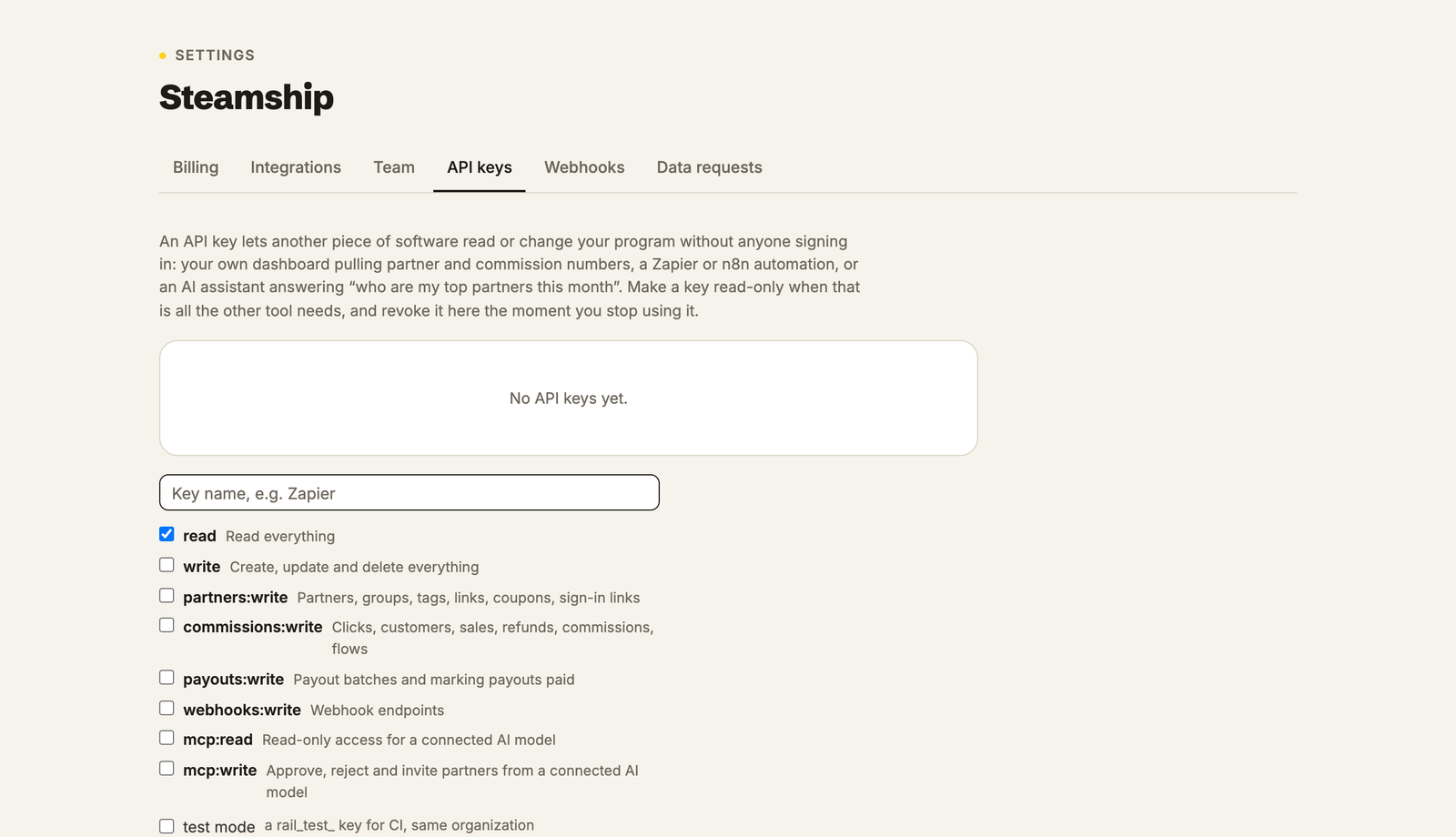
**Paste a key into the browser.** If the Allow screen can't sign you in, for instance in an
embedded browser that won't keep a session, open `https://mcp.affiliaterail.com/oauth/authorize/key`
with the same connection parameters and paste a key there instead. It reaches the same place. Use
it when the front door won't open, not as a habit.
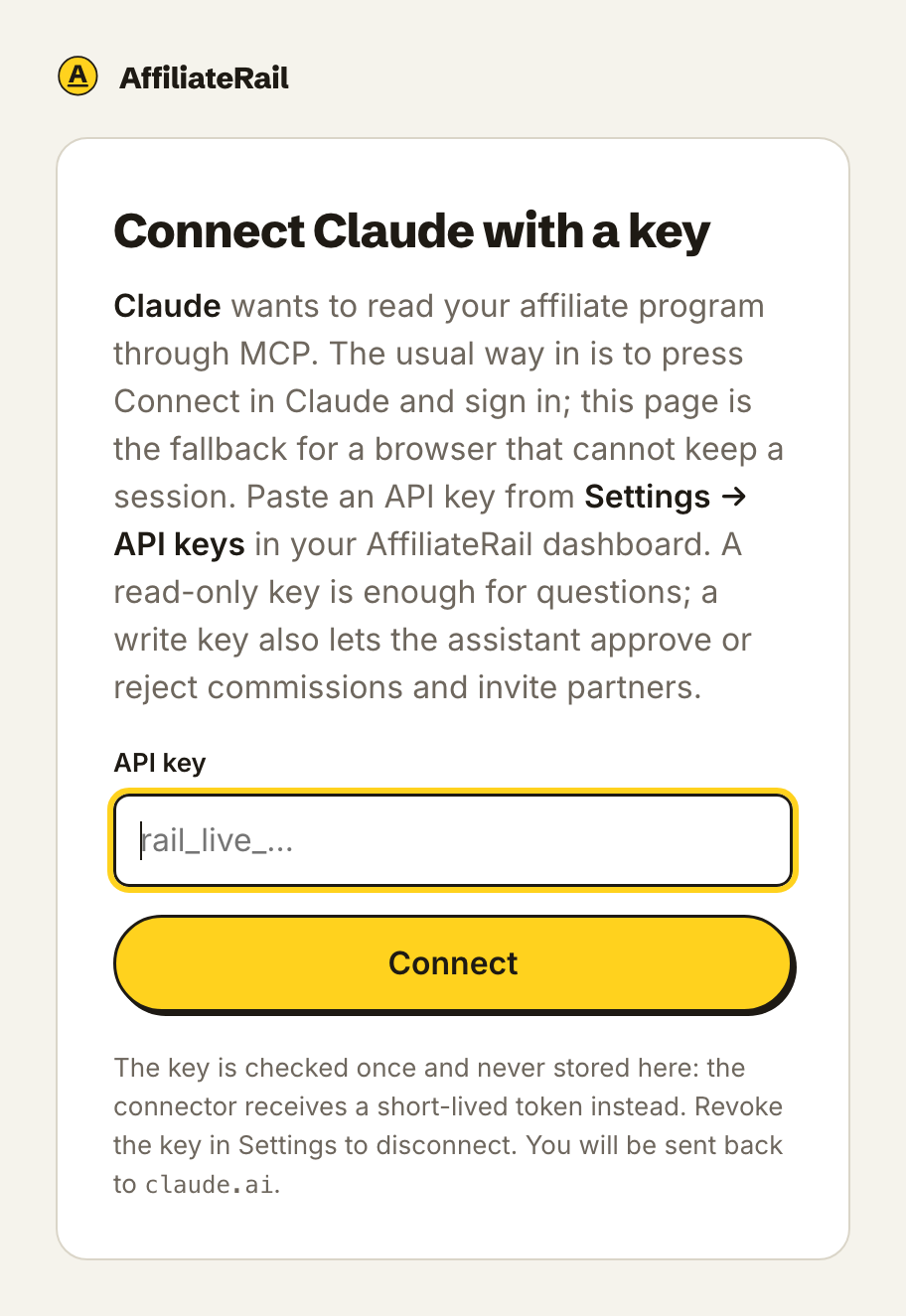
## For developers
- Endpoint: `POST https://mcp.affiliaterail.com/mcp`, streamable HTTP, stateless, JSON responses.
- Discovery: `/.well-known/oauth-protected-resource` and `/.well-known/oauth-authorization-server`.
- OAuth 2.1, public clients, PKCE S256 required, `authorization_code` and `refresh_token` grants.
Access tokens last one hour, refresh tokens thirty days; both are bound to the credential behind
the connection and die with it.
- Client registration, either way: a Client ID Metadata Document (send an `https` URL as
`client_id`; the document must name itself by that URL and list its redirect URIs, and the
Allow screen shows its hostname), or dynamic registration at `/oauth/register`. Redirects are
https, or loopback (`localhost`, `127.0.0.1`, `[::1]`); a loopback redirect registered without a
port accepts any port.
- Every redirect back to the client carries `iss` (RFC 9207).
- `POST /oauth/revoke` (RFC 7009) ends a connection: revoking its access or refresh token revokes
the credential behind it. Always answers 200.
- `/oauth/authorize` sends the browser to the merchant dashboard to ask the question and takes the
answer back. Every endpoint in the metadata stays on `mcp.affiliaterail.com`, so a client never
sees that trip and never has to follow an issuer across origins.
- `resource` (RFC 8707) is honoured: send `https://mcp.affiliaterail.com/mcp` and the tokens you
get back are bound to it and refused anywhere else. Sending none is fine and binds nothing.
- Scopes: `mcp:read`, `mcp:write`. Allow mints exactly these; a key you made yourself with the
broader `read` / `write` scopes is accepted too.
- A 401 carries `WWW-Authenticate: Bearer … scope="mcp:read mcp:write", resource_metadata="…"`
(RFC 9728), with no `error` when no token was sent (RFC 6750), so any MCP client that implements
the authorization spec finds the flow on its own.
- Write tools take `confirm` and `preview_token`. The unconfirmed call returns the card and a
token bound to the tool, its arguments, the program and the connection, valid fifteen minutes;
the confirmed call needs it.
Source: https://docs.affiliaterail.com/mcp/setup
---
# The AffiliateRail skill
A Claude skill for running an affiliate program: expert answers on its own, live answers about your program when connected.
A **skill** is a set of instructions and reference files that Claude loads when a topic matches.
The AffiliateRail skill teaches Claude how to run a SaaS affiliate program well. It covers:
- commission design, worked from your own margins
- the terms to write before launch
- recruiting and activation
- fraud, and the polite no
- reading the numbers honestly
- the payout mechanics: tax forms, the reporting thresholds, VAT and partner invoices
- clawbacks, which is money you take back after you've already paid it
- why a 200 from a payout API isn't a payment
**Download:** [`affiliaterail-skill-latest.zip`](https://docs.affiliaterail.com/skill/affiliaterail-skill-latest.zip)
The stable address always serves the current version. The versioned file beside it (currently
[`affiliaterail-skill-v1.1.3.zip`](https://docs.affiliaterail.com/skill/affiliaterail-skill-v1.1.3.zip))
never changes once published, so you can pin one if you prefer.
## It has two modes, and picks one itself
- **Not connected:** a competent advisor. Ask it anything about running a program. It answers
from its reference files, including the tax-form and payout material grounded in professional
advice. It always notes that this is general information and isn't tax advice.
- **Connected to AffiliateRail** (via [the MCP server](/mcp/setup)): an operator. "Who went
quiet?", "who should I pay this month?" and "is my program healthy?" become live answers built
from [the tools](/mcp/tools). It has one hard rule: it never states a number about your program
that didn't come from a tool call.
It detects the connection from the tools available in the conversation. You never have to tell it
which mode it's in.
## What it won't do
It never calls a write tool without showing you the server's confirmation card and getting your
agreement first. It can change the settings and rules you confirm. It can't move money, however
hard it's asked, because payouts aren't on the MCP surface at all. AffiliateRail never holds funds.
## Installing
1. Download the zip above and unzip it. You get one folder, `affiliaterail-affiliate-programs`.
2. **Claude Code:** put the folder in `.claude/skills/` in your project. For every project, use
`~/.claude/skills/`.
3. **Claude apps and claude.ai:** upload the zip under **Settings**, **Capabilities**,
**Skills**, wherever your plan offers skill uploads.
4. Ask an affiliate question. The skill loads itself when the topic matches, so there's nothing to
invoke.
For live answers, also [connect the MCP server](/mcp/setup). The skill works without it, and it's
better with it.
## Updates
The version lives in the skill's own metadata and in the filename. To update, download
`affiliaterail-skill-latest.zip` again and replace the folder. There's nothing else to migrate.
Changes ship with the product. Our test suite pins the skill's tool knowledge to the server, so if
a tool changes, the skill and this page change in the same release.
Source: https://docs.affiliaterail.com/mcp/skill
---
# Tool reference
Every tool and resource the MCP server exposes, with inputs, defaults and what comes back.
Every AffiliateRail tool takes an optional `program_id` (`prg_…`). Leave it out and the tool uses your organization's first program. The `program://current` resource lists the rest, so "in the Acme program" in a prompt is enough for the assistant to pass the right id. Errors come back as readable messages the assistant can act on.
## Setup tools
These are for an agent setting a program up. Ask your agent to "set up my affiliate program" and it starts with `setup_guide`. Then it works through each step the guide names. These tools only read, so your agent can run them without asking you first.
### setup_guide
The setup steps from the Getting started page. It says which are done, the next one to do, and the tool to call for each. Your agent calls it again after every step until `complete` is true. It also says if the demo data is still in your program.
| Input | Type | Default |
| --- | --- | --- |
| `program_id` | `prg_…` | your first program |
### payment_connection_status
Whether Stripe or Paddle is connected, so your sales reach AffiliateRail. If neither is, it returns a link for you to open while signed in. Your agent can't connect Stripe for you: Stripe asks you to approve it yourself.
| Input | Type | Default |
| --- | --- | --- |
| `program_id` | `prg_…` | your first program |
### get_install_instructions
The exact tracking tag for your program, and where it goes in each kind of site (Next.js, React, WordPress, Webflow and others). It also says what the payment step needs for the processor you use. It's the same tag Settings shows you.
| Input | Type | Default |
| --- | --- | --- |
| `program_id` | `prg_…` | your first program |
### check_install
Opens your live page and says whether your program's tag is on it. It also says whether a real visit through a partner link has arrived. It never records a click itself. The step is done once one real visit arrives.
| Input | Type | Default |
| --- | --- | --- |
| `url` | a page on your site, with `https://` | your program's website |
| `program_id` | `prg_…` | your first program |
### search_docs
Searches this documentation and returns the matching sections, each with a link to the heading. Your agent uses it to look up how something works instead of guessing. For example: installing the tag, Stripe and Paddle, attribution, payouts or the API.
| Input | Type | Default |
| --- | --- | --- |
| `query` | the words to look for | required |
| `limit` | integer 1 to 10 | 5 |
## Read tools
Available to every connection.
### top_partners
Rank partners by the revenue they brought in over a period. Each row has commissions earned and customers referred.
| Input | Type | Default |
| --- | --- | --- |
| `period` | `7d`, `30d`, `90d`, `ytd`, `all` | `30d` |
| `limit` | integer 1 to 50 | 10 |
### pending_commissions
Commissions waiting for approval, oldest first, optionally only those at or above an amount.
| Input | Type | Default |
| --- | --- | --- |
| `min_amount_minor` | integer, minor units | 0 |
| `limit` | integer 1 to 100 | 25 |
### idle_partners
Active partners with no clicks and no sales in the last N days, the longest idle first.
| Input | Type | Default |
| --- | --- | --- |
| `days` | integer 1 to 365 | 30 |
| `limit` | integer 1 to 100 | 25 |
### revenue_by_period
Revenue, sales, commissions and new customers that partners brought in. They're grouped by day, week or month, oldest first.
| Input | Type | Default |
| --- | --- | --- |
| `granularity` | `day`, `week`, `month` | `month` |
| `periods` | integer 1 to 90, buckets back from now | 12 |
### partner_detail
Everything about one partner: status, group, balances, lifetime revenue, recent commissions.
| Input | Type | Notes |
| --- | --- | --- |
| `handle_or_email` | string | The partner's handle (their `?ref=` value) or email address |
### payout_status
Payouts by status, with every failed or not-eligible payout and its reason.
| Input | Type | Default |
| --- | --- | --- |
| `period` | `this_month`, `last_month`, `all` | `this_month` |
### rules_summary
The program's commission rules in priority order. Each shows its scope, default rate, approval mode, branch count and what it has produced. No inputs beyond `program_id`.
### recent_referrals
The latest referred visits, newest first. Each has the partner, status (visit, lead, converted) and landing page.
| Input | Type | Default |
| --- | --- | --- |
| `limit` | integer 1 to 100 | 20 |
### list_partners
Search partners by name, handle or email, optionally one status, newest first. A blank search lists everyone up to the limit.
| Input | Type | Default |
| --- | --- | --- |
| `query` | string, name, handle or email fragment | none |
| `status` | `pending`, `active`, `declined`, `suspended` | all |
| `limit` | integer 1 to 100 | 25 |
### list_customers
Search customers by email, name or identifier, optionally one status, newest first. Each row carries the partner who referred them. It's empty when the sale arrived direct.
| Input | Type | Default |
| --- | --- | --- |
| `query` | string, email, name or identifier fragment | none |
| `status` | `lead`, `trial`, `active`, `cancelled`, `refunded`, `suspended` | all |
| `limit` | integer 1 to 100 | 25 |
### list_commissions
Commissions in any status, newest first, with totals for the filter. For the approval queue, use `pending_commissions`, which orders oldest first.
| Input | Type | Default |
| --- | --- | --- |
| `status` | `pending`, `approved`, `due`, `paid`, `rejected`, `voided` | all |
| `partner_handle` | string, only this partner's commissions | all partners |
| `limit` | integer 1 to 100 | 25 |
### list_applications
Who's waiting for review and why, oldest first. You get their answers, where they came from, and any safeguard holds written out in words.
| Input | Type | Default |
| --- | --- | --- |
| `limit` | integer 1 to 100 | 25 |
### report
The dashboard's own report engine. It covers clicks, leads, customers, sales, refunds, revenue and commissions, cut six ways over a date range. Rows keyed `direct` are money that arrived without a partner. The totals include them, which is why they match the dashboard headline. Filtering by partner, group or tag leaves direct money out, because those filters mean "this slice of the partner program".
| Input | Type | Default |
| --- | --- | --- |
| `dimension` | `partner`, `link`, `product`, `group`, `tag`, `period` | `partner` |
| `from` | ISO date, inclusive | twelve months back |
| `to` | ISO date, inclusive | now |
| `granularity` | `day`, `week`, `month`, for the `period` dimension | `month` |
### list_risk_flags
Fraud signals with their evidence, highest severity first, such as self-referrals and refund spikes. History stays readable on every plan. New flags come from the risk checks.
| Input | Type | Default |
| --- | --- | --- |
| `status` | `open`, `reviewing`, `resolved`, `dismissed` | all |
| `limit` | integer 1 to 100 | 25 |
### list_resources
The resources shelf partners see. It lists files and links in their folders, with who can see each and whether it's published. No inputs beyond `program_id`.
### messaging_status
Every campaign with its delivery stats, and every sequence with its enrolment counts. You can see at a glance what's sending, paused or done. No inputs beyond `program_id`.
### schema_introspect
Field definitions for every object on this surface: fields, types, enums and which tools touch each object. They're generated from the same source as [the REST API's OpenAPI document](/api). The assistant uses it to build calls from real field names instead of guessing. Takes no `program_id`, because the definitions are the same for everyone.
| Input | Type | Default |
| --- | --- | --- |
| `object` | string, an object name such as `commission` or `risk_flag` | none; lists all objects |
## Write tools
These are registered only when the connection carries a write scope, and the scope is checked again on every call. Keep them on "needs approval" in your assistant's tool permissions, so you confirm each change before it happens.
Every write tool also takes `confirm`, default false, and `preview_token`. Called without `confirm: true`, the server applies nothing and returns a confirmation card instead. The card shows ids resolved to the names you recognise, amounts formatted from the stored values, and a field-level list of exactly what would change. For example: "Approve com_x93: $42.00 USD to Maria Alvarez, matured 28 Aug". The assistant shows you that card. It only repeats the call with `confirm: true` once you agree.
The card carries a `preview_token`, and the confirmed call has to send it back. Without the token, nothing changes. A confirm without it, or with a token from a different change, is refused. The card comes back. Tokens last fifteen minutes. Each one only works for the same arguments, the same program and the same connection.
The card is also a rehearsal: the real change runs and is rolled back, so anything it would be refused for (your plan's limit, a value the settings page wouldn't accept, a name that's taken) shows up on the card. You're never asked to agree to something that can't happen.
### update_program_settings
Changes how your program runs. Only the settings you pass change. Each one follows the same rules as the settings page. For example, tax forms need the Scale plan, and countries are two-letter codes. A value the settings page would refuse is refused on the card, before you're asked to agree.
| Input | Type | Default |
| --- | --- | --- |
| `name`, `product_name` | text | unchanged |
| `website_url`, `terms_url` | a URL (`terms_url` takes `null` to remove it) | unchanged |
| `status` | `active`, `paused` | unchanged |
| `cookie_days` | integer 1 to 365 | unchanged |
| `url_params` | list of parameter names, the first is the default | unchanged |
| `holding_period_days` | integer 0 to 365 | unchanged |
| `min_payout_minor` | integer, minor units (5000 is 50.00) | unchanged |
| `payout_term` | `net_15`, `net_30`, `net_60` | unchanged |
| `commission_on_net_revenue`, `block_self_referrals`, `require_tax_forms` | true or false | unchanged |
| `blocked_countries` | list of two-letter country codes | unchanged |
### update_branding
Sets the logo and colours partners see when they sign in to your portal.
| Input | Type | Default |
| --- | --- | --- |
| `logo_url` | a public `https` image URL, or `null` to remove it | unchanged |
| `background_color`, `button_color`, `text_color` | six-digit hex, like `#FF5A36` | unchanged |
### remove_sample_data
Programs start with demo partners, sales and commissions, so the dashboard isn't empty on day one. This removes them, and only them. Every row it touches has an id starting `sample_`. The card counts what will go. Do it before you invite real partners. No inputs beyond `program_id`.
### create_commission_rule
Adds a rule that pays partners. It's a percentage or a fixed amount, on every payment or only on a customer's first. It can apply to everyone, one group or one partner. The card says the rule in plain words, like "30% on every payment, for partners in the group Agencies". It also checks your plan's rule limit before you're asked. A rule for one partner doesn't count toward the limit. Tier ladders, where the rate rises with a partner's results, are built on the Commission rules page.
| Input | Type | Default |
| --- | --- | --- |
| `name` | text | required |
| `rate_type` | `percent`, `fixed` | `percent` |
| `rate_value` | integer: basis points for percent (2000 is 20%), minor units for fixed (5000 is 50.00) | required |
| `first_payment_only` | true or false | false |
| `group` | a group's name or slug | everyone |
| `partner_handle` | a partner's handle | everyone |
| `approval_mode` | `immediate`, `after_days`, `manual` | `immediate` |
| `approval_delay_days` | integer, with `after_days` | none |
### update_commission_rule
Changes a rule's name, rate or approval, by id (`rules_summary` lists them). A changed rate applies to new sales only. Commissions already made keep their rate. On a rule with tiers, it changes only the rate used when no tier matches, and the card says so.
| Input | Type | Default |
| --- | --- | --- |
| `rule_id` | `flw_…` | required |
| `name`, `rate_type`, `rate_value`, `approval_mode`, `approval_delay_days` | as for `create_commission_rule` | unchanged |
### set_rule_status
Pauses a rule so it stops paying on new sales, or resumes it. There's no tool to delete a rule. Pausing keeps the rule and its history.
| Input | Type | Default |
| --- | --- | --- |
| `rule_id` | `flw_…` | required |
| `status` | `active`, `inactive` | required |
### create_group
Adds a group of partners, like Creators or Agencies, with its own signup link. The card shows the link. To give the group its own rate, follow up with `create_commission_rule` and `group` set to its name.
| Input | Type | Default |
| --- | --- | --- |
| `name` | text; the signup link is made from it and never changes | required |
| `landing_url` | where this group's links send visitors | your website |
| `description` | a line about who the group is for | none |
### update_group
Renames a group, changes where its links land, or makes it the default group for new partners. Renaming never changes the signup link, so links you've already shared keep working.
| Input | Type | Default |
| --- | --- | --- |
| `group` | the group's current name or slug | required |
| `name`, `landing_url`, `description` | as for `create_group`, `null` clears the last two | unchanged |
| `make_default` | true or false | unchanged |
### create_partner_link
Makes a tracked link for one partner to a particular page on your site, like your pricing page. Every partner already has a link to your homepage. The card shows the full link.
| Input | Type | Default |
| --- | --- | --- |
| `partner_handle` | the partner's handle | required |
| `destination_url` | a page on your website, with `https://` | required |
| `value` | the tracking value in the link | the partner's handle |
| `label` | a name the partner sees, like YouTube | none |
### create_coupon
Credits a partner with every sale that uses a coupon code, with no link needed. It suits podcasts and video, where nobody clicks. The code has to exist in Stripe or Paddle too. For Stripe, pass the promotion code's id, which starts `promo_`. Stripe sales are matched by that id, and the card warns you if it's missing.
| Input | Type | Default |
| --- | --- | --- |
| `partner_handle` | the partner's handle | required |
| `code` | the code customers type, spelled exactly as in your processor | required |
| `stripe_promotion_code_id` | `promo_…` | none |
### approve_commission
Approve one pending commission by id. It becomes due for payout once its holding period has run.
| Input | Type | Notes |
| --- | --- | --- |
| `commission_id` | string | `com_…` |
### reject_commission
Reject one unpaid commission by id, with a reason the partner will see. The money is returned to the program.
| Input | Type | Notes |
| --- | --- | --- |
| `commission_id` | string | `com_…` |
| `reason` | string, 1 to 500 chars | Shown to the partner |
### invite_partner
Invite someone by email as a pending partner, optionally into a named group. They still go through the review queue.
| Input | Type | Notes |
| --- | --- | --- |
| `email` | string | Required |
| `group` | string | Group name or slug; leave out for none |
| `name` | string | If known |
### approve_application
Approve a pending application by id (`list_applications` has the queue). The partner goes active, their links go live, and they're told by email.
| Input | Type | Notes |
| --- | --- | --- |
| `application_id` | string | `app_…` |
### reject_application
Decline a pending application. The applicant reads the reason word for word. Leave it out and the program's default sentence is used instead.
| Input | Type | Notes |
| --- | --- | --- |
| `application_id` | string | `app_…` |
| `reason` | string, up to 1000 chars | Optional; shown to the applicant |
### resolve_risk_flag
Close one open or reviewing flag. Mark it resolved (you acted on it) or dismissed (false alarm). The note is required, because it's the audit trail.
| Input | Type | Notes |
| --- | --- | --- |
| `risk_flag_id` | string | `rsk_…` |
| `status` | `resolved` or `dismissed` | Default `resolved` |
| `note` | string, 1 to 1000 chars | What you found |
### create_resource_link
Put a link on the partners' resources shelf. Files are uploaded in the dashboard, so this tool mints links only.
| Input | Type | Notes |
| --- | --- | --- |
| `title` | string, 1 to 120 chars | Required |
| `url` | string | The http(s) address the shelf links to |
| `folder` | string, up to 60 chars | Leave out for the top level |
| `publish` | boolean | Default true |
### update_resource
Rename a resource, move it to a folder, repoint a link, or publish and unpublish it. `list_resources` has the ids. Only the fields you send change.
| Input | Type | Notes |
| --- | --- | --- |
| `resource_id` | string | `res_…` |
| `title` | string, 1 to 120 chars | Optional |
| `url` | string | Optional, links only |
| `folder` | string or null | Optional; null moves it to the top level |
| `published` | boolean | Optional |
### delete_resource
Take one resource off the shelf for good. A file's stored blob goes with it.
| Input | Type | Notes |
| --- | --- | --- |
| `resource_id` | string | `res_…` |
### send_campaign
Send a draft or paused campaign now, to the audience already saved on it. This is real email to real partners, and it can't be recalled. So the tool is marked destructive, and its card names the campaign and the audience before anything is sent.
| Input | Type | Notes |
| --- | --- | --- |
| `campaign_id` | string | `camp_…`; `messaging_status` has the list |
### pause_sequence
Stop a sequence sending. Nobody is dropped: resuming carries each partner on from the step they were on.
| Input | Type | Notes |
| --- | --- | --- |
| `sequence_id` | string | `seq_…` |
### resume_sequence
Turn a paused sequence back on.
| Input | Type | Notes |
| --- | --- | --- |
| `sequence_id` | string | `seq_…` |
Every confirmed write returns a confirmation payload: what changed, from what to what, with formatted amounts. It lands in your audit log with the connection that made it. See [Security](/mcp/security).
## RecruitAffiliates.ai tools
These are for [RecruitAffiliates.ai](/finder), our second product, which finds new affiliates for you. They work on the same connection, and their names start with `finder_`. They don't take a `program_id`: they act on your RecruitAffiliates.ai account, even if you haven't made an AffiliateRail program yet.
- `finder_list` only reads, so any connection has it.
- The other six need a write scope, like every write tool above.
- Each write shows a card first and changes nothing until you agree. The card says what it costs and how many credits you have left.
- No `finder_` tool drafts or sends a message. Outreach stays with you, in RecruitAffiliates.ai.
- Every `finder_` tool takes an optional `brand`, and every card and answer names the brand it is about. A row from a different brand than the one you name is refused.
A **credit** is one paid lookup: a search credit starts one search, and an email credit finds one address. [Credits](/finder/credits) has what each plan includes.
### finder_list
Your affiliates, best match first. Each row says why it's there ("Strong match, score 82 of 100, found by your topic search"), shows up to three pieces of evidence, and counts the replies they've sent you. A saved website also carries `website_facts`: the pages read, social profiles, a newsletter, and traffic countries and keywords when there are any. Names and page titles come from other people's sites, so they arrive marked as `untrusted_text`.
| Input | Type | Default |
| --- | --- | --- |
| `view` | `discover`, `saved` or `hidden` | `discover` |
| `channel` | `website` or `youtube` | both |
| `search` | a name, domain or handle | none |
| `limit` | 1 to 50 | 20 |
| `offset` | a number | 0 |
| `brand` | a domain, name or brand id | your oldest brand |
On a trial, Discover shows your best 50 matches, the same as the screen.
### finder_search
Start a search from one seed. It costs one search credit. If the search can't start, or finishes without finding anything new, the credit comes straight back. The search runs in the background: call `finder_list` a few minutes later to see what it found.
| Input | Type | Notes |
| --- | --- | --- |
| `type` | `topic`, `competitor` or `lookalike` | what the seed is |
| `seed` | string | a topic like "email marketing software", a competitor's site or @handle, or a YouTube channel |
| `country` | two letters, like `GB` | topic searches only |
| `brand` | a domain, name or brand id | optional; leave out for your oldest brand |
### finder_clone_profile
Step one of [Clone your best affiliates](/finder/discover#clone-your-best-affiliates). Give it one to ten creators you already rate, and it says what they have in common: topics, audience, formats, brands they promote, size and hashtags. It's free and nothing is charged. Show the profile to the user, let them edit it, then pass it to `finder_clone_search`. While clone search is switched off, both clone tools are left out of the tool list.
| Input | Type | Notes |
| --- | --- | --- |
| `seeds` | list of links | a website, YouTube channel, Instagram or TikTok profile, newsletter or podcast. A bare `@name` is refused, because it could be anyone on three platforms. Three to seven works best |
| `prospect_ids` | list of row ids | optional; pick creators from your own rows instead, ids from `finder_list`. Ten creators at most, pasted and picked together |
| `brand` | a domain, name or brand id | optional; leave out for your oldest brand |
The answer lists the creators it read, the lines it couldn't use (`not_used`), any creators it couldn't read (`unread`), the `profile` and `searchable`. If `searchable` is false, the profile has no topic, brand or hashtag, so a search would find nothing: add one first.
### finder_clone_search
Step two. Finds creators like the ones you gave, on the profile you give it. It costs one search credit, and the credit comes back if the search can't start. The card shows the creators, the whole profile, the cost and your balance before anything is spent. The search runs in the background: call `finder_list` a few minutes later.
| Input | Type | Notes |
| --- | --- | --- |
| `seeds` | list of links | the same creators you gave `finder_clone_profile` |
| `prospect_ids` | list of row ids | optional, as above |
| `profile` | object | the profile from `finder_clone_profile`, edited or not: `topics`, `audience`, `formats`, `brands`, `size_band`, `language` and `hashtags`. It needs at least one topic, brand or hashtag |
| `country` | two letters, like `GB` | required |
| `brand` | a domain, name or brand id | optional; leave out for your oldest brand |
### finder_save
Save up to 25 rows. It's free. Each saved row gets a deal from your default offer, the same as pressing Save.
| Input | Type | Notes |
| --- | --- | --- |
| `ids` | list of row ids | from `finder_list` |
| `brand` | a domain, name or brand id | optional; leave out for your oldest brand |
### finder_reveal
Find one saved row's email address. It costs one email credit, and only when a usable address comes back. If nothing is found, the credit is refunded. A row you've already revealed costs nothing.
| Input | Type | Notes |
| --- | --- | --- |
| `id` | row id | save the row first |
| `brand` | a domain, name or brand id | optional; leave out for your oldest brand |
### finder_deal
Read a saved row's deal: the terms in words, every version you've offered, and the verdict. Pass `terms` to offer new terms, which become the next version. It never marks terms agreed and never turns anyone into a partner. You do both in RecruitAffiliates.ai.
| Input | Type | Notes |
| --- | --- | --- |
| `id` | row id | a saved row |
| `brand` | a domain, name or brand id | optional; leave out for your oldest brand |
| `terms` | object | leave out to read; the same shape as your offer: `rate` (percent in basis points, where 2000 is 20%, or a fixed amount in minor units), `duration` and up to 5 `tiers` |
## Resources
### program://current
Your default program's settings, plan, and partner and commission counts. It also lists every other program on the organization, with its id, currency and portal address. Assistants are told to read this first when they need to know which program, currency or plan they're looking at.
### catalog://events
The webhook event catalogue. It lists every event the platform emits, grouped by family, with a description and an example payload. It's the same content as [the webhooks guide](/api/webhooks), shaped for a model.
Source: https://docs.affiliaterail.com/mcp/tools
---
# Server-side attribution
Attribute sales without Stripe Checkout: read the referral cookie and pass one metadata field.
Three lines of server code attribute a sale for a merchant who never uses Stripe Checkout.
The tracking script stores the referral in a cookie called `rail_referral` on your registrable
domain (`acme.com`, so `app.acme.com` and `www.acme.com` both see it). The cookie's value is a
JSON object; the field you need is `clickId`. Pass that click id to Stripe as
`metadata.rail_referral` when you create the customer, the subscription, or the checkout
session, and we bind the customer to the partner when Stripe tells us about it.
We read it from four events, in whichever order they arrive:
| Stripe object | Event we bind on | Where to put it |
| --- | --- | --- |
| Customer | `customer.created` | `metadata.rail_referral` |
| Subscription | `customer.subscription.created` | `metadata.rail_referral` |
| Checkout Session | `checkout.session.completed` | `metadata.rail_referral` or `client_reference_id` |
| Payment Link, Pricing Table, Buy Button | `checkout.session.completed` | nothing: the script stamps `client_reference_id` for you |
Binding is idempotent on the Stripe customer id. The first event that carries a click id wins;
a later one for the same customer changes nothing. A click id from another program, or one we
never issued, binds nothing, and the sale shows on the attribution health panel with that reason.
Pick your stack:
- [Node (Express or any handler that sees the request)](/api/attribution/node)
- [Next.js App Router (a server action)](/api/attribution/nextjs)
- [Python (Flask, Django, FastAPI: anything with a request object)](/api/attribution/python)
## Reading the cookie by hand
If your framework is not listed, the rule is the same everywhere: URL-decode the cookie, parse
the JSON, take `clickId`. The value is null when the visitor arrived without a partner link, and
you should create the customer without the metadata in that case rather than sending an empty
string.
```text
rail_referral=%7B%22clickId%22%3A%22clk_01J...%22%2C%22partnerId%22%3A%22part_...%22%2C...%7D
```
## Checking that it works
Stripe test mode works the same way as live. Create a customer with the metadata, pay an
invoice, and the sale appears under Reports, on the Attribution tab, with the path shown as
"Metadata". If it appears under "Unattributed" instead, the row says what was missing.
Source: https://docs.affiliaterail.com/api/attribution
---
# Next.js
Attribute a Stripe customer from a server action with the App Router.
In a server action or a route handler, `cookies()` from `next/headers` gives you the cookie;
the rest is the same three lines.
```ts
"use server";
import { cookies } from "next/headers";
import Stripe from "stripe";
const stripe = new Stripe(process.env.STRIPE_SECRET_KEY!);
/** The click id from the `rail_referral` cookie, or null when the visitor had no referral. */
async function railReferral(): Promise {
const raw = (await cookies()).get("rail_referral")?.value;
if (!raw) return null;
try {
return (JSON.parse(decodeURIComponent(raw)) as { clickId?: string }).clickId ?? null;
} catch {
return null;
}
}
export async function startSubscription(formData: FormData) {
const clickId = await railReferral();
const customer = await stripe.customers.create({
email: String(formData.get("email")),
metadata: clickId ? { rail_referral: clickId } : {},
});
const subscription = await stripe.subscriptions.create({
customer: customer.id,
items: [{ price: process.env.STRIPE_PRICE_ID! }],
payment_behavior: "default_incomplete",
expand: ["latest_invoice.payment_intent"],
});
// Hand the client secret to Stripe Elements on the client; the sale is attributed when the
// invoice pays, because the customer carries the referral.
const invoice = subscription.latest_invoice as Stripe.Invoice & { payment_intent: Stripe.PaymentIntent };
return { clientSecret: invoice.payment_intent.client_secret };
}
```
The cookie is set on your registrable domain, so a marketing site on `www.acme.com` and an app
on `app.acme.com` share it without any handoff. If the app lives on a different registrable
domain (`getacme.io`), list it in the script tag's `data-domains` attribute on the marketing site
and the script carries the referral across in the link.
Source: https://docs.affiliaterail.com/api/attribution/nextjs
---
# Node
Read the referral cookie and attribute a Stripe customer from any Node handler.
Works with Express, Fastify, Hono, or a plain `http` handler: anything that gives you the
request's cookies. The three lines are the ones that read the cookie and pass the click id.
```js
import Stripe from "stripe";
const stripe = new Stripe(process.env.STRIPE_SECRET_KEY);
/** The click id from the `rail_referral` cookie, or null when the visitor had no referral. */
function railReferral(cookieHeader) {
const match = /(?:^|;\s*)rail_referral=([^;]*)/.exec(cookieHeader ?? "");
if (!match) return null;
try {
return JSON.parse(decodeURIComponent(match[1])).clickId ?? null;
} catch {
return null;
}
}
app.post("/signup", async (req, res) => {
const clickId = railReferral(req.headers.cookie);
const customer = await stripe.customers.create({
email: req.body.email,
metadata: clickId ? { rail_referral: clickId } : {},
});
// Elements, a PaymentIntent, a Subscription: whatever you create next for this customer is
// attributed, because the customer is. Nothing else to pass.
res.json({ customerId: customer.id });
});
```
If you create the subscription before the customer has the metadata (some flows create the
customer early, at account signup, and the referral arrives later), put it on the subscription
instead:
```js
await stripe.subscriptions.create({
customer: customer.id,
items: [{ price: priceId }],
metadata: clickId ? { rail_referral: clickId } : {},
});
```
Both work. Both are idempotent: the first one we see binds the customer, the second is ignored.
Source: https://docs.affiliaterail.com/api/attribution/node
---
# Python
Attribute a Stripe customer from Flask, Django or FastAPI.
Flask shown; Django (`request.COOKIES`) and FastAPI (`request.cookies`) differ only in where the
cookie dictionary lives.
```python
import json
import os
from urllib.parse import unquote
import stripe
from flask import Flask, jsonify, request
stripe.api_key = os.environ["STRIPE_SECRET_KEY"]
app = Flask(__name__)
def rail_referral(cookies) -> str | None:
"""The click id from the `rail_referral` cookie, or None when the visitor had no referral."""
raw = cookies.get("rail_referral")
if not raw:
return None
try:
return json.loads(unquote(raw)).get("clickId")
except (ValueError, AttributeError):
return None
@app.post("/signup")
def signup():
click_id = rail_referral(request.cookies)
customer = stripe.Customer.create(
email=request.json["email"],
metadata={"rail_referral": click_id} if click_id else {},
)
# Whatever you create next for this customer (a Subscription, a PaymentIntent for Elements)
# is attributed, because the customer is.
return jsonify(customer_id=customer.id)
```
Putting it on the subscription instead works the same way:
```python
stripe.Subscription.create(
customer=customer.id,
items=[{"price": PRICE_ID}],
metadata={"rail_referral": click_id} if click_id else {},
)
```
Source: https://docs.affiliaterail.com/api/attribution/python
---
# No-code recipes
Connect RecruitAffiliates.ai to Zapier, Make or n8n with the API, step by step, with the exact request settings.
You can hook RecruitAffiliates.ai up to the tools you already use without writing code. Each recipe below is a working setup built on [the API](/finder/api).
A new row in a Google Sheet starts a competitor search.
Every morning, send newly saved affiliates to your CRM.
Save your 10 best matches and put their emails in a sheet.
Prefer a ready-made app? [The Zapier app](/finder/zapier-app), [the Make app](/finder/make-app) and [the n8n node](/finder/n8n-node) wrap these same calls.
## Before you start
- You need a plan that includes the API.
- Make a test key first. Open **Settings** and go to the API tab. A test key only sees sample data. It never spends an email lookup or sends an email, so you can try a recipe as often as you like.
- Swap in a live key once the recipe does what you want.
Each recipe also has a webhook half. A **webhook** is a message we send your tool the moment something changes in RecruitAffiliates.ai, like a reply or a finished search. So the tool doesn't have to keep checking. Webhooks need a plan that includes them, and [Webhooks](/finder/webhooks) lists every event.
Source: https://docs.affiliaterail.com/finder/recipes
---
# Make: send saved affiliates to your CRM
Every morning, Make picks up the affiliates you saved in RecruitAffiliates.ai and adds each one to your CRM.
Save affiliates in RecruitAffiliates.ai as you find them. Every morning, Make copies the new ones into your CRM and tags them, so nobody gets added twice. A **CRM** is the tool where you track the people you're talking to, like HubSpot or Pipedrive.
This recipe only reads and tags. It never spends an email lookup.
## What you need
- A plan that includes the API, and a key with the `finder:write` scope. Writing a tag needs write.
- A Make account, and your CRM connected to Make.
## Build the scenario
1. In Make, create a scenario. Start it with the "HTTP" app and the module "Make a request".
2. Fill in the request:
| Setting | Value |
| --- | --- |
| URL | `https://api.affiliaterail.com/v1/finder/saved` |
| Method | `GET` |
| Query string | `view` = `saved`, `limit` = `100` |
| Header | `Authorization` = `Bearer rail_test_...` |
| Parse response | Yes |
3. Add an "Iterator" module. Map its array to `data` from the HTTP module. Each saved affiliate now runs through the rest of the scenario one at a time.
4. Add a filter after the iterator. Let a row through only when `tags` doesn't contain `in-crm`.
5. Add your CRM's "Create a contact" module. Map the affiliate's details across. The email is only there if you've found it.
6. Add a second "Make a request" module to tag the affiliate:
| Setting | Value |
| --- | --- |
| URL | `https://api.affiliaterail.com/v1/finder/prospects/{{id}}` |
| Method | `POST` |
| Headers | `Authorization` = `Bearer rail_test_...`, `Content-Type` = `application/json`, `Idempotency-Key` = `crm-{{id}}` |
| Body type | Raw, JSON |
| Request content | `{"tags": ["in-crm"]}` |
Use the `id` from the iterator in both places.
7. Set the schedule to once a day, at a time that suits you.
8. Press "Run once" in Make to test it with your test key. Then swap in a live key.
## Tags, not a memory
The `in-crm` tag is how the scenario remembers who it's already sent. You'll see it on each affiliate in the app too. Take the tag off and that person goes to your CRM again the next morning.
The tags you send replace the ones already there. If you use other tags, read `tags` from the iterator and send them back along with `in-crm`.
## More than 100 saved
One request returns up to 100 people. If the answer says `has_more` is true, you have more. Add a "Repeater" and call again with `cursor` set to `next_cursor` from the last answer, until `has_more` is false. [The API guide](/finder/api) explains how cursors work.
## If something goes wrong
- A `402` means your plan doesn't include the API.
- A `403` means the key only has `finder:read`. Make a key with `finder:write`.
- A `429` means you've hit the rate limit. Turn on "Allow storing of incomplete executions" in the scenario settings, and Make retries later.
## Get events the moment they happen
The scenario above checks on a schedule. A webhook tells Make the moment something happens instead, like a reply or a finished search. [Webhooks](/finder/webhooks) explains the events. You need a plan that includes webhooks.
1. Start a scenario. Add the "Webhooks" module, then "Custom webhook".
2. Add a webhook, name it, and copy the address Make gives you.
3. In RecruitAffiliates.ai, go to **Settings**, then the **Webhooks** tab. Add the address as an endpoint and pick your events.
4. Press **Send a test**. Make learns the shape of the body from it.
Keep the address private. Anyone who has it can post to your scenario. [Checking the signature](/finder/webhooks#check-the-signature) is what stops a fake.
## Ready-made scenarios
Two scenarios you can import as they are. In Make, create a scenario, press the three dots at the bottom, choose **Import Blueprint** and pick the file.
- [Interested reply to Slack](/finder/recipes/make-interested-reply-to-slack.blueprint.json): posts in Slack when someone replies with interest. That means a `reply.received` event whose `reply_kind` is `positive` or `question`.
- [New affiliate to a Google Sheet](/finder/recipes/make-signed-up-to-google-sheet.blueprint.json): adds a row when an invited affiliate signs up (`affiliate.signed_up`).
After you import one:
1. Open the webhook module and add a new webhook. Copy its address into the Webhooks tab.
2. Put a **Read only** key in place of `rail_live_REPLACE_WITH_A_READ_ONLY_KEY` in the module that gets the affiliate.
3. Put your Slack address in the last module, or connect Google and pick your sheet. The sheet needs columns for name, website, email, date and source, in that order.
Make passes the body on already parsed, so these scenarios can't check the signature. The webhook's address is long and random, and that's what keeps a stranger out. If you need the signature checked, use [the n8n version](/finder/recipes/n8n) or your own code.
Source: https://docs.affiliaterail.com/finder/recipes/make
---
# n8n: save your top 10 and collect their emails
An n8n workflow that saves your 10 best matches, finds each one's email and adds them to a Google Sheet.
Once a week, n8n takes your 10 best-fit matches from RecruitAffiliates.ai, saves them and finds their emails. Then it writes each one to a Google Sheet you can work from.
Finding an email uses one email lookup, and only when a usable address comes back. If we find nothing, the email lookup comes straight back. So this workflow can use up to 10 email lookups a run.
## What you need
- A plan that includes the API, and a key with the `finder:write` scope.
- n8n, on their cloud or your own server.
- A Google Sheet with columns for `Name`, `Website` and `Email`.
## Store the key once
1. In n8n, create a credential of the type "Header Auth".
2. Set the name to `Authorization` and the value to `Bearer rail_test_...`.
Every HTTP Request node below uses this credential. Your key then lives in one place, not in every node.
## Build the workflow
1. Add a "Schedule Trigger" node. Set it to once a week.
2. Add an "HTTP Request" node to get your best matches:
| Setting | Value |
| --- | --- |
| Method | `GET` |
| URL | `https://api.affiliaterail.com/v1/finder/prospects` |
| Authentication | Generic, Header Auth, your credential |
| Query parameters | `sort` = `fit`, `limit` = `10` |
3. Add a "Split Out" node on the field `data`. Each match becomes its own item.
4. Add an "HTTP Request" node to save them all in one call. Set it to run once for all items (in its settings, "Execute Once"):
| Setting | Value |
| --- | --- |
| Method | `POST` |
| URL | `https://api.affiliaterail.com/v1/finder/prospects/save` |
| Send body | JSON, `{"ids": {{ JSON.stringify($('Split Out').all().map(i => i.json.id)) }} }` |
| Header | `Idempotency-Key` = `save-{{ $execution.id }}` |
5. Add an "HTTP Request" node to find each email. This one runs once per item:
| Setting | Value |
| --- | --- |
| Method | `POST` |
| URL | `https://api.affiliaterail.com/v1/finder/prospects/{{ $('Split Out').item.json.id }}/reveal_email` |
| Header | `Idempotency-Key` = `reveal-{{ $execution.id }}-{{ $('Split Out').item.json.id }}` |
6. In that node's settings, turn on "Retry On Fail" and set "Wait Between Tries" to 2000 milliseconds.
7. Add a "Google Sheets" node with the operation "Append Row". Map the name and website from the Split Out node and the email from the find.
8. Run the first node by hand with your test key to check the matches come back. A test key can't save, because saving records an event that reaches your live webhooks, so swap in a live key for a full run. Check the sheet, then turn it on.
## Why the keys look like that
An **idempotency key** is a unique string you send so a retried request never runs twice. Each key here joins the run's id with the match's id. When n8n retries an email find, it sends the same key, so you're never charged twice for the same email. Next week's run has a new run id, so it gets fresh keys.
## If something goes wrong
- A `402` means your plan doesn't include the API.
- A `429` means you've hit the rate limit. The retry setting in step 6 handles it.
- An email find that finds nothing still succeeds. The email is empty and the email lookup comes back. Add an "If" node before the sheet to skip those rows.
Keys, errors, limits and every endpoint are in [the API guide](/finder/api).
## Get events the moment they happen
The workflow above runs when you start it. A webhook starts one for you the moment something happens, like a reply or a finished search. [Webhooks](/finder/webhooks) explains the events. You need a plan that includes webhooks.
1. Add a "Webhook" node. Set the method to `POST`.
2. Copy its production URL. The test URL only works while the editor is listening.
3. In RecruitAffiliates.ai, go to **Settings**, then the **Webhooks** tab. Add the URL as an endpoint and pick your events.
4. Turn on the node's "Raw Body" option if you want to [check the signature](/finder/webhooks#check-the-signature) in a Code node.
5. Activate the workflow, then press **Send a test**.
Keep the URL private. Anyone who has it can post to your workflow. Checking the signature is what stops a fake.
## Ready-made workflows
Two workflows you can import as they are. In n8n, open a new workflow, press the three dots, choose **Import from File** and pick the file.
- [Interested reply to Slack](/finder/recipes/n8n-interested-reply-to-slack.json): posts in Slack when someone replies with interest. That means a `reply.received` event whose `reply_kind` is `positive` or `question`.
- [New affiliate to a Google Sheet](/finder/recipes/n8n-signed-up-to-google-sheet.json): adds a row when an invited affiliate signs up (`affiliate.signed_up`).
Each one checks the signature for you. It works the HMAC out with n8n's Crypto node and only lets through a message that's real and less than five minutes old. Then it fetches the affiliate's name and website from the API.
Before you turn one on, replace each `REPLACE` placeholder:
1. `whsec_REPLACE_WITH_YOUR_SIGNING_SECRET` in "Work out the signature": the secret from the Webhooks tab.
2. `rail_live_REPLACE_WITH_A_READ_ONLY_KEY` in "Get the affiliate": a **Read only** key from the API tab.
3. The Slack address, or the sheet's link, in the last node. The sheet needs the columns `Name`, `Website`, `Email`, `Signed up` and `How we know`.
Source: https://docs.affiliaterail.com/finder/recipes/n8n
---
# Zapier: start a search from a Google Sheet
Add a competitor's website to a sheet and RecruitAffiliates.ai starts a search for their affiliates.
Keep a Google Sheet of competitors. Each time you add a row, Zapier starts a competitor search in RecruitAffiliates.ai. A **competitor search** finds the people who already promote a competitor product.
Each search uses one search. If it can't start, the email lookup comes back.
## What you need
- A plan that includes the API, and a key with the `finder:write` scope.
- A Google Sheet with a column called `Domain`, like `example.com`.
- A Zapier account. The request step uses "Webhooks by Zapier", which needs a paid Zapier plan.
## Build the Zap
1. In Zapier, create a Zap. For the trigger, pick "Google Sheets" and the event "New Spreadsheet Row". Point it at your sheet.
2. Add an action. Pick "Webhooks by Zapier" and the event "Custom Request".
3. Fill in the request like this:
| Setting | Value |
| --- | --- |
| Method | `POST` |
| URL | `https://api.affiliaterail.com/v1/finder/searches` |
| Data pass-through | False |
| Data | `{"type": "competitor", "seed": "{{Domain}}"}` |
| Unflatten | Yes |
4. Add three headers:
| Header | Value |
| --- | --- |
| `Authorization` | `Bearer rail_test_...` |
| `Content-Type` | `application/json` |
| `Idempotency-Key` | `sheet-row-{{Row ID}}` |
In the Data box, replace `{{Domain}}` with the Domain field from the trigger. In the header, replace `{{Row ID}}` with the row's id from the trigger.
5. Test the step. With a test key you get back a search in the `queued` state, and nothing is spent.
6. Swap the test key for a live key and turn the Zap on.
## Why the row id is in the key
An **idempotency key** is a unique string you send so a retried request never runs twice. Zapier retries a step when it times out. Using the row's id means a retry of the same row reuses the same key. You get the first search back instead of paying for a second one.
## Check on the search
A search takes a while to run. To see how it's going, add a later step with "Custom Request":
- Method: `GET`
- URL: `https://api.affiliaterail.com/v1/finder/searches/{{id}}`, using the `id` from step 3's answer
- Header: `Authorization: Bearer rail_...`
The new matches show up in the app, and in `GET /prospects`, when it's done.
## If something goes wrong
- A `402` means your plan doesn't include the API.
- A `429` means you've hit the rate limit. Zapier waits and retries on its own.
- Anything else: read `error.message` in the Zap's run history. It says what to fix.
Every rule for keys, errors and limits is in [the API guide](/finder/api).
## Get events the moment they happen
The Zap above asks RecruitAffiliates.ai to do something. A webhook works the other way round: we tell Zapier the moment something happens, like a reply or a finished search. [Webhooks](/finder/webhooks) explains the events. You need a plan that includes webhooks.
1. Start a Zap. For the trigger, pick "Webhooks by Zapier", then "Catch Raw Hook".
2. Copy the webhook URL Zapier shows you.
3. In RecruitAffiliates.ai, go to **Settings**, then the **Webhooks** tab. Add the URL as an endpoint and pick your events.
4. Press **Send a test**, then press "Test trigger" in Zapier to pull it in.
"Catch Raw Hook" keeps the raw body and headers, so a Code step can [check the signature](/finder/webhooks#check-the-signature). "Catch Hook" reads the JSON for you, but then you can't check the signature.
Keep the URL private. Anyone who has it can post to your Zap. Checking the signature is what stops a fake.
Source: https://docs.affiliaterail.com/finder/recipes/zapier